

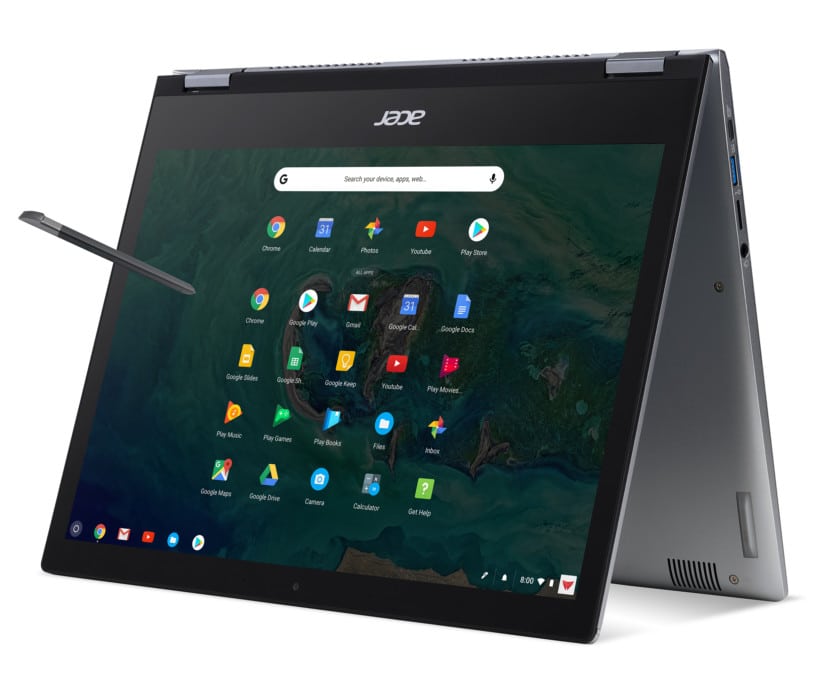
The best Android apps for Chromebook in 2024: Browsing the internet on any Chromebook offers a unique experience thanks to the ChromeOS operating system. The only downside is that Chromebooks can't download software as easily as Windows devices. However, this issue is mitigated by the Google Play Store - the primary source for games, apps, and extensions on Android.
The Play Store allows Chromebook users to access many of the best Android apps they are used to on their phones. Additionally, the advantage of having a larger screen means you'll enjoy a better experience with your favorite apps and games. However, not all apps are optimized for Chromebooks, so we've highlighted the apps that will enhance your ChromeOS experience.
Best Android Apps for Chromebook in 2024
1. VLC Media Player

Media players on computer operating systems are often poorly designed and unhelpful. VLC Media Player is one of the most reliable video players and is more than just a video player. The app supports most media codecs and other playback features, including subtitles. You can also browse your locally saved files to find the file you want to play.
The app is free and open-source, making it a great choice for playing any media you want without ads. The design is simple and somewhat dated, but it includes some great built-in features like brightness adjustment and an audio equalizer. The app defaults to a mobile layout, but the resizing option still works well, which is essential for supporting larger screens (like a Chromebook).
2. Squid
Squid is unmatched when it comes to note-taking on a Chromebook, although Google Cursive is a strong web-based alternative. It works best with Chromebook models that support a stylus, but it also functions with a mouse or your finger. Google has collaborated with the app developers to reduce latency, making it feel like you're writing on real paper.
Squid also allows you to export your notes in different file types, including Squid notes so that other Squid users can access and edit them. It stores notes in a vector format, preserving the visual integrity of your notes at any zoom level. The premium version expands input options and background choices, but it's not necessary for a great experience.
3. Adobe Lightroom

Photo editing is a common downside of owning a Chromebook, but the Adobe Lightroom app proves critics wrong. Lightroom is intuitive and easy to use, featuring standard editing tools like quick edit presets, masking tools, and AI recommendations. The interface includes sliders and filters to make editing quick and easy.
There are even tutorials within the app to help you learn the skills needed to enhance your editing capabilities. Lightroom is free, but you'll need a paid subscription for cloud backup, multi-device access, and other premium features.
4. Bitwarden
Remembering all your passwords is a challenging but necessary task, especially with hackers becoming increasingly sophisticated. Password managers are the perfect solution, and Bitwarden is one of the best. The app securely stores passwords, banking information, and other sensitive data in one encrypted location. The service can autofill passwords or generate them for you, and two-factor authentication is available for added security.
A paid membership adds 1GB of cloud storage, additional two-step verification methods, security reports, and many other features.
5. Google One
Google One is a handy tool for managing device storage and backups across your account. This app works on backing up your device's data and helps you manage your Google account's storage space to ensure you stay within limits. You'll enjoy the great benefits of Google One based on the plan you choose.
If you have a plan with 100GB or more, you can use the built-in VPN on your Chromebook through the Google One app. This VPN was previously only available on mobile and for higher-tier subscribers, so if you have the VPN and a Chromebook, Google One is a must-have app.
Frequently Asked Questions
1. What are the best Android apps for Chromebooks in 2024?
The best Android apps for Chromebooks include:
VLC Media Player: for smooth media playback.
Squid: for digital note-taking and annotating PDFs.
Adobe Lightroom: for professional photo editing.
Bitwarden: for secure password management.
Google One: for cloud storage and additional features.
These apps enhance productivity, creativity, and security on your Chromebook.
2. Why is VLC Media Player popular among Chromebook users?
VLC Media Player is known for its versatility. It supports nearly all video and audio file formats, is ad-free, and works offline. Its user-friendly interface makes it ideal for watching and playing media files without worrying about compatibility issues.
3. How does Squid help boost productivity on Chromebooks?
Squid turns your Chromebook into a digital notebook. It's perfect for students, professionals, or anyone who prefers handwritten notes. Features like pressure-sensitive stylus support, PDF annotations, and exporting notes as images or PDFs make it essential for enhancing productivity.
4. Can Chromebooks handle Adobe Lightroom for photo editing?
Yes, Adobe Lightroom runs smoothly on Chromebooks, especially newer models with higher RAM. It also provides advanced editing tools like exposure adjustments, filters, and RAW file support, allowing photographers to edit photos professionally on the go.
5. Is Bitwarden a reliable password manager for Chromebooks?
Absolutely! Bitwarden is an open-source password manager known for its outstanding security features. It securely stores passwords, generates strong passwords, and syncs across devices, ensuring you can easily manage your private data from your Chromebook.
6. What are the benefits of Google One on Chromebooks?
The Google One app offers enhanced cloud storage plans and integrates seamlessly with Chromebooks. It also provides features like automatic backups, family sharing, and access to Google experts, making it a must-have app for users needing extra storage and support.
7. Are these apps free to use on Chromebooks?
Most of these apps offer free versions with basic features. However, advanced functionalities, like premium editing tools in Adobe Lightroom or additional storage plans in Google One, may require subscriptions.
8. How do I install these Android apps on my Chromebook?
To install Android apps on your Chromebook:
Open the Google Play Store.
Search for the app (e.g., VLC Media Player, Squid).
Click "Install" and wait for the process to complete.
Ensure your Chromebook supports Android apps by checking its settings.
9. Are these apps optimized for the larger Chromebook screen?
Yes, many of these apps, including VLC Media Player and Adobe Lightroom, are optimized for Chromebook screens. They provide responsive interfaces and adapt to different screen sizes.
10. Can I use these apps offline on my Chromebook?
Yes, most of these apps, like VLC Media Player and Squid, work offline. For example, you can watch downloaded media on VLC or take notes in Squid without an internet connection. However, apps like Google One may require an internet connection for cloud-related features.
Conclusion
In this article, we discussed the best Android apps for Chromebook in 2024. Chromebooks are still evolving. Unfortunately, getting the best optimized app experience with ChromeOS isn't always straightforward. But that doesn't mean Google isn't working on a solution; in fact, Google has a new initiative to ensure that a new line of Chromebooks delivers performance and quality similar to what we've seen before.
By introducing the Chromebook Plus program, Google has pushed Chromebooks to become more than just productivity devices. Very soon, ChromeOS will become bigger and better, thanks to the features offered by Plus models. But in the meantime, you can enhance your web browsing experience on your Chromebook by checking out these fantastic apps.


