

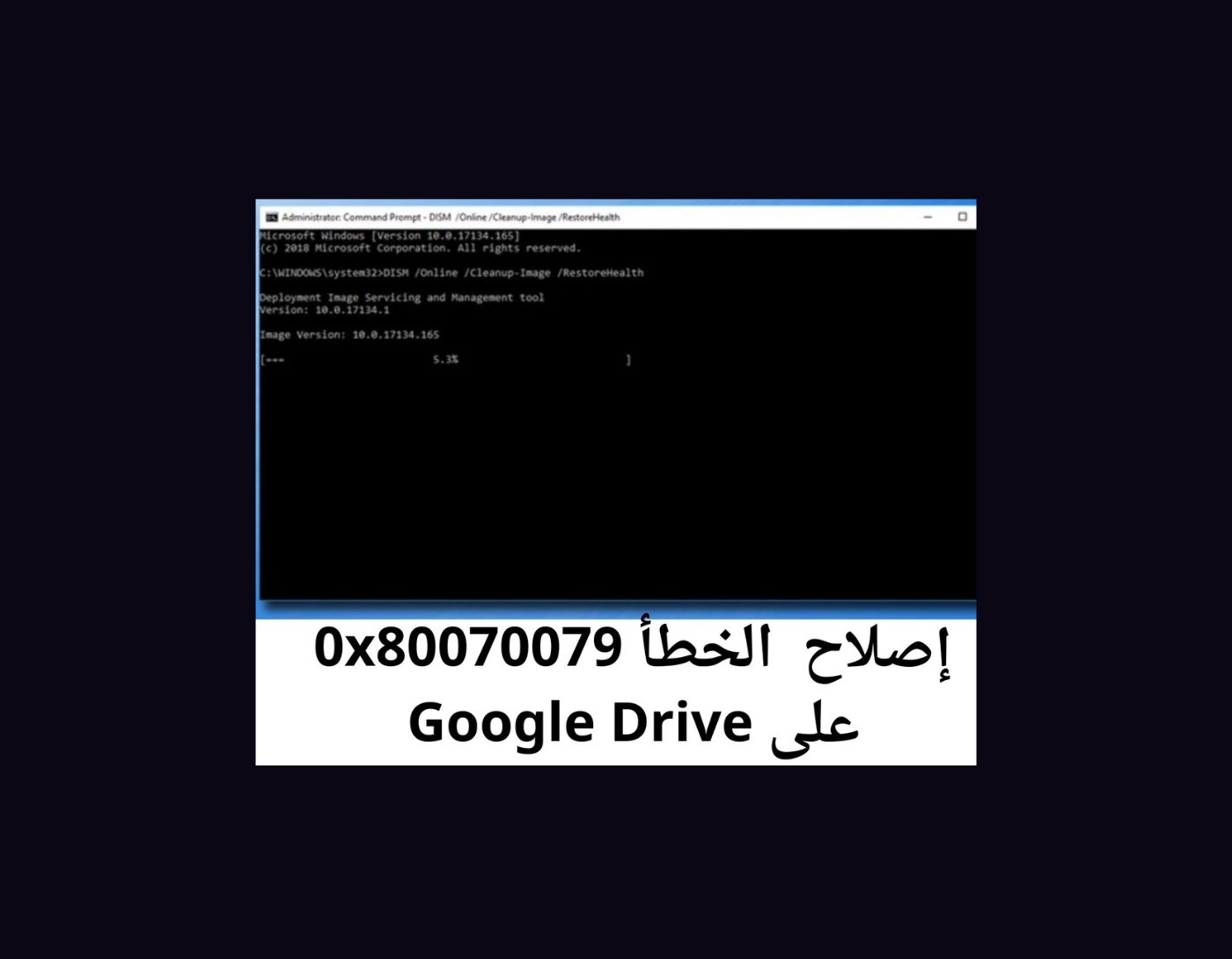
(Fix Error 0x80070079 on Google Drive) Fixing Error 0x80070079 on Google Drive: The error 0x80070079, known as "Semaphore Timeout Expired," is related to storage devices. These storage devices can include local hard drives, network drives, Google Drive, or other cloud storage services. When you encounter error 0x80070079, it indicates a problem with copying or transferring a file between your computer and the storage media.
In this article, I will explain how you can specifically fix the Semaphore Timeout error (0x80070079) on Google Drive, along with providing general solutions for other storage media.
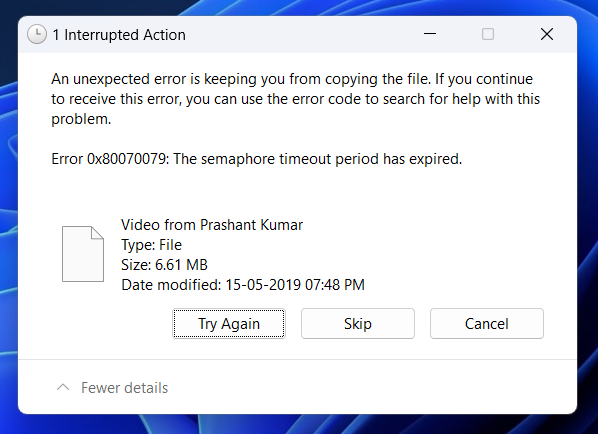
Error Message:
An unexpected error is preventing you from copying the file. If this error persists, you can use the error code to search for instructions regarding this issue.
Error 0x80070079: Semaphore Timeout Expired
Windows consists of a large number of dll files, exe files, sys files, various types of services, databases, and so on, so it is not possible to constantly monitor all files. A great PC optimization tool repairs damages, fixes errors, updates Windows and drivers, and silently removes various types of errors.
The Outbyte PC Repair Tool easily performs all the above tasks and provides you with a smooth and error-free Windows environment to work in so you can focus solely on your tasks.
3 Steps to Fix This Error
Step 1. Download the Outbyte PC Repair Tool [File Size: 16.4 MB]
Step 2. Scan your Windows computer
Step 3. Click the "Repair" button to fix the error
How to Fix Google Drive 0x80070079: Semaphore Timeout Expired?
If you are encountering the above error while trying to sync with Google Drive, you can apply the following solutions on your computer.
Solution 1: Log Out and Log Back In
If you are experiencing this issue while working with Google Drive, try logging out and then logging back in. Here’s how to do it.
Log Out
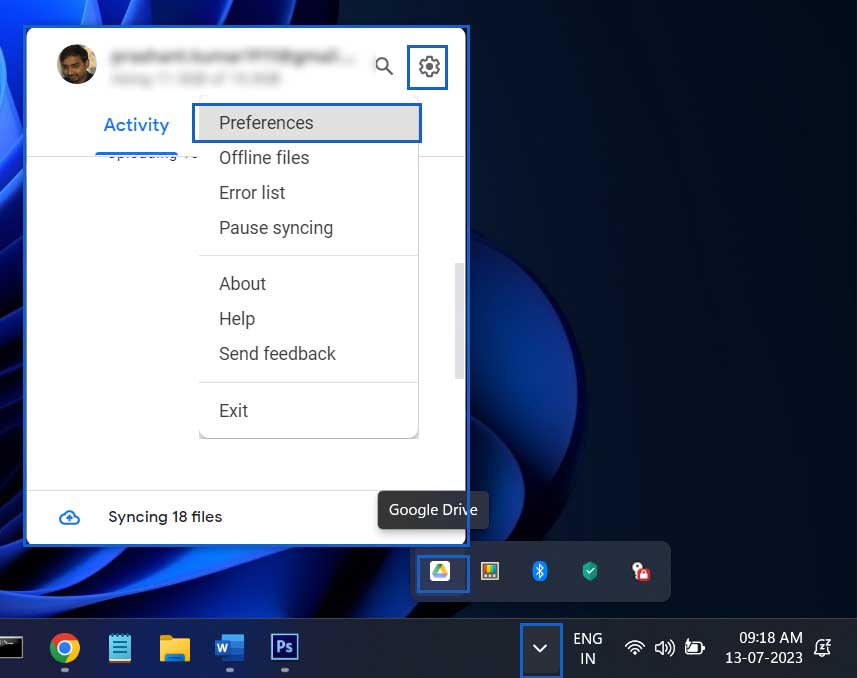
Step 1: Log out of Google Drive. Go to the notification area → select the Google Drive icon → click on the gear icon and select Preferences.
1_launch_google_drive_settings
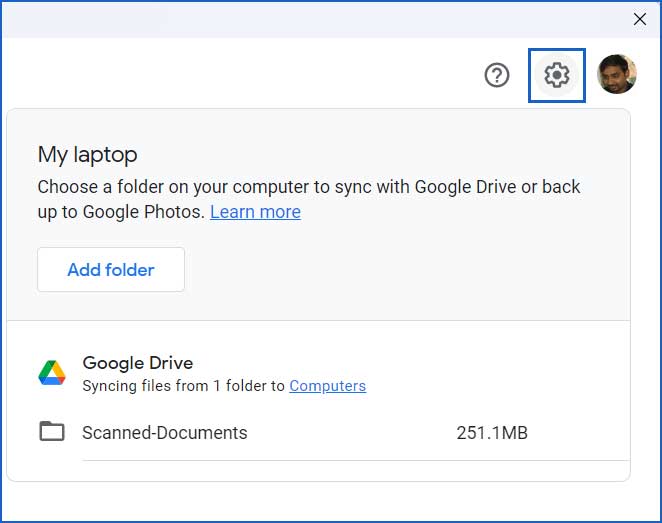
Step 2: Click on the gear icon next to your profile picture to open the settings.
2_open_Google_Drive_Settings
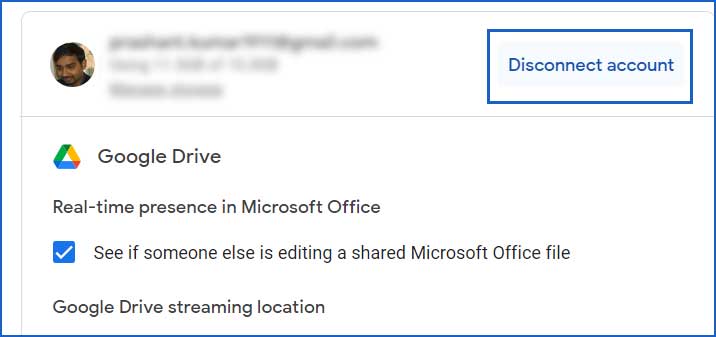
Step 3: Click on Disconnect Account to log out of Google Drive.
3_disconnect_from_Google_Drive_1
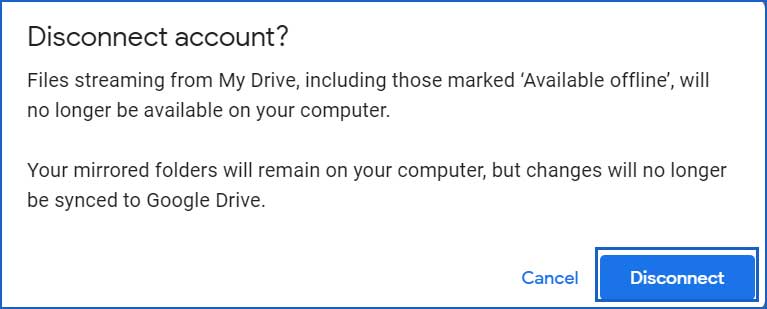
Step 4: You will be prompted for confirmation. Click Disconnect to log out.
3_disconnect_Google_Drive_2
Log In
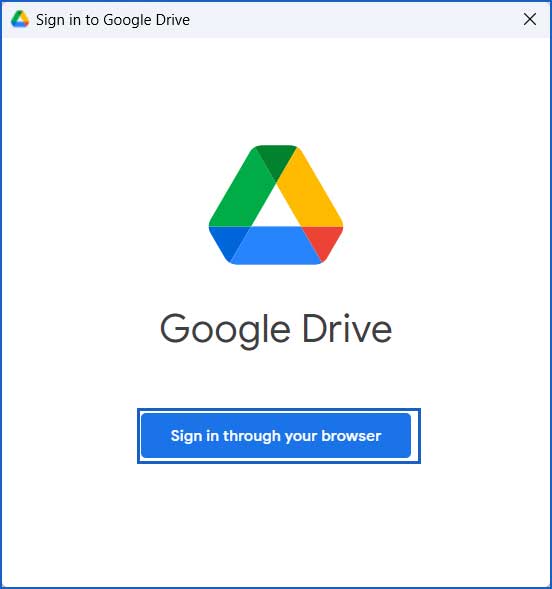
Step 1: Double-click the Google Drive icon on your desktop. Click on Log in through your browser.
4_log_in_to_Google_Drive
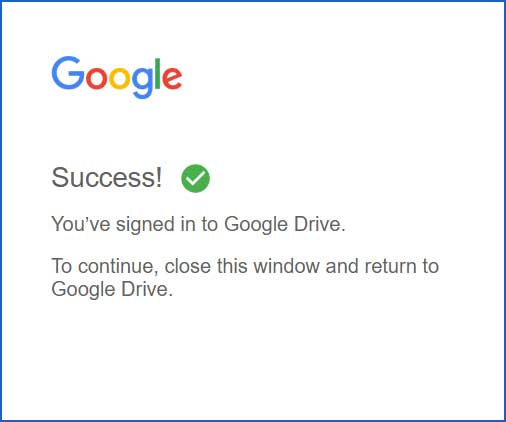
Step 2: Please complete the login process in your browser. Once you finish logging in, the Google Drive Sync error '0x80070079: Semaphore Timeout Expired' should no longer appear on your Windows 8 or Windows 10 or Windows 11.
5_log_in_to_Google_Drive
Solution 2: Avoid Large Files.
The "Semaphore Timeout Expired" error commonly occurs when encountering a large file during upload or download. If there are any large files in the batch, it is advisable to avoid them.
Solution 3: Repair Bad Sectors on Your Hard Drive (HDD/SSD).

There may be a bad sector on your hard drive (HDD/SSD), which is causing the Semaphore Timeout error. You can check the drive for errors and optimize it as follows.
Repair your computer using the SFC.exe, DISM, and CHKDSK commands.
Step 1: Open Command Prompt as an administrator.
Open Command Prompt as an administrator in Windows 8, 10, and 11
Step 2: Now run the following commands one by one.
System File Checker Tool
sfc /scannow
Secondly. Run the Dism command
Dism /Online /Cleanup-Image /CheckHealth
Dism /Online /Cleanup-Image /ScanHealth
Dism /Online /Cleanup-Image /RestoreHealth
Thirdly. Run the Disk Check utility.
chkdsk /f c:
Solution 4: Run the Hardware and Devices Troubleshooter.
It is also helpful to run the Hardware and Devices Troubleshooter to fix the above error. You can run the troubleshooter as follows:
Step 1: Open Command Prompt as an administrator.
[Image]
Step 2: Paste the following command into the Command Prompt and press Enter.
msdt.exe -id DeviceDiagnostic
Step 3: The Hardware and Devices Troubleshooter will open. Click Next to start diagnosing the issue.
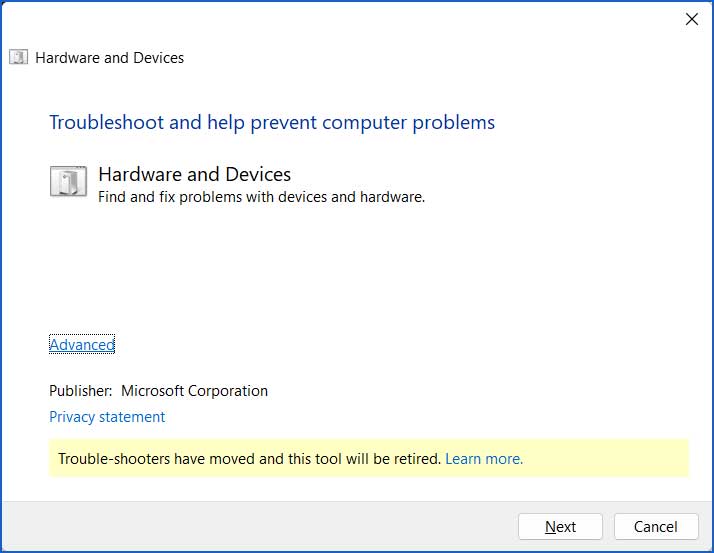
6_hardware_device_troubleshooter
Step 4: Allow the scanning process to complete. Proceed with the troubleshooter to fix hardware errors.
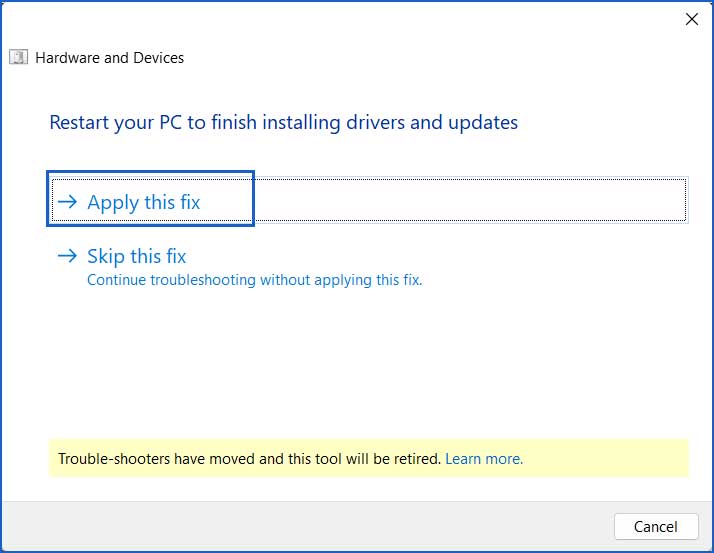
7_fix_hardware_issues
You can also try some other repair methods such as disabling antivirus/firewall, performing a clean boot, updating Windows and drivers, etc.
Conclusion
In this article, we discussed how to fix error 0x80070079 on Google Drive and the top 4 solutions to resolve this issue.
To fix 0x80070079: Semaphore Timeout Expired error on Google Drive or other storage media, you can try logging out and then logging back in, avoiding uploading/downloading large files, running hardware diagnostic tools, and so on.


