


(Fix Hardlock.sys driver error) Fixing the Hardlock.sys Driver Error: The Hardlock.sys error is a common issue on computers running Windows 10 and Windows 11. It can significantly disrupt the smooth operation of the Windows operating system, often leading to the infamous Blue Screen of Death (BSOD) error known as "Page Fault in Nonpaged Area."
Important Note:
Before attempting any major repairs on your Windows system, it’s crucial to recover your data and store it safely. EaseUS Data Recovery Wizard can help you retrieve data from a malfunctioning computer.
Whether you’re facing that scary blue screen, startup failures, or boot issues, this tool allows you to get your computer running again and recover your precious data effortlessly. So, make sure to use EaseUS Data Recovery Wizard to safeguard your files before proceeding with any repairs!
Note: The free version allows you to recover up to 2GB of data.
This error is directly related to the hardlock.sys file, which acts as a system driver used by many security devices and software. When this file becomes corrupted, it can lead to a range of system issues, including crashes, BSOD errors, boot problems, and other undesirable consequences.
You might encounter the hardlock.sys error:
When installing software on a computer running Windows 11 and 10.
When updating the Windows 10 and 11 operating systems.
When launching applications and the driver fails to load.
When starting your computer and encountering a "page fault in nonpaged area" error, etc.
Is the Hardlock.sys file a virus or malware?
Definitely not; the hardlock.sys file itself is not a virus or malware. It is a system driver file used by many devices and Windows security software.
However, like other Windows files, the hardlock.sys file can become corrupted or infected with viruses or malware, especially if your computer has been compromised.
If you experience errors related to the hardlock.sys file or suspect it may be infected with malware, it is advisable to perform a thorough scan of your computer using a reliable and up-to-date malware protection program.
What causes the Hardlock.sys driver error?
The hardlock.sys error can occur due to one of the following reasons:
1. Improper or sudden shutdown of the system while installing cumulative updates or feature updates.
2. Infection of the computer with viruses or malware.
3. Corruption of the registry file.
4. Installation of incompatible drivers.
5. Missing, corrupted, deleted, or misplaced system files such as DLL, EXE, and SYS files.
6. Disk read errors on your hard drive.
7. System shutdown during the update of the hardlock.sys driver, etc.
Can I download and install the hardlock.sys driver independently?
It is not recommended to download the hardlock.sys driver directly from unknown sources, as this may lead to downloading malware or viruses disguised as this file. Instead, it is advisable to follow best practices and update the driver that includes the hardlock.sys file from a reputable and official source.
How to fix the Hardlock.sys driver error
As you know, this error is a type of BSOD (Blue Screen of Death) error that occurs before the system starts, preventing access to the login screen. Fortunately, there are several troubleshooting steps you can follow to resolve this error and restore stability to Windows 10 and Windows 11.
Situation: When Windows does not boot
Method 1: Repair the corrupted system file using Windows Recovery Mode.
If Windows is not booting, follow these steps to repair corrupted system files.
Run the SFC, CHKDSK, DISM commands
Step 1: Boot your computer using Windows installation media. The Windows installation wizard will open. Click Next.
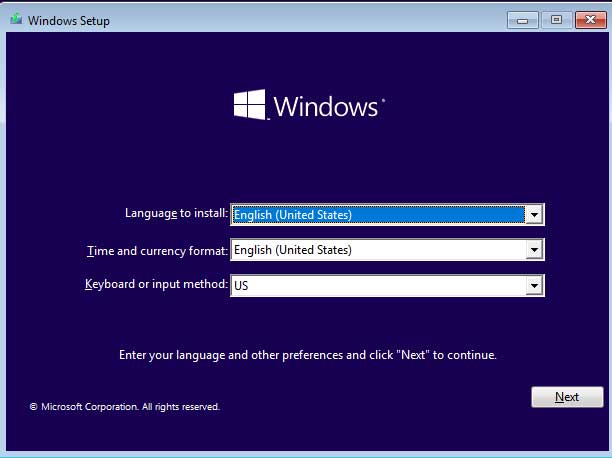
Installing Windows Operating System
Step 2: Select Repair your computer.
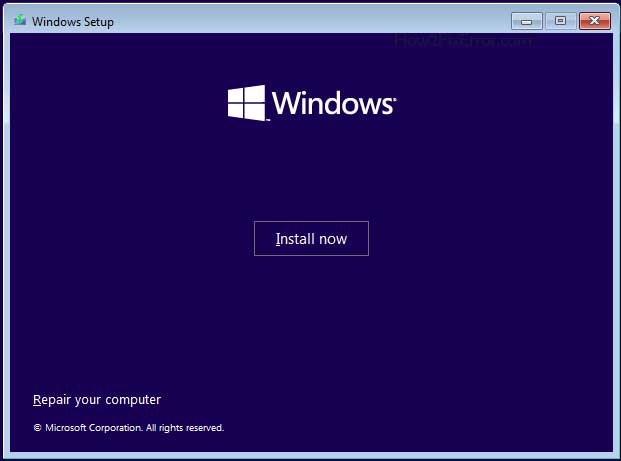
Repair your computer option for Windows 10 and 11
Step 3: The Advanced Startup Options or Windows Recovery Environment will open. Click Troubleshoot.
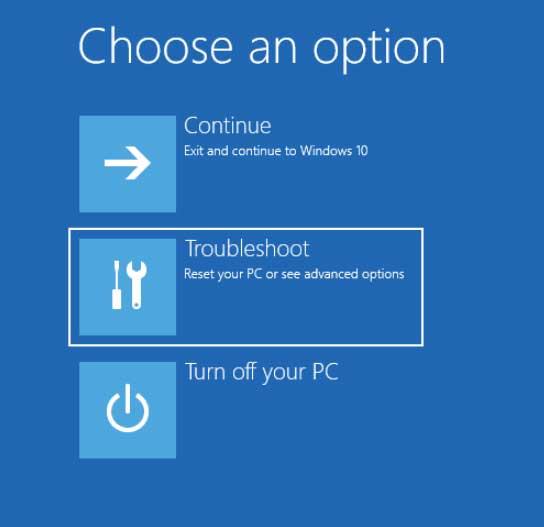
Troubleshoot in the Advanced Startup Options menu for Windows 10 and 11
Step 4: Select Command Prompt.
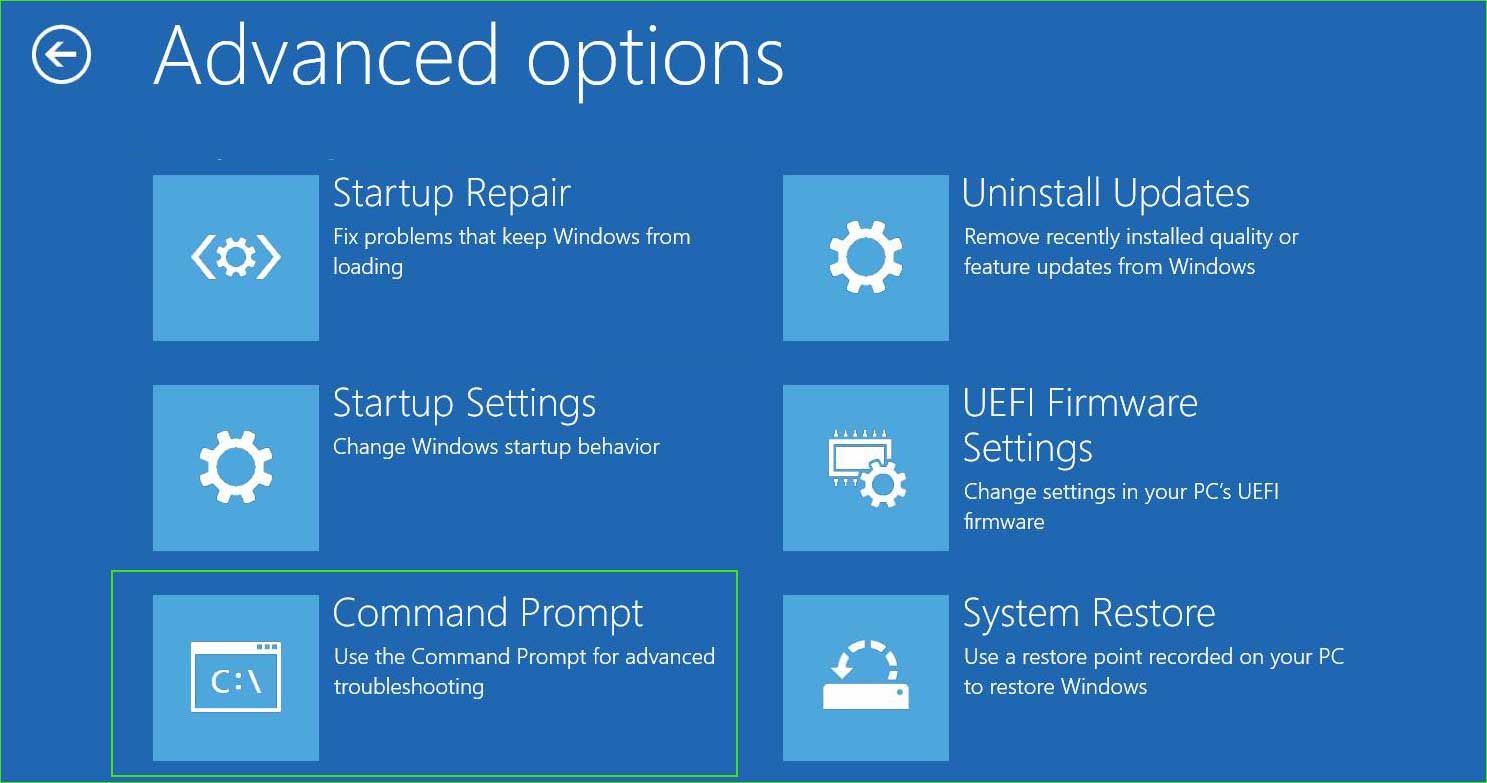
open_command_prompt in the Advanced Startup Options
Step 5: Now run the following commands one by one.
System File Checker tool
sfc /scannow
Secondly, run the Dism command
Dism /Online /Cleanup-Image /CheckHealth
Dism /Online /Cleanup-Image /ScanHealth
Dism /Online /Cleanup-Image /RestoreHealth
Thirdly, run the disk checking utility.
chkdsk C: /f /x /r
Method 2: Uninstall recently installed updates
The hardlock.sys error commonly occurs when a Windows update installation remains incomplete. In such cases, it is advisable to uninstall the incomplete Windows updates and start downloading the updates again. This can help resolve the issue and ensure the update is successfully installed.
Uninstalling updates - Step by Step
Step 1: Open the Advanced Startup Options or Windows Recovery Environment. Click Troubleshoot.
Troubleshoot in the Advanced Startup Options menu for Windows 10 and 11
Step 2: Go to Troubleshoot ➜ Advanced options ➜ Uninstall updates.
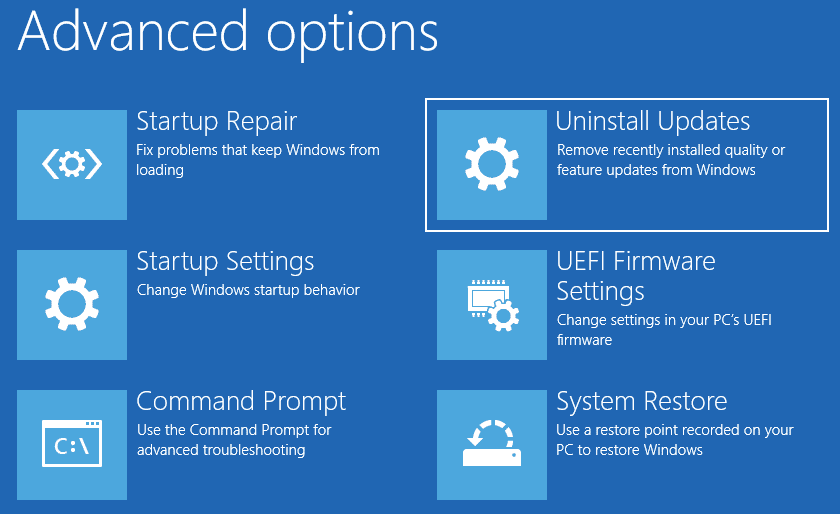
Advanced options return
Step 3: Select Uninstall the last quality update.
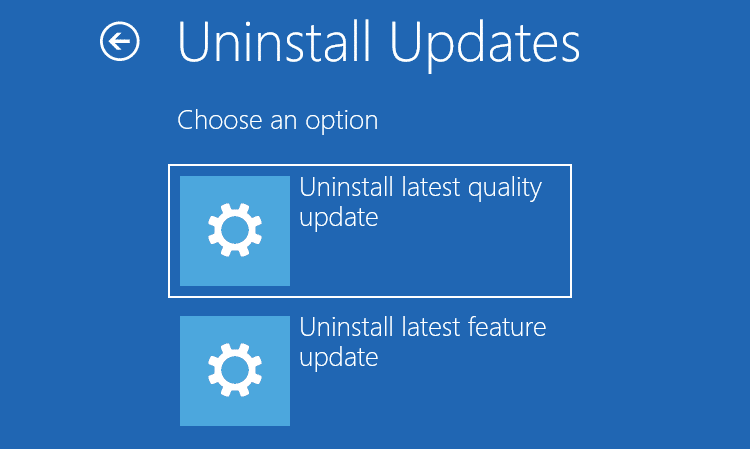
Re-uninstall updates
Step 4: Click the button to uninstall the quality update and remove the updates.
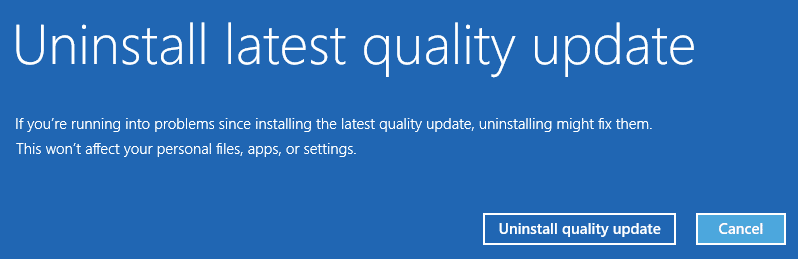
-Re-uninstall quality update
Method 3: Perform a Startup Repair
If the previous method did not work, you can try performing a startup repair. To do this, you will need a bootable USB drive for Windows. If you do not have a bootable USB drive, you can create one using the following steps.
Startup Repair - Step by Step
Step 1: Boot your computer using Windows installation media. The Windows installation wizard will open. Click Next.
Installing Windows Operating System
Step 2: Select Repair your computer.
Repair your computer option for Windows 10 and 11
Step 3: The Advanced Startup Options or Windows Recovery Environment will open. Click Troubleshoot.
Troubleshoot in the Advanced Startup Options menu for Windows 10 and 11
Step 4: The Advanced Startup Options menu will open. Go to Troubleshoot ➜ Advanced options ➜ Startup Repair.
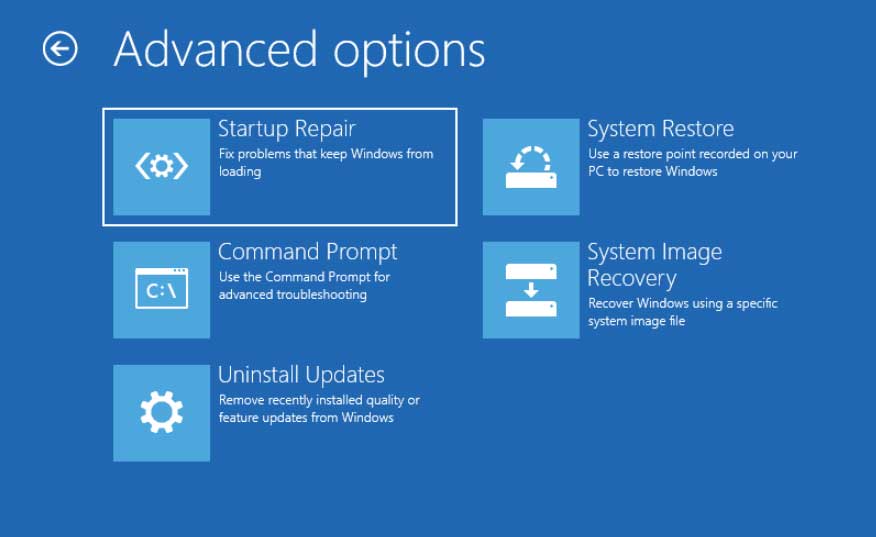
Startup Repair for Windows 10 and 11
Step 5: Select the operating system.
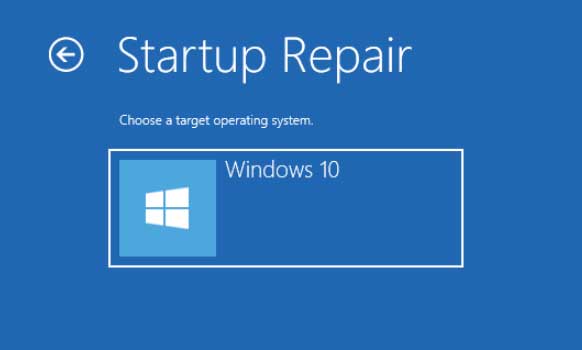
Startup Repair - Select the operating system
Step 6: Wait for it to diagnose and repair your computer.
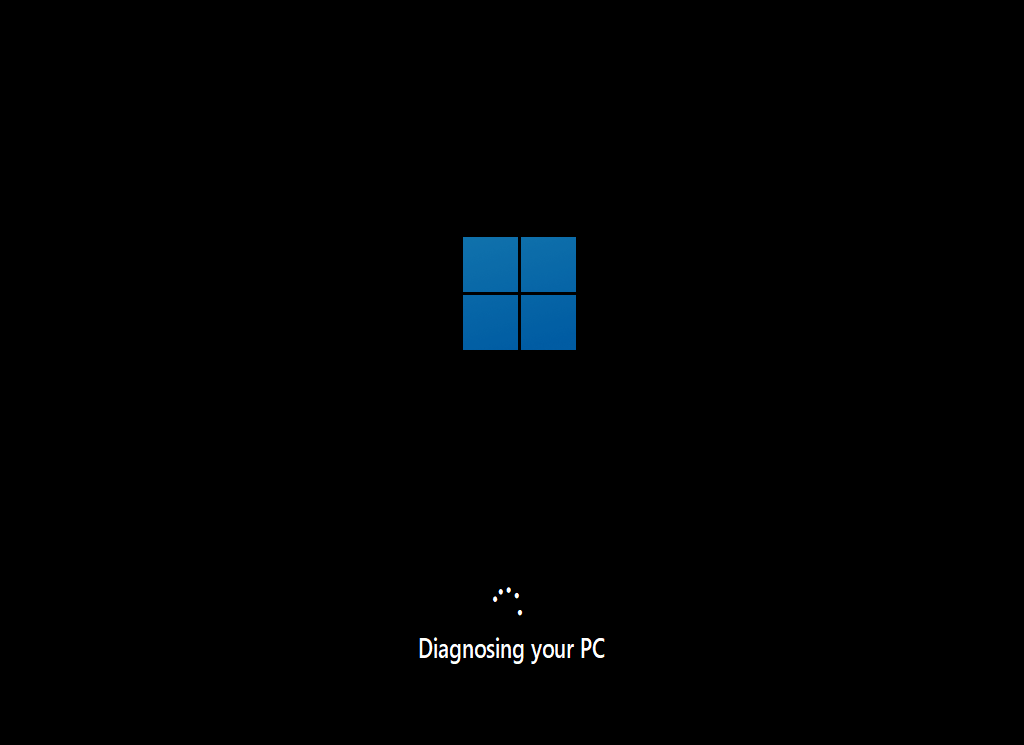
Repair-Windows-from-USB-5
Method 4: Restore your computer
System Restore is a feature in Microsoft Windows that allows users to revert their computer to a previous point in time, often referred to as a "restore point." It is a useful tool for troubleshooting and fixing system issues caused by software installations, updates, or other changes that may negatively affect system stability or performance.
System Restore - Step by Step
Step 1: Open the Advanced Startup Options or Windows Recovery Environment. Go to Troubleshoot ➜ Advanced options ➜ System Restore.
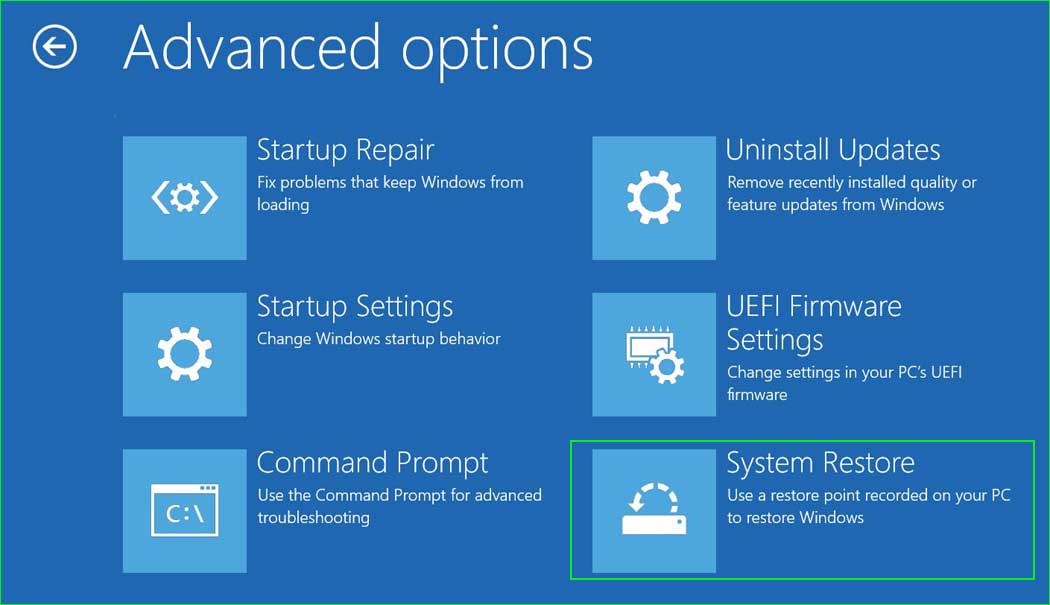
system_restore
Step 2: Click Next and then select the date.
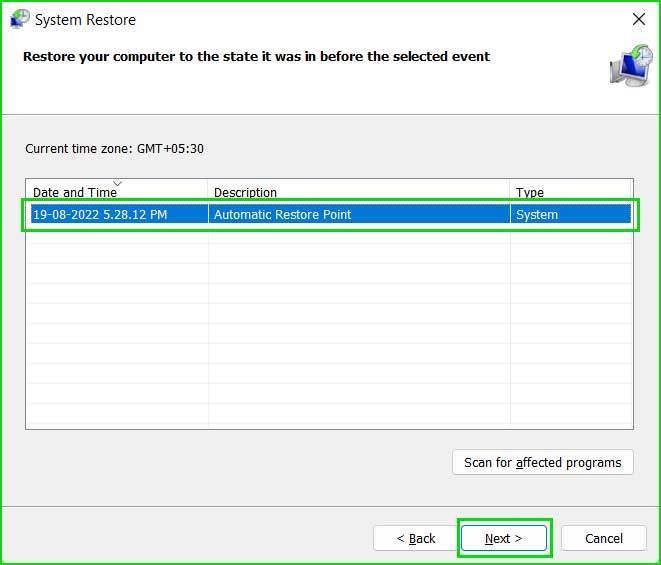
Select System Restore from the list
Step 3: Click "Finish" to start the restoration process.
Situation: Encountering the hardlock.sys error when installing updates or software, running applications, or performing any tasks.
Method 5: Update Windows, drivers, and applications
Most Windows issues arise from corrupted, outdated,


