


(Fix Camtasia Error 0x88780096 – Unable to Play Audio) Fixing Camtasia Error 0x88780096 - Unable to Play Audio: Camtasia is a popular screen recording and video editing application for operating systems like Windows 11, 10, and 8. Sometimes, after finishing a screen recording and opening the project, you might see the following error on your screen.
Sorry! Camtasia was unable to play audio on the timeline.
Try saving and then reopening the project.
(Error code 0x88780096: The buffer has been lost and needs to be restored.)
Or
An error occurred while creating the DirectSound buffer.
Error code: 0x88780096
Sometimes you might also see "Error code 0x88880001: Unknown error".
Unfortunately, in this case, you won't hear any sound at all (just the error message), and the only option left is to restart the system. Is it possible to get the sound back without rebooting? How can you completely avoid this type of error?!!
In this article, we will try to address the above issue and provide you with the correct solution to fix Camtasia Error 0x88780096 - Unable to Play Audio.
Causes of Camtasia Error 0x88780096 - Unable to Play Audio
This error can occur for various reasons, but the most common cause is the audio driver. An outdated or corrupted audio driver can lead to issues with many applications that require audio recording and editing.
Aside from audio driver issues, missing system dll files, corrupted system files, registry errors, outdated Windows updates, etc., can also trigger Camtasia Error 0x88780096.
How to Fix "Camtasia Error 0x88780096 - Unable to Play Audio" on Windows 8 and Windows 8.1 and Windows 10 and Windows 11?
Here are some useful and tested methods. Try them to resolve these audio issues in Camtasia.
Method 1: Fix Using Outbyte PC Repair Tool
Camtasia errors often occur due to a glitch in the Windows operating system. Use the Outbyte PC Repair Tool to optimize your computer and fix various errors.
Windows consists of a large number of dll files, exe files, sys files, various types of services, databases, and so on, so it's not always possible to keep track of all files. This excellent optimization tool repairs damages, fixes errors, updates Windows and drivers, and removes various types of errors silently.
The Outbyte PC Repair Tool performs all of the above tasks effortlessly, providing you with a smooth and error-free Windows environment to work in so you can focus solely on your tasks.
3 Steps to Fix This Error
Step 1. Download the Outbyte PC Repair Tool [File size: 16.4 MB]
Step 2. Scan your Windows computer
Step 3. Click the "Repair" button to fix the error
Method 2: Save the Project and Restart Camtasia
Another simple way to fix this issue is to save the project and reopen Camtasia. This trick often works and bypasses error code 0x88780096.
Method 3: Update the Audio Driver
As mentioned earlier, an outdated audio driver is the closest cause of the Camtasia "Unable to Play Audio" error. Update your audio driver and restart your computer to see if the error has been resolved.
How to Update the Audio Driver on Windows 11, 10, and 8
Step 1: Open Device Manager. Press Windows + X and click on "Device Manager" to open it.
Step 2: Expand Sound, video and game controllers.

1_expand_sound_driver
Step 3: Right-click on your audio driver and select Update Driver.
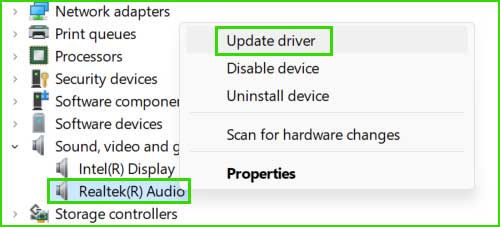
2_update_sound_driver
Method 4: Run the Audio Troubleshooter
To fix audio-related issues, the most convenient method is to run the audio troubleshooter. Follow these steps to resolve audio problems on your computer.
Step 1: Go to the notification area, right-click on the speaker icon, and select Troubleshoot sound problems.
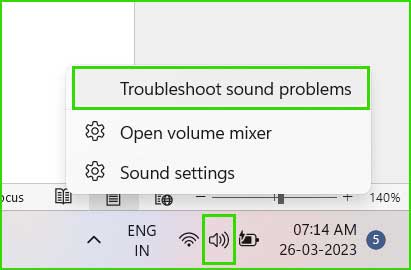
3_open_sound_troubleshooter
Step 2: Click the "Yes" button to start the audio troubleshooter.
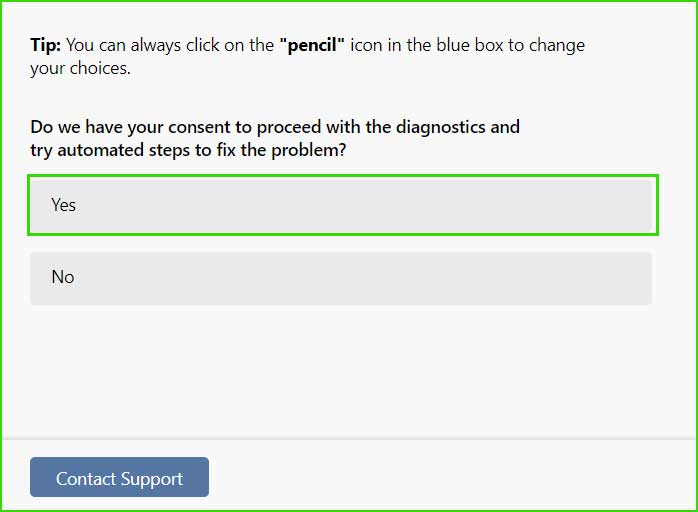
4_start_sound_troubleshooter
Step 3: It will start diagnosing the audio issue. Wait for the process to complete.
Method 5: Turn On the Microphone
Your microphone might be turned off, which is why you're getting the Camtasia buffer error 0x88780096. Turn on the microphone to fix this error.
Step 1: Open Start ➜ Settings ➜ Privacy & Security. Go to Microphone and turn it on.
5_open_microphone_setup
Step 2: Then, under Allow apps to access your microphone, make sure the toggle is turned on.
6_turn_on_microphone
Conclusion
In this article, we discussed how to fix Camtasia Error Camtasia 0x88780096 - Unable to Play Audio. This type of error mainly arises from the audio device on any system.
This error may seem quite annoying, but don't worry if you're facing Camtasia 0x88780096 - Unable to Play Audio; just follow the guidelines in this article, which will help you effectively resolve this issue.


