

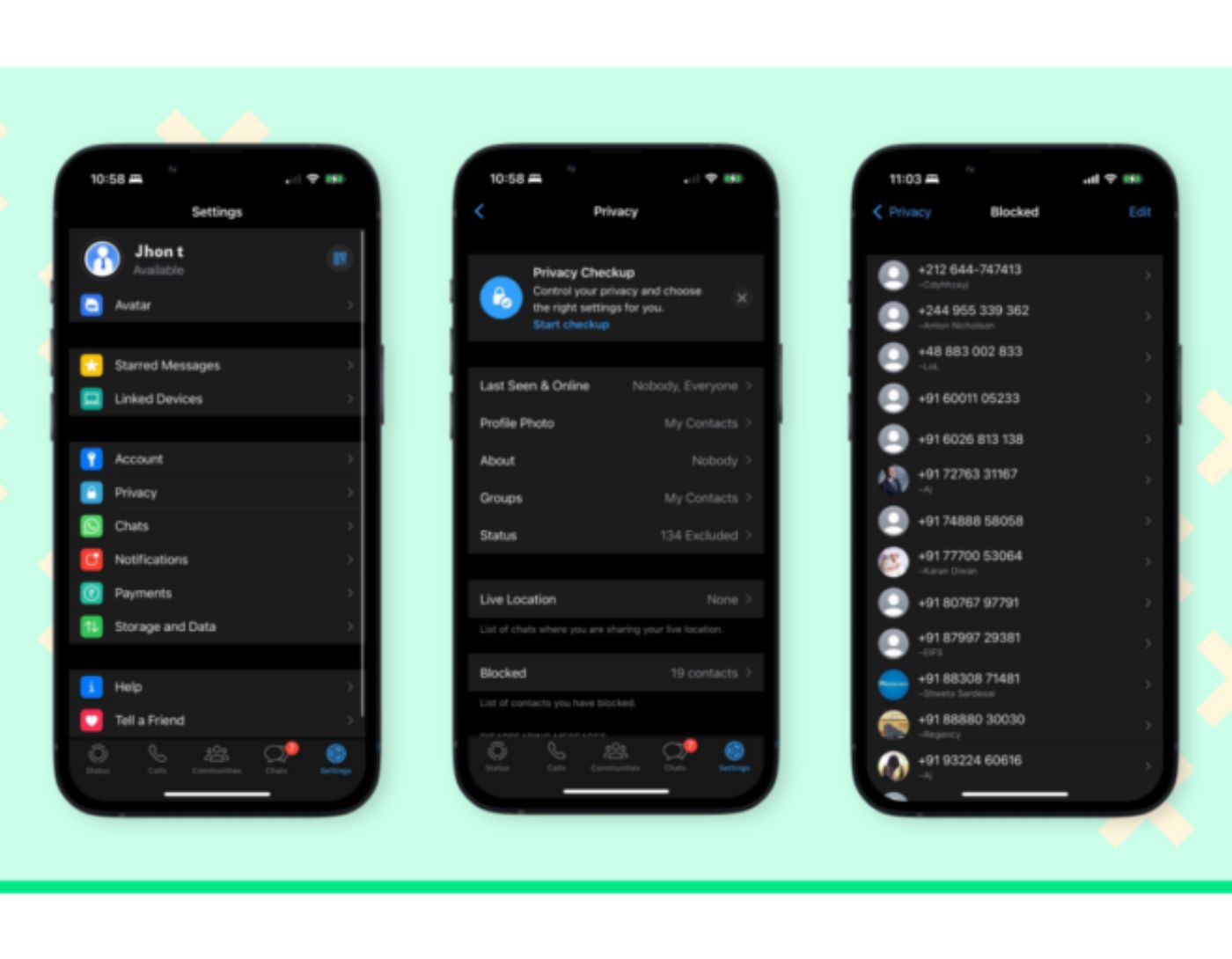
In an age where privacy is more important than ever, securing your conversations on WhatsApp should be a top priority. With so much personal information being shared through this messaging app, taking the right steps to protect your data can provide you with peace of mind. In this guide, I will show you how to use WhatsApp's privacy settings to secure your conversations in 2025.
Why Privacy Matters on WhatsApp
Before diving into specific settings, let's discuss why privacy is crucial. WhatsApp is one of the most widely used messaging apps globally, with millions of users sending texts, images, and videos daily. Without the appropriate privacy settings, your personal information could be at risk from hackers, unwanted contacts, or even the company itself.
WhatsApp Privacy Settings
Fortunately, WhatsApp offers various features that allow you to control who sees your information and how your data is handled. By adjusting these settings, you can ensure your conversations remain private and secure. You can also customize your notification settings.
1. Control Who Can See Your Personal Information
One of the first steps to securing your WhatsApp account is controlling who can view your personal information, such as your profile picture, status, and last seen. Here’s how to do it:
Steps to follow:
Open WhatsApp: Go to the app and tap the three dots in the top right corner (for Android) or the settings icon (for iPhone).
Go to Account Settings: Tap on “Account,” then select “Privacy.”
Adjust Visibility: You will see options to control who can see your “Last Seen,” “Profile Photo,” and “About.” You can choose from “Everyone,” “My Contacts,” or “Nobody.” For more privacy, consider setting these options to “My Contacts” or “Nobody.”
Limiting who can see your information reduces the chances of unwanted contacts or strangers accessing your personal data.
2. Enable Two-Step Verification
Two-step verification adds an extra layer of security to your WhatsApp account by requiring a PIN when registering your phone number. This prevents anyone from hijacking your account, even if they somehow obtain your SIM card.
Steps to follow:
Open WhatsApp: Go to the settings menu by tapping the three dots (for Android) or the settings icon (for iPhone).
Tap on Account: Select “Two-Step Verification.”
Set Up a PIN: Tap “Enable” and create a six-digit PIN. You can also add an email address for recovery purposes.
Two-step verification is a simple yet effective way to protect your account from unauthorized access.
3. Manage Group Privacy Settings
Group chats are a great way to stay connected with many people, but they can also raise privacy concerns, especially if you are added to groups without your consent. WhatsApp allows you to control who can add you to groups.
Steps to follow:
Open WhatsApp: Go to “Settings” and tap on “Account.”
Select Privacy: Tap on “Groups.”
Choose Who Can Add You: You can select from “Everyone,” “My Contacts,” or “My Contacts Except…”. This allows you to block specific contacts from adding you to groups without your permission.
This feature ensures you are not added to groups you don’t want to be part of, giving you more control over your group chat experience.
4. Enable Disappearing Messages

Disappearing messages are a feature that automatically deletes messages after a set period, helping to maintain the privacy of your conversations. This can be especially useful in sensitive chats where you don’t want messages to linger.
Steps to follow:
Open the Chat: Go to the chat where you want to enable disappearing messages.
Tap on the Contact's Name: This will open the chat settings.
Select Disappearing Messages: Choose the time frame for messages to disappear - 24 hours, 7 days, or 90 days.
Disappearing messages help you maintain privacy by ensuring your messages don’t remain visible indefinitely.
5. Review App Permissions
It’s important to review WhatsApp’s permissions on your device. Sometimes, apps request access to more data than they actually need, so keeping these permissions in check is a good idea.
Steps to follow (Android):
Open Settings: Go to your phone’s settings and tap on “Apps.”
Select WhatsApp: Find WhatsApp in the list of installed apps.
Review Permissions: Tap on “Permissions” and adjust them as necessary. Consider disabling permissions you don’t think are essential for WhatsApp to function.
Steps to follow (iPhone):
Open Settings: Go to “Settings” on your iPhone.
Select WhatsApp: Scroll down and tap on WhatsApp.
Adjust Permissions: Review and adjust WhatsApp’s permissions, such as access to the camera, microphone, and location.
Limiting unnecessary permissions reduces the amount of personal data WhatsApp can access.
6. Keep Your App Updated
Regular updates are essential for maintaining the security of any app, including WhatsApp. Updates often include patches for security vulnerabilities, so it’s crucial to keep your app updated.
Steps to follow (for both Android and iPhone):
Check for Updates: Go to the Google Play Store (Android) or the App Store (iPhone) and search for WhatsApp. If an update is available, tap “Update.”
Enable Automatic Updates: Consider enabling automatic updates to ensure you always have the latest version of WhatsApp running.
Keeping your app updated ensures you have the latest security features and protections.</p


