


(Fix bad image error xc000012f) Fixing the bad image error xc000012f: The bad image error (0xc000012f) occurs when trying to open, install, or use an application on Windows operating systems 11, 10, 8, or 7. This is an application-specific error that can cause issues with certain applications.
Bad image error xc000012f
The main causes of this error are missing or corrupted DLL files, corrupted system files, outdated drivers, or a missing/corrupted MSVCR package. In this troubleshooting guide, you will learn how to effectively address this type of error.
How to fix the bad image error xc000012f?
Fixing this issue is relatively straightforward. Below, you will find a step-by-step guide outlining troubleshooting methods to help you resolve the problem.
Solution 1: Repair and optimize Windows
This error typically occurs when Windows encounters functionality issues due to corrupted system files, missing DLL files, malware, viruses, outdated or incompatible drivers, and more.
To address all these issues at once, consider using a reliable tool to optimize your computer's performance.
Solution 2: Run the System File Checker tool
To repair corrupted system files, Microsoft provides a built-in tool called "sfc," which can be accessed through the Windows Command Prompt.
System File Checker Tool - Step by Step
Step 1: Open Command Prompt as an administrator.

Open Command Prompt as an administrator in Windows 8, 10, and 11
Step 2: Now run the following command.
sfc /scannow
Step 3: Allow the process to complete and then exit Command Prompt.
Solution 3: Repair the MSVCR package
To prevent the bad image error (0xc000012f) on Windows 11/10, it is essential to repair the pre-installed Microsoft Visual C++ Redistributable (MSVCR) package. You can achieve this by following these steps:
Repairing the MSVCR package
Step 1: Open Settings. Go to Apps > Apps & features.
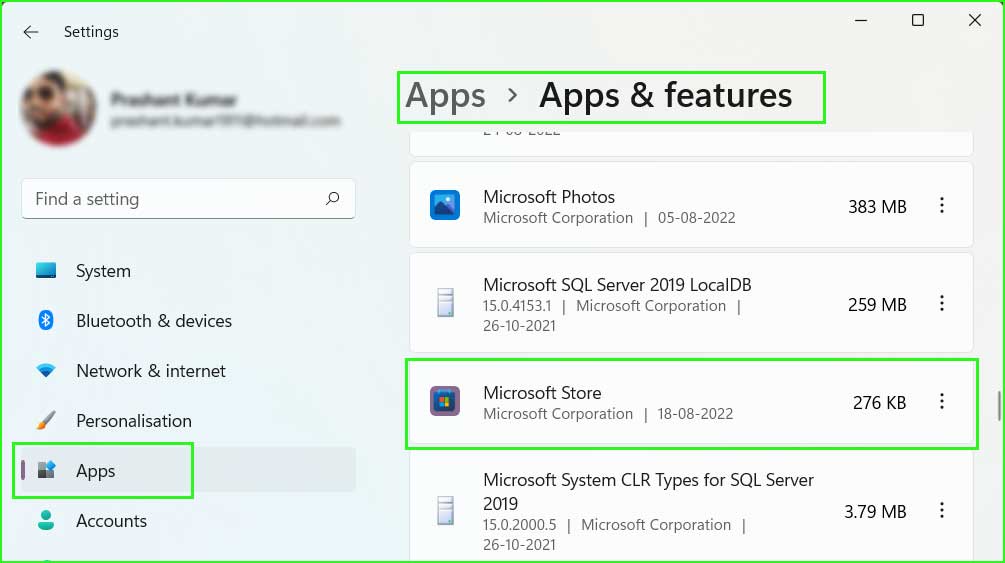
Apps & features in Windows 10/11
Step 2: Here, look for all installations named "Microsoft Visual C++", click on them, and if the modify button is enabled, click on the modify button.
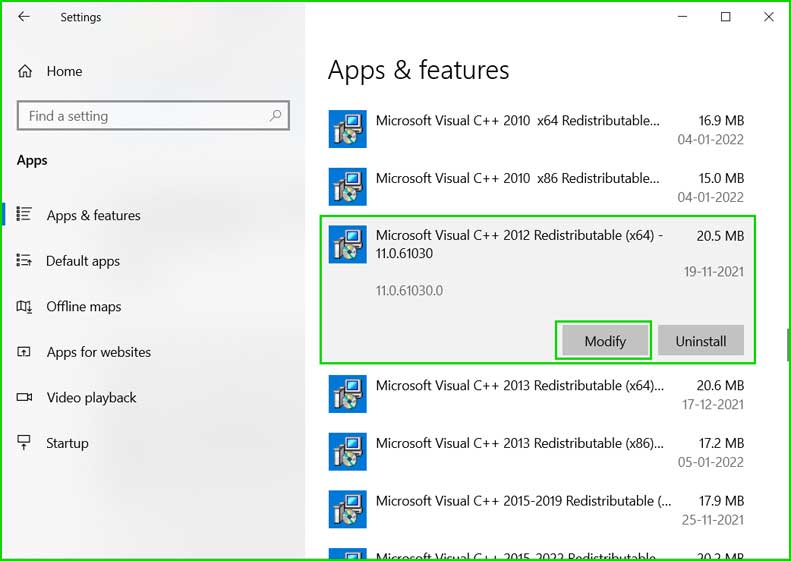
Modify_msvcr
Step 3: A User Account Control dialog will appear asking for administrative permission. Click the Yes button.
Step 4: The setup will begin processing, and the following dialog will appear on your screen.
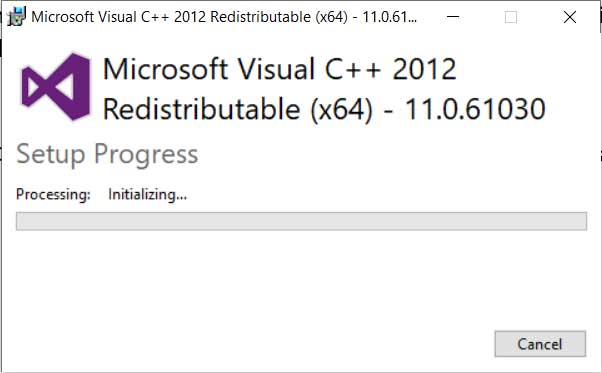
Repair_msvcr_2
Step 5: After the repair process is complete, a message indicating successful setup will appear on the screen.
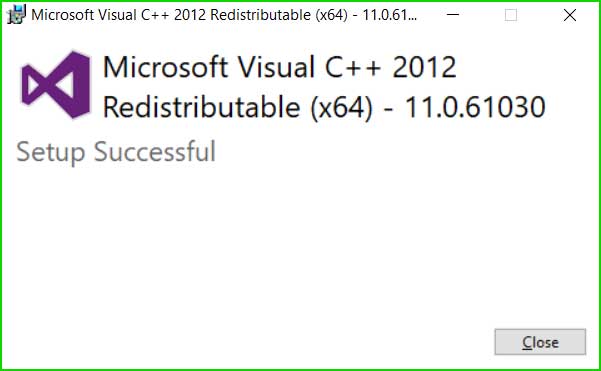
Repair_msvcr_3
Step 6: Repeat the same process for all MSVCR installations that enabled the modify button.
Step 7: Perform a simple restart, and you have successfully repaired all MSVCR installations.
Solution 4: Install the latest version of the MSVCR package
When your computer lacks the latest MSVCR package, some DLL files required by applications may be missing, leading to the bad image error (0xc000012f). In such cases, installing the latest MSVCR package can resolve this issue.
Install the latest MSVCR package
Step 1: To download this file, simply search Google for "Download Microsoft Visual C++ Redistributable" or open the following link. This library is free to download, install, and use.
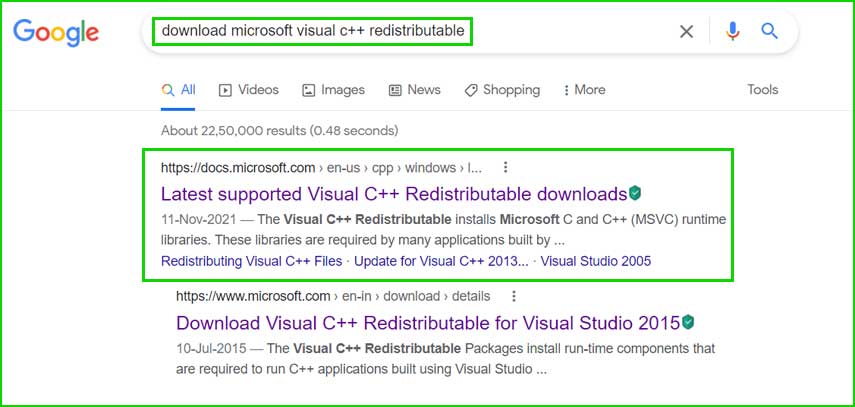
search_msvcr
https://docs.microsoft.com/en-us/cpp/windows/latest-supported-vc-redist?view=msvc-170
Step 2: Download the MSVCR library file according to your system architecture. If you are unsure of your system architecture, just click on the "Start" menu and search for "System Information".
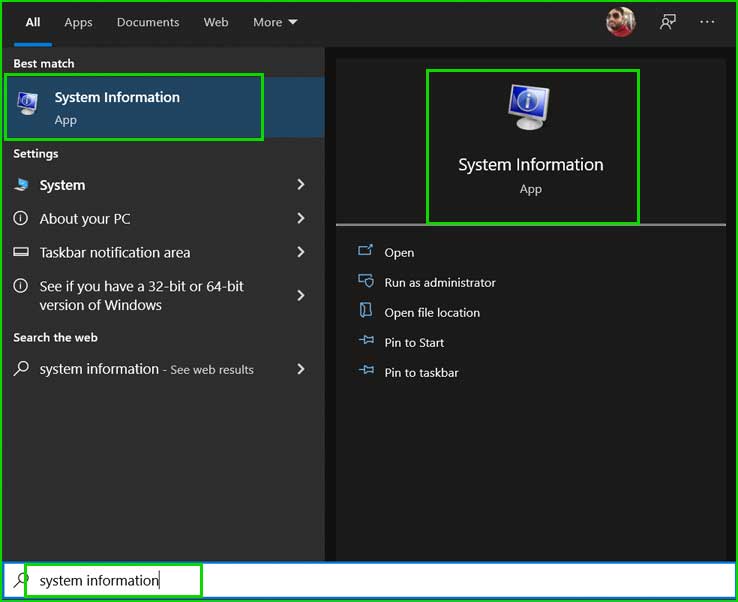
search_system_Information
Step 3: Open System Information, and here you can see your CPU architecture.
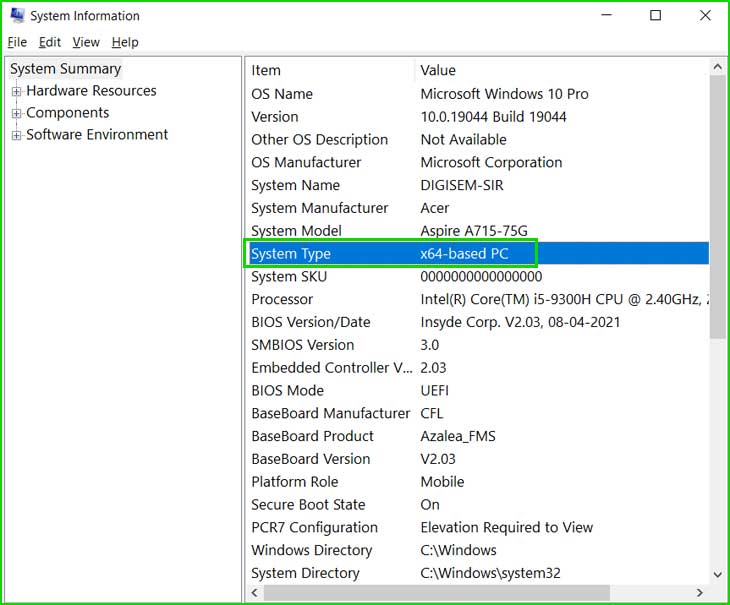
System Information
Step 4: Download the MSVCR library and double-click it to install.
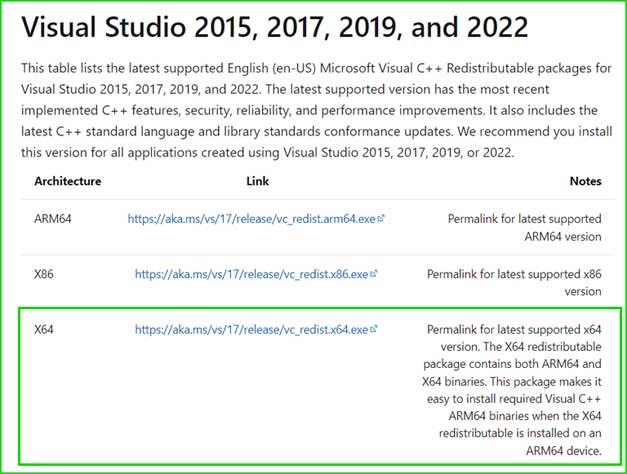
download_msvcr
Solution 5: Install all Windows updates
Keeping Windows updated, including applications, drivers, BIOS, and system updates, is essential. This ensures that your system has all the necessary files and updates required for applications to function correctly.
Update Windows and drivers and applications - Step by Step
[Windows Update]
Step 1: Go to Settings ← Windows Update. Click the Check for updates button, and if any pending updates appear, download and install them.
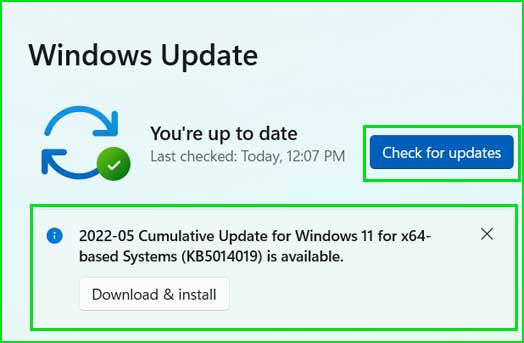
Windows Update settings in Windows 11 and 10
[Driver Update]
Step 2: Go to Device Manager. Look for outdated drivers, right-click on them, and select Update.
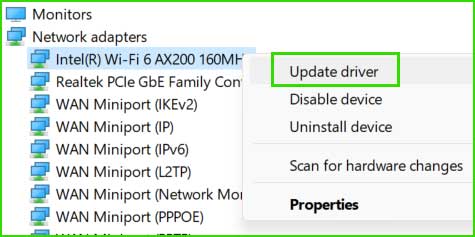
update_driver
[Application Update]
Step 3: Open the Microsoft Store. Go to Library and click the Get updates button.
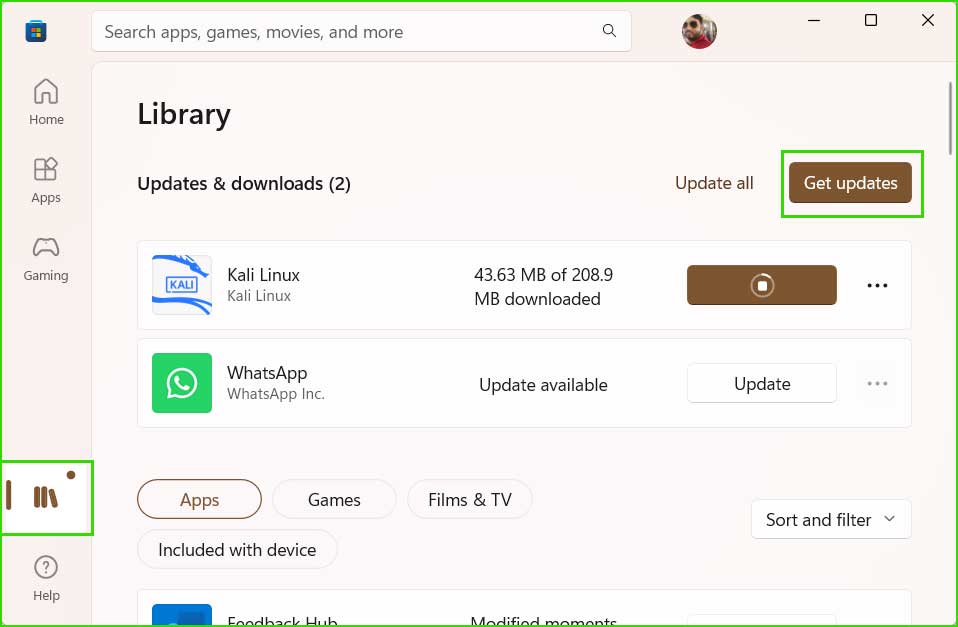
Update MS Store Apps
Solution 6: Run the DISM command to repair Windows
DISM is a valuable tool for repairing corrupted Windows images. This tool thoroughly scans Windows, repairs corrupted files, and installs missing Windows files as needed.
DISM Command - Step by Step
Step 1: Open Command Prompt as an administrator.
Open Command Prompt as an administrator in Windows 8, 10, and 11
Step 2: Now run the following commands.
Dism /Online /Cleanup-Image /CheckHealth
Dism /Online /Cleanup-Image /ScanHealth
Dism /Online /Cleanup-Image /RestoreHealth
Step 3: Allow the process to complete and then exit Command Prompt.
Solution 7: Reinstall the program.
Reinstalling the program re-registers all its components in Windows. Make sure to download the program from the official manufacturer's website and ensure it is the latest version available.
Conclusion
The bad image error (0xc000012f) is an application-related issue that arises when working with an application. In this article, we discussed the top 7 different methods to help you fix the bad image error xc000012f and resolve the problem.


