

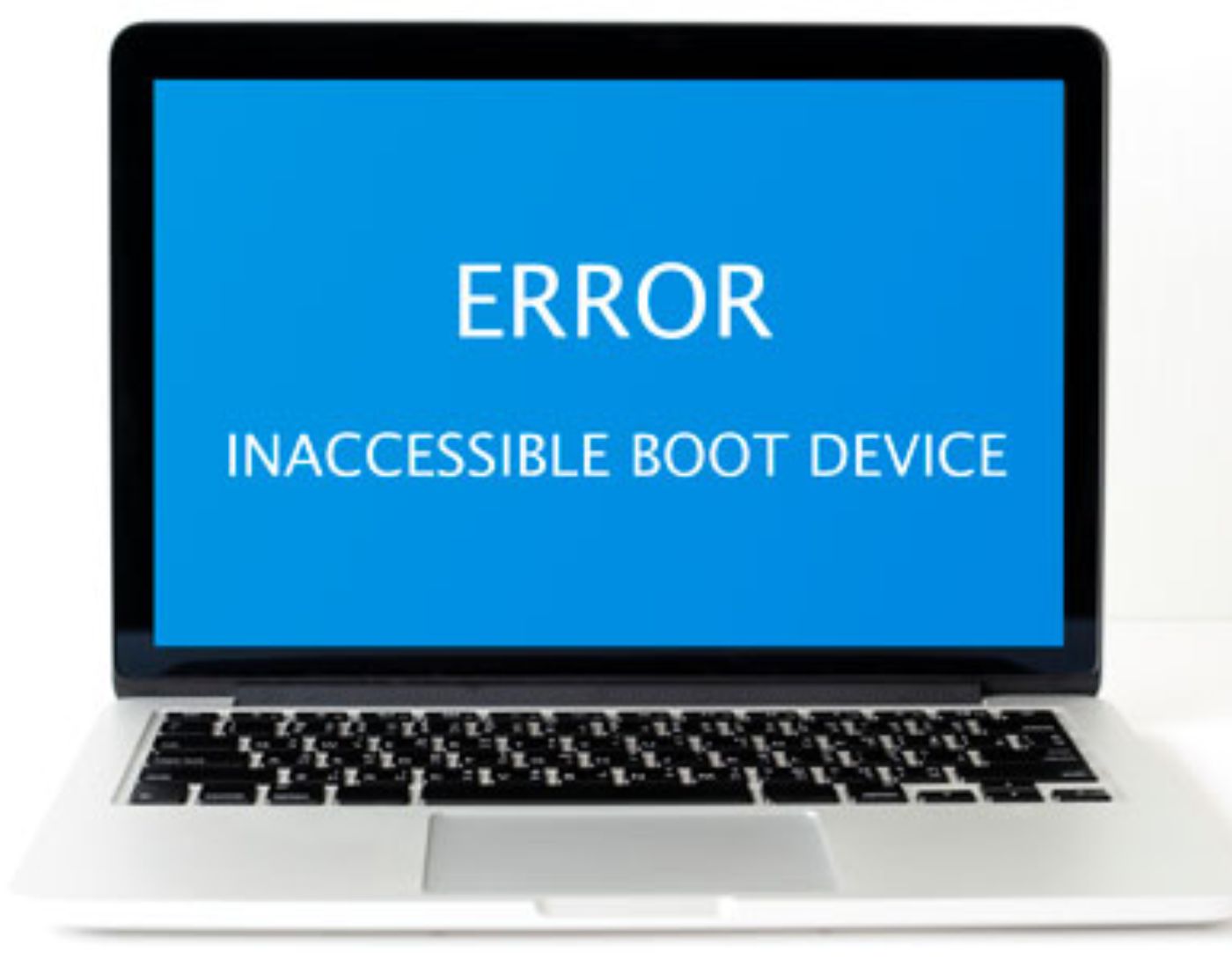
(Fix Inaccessible_Boot_Device error) Fixing the Inaccessible_Boot_Device error: Is your computer facing an inaccessible boot device issue, and are you desperately looking for a solution? If your answer is yes, you’ve come to the right place. This article aims to guide you through the process of resolving the Inaccessible_Boot_Device error on Windows 11/10/8.
The Inaccessible_Boot_Device error appears during the Windows startup phase.
When you attempt to boot your computer, a blue/black screen appears, accompanied by the message "Inaccessible Boot Device," leaving you with no choice but to restart your device. This phenomenon occurs because the Windows operating system is having trouble accessing the Windows partition or understanding the instructions within the Boot Manager file.
Important Note:
Before attempting any significant repairs on your Windows operating system, it is crucial to recover your data and store it safely. EaseUS Data Recovery Wizard comes to the rescue for data recovery from a malfunctioning computer.
Whether you are facing the scary blue screen, startup failure, or boot issues, this tool allows you to boot your computer and recover your valuable data effortlessly. So, make sure to use EaseUS Data Recovery Wizard to safeguard your files before proceeding with any repairs!
Note: The free version allows you to recover up to 2GB of data.
How to Fix the Inaccessible Boot Device Error?
If you cannot boot your computer due to the above error, use the following methods to regain access to your system.
Method 1: Repair the Corrupted MBR File
The MBR file, short for Master Boot Record, plays a crucial role in the Windows boot process. It contains essential instructions that Windows relies on during the boot sequence. This file acts as a repository for critical data, including the locations of essential partitions, necessary drivers, hardware details, and other miscellaneous information. When this file becomes corrupted or compromised, your computer's ability to boot is hindered, often manifesting as the Inaccessible_Boot_Device error.
Manually Repairing the MBR File - Step by Step
Step 1: Boot your computer using Windows installation media. The Windows Setup Wizard will open. Click Next.
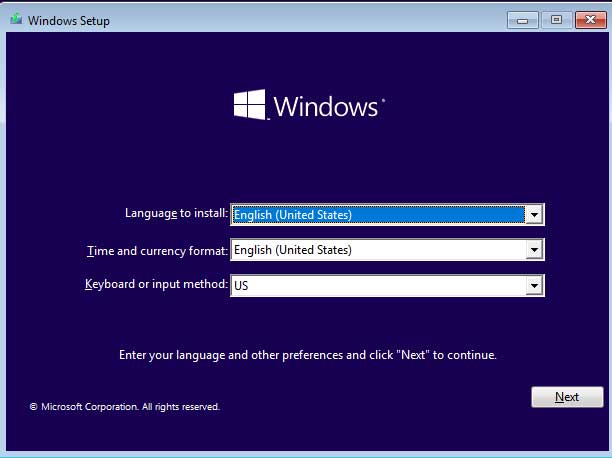
Installing Windows Operating System
Step 2: Select Repair your computer.
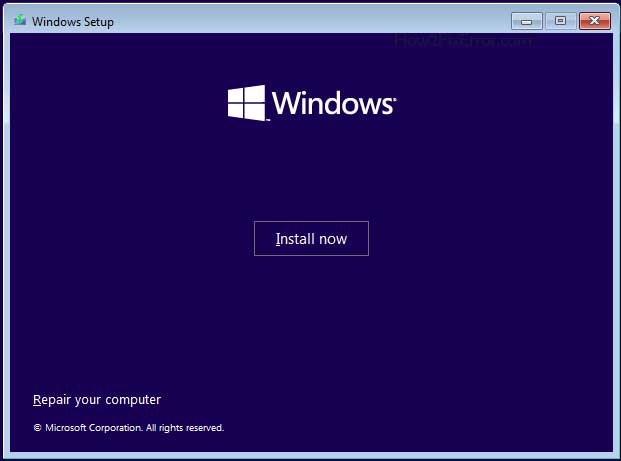
Repair your computer option for Windows 10 and 11
Step 3: The Advanced Startup Options or Windows Recovery Environment will open. Click on Troubleshoot.
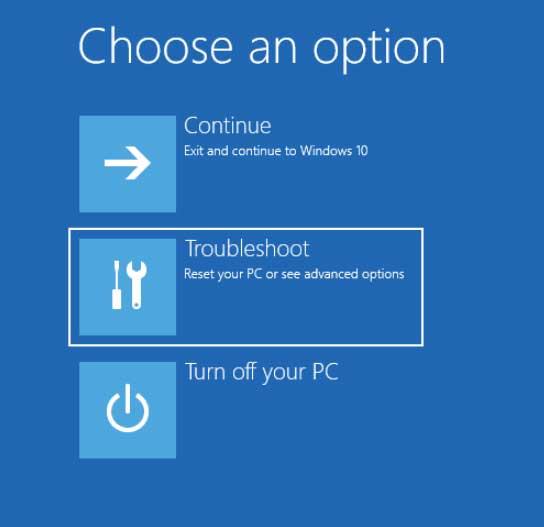
Troubleshoot in the Advanced Startup Options menu for Windows 10 and 11
Step 4: Select Command Prompt.
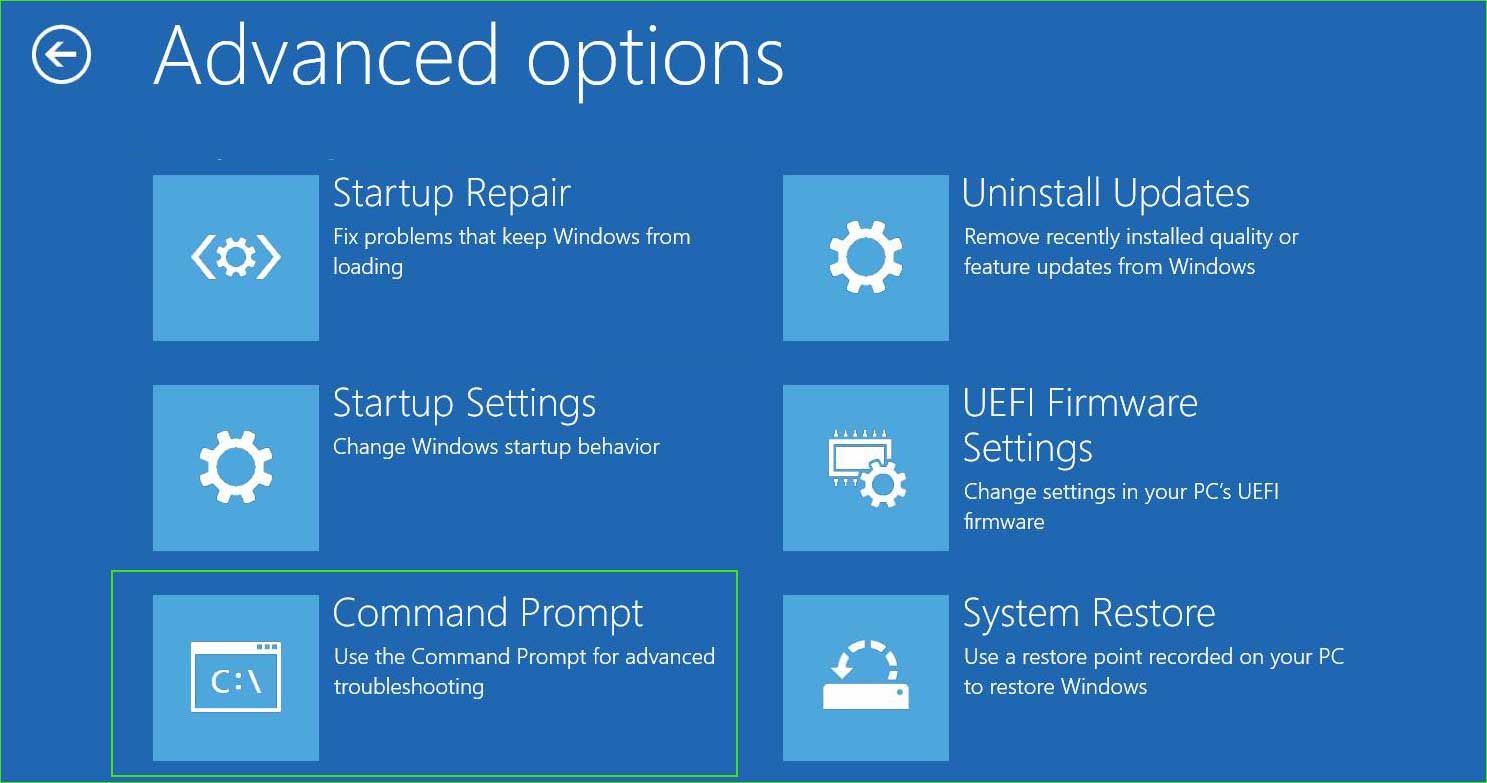
open_command_prompt in the Advanced Startup Options
Step 5: Type the following commands and press Enter to execute them.
bootrec /fixmbr
bootrec /fixboot
bootrec /RebuildBcd
Step 6: Now restart your computer, and you should no longer see the Bootmgr is missing error message at boot.
Method 2: Repair Windows Installation
Repairing the Windows installation can effectively address the Inaccessible_Boot_Device error, as well as many other issues that may affect your system. This remedial process proves invaluable when facing various Windows-related problems. To perform this corrective action, you will need a bootable USB drive for Windows installation or a DVD.
Here’s how to repair the Windows installation.
Startup Repair - Step by Step
Step 1: Boot your computer using Windows installation media. The Windows Setup Wizard will open. Click Next.
Installing Windows Operating System
Step 2: Select Repair your computer.
Repair your computer option for Windows 10 and 11
Step 3: The Advanced Startup Options or Windows Recovery Environment will open. Click on Troubleshoot.
Troubleshoot in the Advanced Startup Options menu for Windows 10 and 11
Step 4: The Advanced Startup Options menu will open. Navigate to Troubleshoot ➜ Advanced options ➜ Startup Repair.
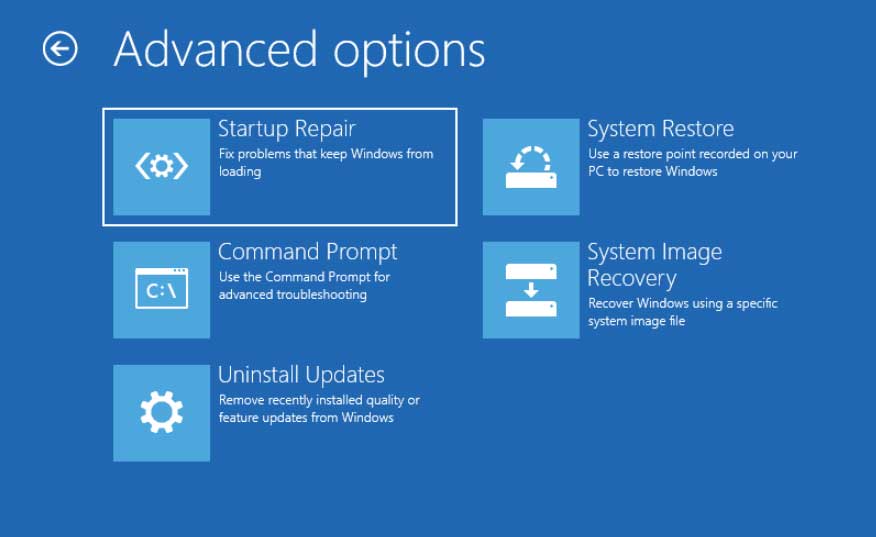
Startup Repair for Windows 10 and 11
Step 5: Select the operating system.
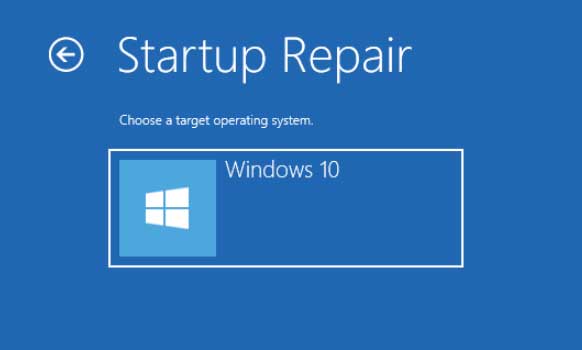
Startup Repair - Select Operating System
Step 6: Wait for it to diagnose and repair your computer.
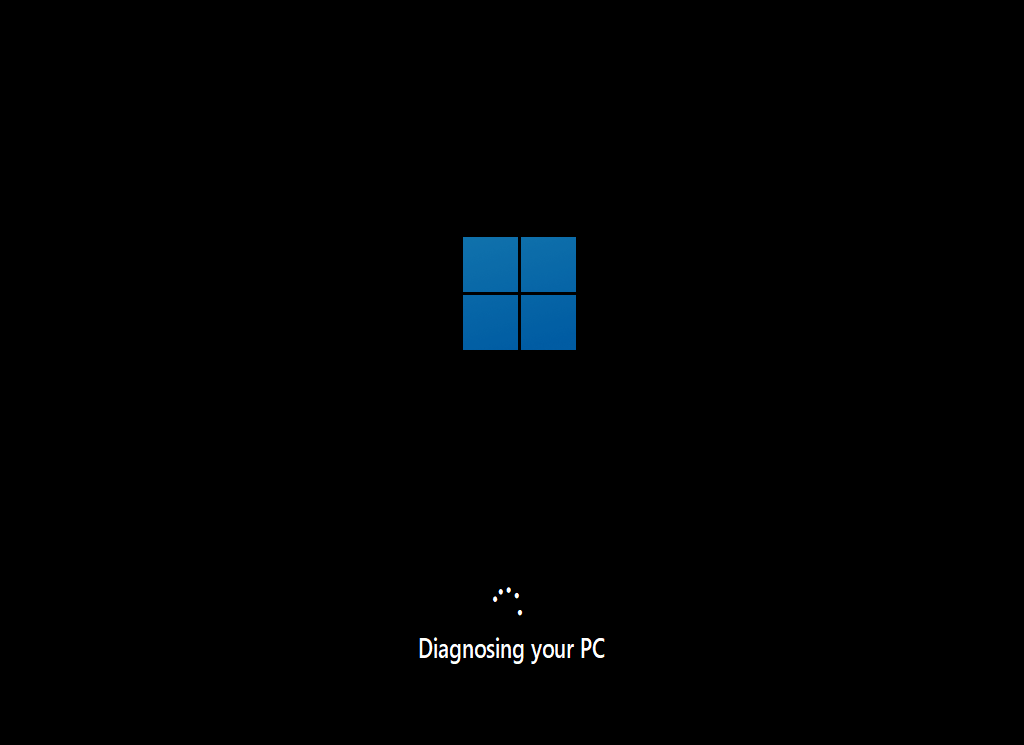
Repair-Windows-from-USB-5
Method 3: Run SFC, CHKDSK, and DISM Commands
Run SFC, CHKDSK, DISM commands
Step 1: Boot your computer using Windows installation media. The Windows Setup Wizard will open. Click Next.
Installing Windows Operating System
Step 2: Select Repair your computer.
Repair your computer option for Windows 10 and 11
Step 3: The Advanced Startup Options or Windows Recovery Environment will open. Click on Troubleshoot.
Troubleshoot in the Advanced Startup Options menu for Windows 10 and 11
Step 4: Select Command Prompt.
open_command_prompt in the Advanced Startup Options
Step 5: Now run the following commands one by one.
System File Checker tool
sfc /scannow
Secondly, run the Dism command
Dism /Online /Cleanup-Image /CheckHealth
Dism /Online /Cleanup-Image /ScanHealth
Dism /Online /Cleanup-Image /RestoreHealth
Thirdly, run the disk checking utility.
chkdsk C: / f / x / r
Method 4: Uninstall Recently Installed Windows Updates.
Uninstalling Updates - Step by Step
Method 5: Select the Correct Boot Device in BIOS
Check Boot Order in BIOS - Step by Step
Step 1: Restart your computer and access the BIOS or UEFI settings. The process varies by computer, but it usually involves pressing "Delete," "F2," "F10," or "ESC" keys during startup.
Step 2: Locate the "Boot" or "Boot Order" section in the BIOS/UEFI menu.
2_bios_boot_option
Step 3: Set the primary boot device to the drive where Windows 11/10 is installed. This is usually the internal hard drive or SSD.
Step 4: Save the changes and exit the BIOS/UEFI settings. Your computer will attempt to boot from the selected device.
Method 6: Replace Faulty Hardware
If none of the previously mentioned methods yield successful results, it indicates a potential hardware issue within your computer. Faulty components such as RAM, SSD, or motherboard may be the root cause of the problem. In such cases, it is advisable to consult a qualified technician. They can diagnose specific hardware failures and recommend necessary replacements to restore your system's functionality.
Conclusion
In this article, we discussed how to fix the Inaccessible_Boot_Device error and the top 6 solutions.
To resolve the Inaccessible_Boot_Device error on Windows 11/10, you need to repair the corrupted MBR file, perform a system restore, run SFC/DISM/CHKDSK, and more.


