


Are you interested in photography? You might be wondering right now, what’s the difference between Lightroom Classic and Lightroom CC? This is similar to trying to choose between two cameras of the same model; each has its unique features, but which one is better for you? Let’s find out together!
Initially, there was only Lightroom, but since Adobe transitioned to cloud-based services and subscriptions, Lightroom now has two versions: Lightroom Classic and Lightroom (previously known as Lightroom CC, where CC stands for "Creative Cloud").
Lightroom Classic is the desktop-only version that most photographers use, while Lightroom CC is a cloud-based editor that stores your original images in Adobe's cloud.
Depending on the package you purchase from Adobe, you likely have the option to download both Lightroom Classic and Lightroom CC, but that doesn’t mean you have to use both. While there are some similar features between them, these two programs are quite different from each other. I will clarify the differences between the two below.
What’s the difference between Lightroom Classic and Lightroom CC?
Lightroom Classic is a desktop-oriented application that focuses on detailed editing and organization, using a file-based indexing system.
Lightroom CC is a cloud service designed for editing and organizing across devices, with automatic syncing and easy sharing features.
If you’re still confused about why there are two versions of Adobe's popular photo editing software and don’t know the difference between Lightroom Classic and Lightroom CC, don’t worry! Keep reading this article, and you’ll find everything you need to know.
Before we dive into the differences between Lightroom Classic and Lightroom CC, let’s first get to know both of them.
What is Adobe Lightroom Classic?
 What is Adobe Lightroom Classic?
Lightroom Classic is the version that has been around since the program's inception in 2007.
It functions like a traditional desktop application and stores information about your images in a catalog file separate from your image files.
Your Lightroom Classic image files can be stored anywhere, but they are typically kept on your computer's hard drive or an external drive.
For photographers, Lightroom Classic has everything you might need to manage a massive library of images on your hard drive(s), edit them, and then print them. It also allows you to create books, slideshows, and web galleries.
Although it is desktop-based, you can sync images through a Creative Cloud subscription with the cloud-based version (Lightroom CC).
What is Adobe Lightroom CC?
 What is Adobe Lightroom CC?
A cloud-based program accessible across multiple devices.
Lightroom CC is designed for photographers who want to access their images online and on different devices while having powerful editing and organizing tools at their fingertips simultaneously.
By default, everything in Lightroom CC is stored in the cloud—not on your device or computer.
This means you can access your files from anywhere with a high-speed internet connection.
This makes it very useful for traveling photographers or those who want to edit their photos from their phone or iPad.
One source of confusion for beginners is that even though Lightroom CC is cloud-based, the application is also present on your computer.
The main difference is that your images in Lightroom CC are actually stored online, not on your hard drive.
You can access these image files in three main ways:
Your computer where Lightroom CC is installed.
Your tablet or phone with Lightroom mobile installed (a free mobile app available to anyone, even those who haven’t subscribed to Lightroom).
Any computer with an internet browser via the website lightroom.adobe.com.
What are the differences between Lightroom CC and Lightroom Classic?
When you sign up for the Adobe Photography Plan, you gain access to both Lightroom Classic and Lightroom CC.
Both applications help you edit and organize photos, but aside from that, they are completely different.
Your choice of software will depend on your workflow, the device(s) you prefer to edit on, and how versatile you need the software to be.
While both programs allow you to work on images from start to finish, they have some key differences.
With the latest versions, Adobe has indeed narrowed the gap between Lightroom CC and Lightroom Classic.
However, the main distinction between them still exists.
Key differences between Lightroom CC and Lightroom Classic
Let’s take a look at the differences between Lightroom Classic and Lightroom CC so you can understand each:
1. File Storage
The first difference is where your images and image information are stored.
Lightroom Classic has everything stored locally—you essentially need to have your storage device (computer, external hard drive, etc.) with you to work on your images.
You work with folders as you normally would on your device, so you have to do all management within Lightroom. If you change the file location directly on your computer, Lightroom won’t be able to find it anymore.
For those who prefer editing on a desktop or laptop, using only Lightroom Classic is not an issue. However, if you’re traveling and/or need to access your images from several different devices, this can be a bit cumbersome.
You can choose to sync certain collections, but you have to set that up manually. This way, you’ll be able to access your images from any device via Lightroom mobile or Lightroom web.
It’s important to note that by doing this, you’ll only be able to access Smart Previews, which are smaller files.
You can edit them on the go and even share them online, but if you want to print in high quality, you’ll need the file on your computer.
If you find all of this a bit annoying, there’s Lightroom CC.
Everything is stored in the cloud, and high-quality versions of your images are always available without needing to download large files to your devices.
You can use Lightroom CC to view and edit photos while syncing everything.
Also, since your images are stored on Adobe’s servers, they are automatically backed up regularly.
With LR Classic, there is no automatic backup for files; you are responsible for that yourself.
2. Interface
Lightroom Classic comes with a comprehensive set of tools, all organized into different modules. However, there are also options to create a web gallery, make prints, create slideshows, and view geotagged images on a map.
While all these features add significant functionality to Classic, they also create a somewhat steep learning curve.
If you’re a beginner, you might need to watch several Lightroom tutorials to take full advantage of the program's power. In fact, it’s possible to work with Lightroom for years and not know half of what it can do!
In comparison, Lightroom CC is more user-friendly and has a learning and discovery section to help you improve your skills and learn in a quick and interactive way.
When you launch Lightroom CC, you’ll see available images in the discovery section. You can click on them to learn how to edit them and save adjustments as presets, and more.
To access your files, click on the All Photos panel on the left side.
You’ll also find all the organization tools and adjustment tools hidden behind an icon on the right.
Lightroom CC not only has an easy interface but is also more social and community-driven.
Initially, it’s simple, then reveals more complex tools as you need them.
3. Editing
Editing photos in Lightroom Classic is extremely powerful.
Initially, Lightroom CC was a simpler version of Lightroom Classic.
Now, the difference between Lightroom Classic and Lightroom CC has diminished; the latest versions have nearly equivalent editing capabilities to the classic version.
Fortunately, both versions allow the use of Smart Previews, meaning you can save a lot of space on your local hard drive or in the cloud.
4. Importing and Exporting
The difference between Lightroom Classic and Lightroom CC in importing and exporting is significant.
Lightroom Classic has abundant import and export capabilities.
During import, you can save to an external hard drive, apply presets, exclude certain images and folders from import, etc. Classic also has a number of export options: file type, ppi, open in another program after export, and so on.
On the other hand, Lightroom CC is still limited in its import and export capabilities.
The import has almost no options in CC—for example, you cannot apply any presets or keywords when importing.
Initially, you couldn’t even choose the file type for the exported image; now, Lightroom CC has more options—but not as many as Lightroom Classic.
There are also no printing options; however, the Lightroom CC app can automatically upload anything shot on your phone to the Lightroom cloud storage, and you can search for, filter, and tag your images.
This is great for those who love mobile photography.
5. Organizing Photos and Searching
Searching for images in Lightroom CC is excellent. Although both programs have tremendous capabilities for searching and organizing images, they differ slightly from each other.
The biggest difference is that Lightroom CC uses artificial intelligence (Adobe Sensei) to allow you to find specific objects, and it also has an effective face recognition algorithm. Moreover, you can search by camera model, keyword, or location.
Lightroom Classic, while lacking keywords or AI-based search (for now), still has more advanced filtering options—you can search by lens, focal length, F-stop, or even ISO.
Of course, you can sync your images on Lightroom Classic and use Adobe Sensei with your phone or Lightroom Web.
Also, there’s one thing that Lightroom CC doesn’t have that would be essential for some photographers: Smart Collections.
You now know the difference between Lightroom Classic and Lightroom CC, but which version of Lightroom should you choose?
Ultimately, when it comes to Lightroom CC and Lightroom Classic, the right version for you will depend on a variety of factors, which we will discuss in the next section.
Who should use Lightroom Classic?
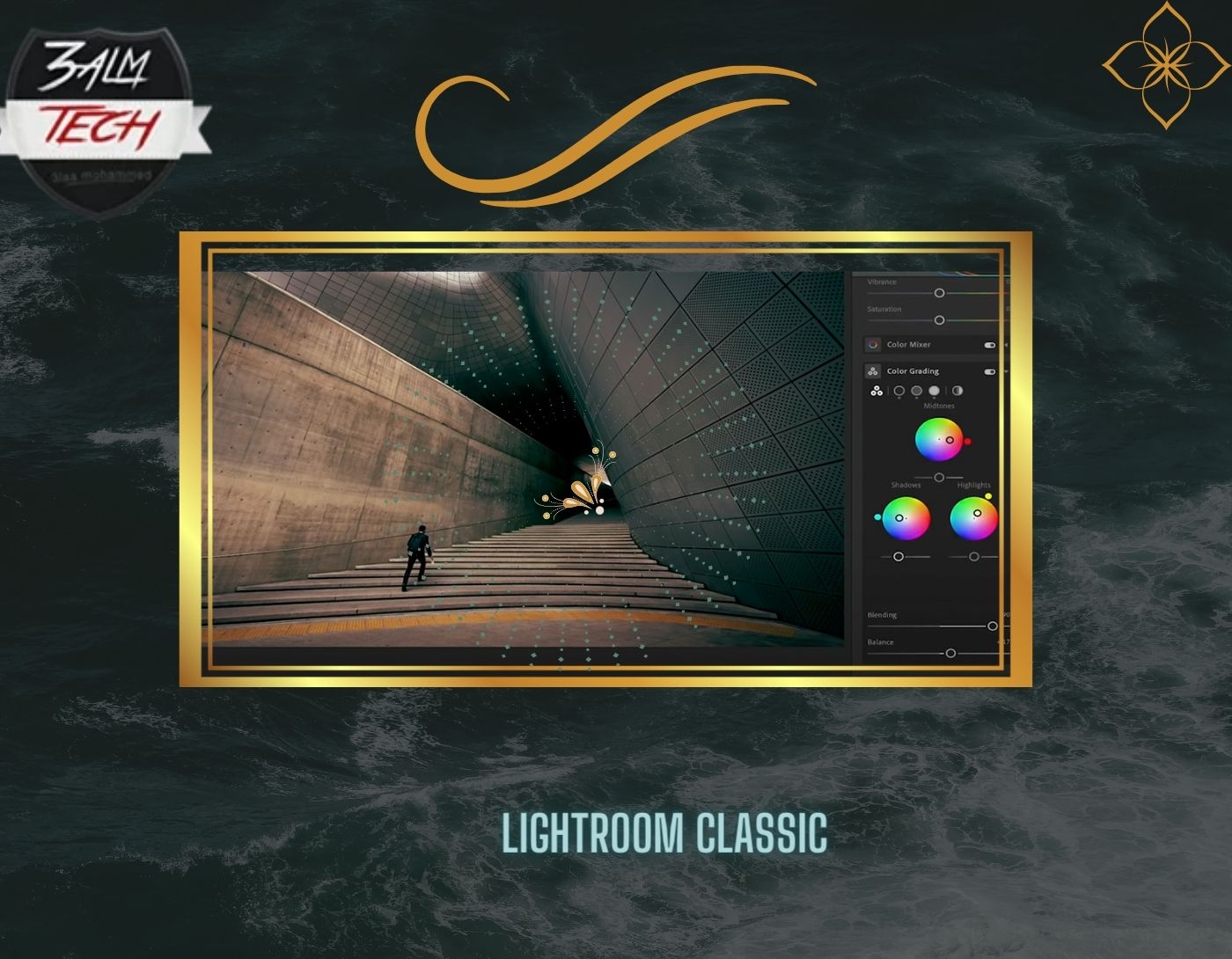 Lightroom Classic
Are you a professional photographer? Have you used Lightroom in the past? If so, Lightroom Classic is the right path for your work.
It simply has more features that professional photographers may need, such as tethering, soft proofing, and complex organization. While the AI keyword search in Lightroom is great, most professionals will care more about things like plugins, multiple catalogs, and full development features, etc.
Choose Lightroom Classic in the following cases:
- You don’t have reliable access to a fast internet


