


This article outlines the most convenient methods for downloading and updating battery drivers for Windows 10, 8, and 7. Keep reading to learn more.
A battery driver is a small program that manages the general functions of batteries in a computer system. Therefore, it's important to update the battery driver in a timely manner to avoid issues such as the battery not charging, draining quickly, and so on.
How to Download and Update Battery Drivers for Windows 10, 8, and 7
Depending on your requirements and needs, you can use any of the following methods to download, update, and install the Microsoft battery driver.
Method 1: Download Battery Drivers via Microsoft Update Catalog
The Microsoft Update Catalog is a website designed to help users obtain the latest updates for desktop and laptop computers running Windows XP and newer operating system versions. You can also use it to find and download the latest updates for your battery driver.
Here are the detailed instructions you can follow:
- Visit the Microsoft Update Catalog website.
- In the search box, type your laptop's name followed by battery driver (for example, Dell Battery Driver) and press the Enter key on your keyboard.
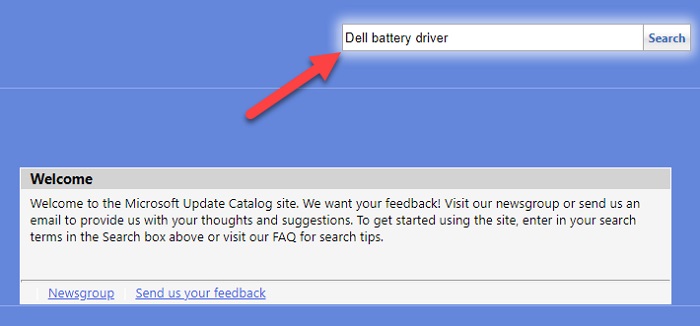
Type your laptop's name followed by battery driver
- Click the "Download" button next to the update (for example, Microsoft Driver Update for ACPI-Compliant Control Method Battery) that you want to install.
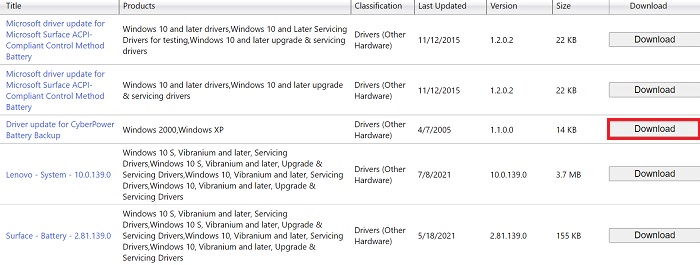
Download the battery driver
- Double-click the downloaded driver setup file (.exe) to launch the installation wizard.
- Follow the on-screen instructions to install the battery driver on your Windows system.
Method 2: Download Battery Drivers via Windows Device Manager
To manually download and update the battery driver on your computer, you can utilize a built-in component in the Microsoft Windows operating system called Device Manager.
Here are the detailed steps that can help you do this:
1. First, press the Windows + X keys simultaneously and select "Device Manager" from the menu that appears.
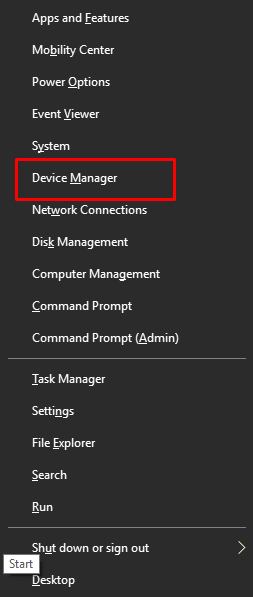
Device Manager
2. In "Device Manager," look for the battery category and expand it.
3. Now, right-click on Microsoft AC Adaptor and select the "Update Driver" option from the pop-up menu.
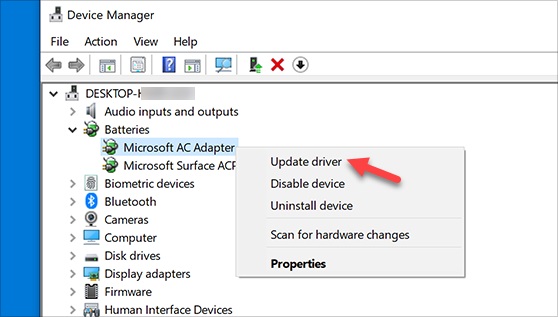
Update driver for Microsoft AC Adaptor
4. Next, select the option to search automatically for drivers.
5. If a new update for the battery driver is available, Windows will download and install it for you.
6. After the update is installed, restart your system.
Method 3: Download Battery Drivers via Bit Driver Updater (Recommended)
The two methods described above are manual and time-consuming, while this method is automatic and quick. Additionally, using a skilled tool like Bit Driver Updater for driver updates helps you avoid the risks of installing the wrong driver update. It allows users to automatically download and install the latest compatible driver updates with just one click.
To download battery drivers for Windows, all you need to do is follow the three simple steps below:
Download and install the Bit Driver Updater program.
Run the application and patiently wait for it to complete the automatic process of scanning all your device drivers.
Now, click the "Update Now" button next to the battery driver to allow the program to automatically download and install the latest version for your operating system.
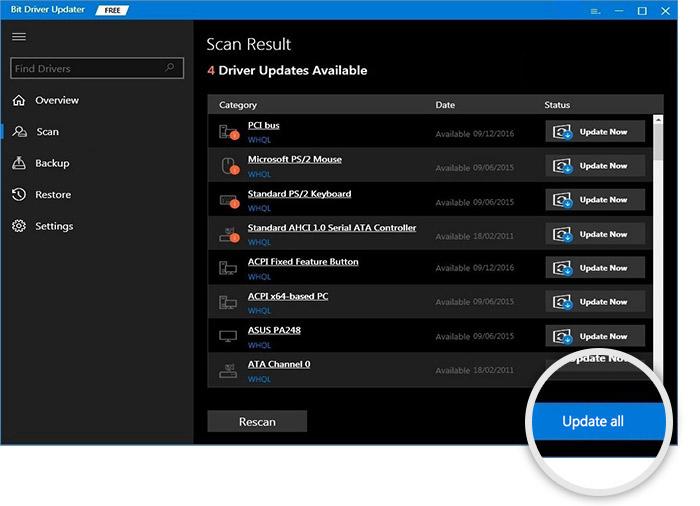
Update all drivers using Bit Driver Updater
Frequently Asked Questions about Microsoft Battery Drivers for Windows 11, 10, 8, and 7
Q1: What does the Microsoft ACPI-Compliant Control Method Battery Driver do?
In Windows, everything related to power management is controlled by the Microsoft ACPI-Compliant Control Method Battery Driver. This battery driver manages the overall power supply system of the laptop and most internal devices in sleep mode. It also displays the battery status and allows users to make adjustments to power plans.
Q2: How can I reinstall the battery driver for Windows 11?
To do this, you first need to open "Device Manager," then double-click on "Batteries." After that, right-click on the battery device and select "Uninstall device" to proceed. Now, wait for the Microsoft battery drivers to be uninstalled. Once completed, restart your computer to reinstall the latest version of the battery drivers.
Q3: Can I use a laptop without a battery?
Yes, you can easily access your laptop without the battery as long as it is connected to a power outlet. When the power source is disconnected, your device will shut down immediately, which can also lead to file corruption and even damage to the operating system. Therefore, it is recommended to use it on battery to keep the system in good condition.
Q4: Is it safe to uninstall the Microsoft ACPI-Compliant Control Method Battery Driver?
When the battery driver file becomes corrupted or missing, uninstalling the currently installed version of the Microsoft ACPI-Compliant Control Method Battery Driver is the best way to fix battery charging issues in Windows 11, 10, 8, and 7.
Conclusion
In this article, we explored the most convenient methods for downloading and updating battery drivers for Windows 10, 8, and 7. By using any of the methods mentioned above, you can install the latest battery driver updates for your system.
However, if you're looking for a way to easily update all outdated drivers without going through many tedious manual steps, we recommend using Bit Driver Updater. Since this driver update tool automatically recognizes system configuration and driver information, using it not only saves time but also eliminates the risks of installing incorrect or malware-infected drivers.
We hope you find the information provided in this article helpful. If you have any additional questions or suggestions, feel free to share them in the comments section below.


