


Downloading and updating the microphone driver for Windows 10: Download and update the microphone driver to ensure smooth operation for your tasks. Below are the methods you can use to get the latest drivers for your microphone.
In the past, microphones were primarily used to amplify sound for communication with large groups of people. However, in today's world, microphones have evolved significantly; they are now used for recording audio, speech recognition, communicating with friends, and much more.
Nowadays, almost all laptops come equipped with built-in microphone, so there's no need to connect additional external devices. On the flip side, many users still face issues with their microphones not functioning properly. Some users have reported that their microphones do not record audio and are unable to access Skype or other applications.
Encountering such a problem can be frustrating, but have you ever tried to find out why it happens? The clear answer is - an outdated or corrupted microphone driver. Corrupted drivers are the main reason behind microphone malfunctions. Therefore, you should always ensure they are updated. To make this challenging task a bit easier, we have compiled a list of methods that will help you easily update and download your microphone drivers. Stay with us.
Downloading and updating the microphone driver for Windows 10
Method 1: Visit the manufacturer's official website
If you have adequate technical skills, you can manually obtain the latest driver updates by visiting the manufacturer's official website. However, this method can be very time-consuming to find the correct and latest microphone drivers.
Method 2: Use Device Manager to install the microphone driver
You can use the built-in Windows tool called Device Manager to download the microphone driver. Follow the steps below to execute this method:
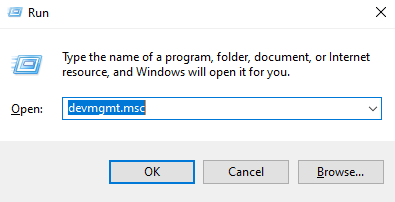
Step 1: Press Windows + R on your keyboard, then type devmgmt.msc in the Run dialog and hit Enter.
Running Windows
Step 2: The above step will open the Device Manager window. Now, scroll down to the Sound, video and game controllers section.
Step 3: Next, expand its category by double-clicking on it.
Step 4: Right-click on the audio device and select Update Driver.
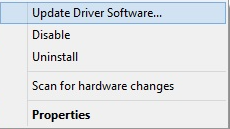
Updating the driver
Step 5: Then, choose the option to search automatically for driver updates from the next prompt.
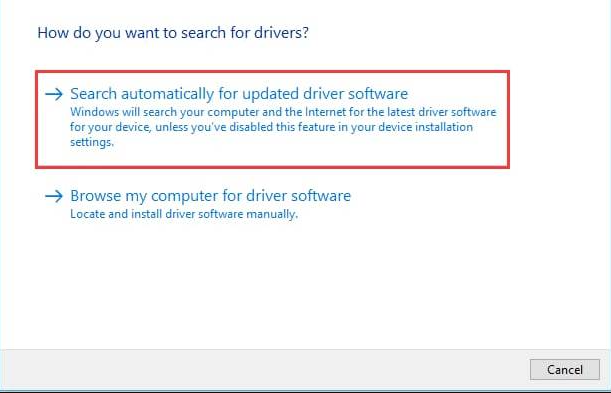
Driver update window
Now, Windows will automatically search for the latest version of the drivers and install them as well.
This is how you can update the microphone driver by updating its drivers.
Method 3: Use Bit Driver Updater to automatically get the latest microphone driver
If you're in a hurry and lack technical skills, you can use Bit Driver Updater to perform microphone driver updates.
Bit Driver Updater is a utility that can make the driver update task much easier. It not only updates drivers or provides solutions for driver-related queries but also helps you fix other issues related to Windows, such as frequent crashes, slow performance, blue screen errors, and more.
Moreover, it is also a utility that automatically finds the latest correct drivers. Follow the steps below to download microphone drivers using Bit Driver Updater.
Step 1: Install the utility from its official website.
Step 2: Run the setup file and follow the wizard to complete the installation.
Step 3: After successful installation, open it and wait for it to finish the automatic scan.
Step 4: Next, check the overall list and click on the Update Now button next to the driver that needs updating.
Step 5: Alternatively, you can click on the Update All button to update all drivers at once with a single click.
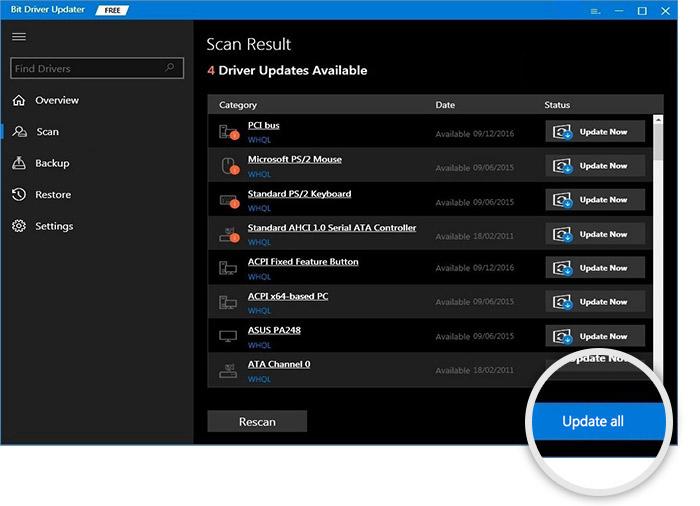
Updating all drivers using Bit Driver Updater
With this tool, you can also resolve the USB headset not working error. The driver updater tool comes in two versions, free and paid. You can update drivers through the free version, which provides access to only the basic features of the software, while the paid version grants you unlimited access to highly advanced features.
Method 4: Run Windows Update to install the microphone driver
Windows Update is a way to get the latest driver updates, new features, security patches, bug fixes, and performance improvements.
Here’s how to run Windows Update to update the microphone driver:
Step 1: On your keyboard, press the Windows key + I at the same time to bring up the Windows settings.
Step 2: Next, look for the Update & Security option and click on it.
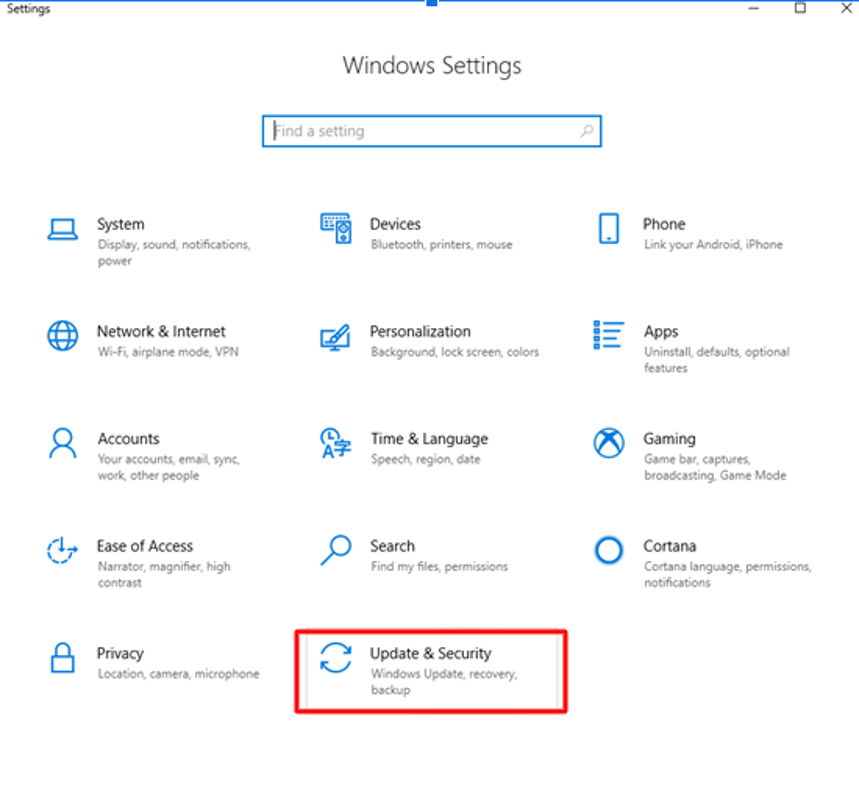
Windows Update and Security Settings
Step 3: Now click on the Check for updates option on the right side.
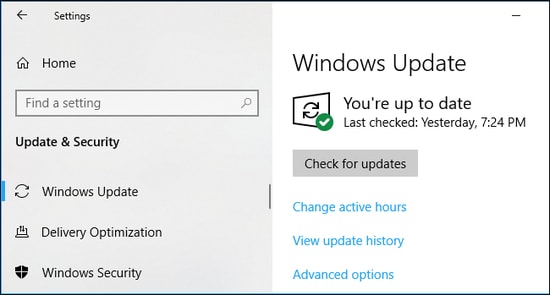
Check for updates in Windows settings
Wait for Windows to search for available updates. If Windows finds any updates, it can install them automatically without any manual assistance from users.
Easy solutions to fix microphone not working issue on Windows 10
Aside from updating drivers, here are some quick solutions that can help you fix microphone performance issues. Take a look at them below!
Re-enable the microphone.
Set the microphone as the default device.
Adjust privacy settings.
Restart the overall audio services in Windows.
Update audio drivers.
Frequently Asked Questions
Here are some frequently asked questions about the microphone driver for Windows:
Q1: How do I install a microphone driver?
To install a microphone driver, you can:
Visit the manufacturer's official website and search for the driver.
Q2: How can I find the microphone driver?
To find the microphone driver, you need to right-click on the Start button, run Device Manager, and look in the Sound, video and game controllers section; you will find the required driver.
Q3: Do I need to install a driver for my microphone?
Yes, you need to install a driver for your microphone to use the device smoothly without any issues.
Q4: What do microphone drivers do?
The task of microphone drivers is quite clear and straightforward; they allow you to operate the microphone connected to your system and use it easily and effectively. These drivers determine how the microphone will function and interact with your voice at all times.
Conclusion
In this article, we discussed downloading and updating the microphone driver for Windows 10. These were some of the easiest and most effective methods you can use to download microphone drivers. Additionally, we also mentioned possible solutions to fix microphone-related issues. We hope this article helps you resolve your microphone problems.


