


Downloading and updating the Synaptics Touchpad driver for Windows 10 and 11: You can download and install the updated Synaptics touchpad driver to avoid many annoying errors and performance issues. This article guides you on how to do it in the best possible ways.
Synaptics is a leading company in the touchpad industry, with a large number of laptops equipped with Synaptics touchpads. However, the touchpad only works well with the correct, compatible, and updated Synaptics touchpad driver for Windows 10/11/7.
The Synaptics touchpad driver connects your operating system to the touchpad for effective communication, converting your commands into binary code (0s and 1s) so that the computer can understand and execute them correctly.
What is the Synaptics touchpad driver, and do I need it?
The Synaptics touchpad is a touch-sensitive surface for user fingers, performing all the functions of a mouse, including clicking, selecting, and scrolling. Many devices around the world use the Synaptics touchpad, and if the touchpad stops responding, it is often due to an outdated driver.
The Synaptics TouchPad driver is software that allows the touchpad to communicate with the firmware, translating movement on the pad into cursor movement. To make the Synaptics TouchPad work, you need to download this driver and adjust the settings according to your requirements. The software also allows you to change the cursor size and sensitivity.
Why is my Synaptics Touchpad driver not working?
If the Synaptics Touchpad has stopped responding, it’s time to download the Synaptics Touchpad driver on your device. Touchpad issues often occur when you upgrade your computer's operating system or during cleanup when you accidentally delete the driver. To resolve the issue, all you need to do is install the latest version of the driver, and the touchpad will start working as if it were new!
Downloading and updating the Synaptics Touchpad driver for Windows 10 and 11
You can apply the methods outlined below to download, install, and update the Synaptics touchpad driver for Windows 11/10/7.
Method 1: Download the Synaptics driver from the laptop manufacturer's website
Almost all drivers you may need for your laptop are available on the manufacturer's website. If you know your device's operating system, you can download all drivers (including the Synaptics touchpad driver) from the manufacturer's site. However, you can go through Settings > System > About to find the required details if you are not familiar with your device's operating system, then follow these steps to get the driver.
Note: The steps to download the driver may vary slightly from one manufacturer to another, but they are generally similar.
First, go to the official website of your laptop manufacturer.
Now, select the support option.
After entering the support section, search for your laptop model.
Go to the drivers section.
Now, select your operating system if it is not detected automatically.
You can now select the option to download the driver package.
Double-click the downloaded package to run the driver installer.
Finally, follow the on-screen instructions to complete the driver installation.
Method 2: Use Device Manager to get the Synaptics touchpad driver
There is a tool called Device Manager on all Windows computers, allowing you to download and update drivers to ensure smooth and error-free performance on your computer. Although downloading the driver through this tool is somewhat complex and time-consuming, here’s how to use it to download and install the Synaptics touchpad driver for Windows 10/11/7.
First, search for Device Manager using the search function on your computer.
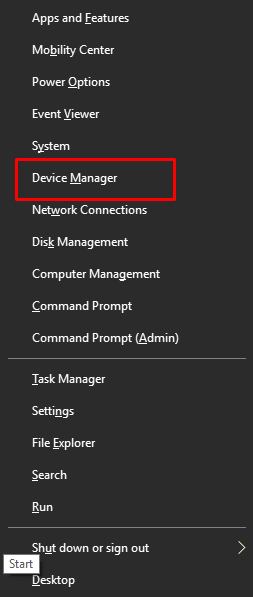
Select Device Manager.
Once in the Device Manager window, look for Mice and other pointing devices. After entering the Device Manager window, find the category for devices and other devices.
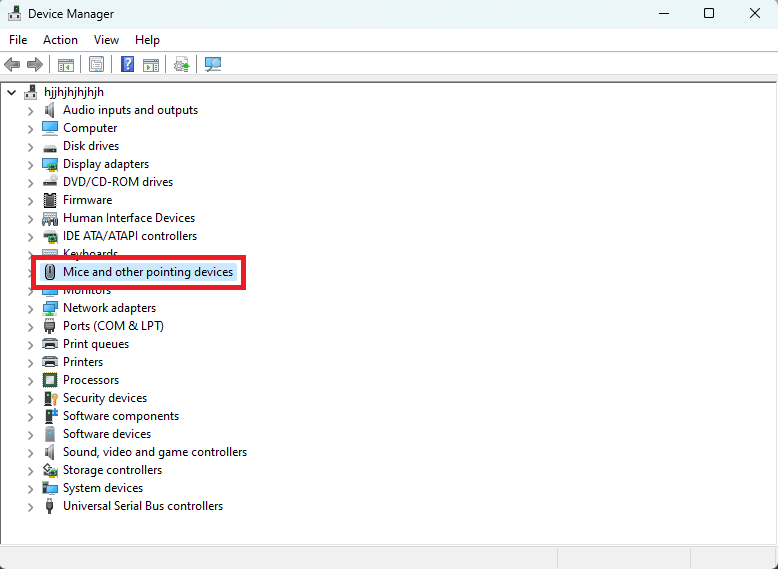
Mice and other pointing devices in Windows 10
Now, right-click on the Synaptics touchpad and select Update Driver from the options that appear on the screen.
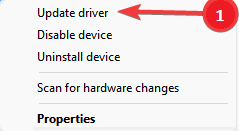
Update the driver.
Select the option labeled Search automatically for updated driver software. Users of Windows 11 can choose to search automatically for drivers.
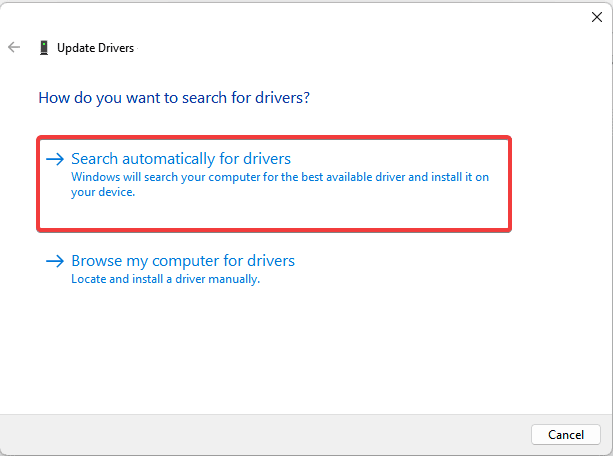
Search automatically for drivers in Windows 11
Wait patiently for the driver to download and install on your computer (this may take a few hours).
Finally, restart the system after completing the above steps.
Method 3: Automatically download the Synaptics touchpad driver update (recommended)
So far, we have discussed various methods you can apply to manually download and install the updated Synaptics touchpad driver for Windows 10 and other Windows versions. As you can see, all the methods mentioned above have certain limitations; for example, you may end up installing an incompatible driver from the official site, causing more harm than good to your device.
Therefore, we recommend downloading and installing driver updates automatically using a popular tool like Win Riser. The Win Riser program automatically downloads updates for all drivers that have issues and installs them with just a few clicks.
You can use Win Riser to enhance your computer's performance with many features, such as detecting malware, cleaning invalid registries, and removing unwanted files. Furthermore, this program allows you to backup and restore your drivers, perform deep and scheduled scans, and ignore drivers that do not need updating.
After downloading and installing Win Riser, here are the steps you can follow to update the Synaptics touchpad driver and all other drivers.
First, launch the program.
Perform a scan.
Wait a few seconds.
Review the scan results.
Finally, select the option to fix issues now.

Win Riser updates all outdated drivers click on Fix now
Individual driver updates are another great feature of Win Riser; you can use it by clicking the Update Now button to individually update the Synaptics touchpad driver. However, we suggest updating all outdated drivers for smooth system performance.
Conclusion
This article has brought your attention to various methods you can follow to download and update the Synaptics Touchpad driver for Windows 10 and 11. You can use any of the methods mentioned above to obtain the desired driver.
However, automatic downloading and installation of the driver via Win Riser is the fastest and safest among all methods. If you have any suggestions or questions regarding this article, feel free to reach out to us through the comments section.


