


How to Fix Error 0x8007000d When Trying to Install or Update Windows: 5 Effective and Simple Methods
Many users encounter Error 0x8007000d when attempting to upgrade their Windows 10 operating system to the latest version. Once this issue occurs, you won't be able to apply the monthly security patches to your current OS. Sometimes, you may succeed in starting the upgrade through Windows Update, but it will either fail or hang at a certain percentage. In this post, we will discuss some potential solutions as well.
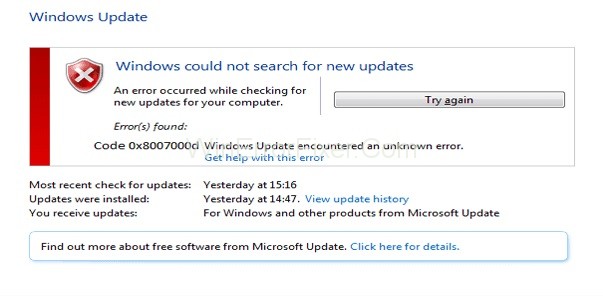
You may see the following error message when trying to download and install updates on Windows 10/8/7/Vista and Windows Server.
Error(s) found:
Code 0x8007000d Windows Update encountered an unknown error.
Why Does Error Code 0x8007000d Appear?
The 0x8007000d error code appears when trying to download and install updates or when activating the Windows operating system or MS Office product. This error is also known as an activation failure error and occurs when the product activation files cannot be found.
Additionally, this error can occur due to corruption or loss of protected system files such as dll, exe, or sys files, etc. Most updates or installation files rely on various types of system files, and if these files are corrupted or replaced by other software, you may start encountering different types of errors, including 0x8007000d.
How to Fix Windows Update Error 0x8007000d
To resolve this update failure error, you need to fix various aspects of your operating system. Here, I will list all possible solutions that you can use to resolve your issue.
Method 1: Run the Update Troubleshooter
Windows Update failures are generally due to corrupted Windows Update components. Since errors and glitches are quite common in the Windows 10 OS, the company provides a built-in tool that helps reduce such issues. Here’s how to run the troubleshooter
- First, open the "Settings" by pressing the Windows key on your keyboard and holding it down, then press the I key.
- When the desktop app appears, click on the "Update & Security" category.
- Next, select "Troubleshoot" from the left column.

- Click on Windows Update to bring up the option to run the troubleshooter and click on it.

Method 2: Scan for Corrupted System Files Using SFC
Corrupted system files can also lead to error code 0x8007000d on Windows 10. Therefore, we recommend using the built-in tool - System File Checker by Microsoft. Running this command-line utility scans your entire computer for outdated files and repairs them (if found). Here’s how to proceed -
- Press the Win + R keys to open the Run dialog.
- Type cmd in the box and simultaneously press Ctrl + Shift + Enter to run the command prompt.
- Now, type sfc /scannow in the elevated prompt and press Enter.

- This process will take a few minutes to complete, so please wait accordingly.
- Once finished, restart your Windows 10 device and check if this resolves the 0x8007000d update error.
Method 3: Run the Update Troubleshooter Again
Sometimes, the SFC scan fails to fix the underlying causes. In such cases, one should run the built-in Deployment Image Servicing and Management tool to repair the corrupted files. Here’s the complete procedure -
- Go to Search and type Command Prompt.
- Right-click on the top result and select Run as Administrator.
- If a User Account Control (UAC) window appears, click Yes.
- Copy/paste the following code near the blinking cursor and press Enter -
dism.exe /online /cleanup-image /scanhealth

- The execution process will start immediately after that, so please wait accordingly.
- Once the scan/repair completes successfully, execute the code below - copy and paste it into the command prompt.
dism.exe /online /cleanup-image /restorehealth
- This command will also take a few minutes to finish. Once completed and the underlying cause is reported, restart your computer.
- Now, try upgrading your Windows 10 operating system without receiving error code 0x8007000d.
Method 4: Enable Windows Update Using "Group Policy Editor"
Sometimes, disabled update components can cause this error 0x8007000d during an OS version upgrade. If this is indeed the case, enable the Windows Update components through the Policy Editor. Here are the basic steps to work on -
- Press the Win and R keys together to open the Run dialog.
- Type gpedit.msc in the box and press OK to launch the Group Policy Editor.
- In the next window, navigate to the following path -
Computer Configuration/ Administrative Templates/ System
- Scroll down and select the policy “Specify settings for optional component installation and component repair.”

- Once you find this policy, double-click it to open the relevant window.
- Here, check the radio button Enabled and press OK to save the recent changes.

- Finally, restart your Windows and check for updates upon your next login.
Method 5: Manually Reset Windows Update Components
If none of the above solutions resolve error 0x8007000d, you should try manually resetting the Windows Update components. To perform this task, you need to launch the Windows Console as an administrator and execute a few command lines. Here’s how to proceed -
- Right-click anywhere on the taskbar and select Task Manager.
- When this desktop app appears, click File followed by Run new task.
- In the text box, type cmd (Admin) and press the OK button.
- Now, run each of the commands below separately. Their purpose is to stop the essential services -
net stop bits
net stop wuauserv
net stop appidsvc
net stop cryptsvc
- Next, remove qmgr*.dat from your Windows 10 operating system by executing the command below -
Del “%ALLUSERSPROFILE%\Application Data\Microsoft\Network\Downloader\qmgr*.dat
- Then, navigate to the System32 folder and run the code below -
cd /d %windir%\system32
- Now, copy/paste the following commands to re-register the dll files. They, in turn, will reset the update components. Don’t forget to press Enter at the end of each command line -
regsvr32.exe atl.dll
regsvr32.exe urlmon.dll
regsvr32.exe mshtml.dll
regsvr32.exe shdocvw.dll
regsvr32.exe browseui.dll
<p


