

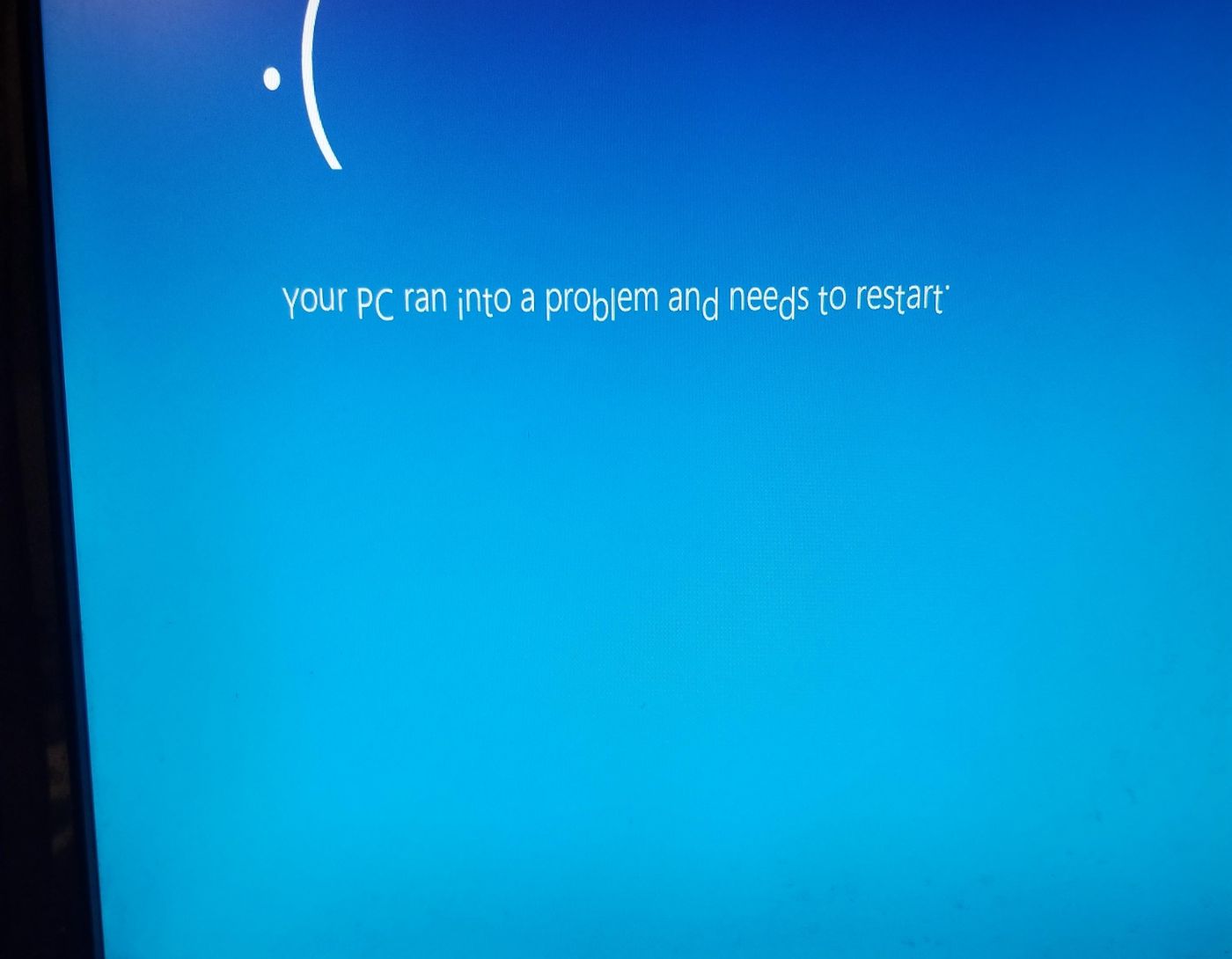
Fixing the random freezing issue in Windows 10: Have you ever faced the issue of Windows 10 freezing? These freezing incidents happen almost randomly and without any explanation, which is not only frustrating but also makes troubleshooting more challenging. But don’t worry, follow along with this article and you’ll be able to fix this problem, God willing.
Fixing the random freezing issue in Windows 10
Here are some solutions that have helped other users resolve the random freezing issue in Windows 10. You may not need to try them all; just go through them in order until you find the right fix for you.
Method 1: Update drivers
One possible cause of the Windows 10 freezing issue could be outdated drivers, so to fix the problem, you can try updating your drivers.
Method 2: Clear temporary files on your computer
If Windows doesn’t have enough space to store temporary files, it may slow down or even freeze, so you should clear them regularly.
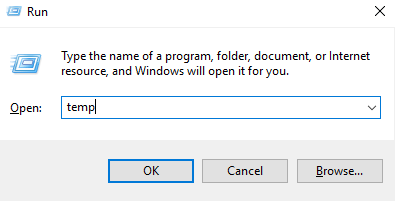
1) On your keyboard, press the Windows key and R at the same time, then in the Run dialog, type temp and hit Enter.
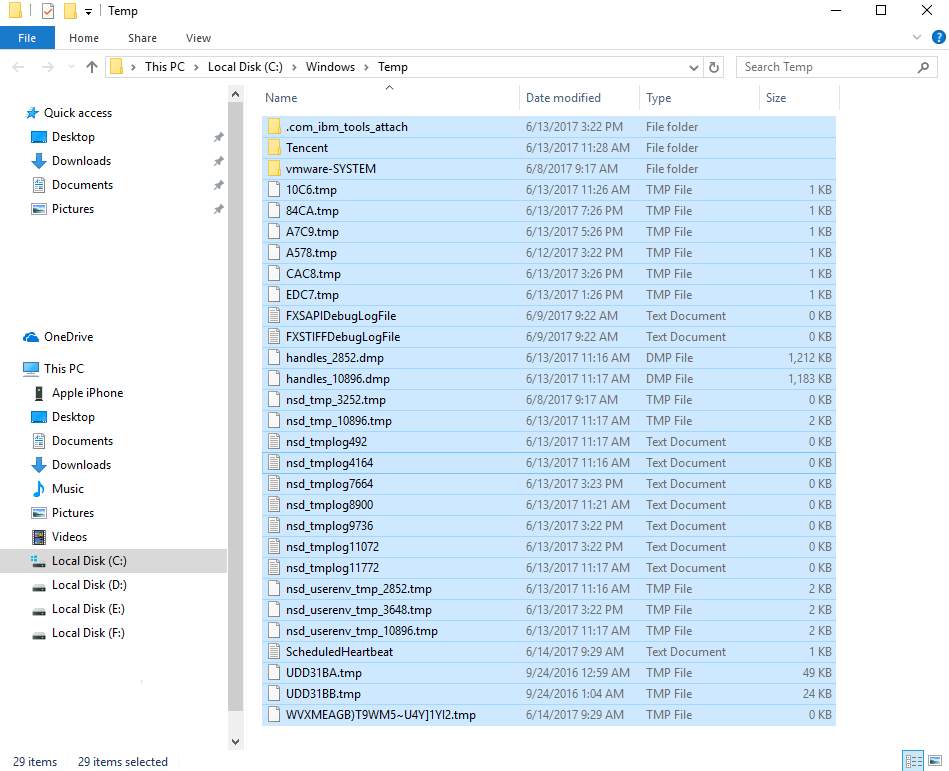
This will open Windows Explorer with your Temp folder, showing you all the temporary files on your computer.
2) Select all the files in the Temp folder and delete them.
If Windows 10 still freezes randomly after clearing the Temp files, try the next fix.
Method 3: Adjust your virtual memory to fix the random freezing issue in Windows 10
Virtual memory is essentially an extension of your computer's physical memory; it’s a combination of RAM and part of your hard drive. If your computer runs out of RAM while performing a heavy task, Windows will resort to virtual memory to store temporary files.
1) On your keyboard, press the Windows key and the Pause/Break key at the same time, then select Advanced system settings on the left panel.
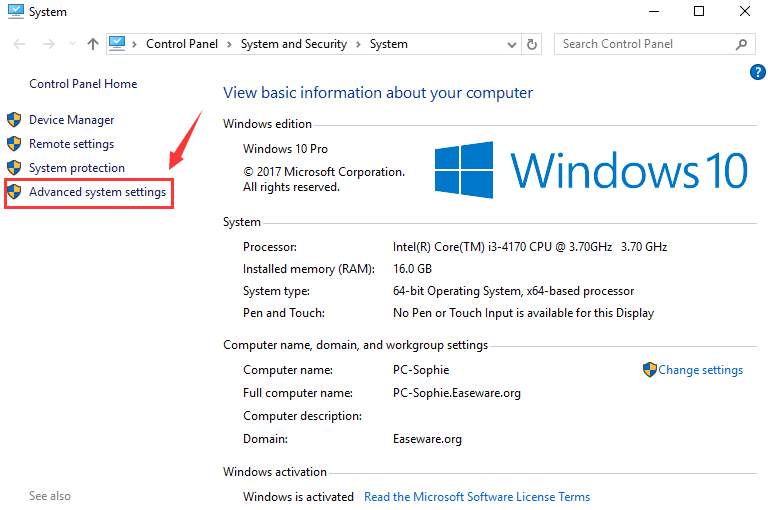
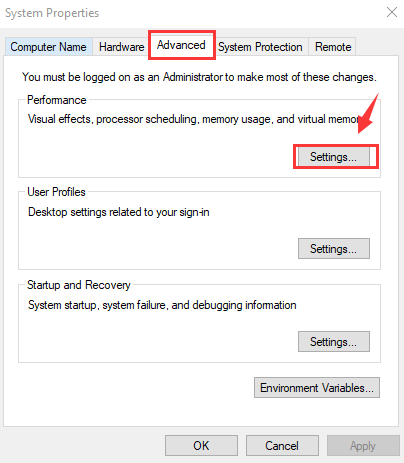
2) Go to the Advanced tab, then click on Settings.
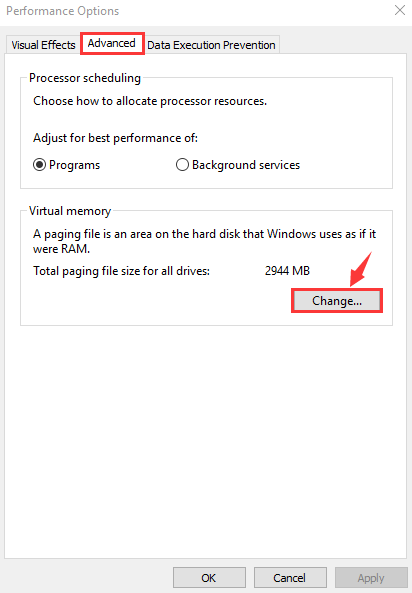
3) Go to the Advanced tab again, and select Change... in the Virtual Memory section.
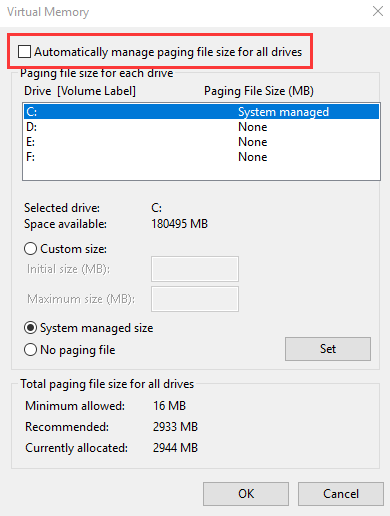
4) Make sure the checkbox for Automatically manage paging file size for all drives is unchecked.
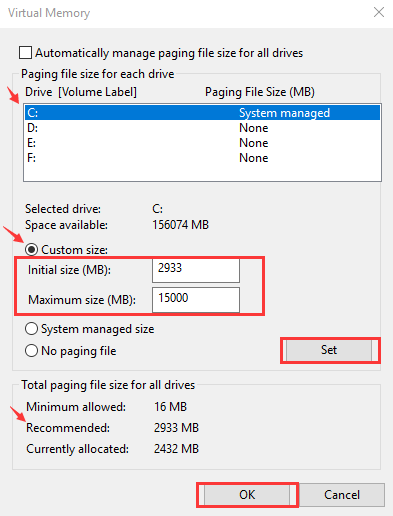
5) Select the Windows drive (the hard drive or partition where Windows is installed - usually C:), and enter the initial and maximum size for your virtual memory:
Initial size - this value varies depending on your computer; if you're unsure what value to use, just enter any number in the recommended range.
Maximum size - do not set this value too high. It should be about 1.5 times the size of your actual RAM; for example, a computer with 4 GB (4096 MB) of RAM should not have more than 6,144 MB of virtual memory (4096 MB × 1.5).
Once you’ve entered your virtual memory values, click Set, then click OK to proceed.
If you still experience issues with Windows 10 freezing after adjusting your virtual memory, try the next fix.
Method 4: Repair your system files
Corrupted or missing system files can cause Windows to freeze randomly. To check if this is the exact cause, you can either use the built-in Windows tool to perform a basic scan or use an automated tool for a complete diagnosis.
Option 1 - Automatically (recommended)
Use a repair tool to check various areas on your computer to identify the cause of Windows 10/11 freezing. It will address issues related to system errors and critical system files and find the right fix for you.
Fortect is a computer repair program that can diagnose problems on your computer and fix them instantly.

Fortect Windows Repair is specifically designed for your system and works in a unique and automated way. It first checks for hardware-related issues to identify problems, then security issues (powered by Avira Antivirus), and finally detects crashing programs and missing system files. Once completed, it will find a solution for your specific problem.
Fortect is a reliable repair tool and will not harm your computer, and best of all, you won’t have to worry about losing any programs or personal data.
1) Download and install Fortect.
2) Open Fortect and perform a free scan, which may take 3 to 5 minutes to analyze your computer fully. Once finished, you’ll be able to review a detailed scan report.
3) You’ll see a summary of the issues detected on your computer; click Start Repair, and all issues will be fixed automatically. (You will need to purchase the full version that comes with full technical support.)

Option 2 - Manually
The System File Checker is a built-in tool to check for corrupted system files and manage their recovery if found. However, this tool can only diagnose critical system files and will not address corrupted DLL files, Windows registry keys, etc.
Microsoft makes it easy for you to restore original system files; it has a built-in tool called "System File Checker" that will restore any corrupted or missing system files that may be causing your computer to freeze.
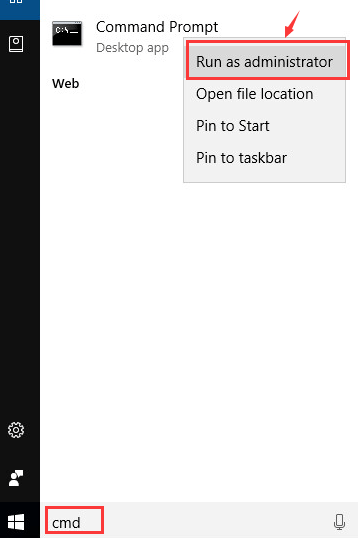
1) Press the Windows key on your keyboard, then type cmd (do not press Enter). Windows will display a list of programs matching your search; right-click on Command Prompt and select Run as administrator.
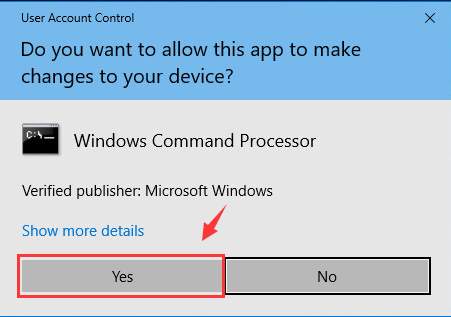
If prompted for administrator permission, click Yes.
2) In the black Command Prompt window, type:
sfc /scannow
Then press Enter on your keyboard.
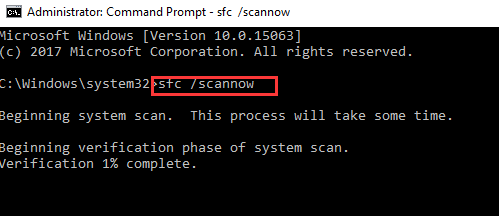
Windows will scan your system for corrupted files and attempt to repair any it finds. The results will be displayed in this window, so please keep it open until the process is complete.
If the scan finds no issues, you know that your system files are not the cause of the random freezing in Windows 10, and you can move on to the next fix.
Method 5: Run a memory check to fix the random freezing issue in Windows 10
A faulty memory card is one of the most common causes of computer freezing. So before investing in a new computer, check to see if your memory card is malfunctioning. Microsoft has a built-in tool to help you do this.
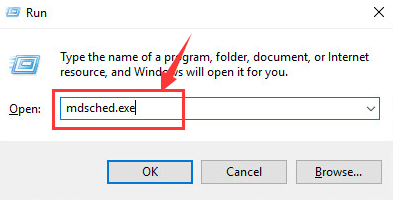
1) On your keyboard, hold down the Windows logo key and press R at the same time to bring up the Run command, type mdsched.exe in the Run box, and hit Enter.
2) If you want to check for problems immediately, click Restart now and check for problems (recommended). If you


