

Fixing the issue of WhatsApp not backing up to iCloud: The iPhone stores data remotely on iCloud, so if WhatsApp fails to back up to iCloud, you risk losing your data when changing devices or uninstalling and reinstalling WhatsApp. This also means that your data won't sync across devices linked to your mobile version of WhatsApp.
This can be frustrating! Fortunately, you can avoid this. If you're facing a similar issue, keep reading to discover possible solutions.
Fixing the issue of WhatsApp not backing up to iCloud
1. Allow WhatsApp to back up to iCloud
If WhatsApp isn't backing up your chats and files to iCloud, the first thing to check is whether you have enabled iCloud for WhatsApp backups.
Follow these steps:
Go to Settings on your iPhone or iPad.
Tap on your name and Apple ID logo at the top.
Select iCloud.
Scroll down and toggle on WhatsApp.
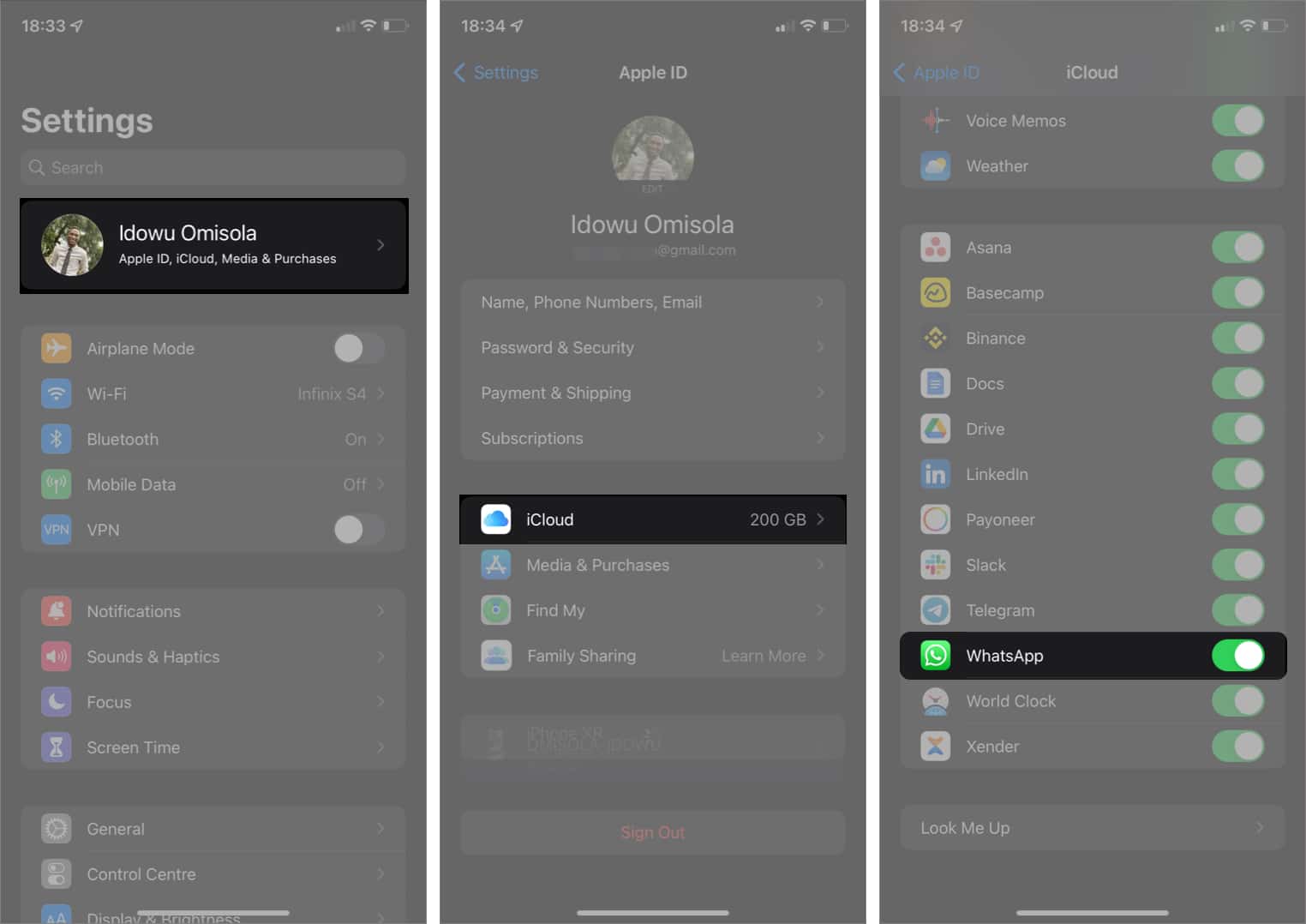
Make sure to allow WhatsApp to use iCloud backup
If the backup still doesn't occur at this stage, move on to the other solutions.
2. Check if iCloud Backup and Drive are enabled
You may have accidentally turned off iCloud Backup and iCloud Drive while using another service, or they might not be enabled at all. Since iCloud also syncs your WhatsApp data with iCloud Drive, the backup won't work if they aren't active.
Therefore, checking and enabling these features ensures that your WhatsApp data is backed up properly. To enable iCloud Backup and Drive:
Open Settings on your iPhone or iPad.
Tap on your name and Apple ID logo at the top.
Then, select iCloud.
Toggle on iCloud Drive to activate it.
Next, tap on iCloud Backup ← toggle to enable iCloud Backup.
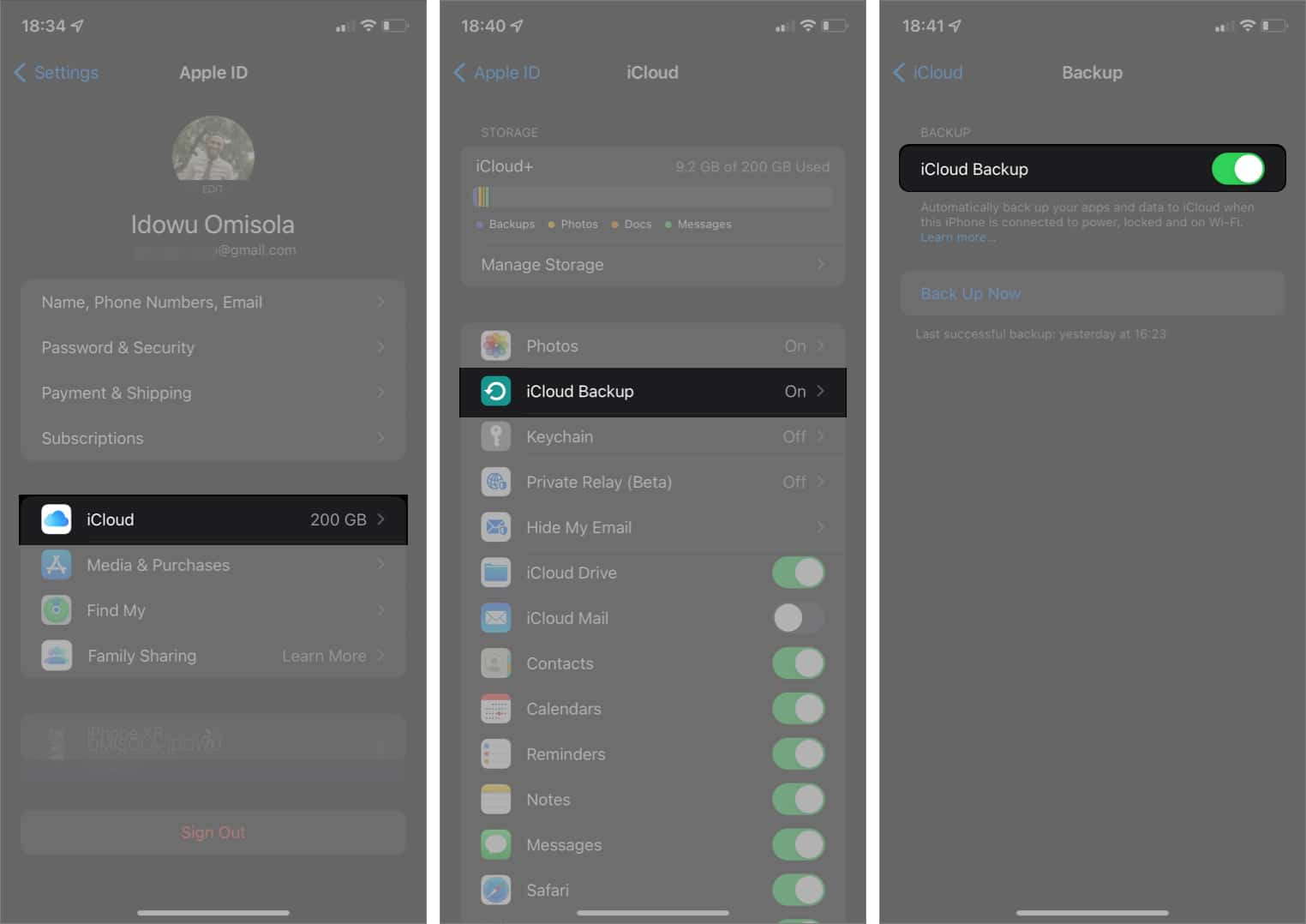
Check if iCloud Backup and Drive are enabled
3. Check your iCloud storage space
If you're not using iCloud+, running out of storage is often inevitable since the free plan only offers 5GB. Low storage on iCloud means it can't upload more of your data.
To see your remaining iCloud storage, go to Settings on your iPhone or iPad, tap your name at the top, then go to iCloud → check the top left to see how much space you've used.
If you see that your available space is full, this is likely the reason, and you may want to consider upgrading your current iCloud plan to iCloud+.
If you're not ready to spend on iCloud+, you can also free up your iCloud space to allow WhatsApp backups.
4. Ensure a strong network or Wi-Fi connection
Backing up to iCloud requires a strong internet connection and doesn't work well if your internet is slow or unavailable, so you might want to check if your mobile connection or Wi-Fi network is down after all.
First, check if your internet service provider's signal is available on your phone.
5. Enable automatic backup for WhatsApp
WhatsApp may fail to back up to iCloud because you expect automatic backups, which you may not have activated.
To check and enable automatic backup for WhatsApp:
Open the WhatsApp app on your iPhone or iPad.
Go to Settings at the bottom right.
Tap on Chats ← Chat Backup ← Auto Backup.
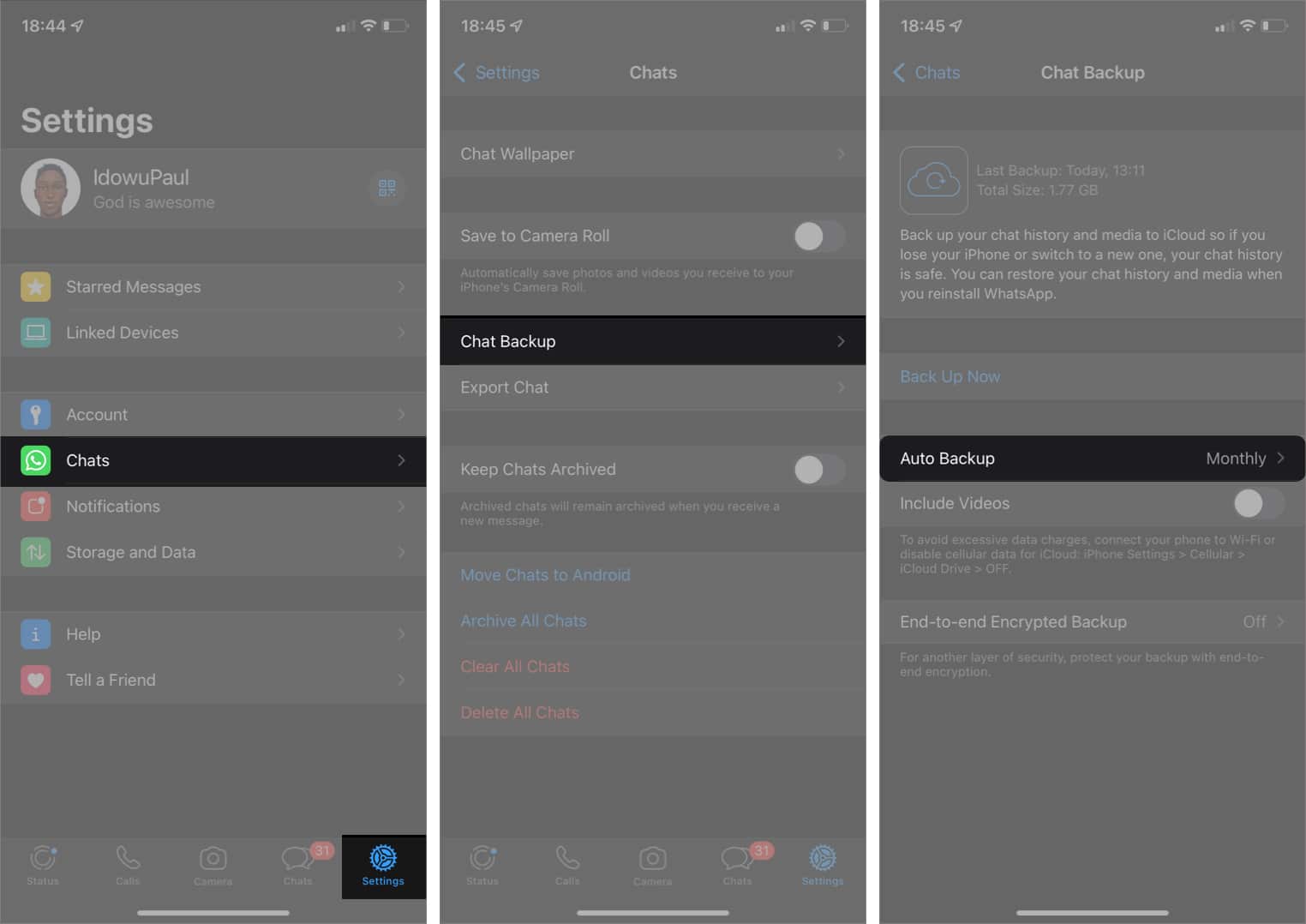
Enable automatic backup for WhatsApp on iPhone
Choose either Daily, Weekly, or Monthly. Do not select Off.
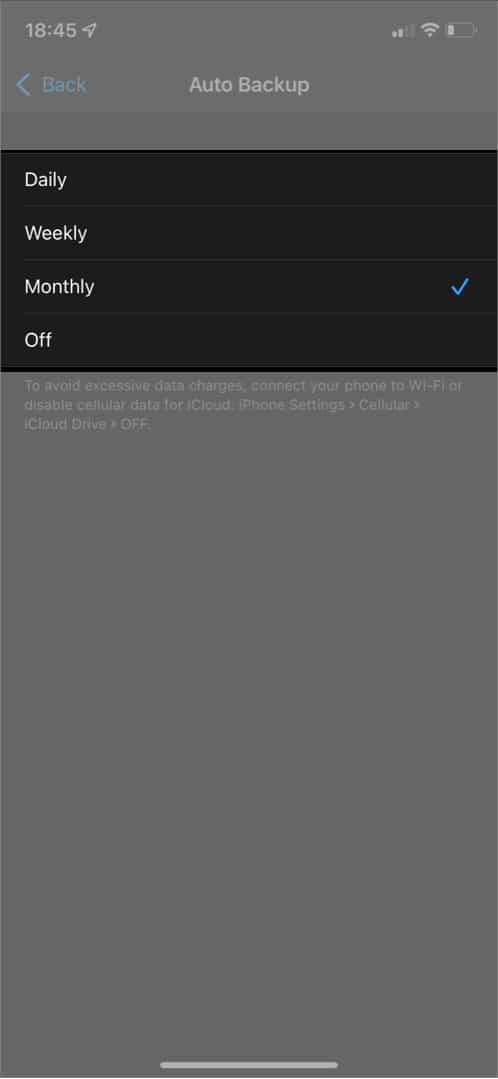
This will allow WhatsApp to routinely back up to iCloud based on the specified schedule.
Automatic backup options in WhatsApp on iPhone
6. Try a manual backup
While automatic backups are ideal if you don't want to lose your WhatsApp data over time, this may fail on the scheduled date due to poor internet, iCloud server downtime, or other factors.
Thus, performing a manual backup can often be helpful. To manually back up your WhatsApp data, go to WhatsApp Settings ← Chats ← Chat Backup ← Auto Backup, then tap on Back Up Now to start the manual backup.
7. Allow iCloud Drive backup over cellular data
If your iPhone or iPad backs up only over Wi-Fi, there won't be a backup if you're using cellular data because iCloud waits for a Wi-Fi connection. Therefore, allowing cellular data to back up your WhatsApp data may help.
To allow mobile data backups:
Open Settings on your iPhone or iPad.
Tap on Cellular Data.
Scroll down and toggle on iCloud Drive.
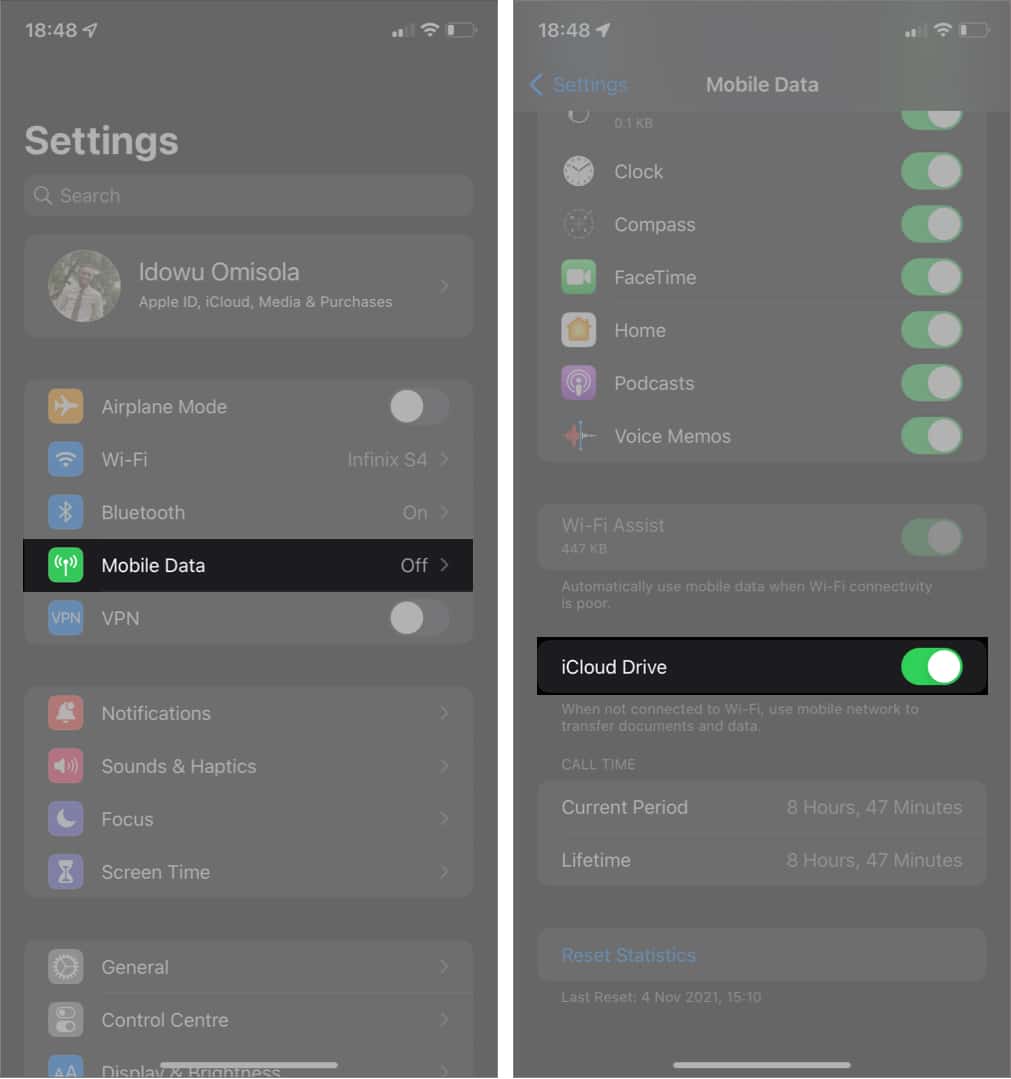
Allowing iCloud Drive backup over cellular data on iPhone
The next time iCloud wants to back up to iCloud Drive, it will do so, even without a Wi-Fi connection.
Note: This setting will also work with other backups besides WhatsApp, so I recommend this solution for those who often use their iPhone or iPad over cellular data only and are unlikely to connect to Wi-Fi anytime soon. Otherwise, if Wi-Fi is your internet source, this solution may not make a difference.
8. Remove videos from the iCloud backup
Although this may seem like an extreme measure, video files can slow down the syncing speed and may cause it to fail. Therefore, you might want to exclude videos from the WhatsApp iCloud backup to speed up the process. This is useful if you feel you no longer need the videos in your backup files.
Here's how to disable video backups: Go to WhatsApp Settings ← tap on Chats ← Chat Backup ← turn off Include Videos.
9. Check the status of the iCloud Drive server
It may be helpful to check the status of the iCloud Drive server if you're trying to manually back up WhatsApp and it failed. To check, go to the Apple System Status page and ensure there's a green dot next to iCloud Drive.
If not, iCloud Drive may be down generally or in your area. The best bet is to keep checking until Apple resolves the downtime. Then try to manually back up again.
10. Back up WhatsApp using iTunes
If the other solutions have failed, it may be time to back up your files using iTunes. This requires you to connect to a PC or Mac, as iTunes writes your data to its local storage.
It also doesn't specifically back up WhatsApp but syncs all data on your iPhone or iPad with your computer.
11. Restart your iPhone and WhatsApp
Sometimes force closing and reopening WhatsApp can help resolve the issue. If that doesn't work, try restarting your iPhone or iPad and attempt the manual backup again; this may help too!
12. Update your iOS version
If WhatsApp isn't backing up to iCloud, your iOS version may be outdated. WhatsApp also recommends upgrading to iOS 10 or later to enjoy iCloud backup.
Therefore, updating your iOS or iPadOS to the latest version is essential to enjoy the benefits of iCloud backup for WhatsApp.
Conclusion
In this article, we discussed how to fix the issue of WhatsApp not backing up to iCloud. Not being able to back up your chats to iCloud can be frustrating, but this issue is often easy to fix with a bit of patience. If you've tried to resolve the WhatsApp backup issue on iCloud using any of these recommended fixes, let us know in the comments below.


