

Fixing the Flickering and Shaking Screen Issue on Surface Pro 4: Users of Surface Pro devices have reported issues such as flickering or shaking on their screens. This problem manifests as rapid and flickering vertical distortions that can develop at any moment, especially after activating the Surface Pro and installing Windows. While this issue can be frustrating, it is also solvable. In this article, we will provide you with several tried-and-true solutions to fix the flickering screen issue on Surface Pro 4.
Fixing the Flickering and Shaking Screen Issue on Surface Pro 4
Since this problem occurs with a limited number of specific devices, the most likely cause is a defect in the device. For this reason, Microsoft has offered a replacement program that allows you to exchange your Surface Pro 4 within the first three years of ownership.
If you want to resolve the flickering screen issue on your Surface Pro 4, you can try these solutions before contacting Microsoft support for a replacement.
Solution 1: Troubleshoot Hardware Issues
If your Surface Pro 4 is displaying a flickering screen, you should first check the following hardware components:
Ensure that the cables connected to your Surface Pro 4 are properly secured by doing a quick check. You may experience this flickering issue if the connection cable is too loose.
To prevent interference, make sure to place your Surface laptop in a clear and open area, as the magnets surrounding your Surface Pro 4 may cause interference with your screen, leading to flickering instead of a stable display. Check to ensure there are no magnets near your laptop.
Solution 2: Adjust the Screen Refresh Rate
The refresh rate of your screen is a factor to consider. You can try adjusting the screen refresh rate to resolve the flickering issue with Surface Pro 4. Follow these steps:
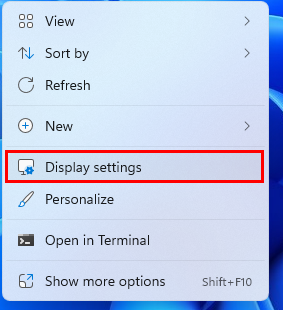
Step 1: Right-click on an empty space on the desktop, then select Display settings from the menu that appears.
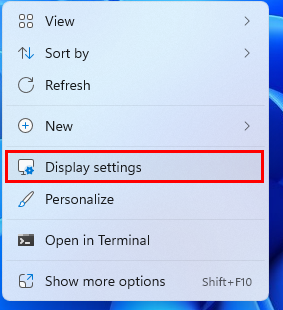
Display settings
Step 2: After opening the Settings app, select the Advanced display settings option.
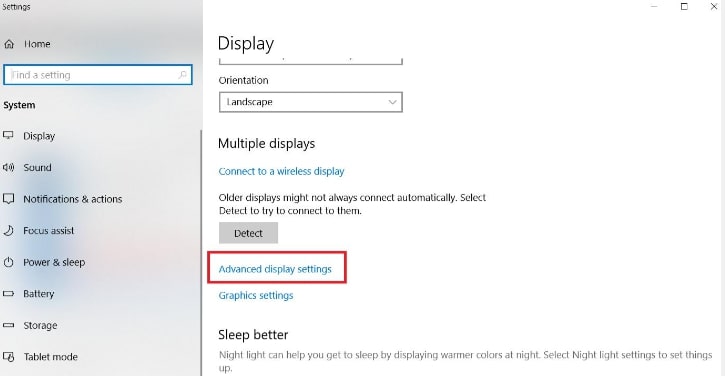
Advanced display settings
Step 3: Go to the Display adapter properties list and select Display 1.
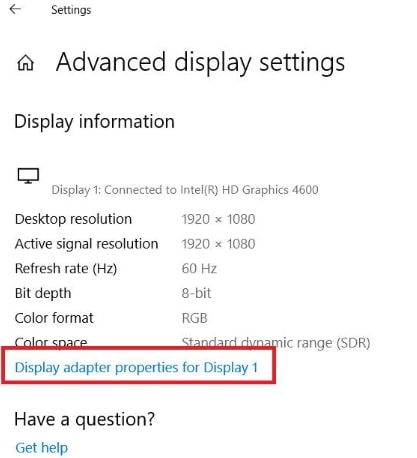
Select Display 1
Step 4: In the pop-up dialog, select the "Monitor" tab, then choose 60 Hz for the screen refresh rate, and then click the "Apply" > "OK" button.
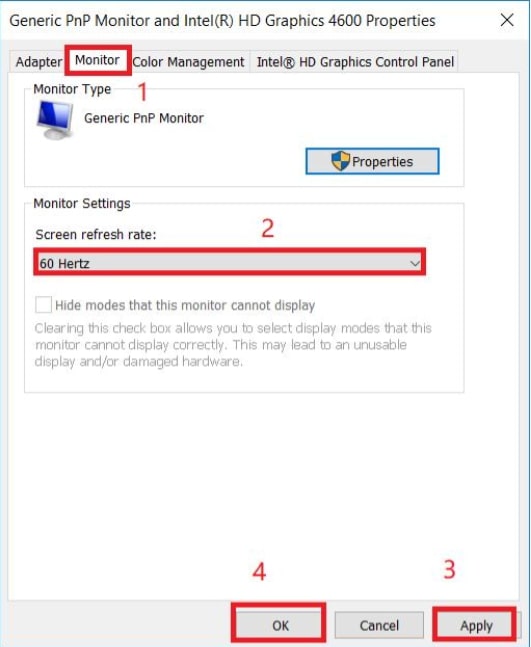
Select 60 Hz
Once you have done that, check to see if the flickering on your Surface Pro 4 screen has been resolved. If not, try the other suggested solutions below.
Solution 3: Run Windows Update
Performing this action will install all Windows bug fixes as well as the latest drivers for your Surface device. Here’s how to check for and install the latest Windows updates:
Step 1: On your keyboard, press the Windows key + I together to open the Windows Settings menu.
Step 2: Locate the Update & Security option and click on it.
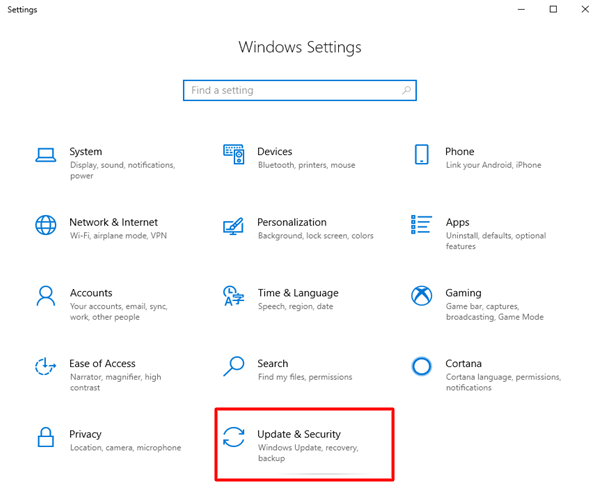
Click on Update & Security
Step 3: Next, make sure to select Windows Update from the left menu pane, then click on Check for updates.
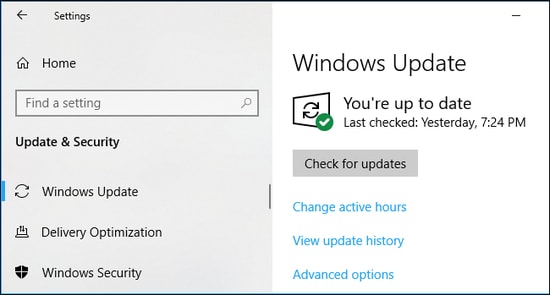
Check for updates in Windows Settings
Now, Windows will search for the latest updates and automatically install any available updates. Once that’s done, simply restart your computer; this may help fix the flickering screen issue on your Surface Pro 4 running Windows 10.
Solution 4: Repair Your System Files
The flickering screen on your Surface Pro 4 may occur due to corrupted or missing system files. If you want to restore this data, you can run an SFC scan. The System File Checker is a built-in utility that can search for corrupted system files, and if it finds any, it will automatically restore them. However, this tool can only diagnose core system files; it does not handle corrupted DLL files or Windows Registry entries or similar issues. To use the SFC scan, simply follow these steps:
Step 1: To access the Run dialog, press the Windows logo key + R at the same time on your keyboard. To start the Command Prompt as an administrator, type cmd and then press Ctrl+Shift+Enter at the same time.
Step 2: Click Yes to continue.
Step 3: Type the following command in the Command Prompt window and press Enter.
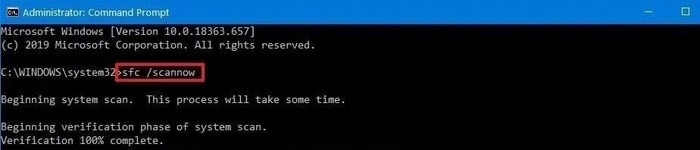
sfc scannow
Step 4: Now, the System File Checker will scan your computer for missing or corrupted system files and will automatically repair them. This process may take some time.
Pro Tip: Keep Your Video Card Updated
Note that Microsoft claims that the flickering screen issue on Surface Pro 4 cannot be resolved by updating the driver. However, if you are experiencing other display-related issues with your Surface Pro 4, such as game crashes, you may want to try updating your video card.
A missing or outdated display driver on your Surface Pro can also lead to multiple screen issues, so you should ensure that your display adapter driver is updated, and update it if it is not.
Option 1: Manually
You can go to the manufacturer's website and download the latest version of your video card driver and install it. This requires time and computer skills.
Option 2: Automatically
If you don’t have the time or patience, you can do this automatically using Driver Easy.
Driver Easy automatically recognizes your system and searches for the appropriate drivers for it, so you don’t need to know what system your device is running, and you don’t have to risk downloading and installing the wrong driver.
You can update your drivers automatically using both the free and professional versions of Driver Easy, but with the professional version, it only takes two clicks (and you will get full support and a 30-day money-back guarantee).
Conclusion
In conclusion, please ensure that your Surface Pro 4 is in a cool environment with adequate airflow, as overheating may cause your Surface Pro to flicker. Also, make sure all cables are properly connected. Once you confirm this, proceed to the suggested solutions and start trying them one by one.
In this article, we discussed how to fix the flickering and shaking screen issue on Surface Pro 4 running Windows 10 and 11. We hope these tips help you overcome this problem. If you have any questions or better information, please let us know in the comments section below.


