

How to Fix Steam Cloud Sync Issues: Imagine this; after a long day at work, you finally sit down at your computer and open Steam, only to be greeted by this message:
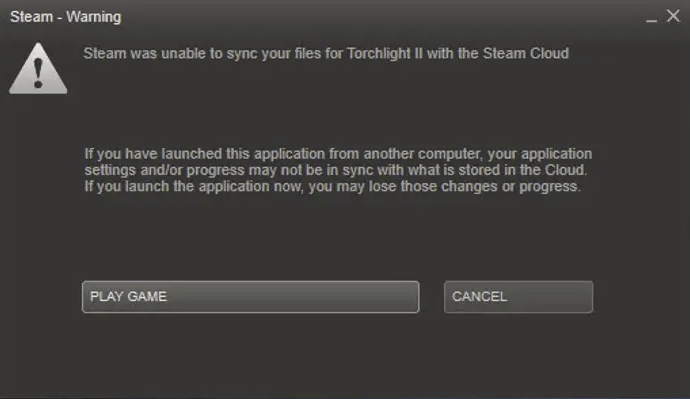
"Error: Steam Cloud Sync Failed" – how frustrating!! Don’t you agree?
Of course, you can ignore this message and click the PLAY GAME button to continue, but Steam doesn’t recommend that, as you risk losing data if there’s a conflict between the cloud and your local files. Don’t worry; here are some fixes that can help you resolve this issue, and we’ve gathered them here for you to try.
Fixing Steam Cloud Sync Issues
You don’t have to try them all; just go through each method in order until you find the solution that works for fixing the Steam Cloud sync error for you.
1. Verify Game Files Integrity
Corrupted or missing Steam files can prevent your games from launching and cause cloud sync errors. To check if this is the case, you can verify the game files like this:
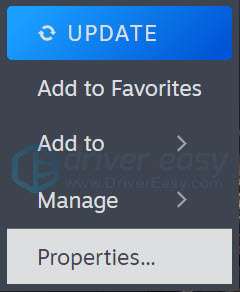
Launch the Steam application and go to the LIBRARY tab, then right-click on your game and select Properties.
Click on Local Files, then click on Verify Integrity of Game Files.
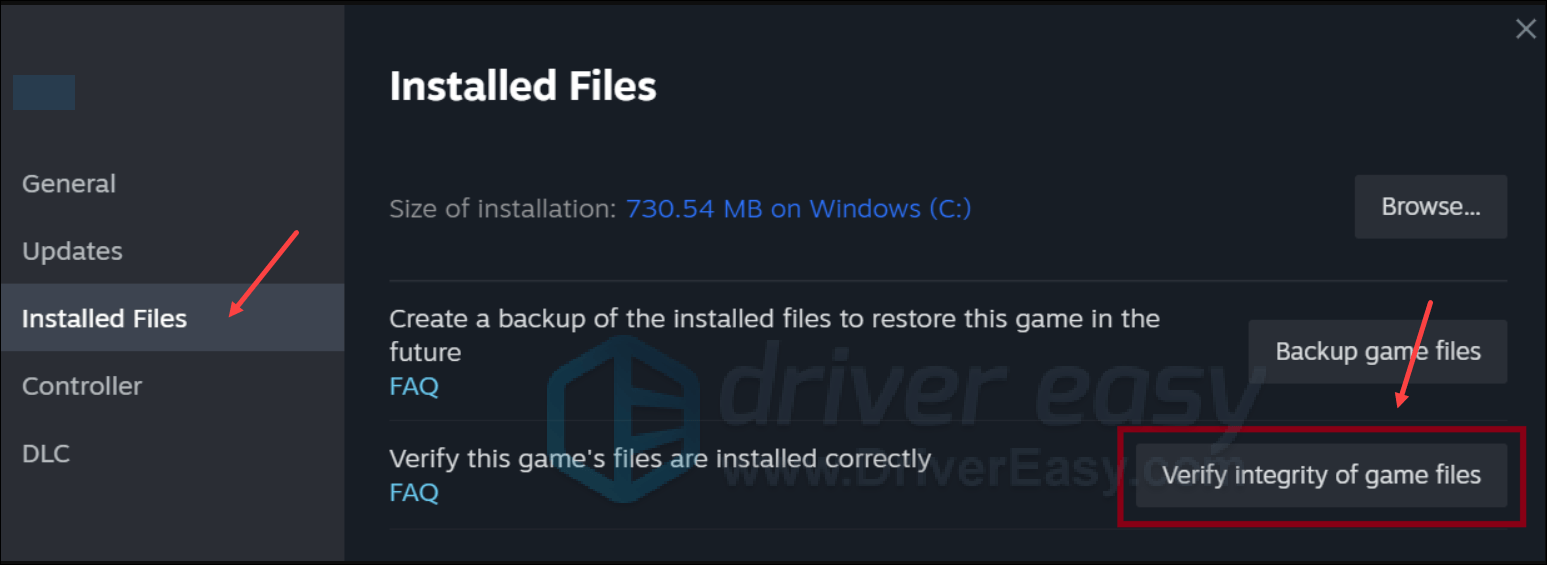
Wait for the process to complete – it may take a few minutes.
Once the verification is done, launch Steam and try your game again to see if the Steam Cloud sync error has been resolved. If not, please move on to the next fix.
2. Repair Library Folders
You can try repairing your Steam library folders so that Steam can fix any corrupted files, thus resolving the sync error. To do this:
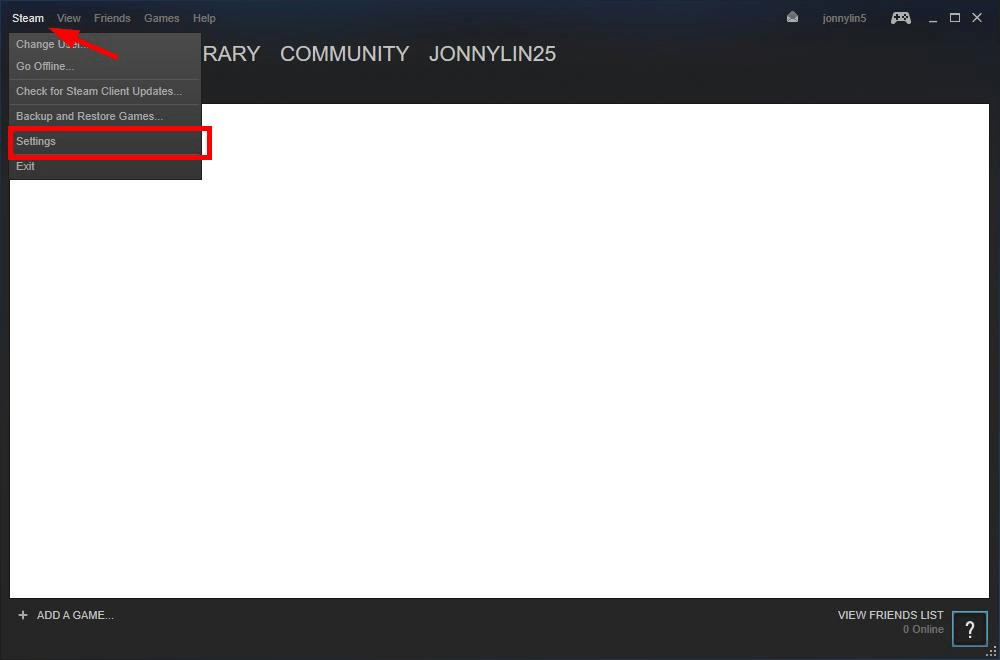
Open Steam and select Settings.
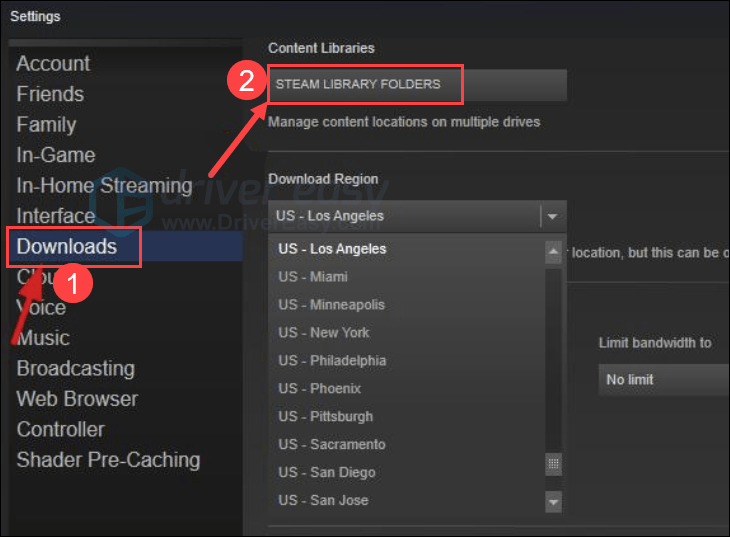
Select Downloads, then click on Steam Library Folders.
Select the drive you use to install games, then click on the three-dot icon and choose Repair Folder.

Run Steam and try launching the game again to see if the Steam Cloud sync error still persists. If the issue isn’t resolved, please proceed to the next fix below.
3. Check Windows Firewall
Some firewalls may prevent Steam from communicating with its servers; in other words, your Windows Firewall might be interfering with the connection between your PC and Steam servers, leading to the Steam Cloud sync error. To check if this is the case, you can temporarily disable the firewall for testing purposes.
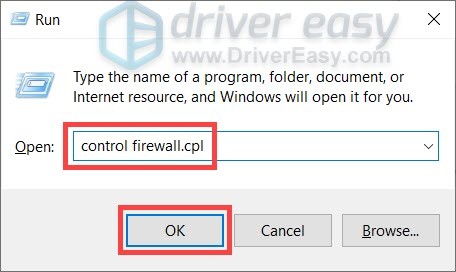
On your keyboard, press the Windows key and R at the same time, then copy and paste control firewall.cpl and click OK.
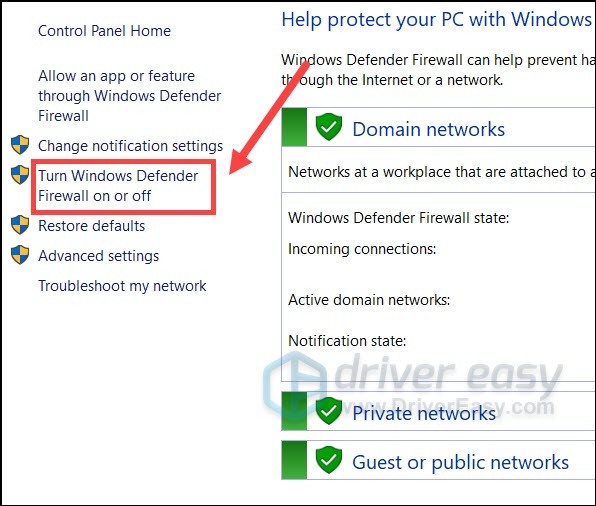
From the left menu, select Turn Windows Defender Firewall on or off.
Select Turn off Windows Defender Firewall (not recommended) for Domain, Private, and Public networks. Then click OK.
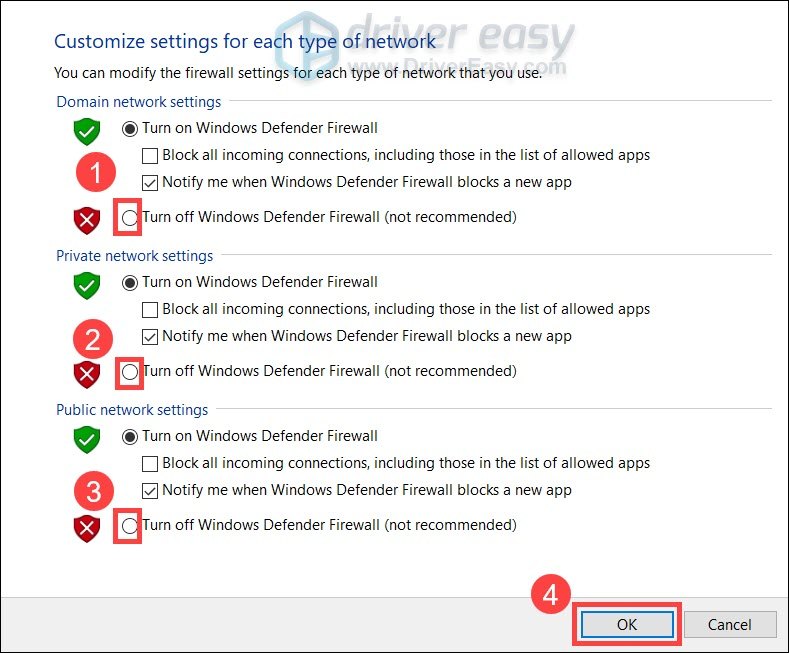
Run Steam again to see if the Steam Cloud sync error still exists. If the error persists, please move on to fix number 4.
Add Steam to your firewall exceptions
If the Steam Cloud sync error disappears, it means your firewall is blocking your PC from communicating with the Steam server, so you’ll need to add Steam as an exception. To do this:
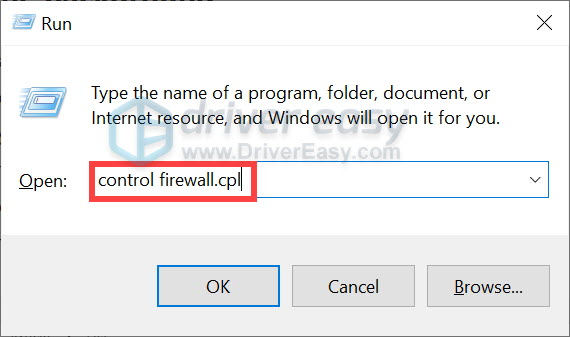
On your keyboard, press the Windows key + R simultaneously to open the Run dialog.
Type control firewall.cpl and press Enter.
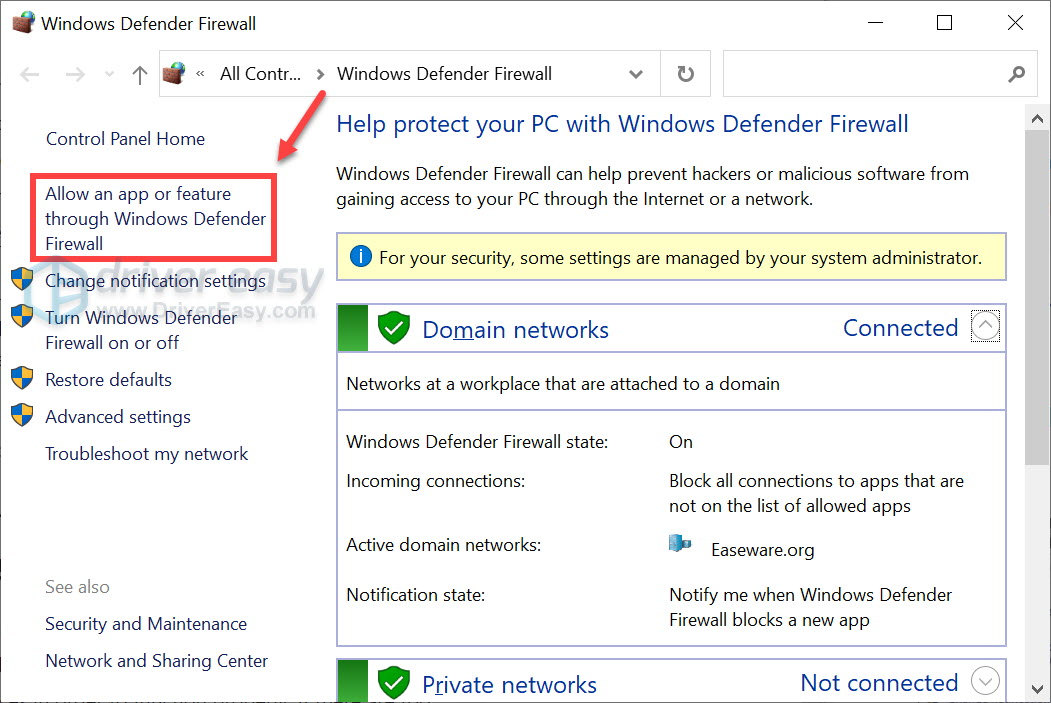
In the right navigation pane, click Allow an app or feature through Windows Defender Firewall.
Scroll down and check if Steam is in the list; if not, proceed to add it to the exceptions list.
Click the Change settings button.
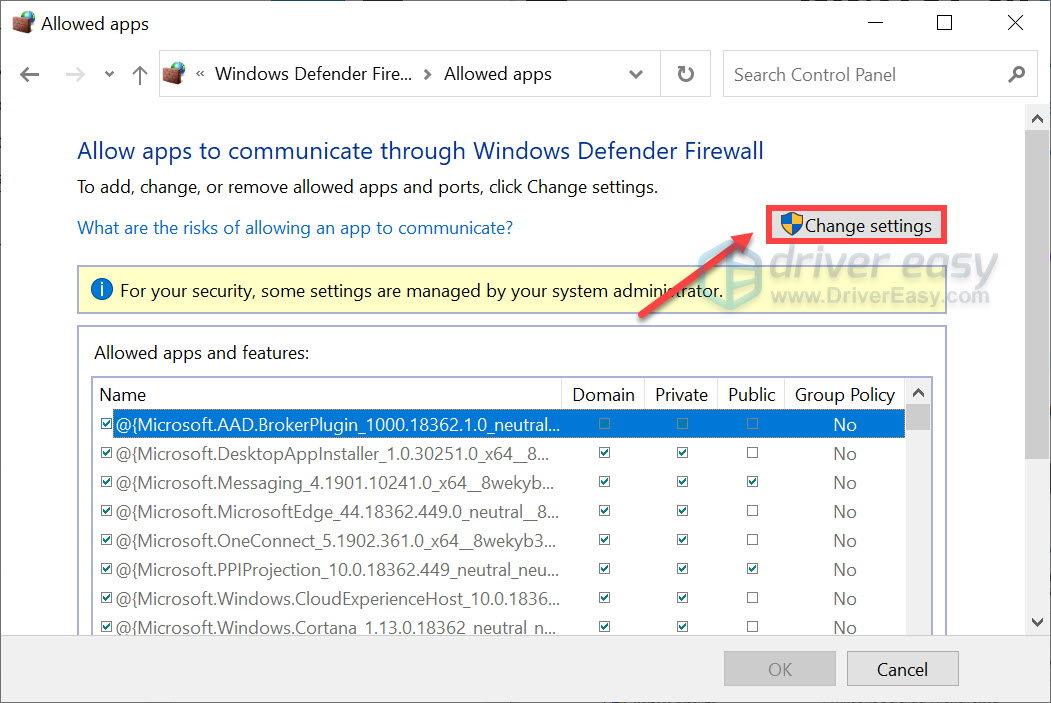
Click Allow another app.
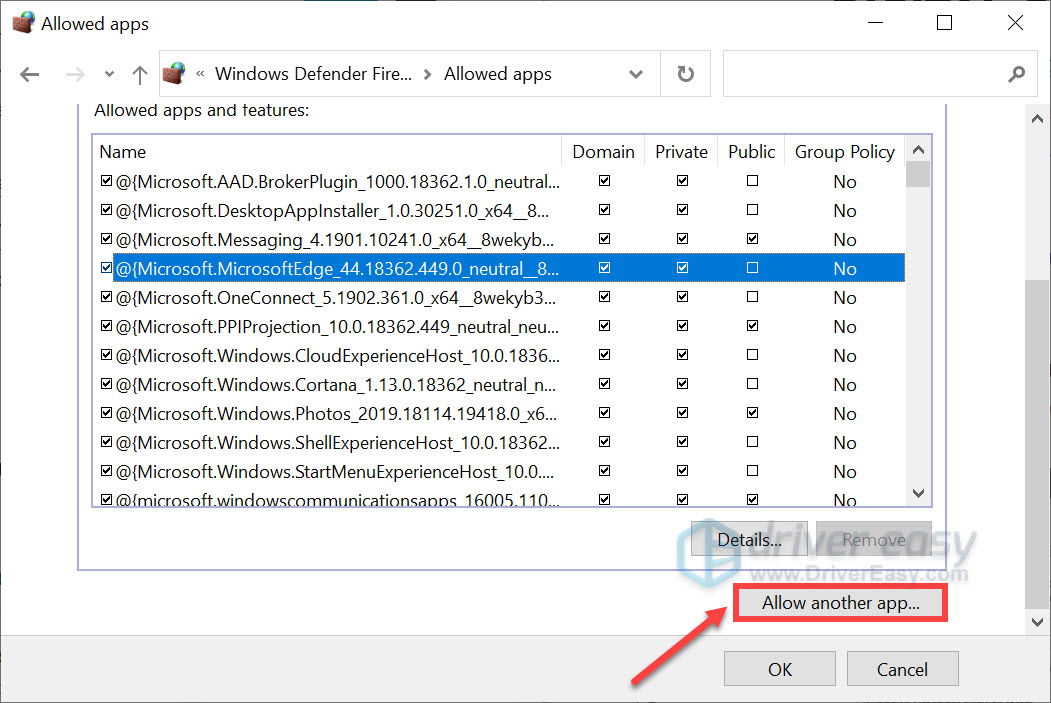
Click Browse... and navigate to the Steam installation folder.
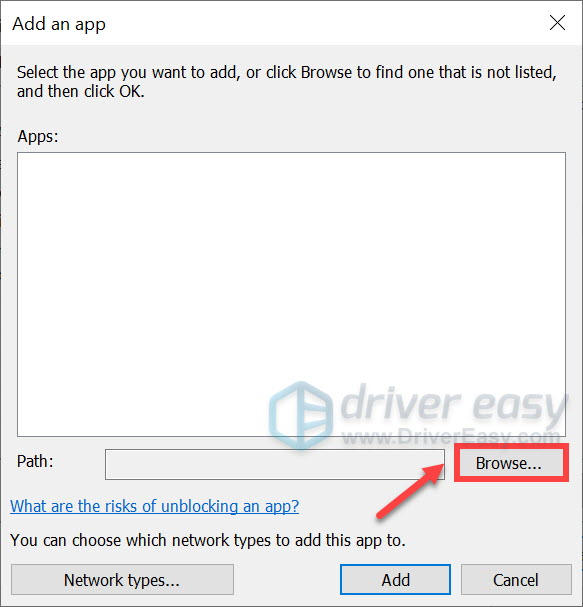
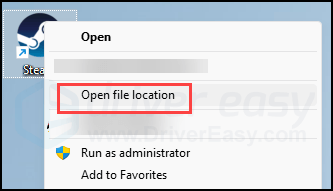
If you don’t know where the Steam installation folder is, just right-click on its shortcut and select Open file location.
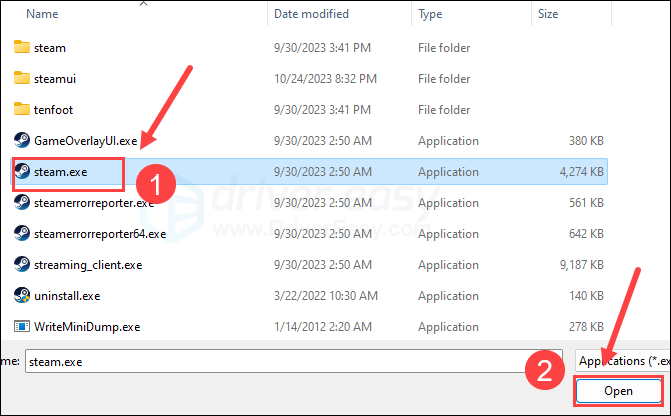
Locate steam.exe and click on it. Then click Open.
Once located, click Add.
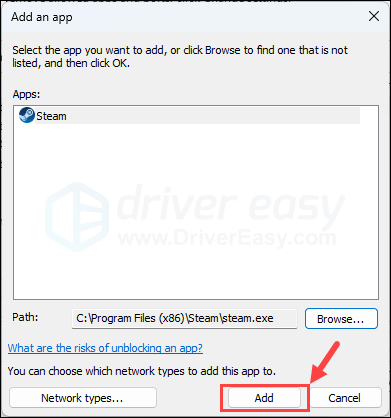
Now ensure Steam is added to the list and select Domain, Private, and Public. Once done, click OK.
Now open Steam to see if the sync error has disappeared. If it doesn’t open, try the next fix below.
4. Change Network Settings
If you’re using your ISP’s default DNS server, you may experience issues like cache congestion, which can lead to the Steam Cloud sync error. There are two things you can do: clear your DNS cache or switch to a public DNS server to resolve the issue. We recommend trying both options:
Clear Your DNS
By clearing your DNS, you will flush your DNS cache. When your PC needs to access a website, it will need to get the address from the DNS server again. This may resolve the Steam Cloud sync issue if the DNS cache data is invalid or corrupted. Here’s how:
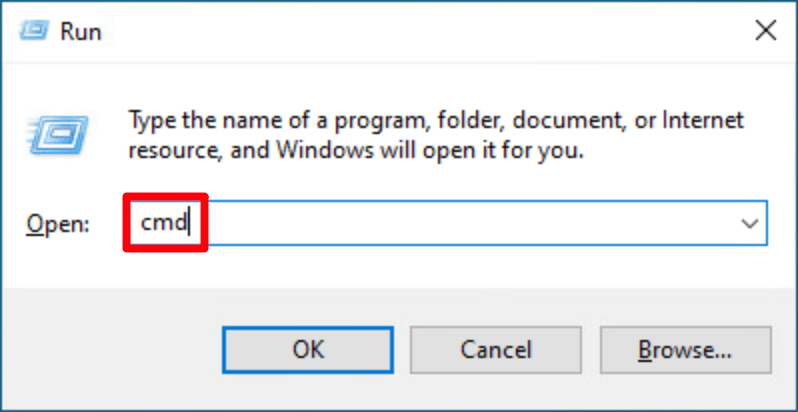
Press the Windows key and R on your keyboard to bring up the Run dialog.
Type cmd, then press Shift and Enter at the same time. If prompted for permission, click Yes.
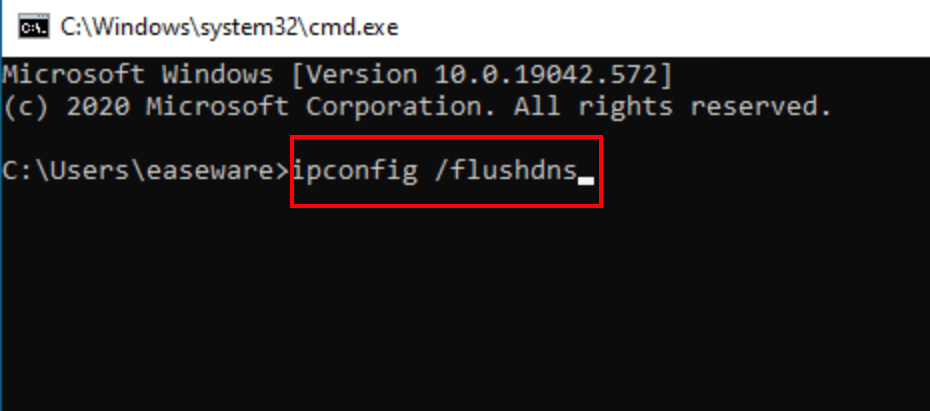
Copy ipconfig /flushdns, paste it into the pop-up window, and then press Enter.
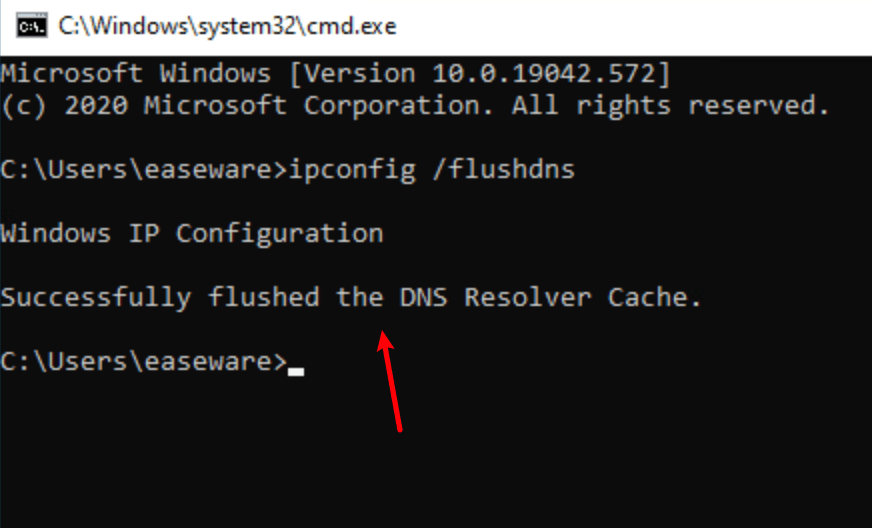
DNS cache has been successfully flushed.
Switch to a Public DNS Server
We also recommend using a public DNS server to test the issue; we’ll use Google DNS as an example here, as it’s fast and secure. Here’s how:
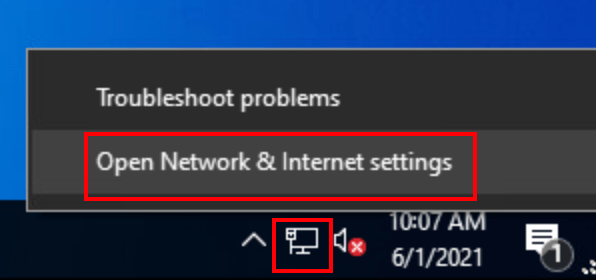
On the taskbar, right-click the network icon, then click Open Network & Internet settings.
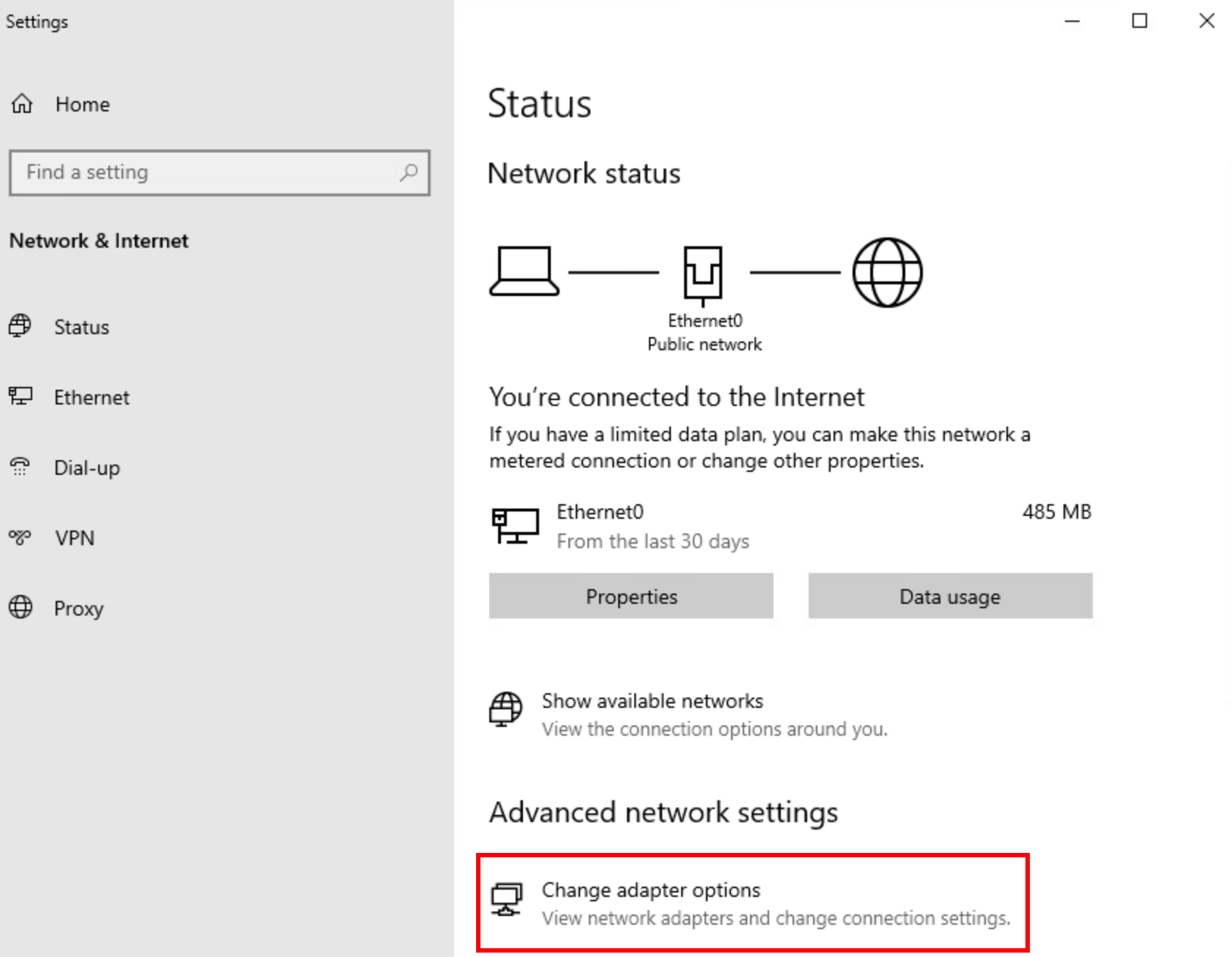
Click Change adapter options.
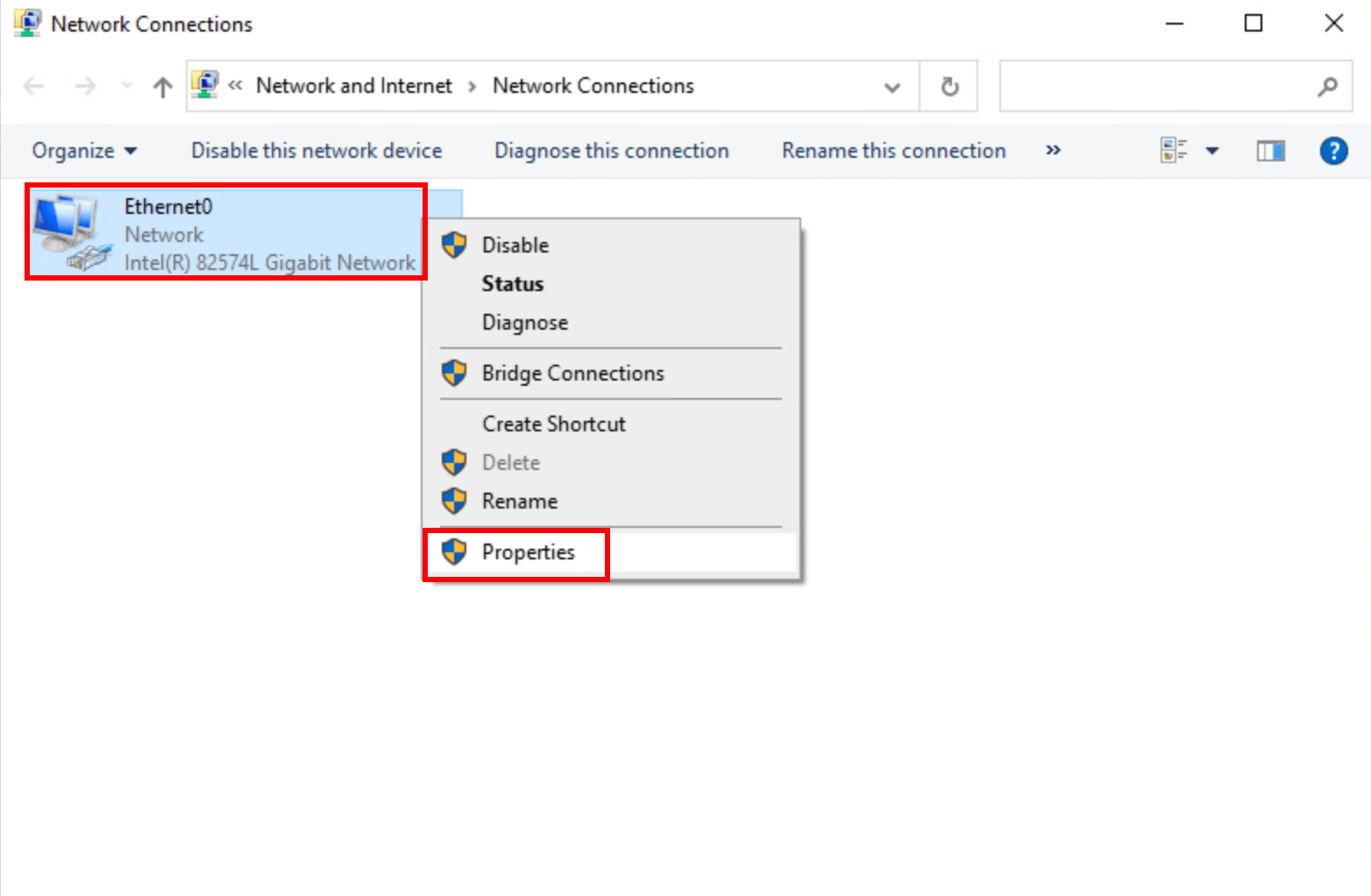
Right-click on the network you’re using, then click Properties.
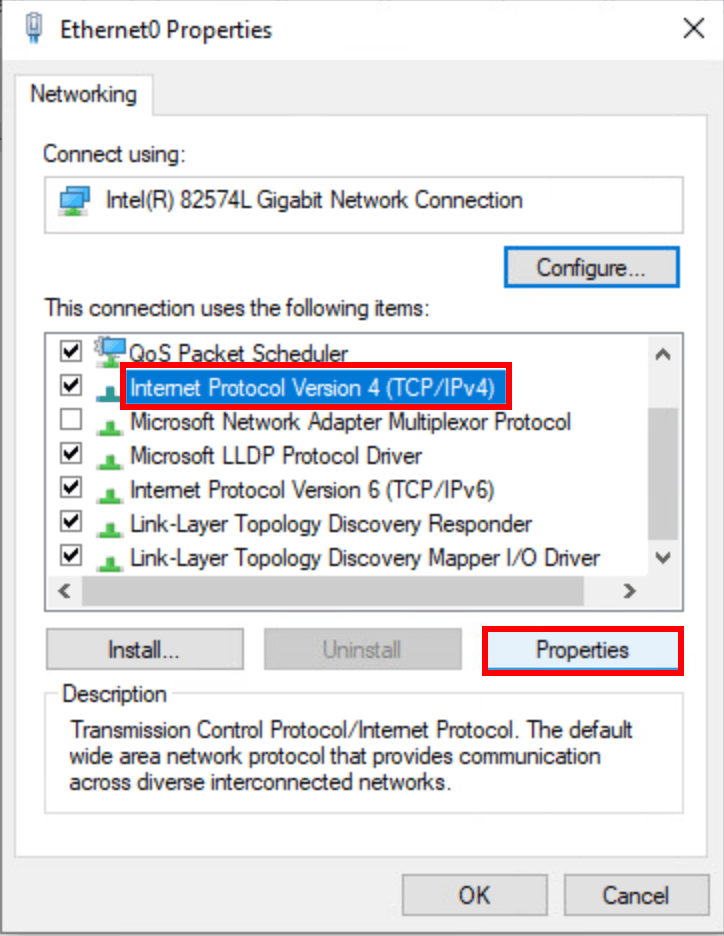
Select Internet Protocol Version 4 (TCP/IPv4), then click Properties.
Select Use the following DNS server addresses, and fill in the Google DNS addresses as shown below, then click OK.
Preferred DNS server: 8.8.8.8
Alternate DNS server: 8.8.4.4
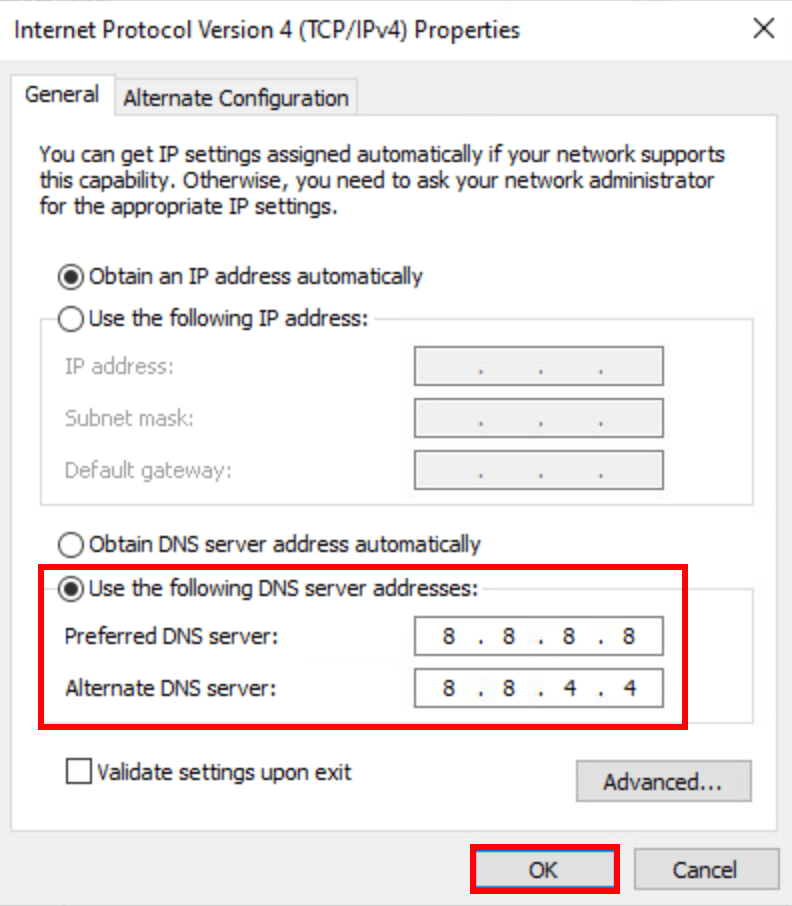
Then run Steam again to see if the Cloud sync error has been resolved. If the issue persists, please try the remaining solutions.
5. Update Device Drivers
Outdated or incorrect device drivers could be the reason for the Steam Cloud sync issue, so if the methods mentioned above didn’t help, you might have a corrupted or outdated graphics driver. Therefore, you should update your drivers to see if that helps.
6. Add Steam to Antivirus Exceptions List
The Steam Cloud sync error might be caused by a third-party antivirus application, and since the third-party antivirus application fully controls your system, it may interfere with Steam.
Since Steam consumes a lot of memory and CPU usage when running, many third-party antivirus applications may consider it a potential threat and may not allow Steam to function as expected. You can try adding Steam as an exception to your third-party antivirus application.
7. Disable Conflicting Programs
Sometimes, Steam can be a bit sensitive to certain programs running in the background. Here’s a list of programs that might likely interfere with Steam’s proper operation:
NZXT CAM
MSI Afterburner
Razer Cortex
Antivirus or antispyware programs
VPN or proxy software or other firewall and security programs
P2P or file-sharing software
IP filtering or blocking software
Download manager software
So before you start Steam, make sure to close all unnecessary applications.
Right-click on the Windows taskbar and select Task Manager.
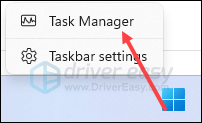
Select each resource-consuming application and click End Task to close them one by one.
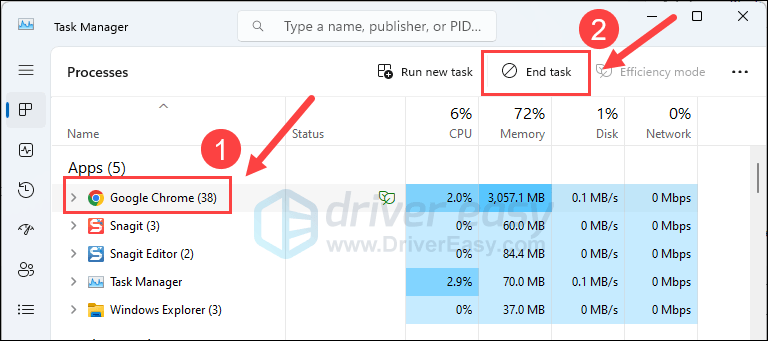
Then run Steam again and see if the Cloud sync


