


Protecting a PDF File with a Password
Securing a PDF file with a password
Setting a password on a PDF file
Adding a Password to a PDF File
How to encrypt a PDF file
How to create a password for a PDF file
How to lock a PDF
Locking a PDF File with a Password
Let’s face it, we all deal with PDF files while working on our computers. Over the years, the PDF format has been one of the safest ways to share documents online.
The great thing about PDFs is that they are secure, and the format doesn’t allow for easy modification of its data. You need a third-party PDF editing tool or premium PDF software to edit a PDF file.
Although the PDF format is secure, you can make it even more secure by encrypting it. When you encrypt PDF files, a password is required to view their contents. The document format can be viewed natively on both macOS and Windows, but you need a password to unlock the content.
2 Methods to Password Protect PDF Files
So, if you’re interested in password protecting PDF files on Windows and Mac, you’re reading the right guide. This article will share the best two methods to password protect PDF files. Let’s get into the details.
1) Password Protect PDF Files Using LibreOffice
Well, LibreOffice is a free alternative to Office that comes with an attractive and clean interface. Additionally, it has many feature-rich tools to help unleash your creativity and boost productivity.
You can use LibreOffice to password protect PDF files without using paid software. Here’s what you need to do to secure your file with a password using LibreOffice.
1. First and foremost, download and install LibreOffice on your computer. Once downloaded, drag and drop the PDF file you want to password protect.
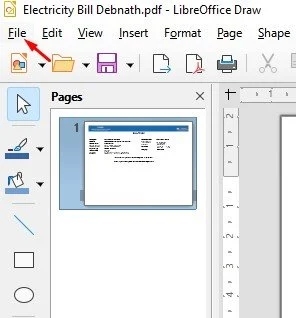
2. Since LibreOffice supports PDF format, it will open the file. Next, click on the 'File' button as shown below.
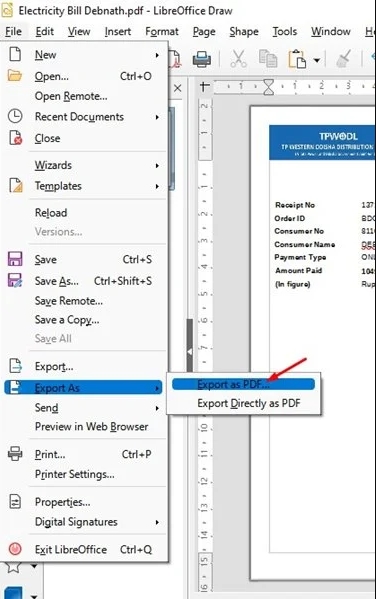
3. Click on the 'Export As' option and select to export in PDF format from the Export as PDF file options.
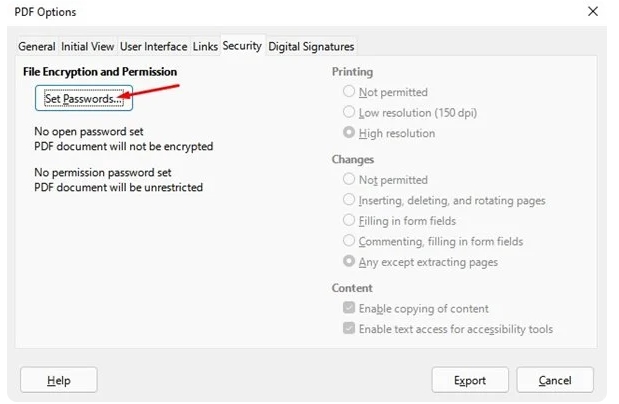
4. In the PDF options pop-up window, switch to the Security tab.
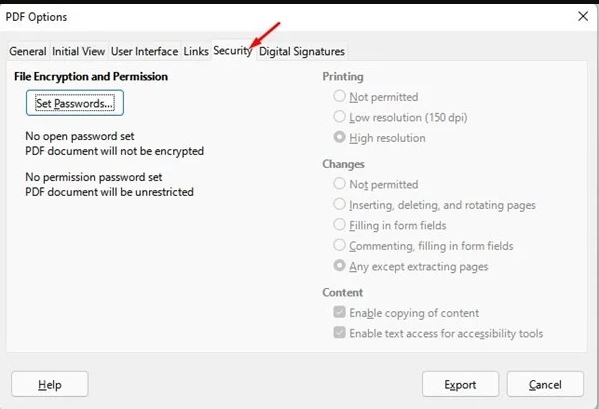
5. In the Security section, click on the 'Set Passwords' option.
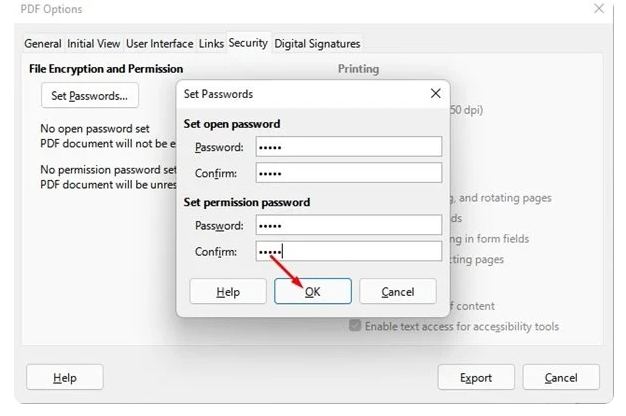
6. Now, you need to enter the password and confirm it. Once done, click the 'Ok' button.
7. Finally, click the 'Export' button to save the password-protected PDF file.
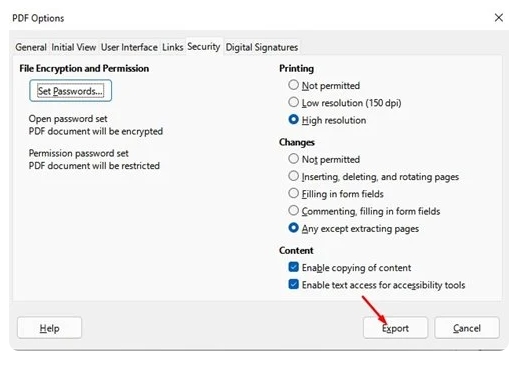
That’s it! You’re done. This is how easy it is to password protect PDF files using LibreOffice.
2) Adobe Online to Password Protect a PDF File
Well, if you don’t want to install any tool on your computer, you can rely on the web version of Adobe Acrobat to password protect PDF files. This free web tool from Adobe allows you to add passwords to your PDF documents.
1. First, open your preferred web browser and go to this website.
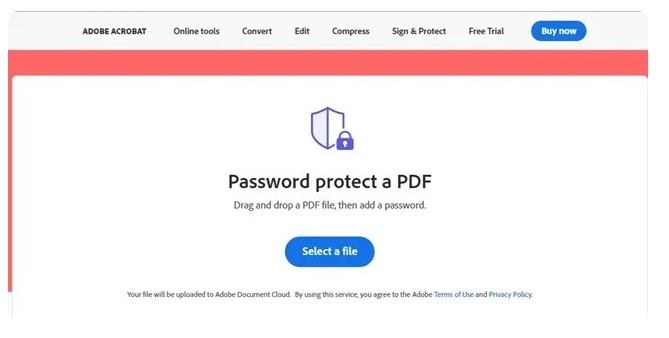
2. Now click the 'Select a File' button and choose the PDF file you want to password protect.
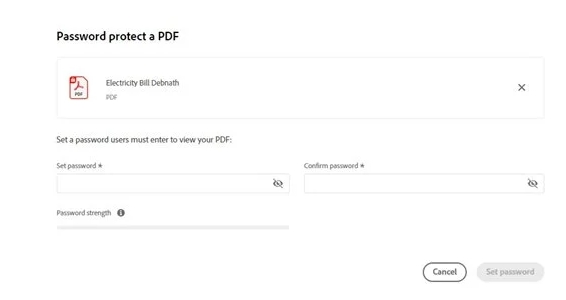
3. On the next screen, you need to set the password. Once done, click the 'Set Password' button.
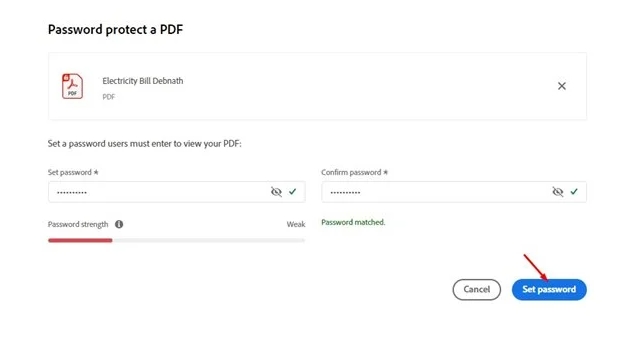
4. Now, wait for the web tool to secure your PDF document with a password.

5. Once encrypted, you will be able to download the password-protected PDF file to your computer download.

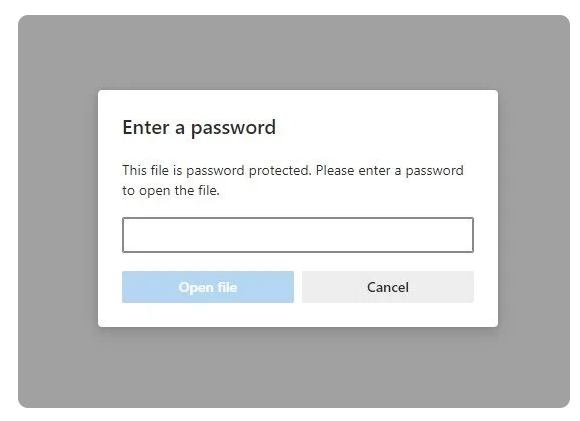
That’s it! You’re done. When you try to open the password-protected PDF file, you will be prompted to enter the password.
Password protecting PDF files is very easy, especially on Windows. You can use either of these methods to easily secure PDF files on your computer. I hope this article has helped you! Please share it with your friends as well. If you have any questions about this, let us know in the comments box below.


