

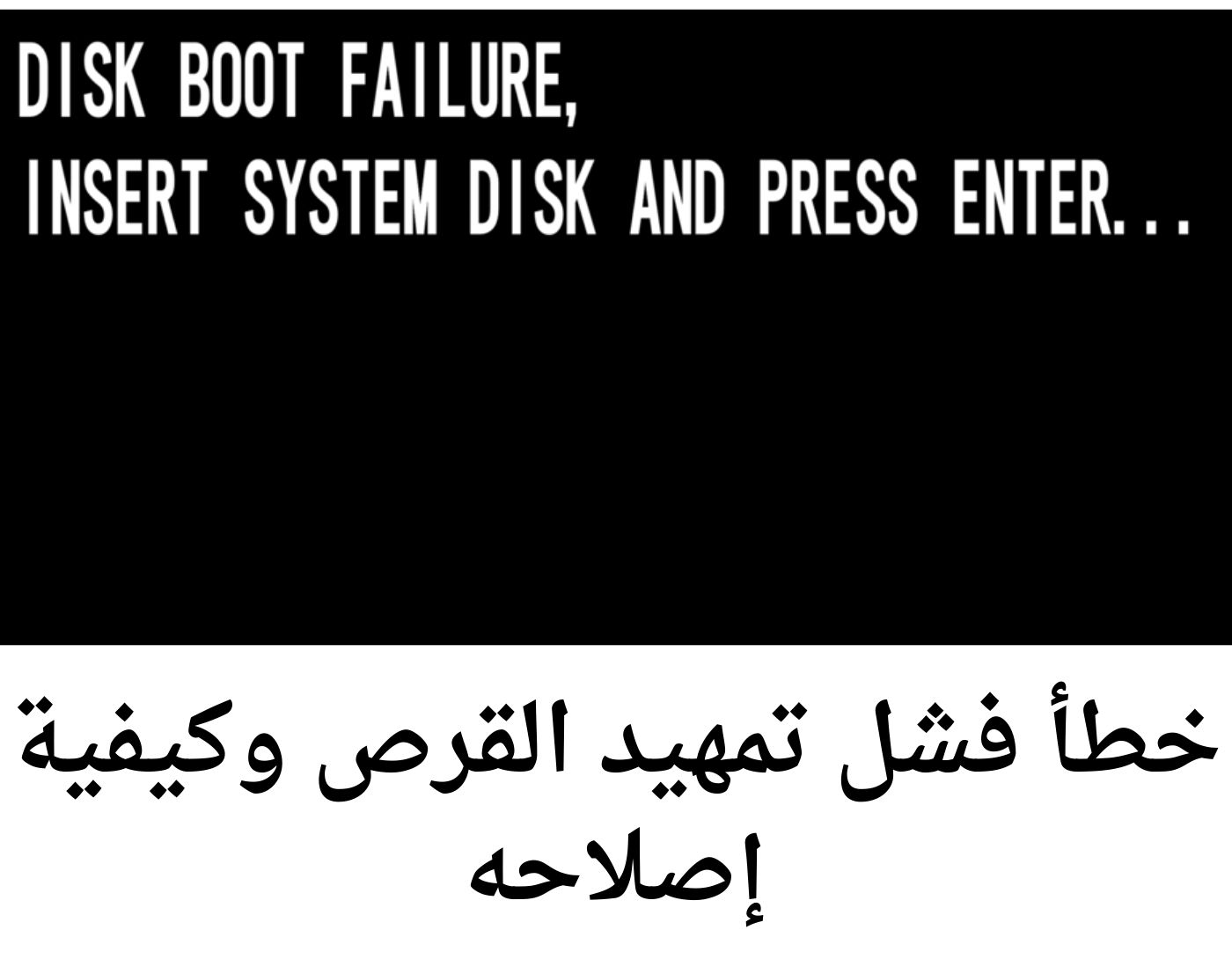
Disk boot failure error and how to fix it: If your computer displays a boot failure error message like "Disk boot failure, insert system disk and press Enter" on Windows 11 and 10, you can resolve the issue using the following solutions.
Disk boot failure is a frustrating and alarming error message that can leave computer users feeling helpless and anxious about their system's status.
This error typically occurs during the computer's startup process when it attempts to load the operating system from the hard drive or SSD but encounters an issue preventing it from doing so. In this article, we will explore common causes of disk boot failure, potential solutions to fix the problem, and proactive steps to prevent it from happening in the future.
Gigabytes of data.
Causes of disk boot failure for Windows 11 and 10/8/7
You might be wondering why the boot failure error suddenly occurred, especially when everything seemed to be working fine until the last shutdown.
There are many reasons that can lead to this issue.
- Corrupted operating system files - The operating system can become corrupted due to improper shutdowns, sudden power outages during updates, a corrupted master boot record, missing system files, malware infections, driver failures, etc.
- Hardware issues - A faulty cable connection, a malfunctioning hard drive or SSD, or a damaged power supply or SMPS can cause Windows 10 to fail to boot.
- Incorrect boot order - When the boot order is incorrect in the BIOS or UEFI firmware, Windows has difficulty identifying which storage device to use to load the operating system. As a result, the system encounters problems during the boot process.
- Corrupted MBR or boot file - This is one of the common reasons for boot failure issues in Windows 11 and 10. The master boot record or boot sector contains essential information about disk partitions and how to load the operating system. Damage to these areas can lead to boot problems.
- Another reason – In addition to the above causes, other factors can lead to boot errors, such as malware infections, incompatible driver installations, software and game issues, improper update file installations, missing DLL files, and registry file corruption. These various elements can also contribute to boot errors.
- How to fix disk boot failure, insert system disk error on Windows 11 and 10
We have discussed extensively what a boot failure error is and why it occurs. Now, let's focus on a list of solutions for disk boot failure that will help you successfully boot your computer.
Solution 1: Check the boot order in BIOS or UEFI firmware
The most common cause of boot failure errors in Windows 11 is an incorrect boot order. To resolve this issue, you need to check the boot sequence in the BIOS settings and make the necessary corrections. Follow these steps to do so:
Select the boot device in BIOS/UEFI
Step 1: Open the BIOS settings. To access the BIOS settings, restart your computer and continuously press the F2/F8/Del/Esc key when you see the manufacturer's logo during startup. Keep in mind that different manufacturers may have different methods to access the BIOS settings. It is recommended to refer to the manufacturer's guidelines to identify the specific key or key combination to enter the BIOS.
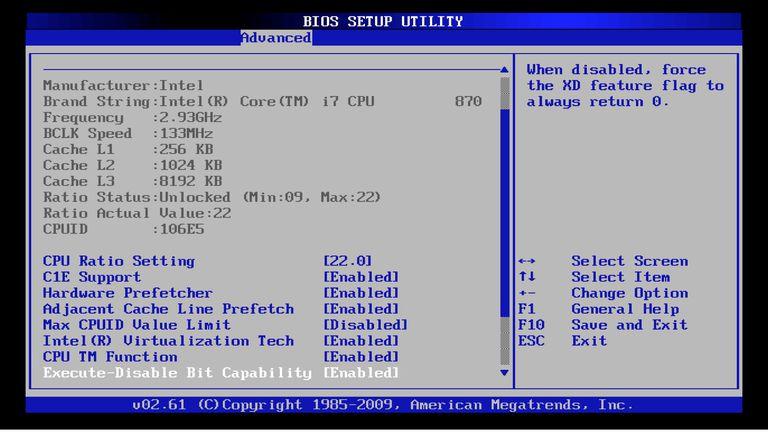
1_bios_settings
Step 2: Locate the boot option settings. The menu style in the BIOS may vary depending on the manufacturer, so look for the boot option list and adjust the boot order to prioritize your primary hard drive where Windows is installed. Ensure that the primary hard drive is set as the first boot device.
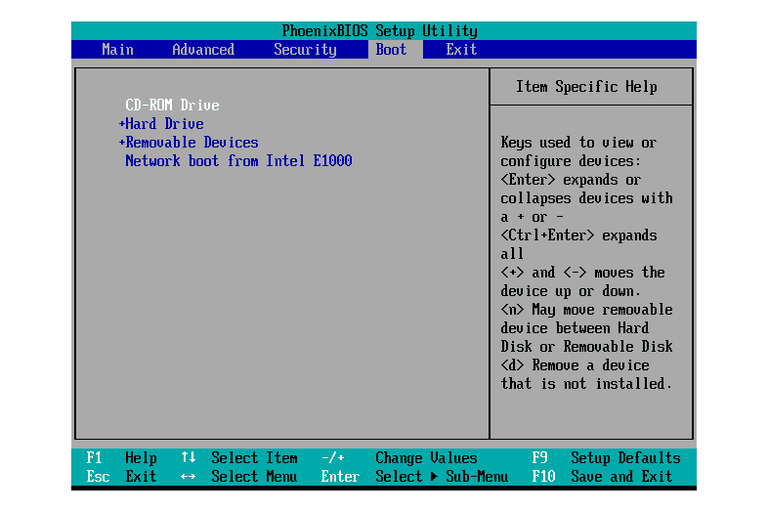
2_bios_boot_option
Solution 2: Try booting in safe mode.
Safe mode is a diagnostic startup mode in Windows-based operating systems used to fix misconfigurations in the operating system. When your computer is in safe mode, it only loads the essential drivers and programs needed to run the system, effectively preventing unnecessary startup items and third-party programs from running. This simplified configuration helps isolate issues and troubleshoot problems, making it easier to resolve issues that may affect normal operation.
Solution 3: Rebuild the corrupted MBR or boot file.
Repairing MBR using EaseUS
The MBR (Master Boot Record) is an important component of the Windows operating system and plays a vital role in the boot process. It contains essential information that the computer uses to identify and load the operating system correctly. Within the MBR, you will find boot codes, partition tables, disk signatures, and other important boot details.
If this file is corrupted or damaged, the computer will have difficulty determining what to do during startup. To resolve the boot failure issue, you need to repair or rebuild the master boot record. Here’s how you can do it:
Step 1: Download EaseUS Partition Master

1_تعطل_جهاز_الكمبيوتر_الاسترداد
Repairing MBR using EaseUS
Step 1: Create a bootable USB drive using EaseUS. Launch EaseUS Partition Master, click on "Bootable Media" on the toolbar. Select "Create Bootable Media".
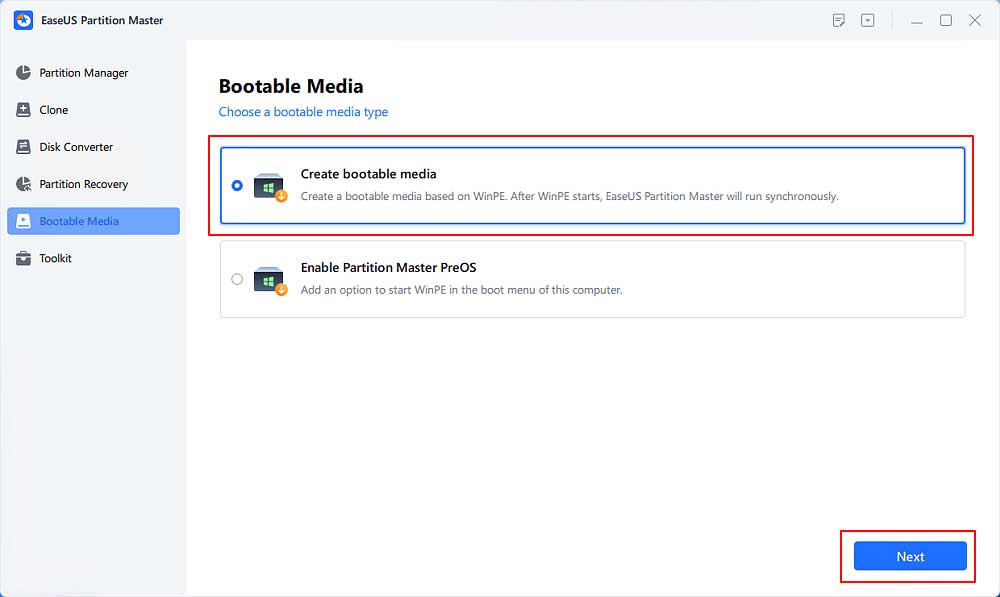
سهولة-قرص قابل للتمهيد-1
Step 2: Boot your computer using the bootable USB drive.
Step 3: Click on "Toolbox" and select "Rebuild MBR".
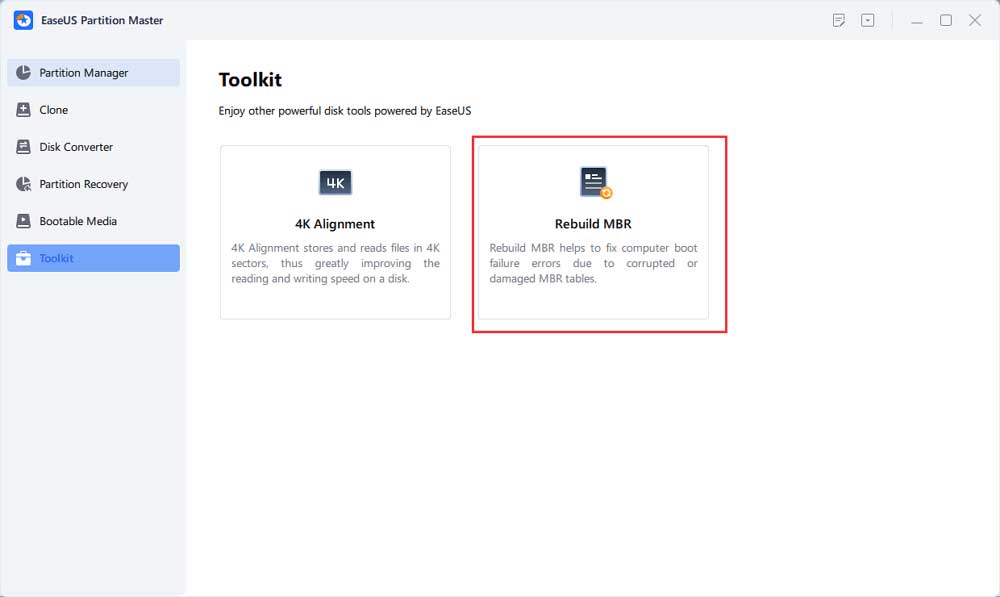
Repair EASEUS MBR
Manual MBR repair
You can manually repair the master boot record as follows:
Manual MBR repair - Step by Step
Step 1: Boot your computer using Windows installation media. The Windows installation wizard will open. Click Next.
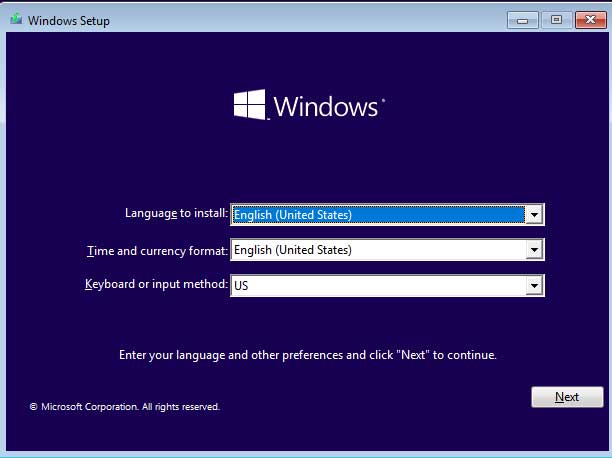
تثبيت نظام التشغيل ويندوز
Step 2: Select Repair your computer.
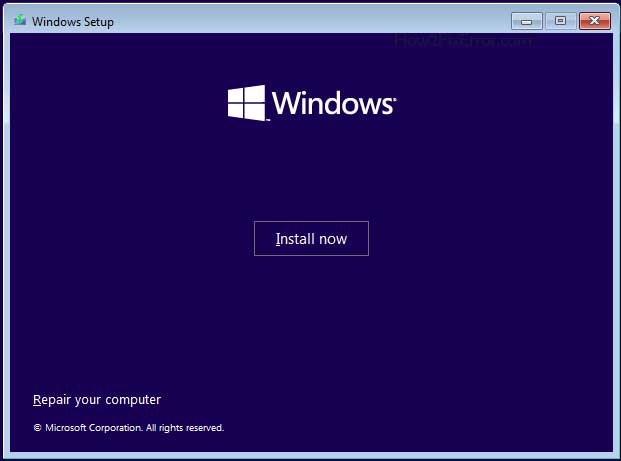
إصلاح خيار جهاز الكمبيوتر الخاص بك ويندوز 10 و 11
Step 3: The Advanced Startup Options or Windows Recovery Environment will open. Click on Troubleshoot.
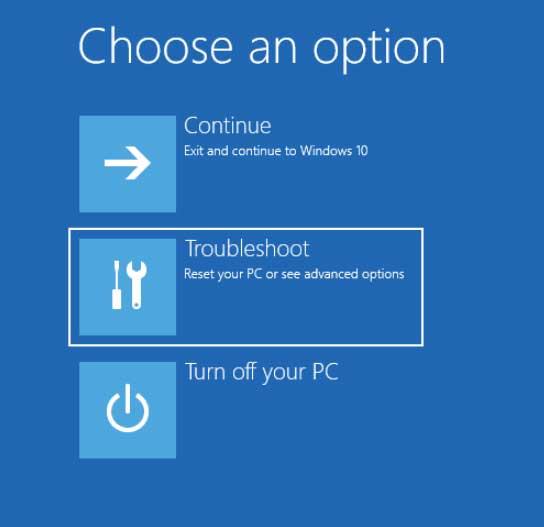
استكشاف الأخطاء وإصلاحها في قائمة بدء التشغيل المتقدمة لنظامي التشغيل Windows 10 و11
Step 4: Select Command Prompt.
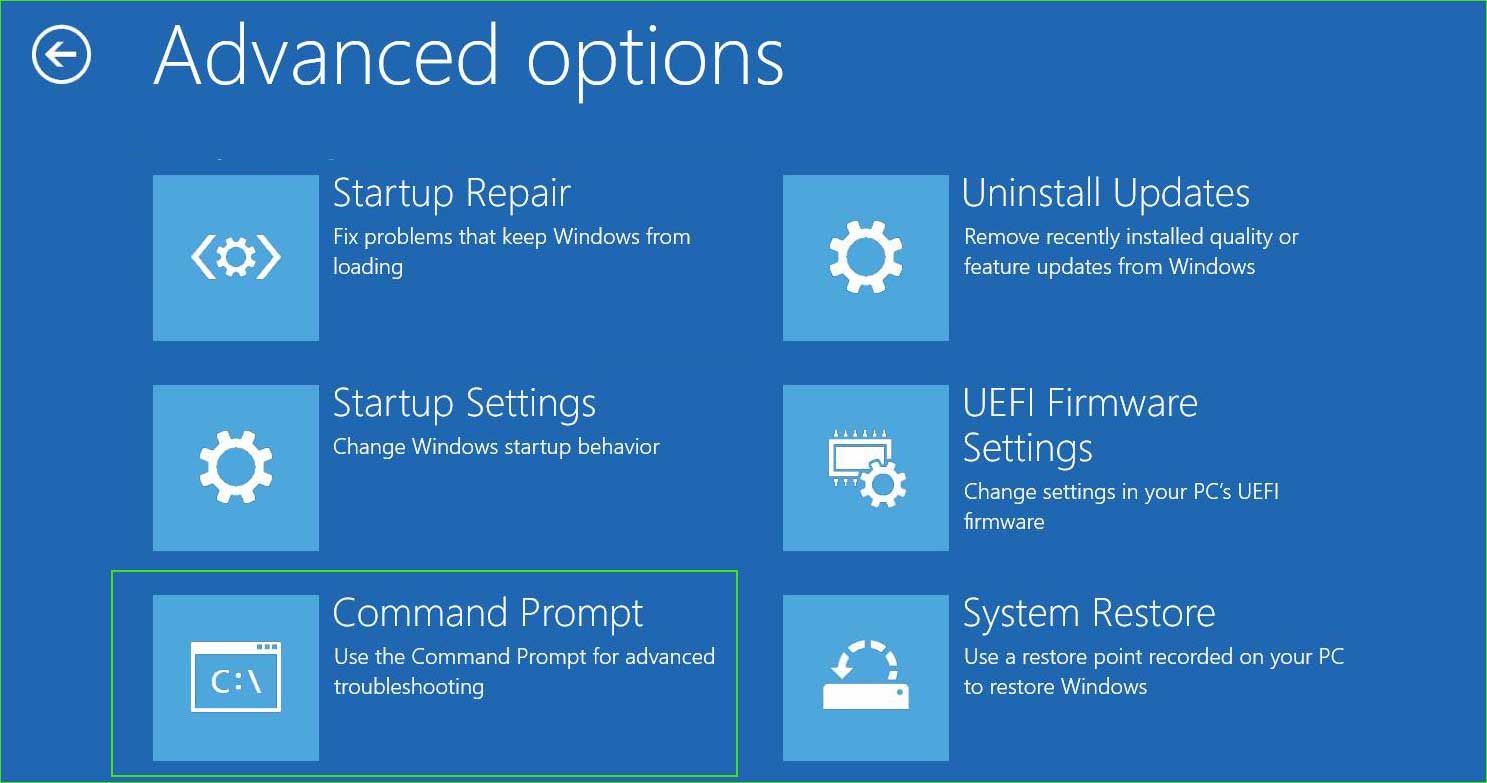
open_command_prompt في خيار بدء التشغيل المتقدم
Step 5: Type the following commands and press Enter to execute them.
bootrec /fixmbr
bootrec /fixboot
bootrec /RebuildBcd
Step 6: Now restart your computer, and you should no longer see the "Bootmgr is missing" error message at boot.
Solution 4: Repair disk errors and system files using SFC, CHKDSK, and DISM commands.
SFC – System File Checker
SFC or System File Checker is used to scan essential system files and verify their integrity. Its primary purpose is to check for corrupted or missing system files and replace them with cached copies stored in the Windows component store if available.
CHKDSK – Check Disk
You also have the ability to run a disk checking utility to check for any disk-related issues and repair them. If there is a bad sector in the master boot record (MBR), your computer may refuse to read those areas, leading to the error message "Disk boot failure, insert system disk and press Enter."
DISM – Deployment Imaging Service and Management
DISM (Deployment Imaging Service and Management) is a command-line tool that allows users to perform system maintenance, deployment, and recovery.
Run SFC, CHKDSK, DISM commands
Step 1: Boot your computer using Windows installation media. The Windows installation wizard will open. Click Next.
تثبيت نظام التشغيل ويندوز
Step 2: Select Repair your computer.
إصلاح خيار جهاز الكمبيوتر الخاص بك ويندوز 10 و 11
Step 3: The Advanced Startup Options or Windows Recovery Environment will open. Click on Troubleshoot.
استكشاف الأخطاء وإصلاحها في قائمة بدء التشغيل المتقدمة لنظامي التشغيل Windows 10 و11
Step 4: Select Command Prompt.
open_command_prompt في خيار بدء التشغيل المتقدم
Step 5: Now run the following commands one by one.
I. System File Checker tool
sfc /scannow
II. Run Dism command
Dism /Online /Cleanup-Image /CheckHealth
Dism /Online /Cleanup-Image /ScanHealth
Dism /Online /Cleanup-Image /RestoreHealth
III. Run the disk checking utility.
chkdsk C: / f / x / r
Solution 5: Use System Restore
System Restore is a feature in Microsoft Windows operating systems that allows users to revert their computers to a previous point in time.
System Restore - Step by Step
Step 1: Open the Advanced Startup Options or Windows Recovery Environment. Go to Troubleshoot ➜ Advanced options ➜ System Restore.
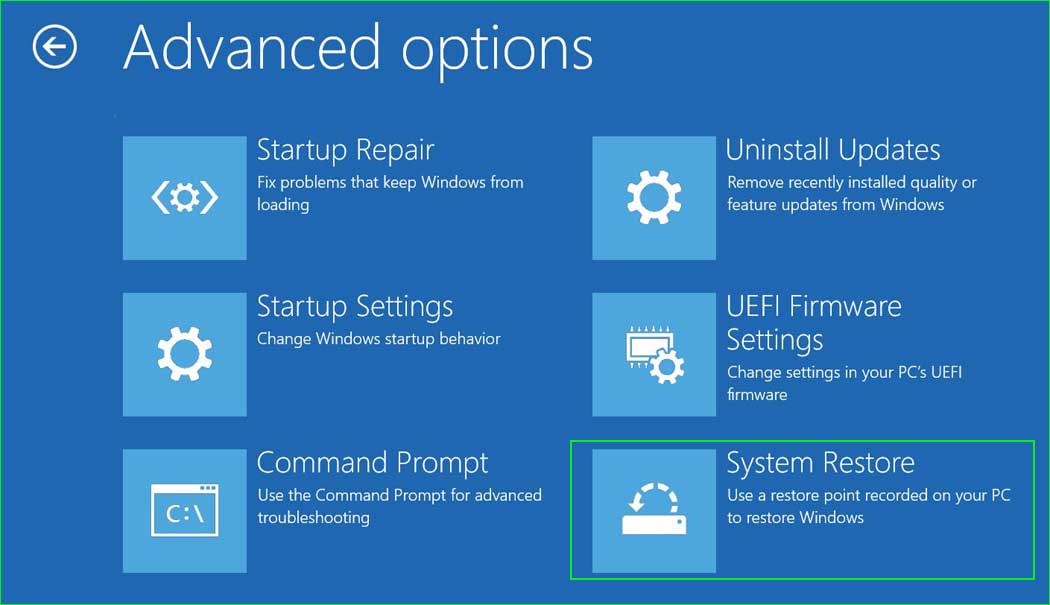
system_restore
Step 2: Click Next and then select a date.
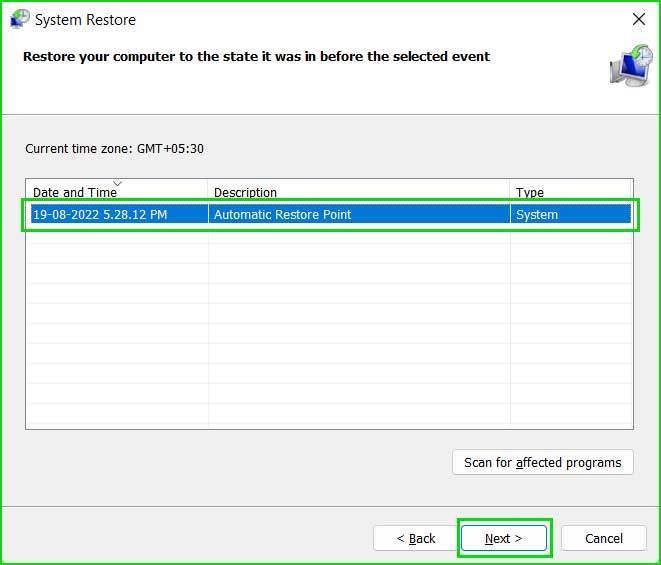
حدد استعادة النظام من القائمة
Step


