

A comprehensive guide to downloading and installing Adobe Creative Cloud on a Mac: Adobe has long been recognized as a leader in the software industry, offering a wide range of tools to meet diverse user needs. Understanding the urgent need for an integrated platform to manage these tools, Adobe introduced Adobe Creative Cloud, a centralized hub for accessing and organizing all Adobe applications.
If you're looking to download and install Adobe Creative Cloud on your Mac or want to know how to effectively manage its applications, this detailed guide will walk you through the process. Stay with us.
What is Adobe Creative Cloud?
Adobe Creative Cloud is a subscription-based service that brings together the best of Adobe's creative tools in one platform. It allows users to download, install, and manage applications on both macOS and Windows, along with mobile versions for creativity on the go.
This platform includes applications such as:
Acrobat: for advanced document editing.
After Effects: for stunning video effects.
Lightroom: for professional photo editing.
Spark Video: for creating engaging video content.
A Complete Guide to Downloading and Installing Adobe Creative Cloud on Mac
Downloading Adobe Creative Cloud on your Mac is a straightforward process. Follow these steps:
Step 1: Visit the official website
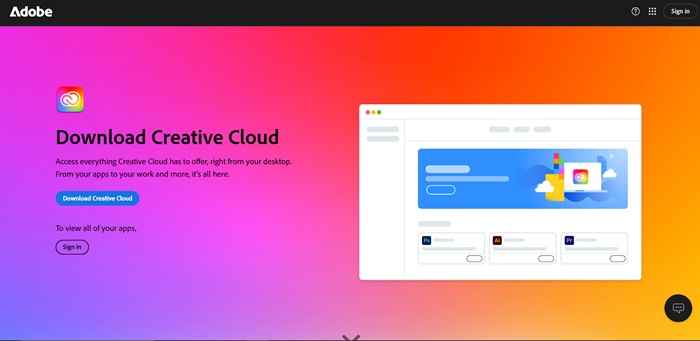
Open your web browser and go to the official Adobe Creative Cloud website.
Locate the Creative Cloud download button and click it to start the download process.
Step 2: Download and run the installer
Allow the download to complete. This may take some time depending on your internet speed.
Open the downloaded file to launch the installer.
Step 3: Install the application
Follow the on-screen instructions during the installation process.
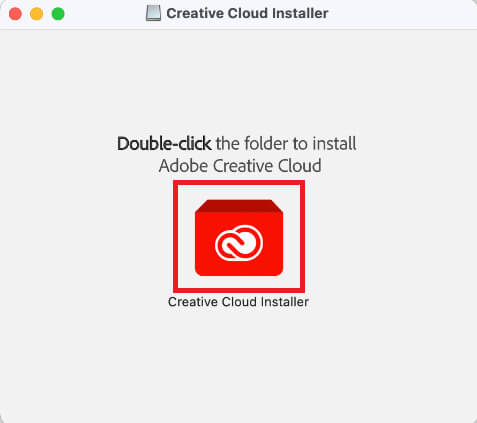
Double-click the Creative Cloud folder to continue with the setup.
When prompted, click "Open" to authorize the application.
Step 4: Handle system prompts
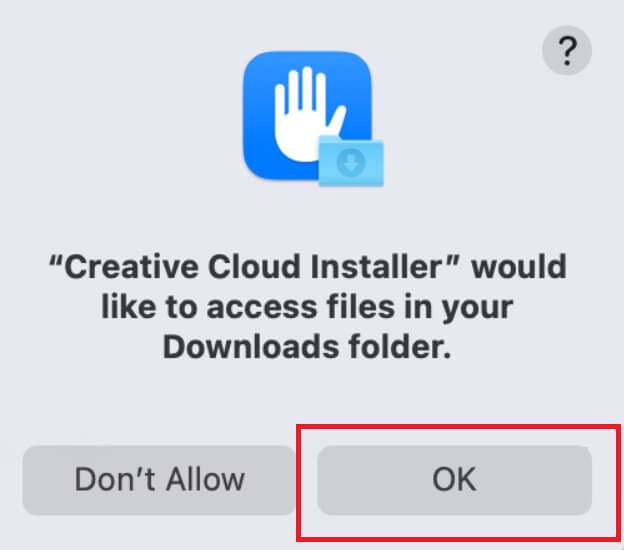
If you see a warning message, click "OK" to proceed.
On the next screen, click the continue button to move forward.
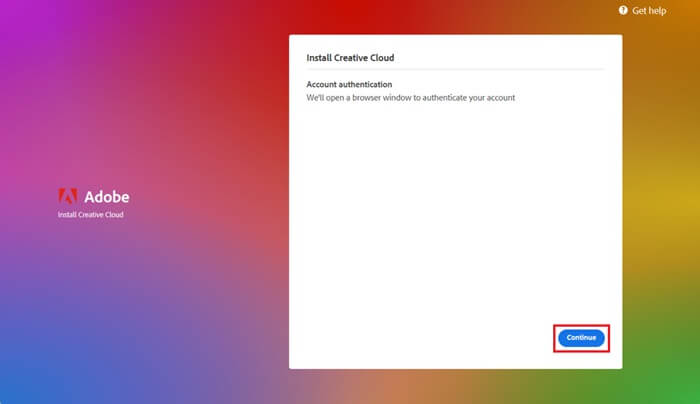
Step 5: Log in to your Adobe account
Enter your Adobe account credentials to log in. If you're new to Adobe, create an account by following the provided instructions.
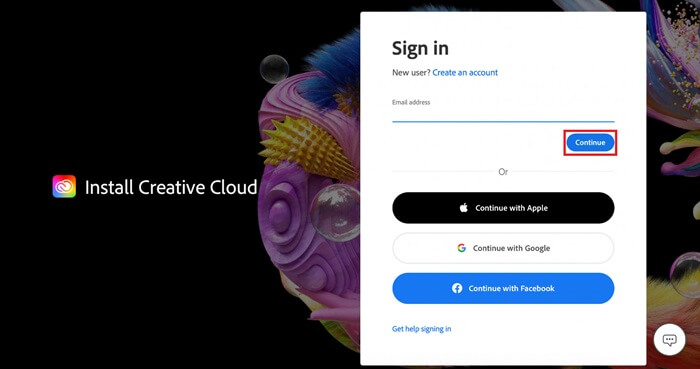
Once logged in, allow the system to complete the setup process.
Step 6: Complete the installation
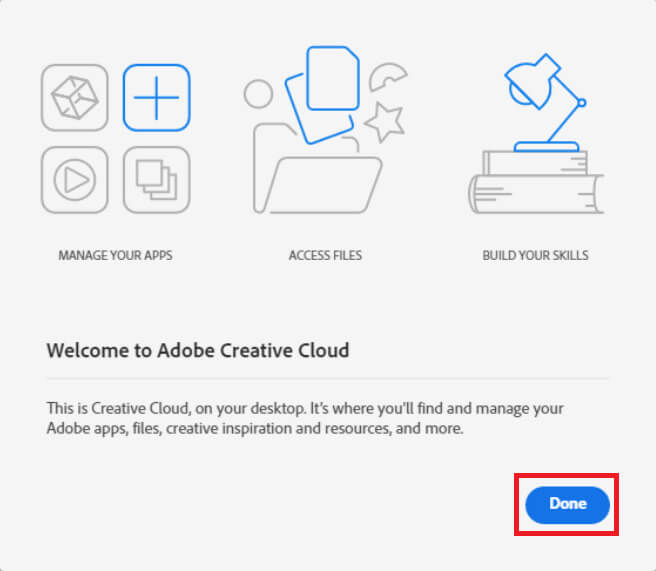
When the installation is finished, click the "Done" button to finalize the process. You are now ready to use Adobe Creative Cloud on your Mac.
How to Install Applications on Adobe Creative Cloud for Mac?
After successfully installing Adobe Creative Cloud, you can use it to download and install individual Adobe applications.
Step 1: Launch Adobe Creative Cloud
Open the Creative Cloud app from Finder or the Applications folder.
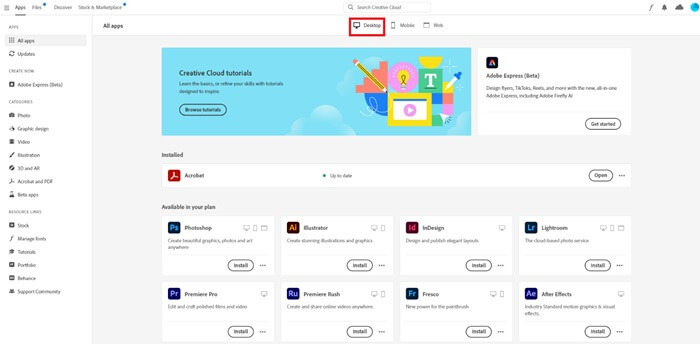
Click on the desktop icon at the top of the interface.
Step 2: Access the applications list
Go to the "All Apps" section in the left-hand panel.
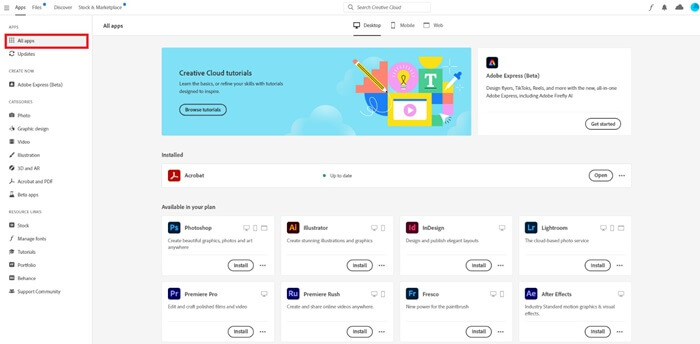
Browse the list of available applications included in your subscription.
Step 3: Install the desired applications
Click the install button below the application you wish to add.
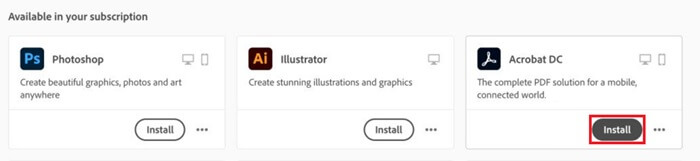
Wait for the installation process to complete.
Step 4: Access installed applications
Once installed, you can access all applications directly from the All Apps section.

To install additional applications, upgrade your subscription if necessary, and repeat the steps above.
Managing and Uninstalling Applications
Adobe Creative Cloud makes managing your applications simple. If you need to uninstall an application:
Open the "All Apps" section (desktop) in the Creative Cloud app.
Find the application you want to remove, click the three vertical dots next to it, and select uninstall.
Follow any on-screen instructions to complete the process.
Frequently Asked Questions
What is Adobe Creative Cloud?
Adobe Creative Cloud is a subscription-based platform that allows users to access, install, and manage a wide range of Adobe applications, including Photoshop, Lightroom, and Premiere Pro, all in one place.
Is Adobe Creative Cloud compatible with macOS?
Yes, Adobe Creative Cloud is fully compatible with macOS as well as Windows, making it accessible to a wide range of users.
Can I use Creative Cloud offline?
Most applications in Creative Cloud can be used offline, but an internet connection is required for initial downloads, updates, and license verification.
Does Adobe Creative Cloud offer mobile apps?
Yes, Creative Cloud includes mobile versions of its software, such as Lightroom Mobile and Premiere Rush, allowing for creativity on the go.
How much storage does the Creative Cloud service provide?
Depending on your subscription plan, Creative Cloud offers up to 1 terabyte of cloud storage to securely save and access your projects.
Can I customize my subscription?
Yes, Adobe allows users to customize their subscriptions by selecting specific applications or choosing comprehensive packages like All Apps.
How do I uninstall an application from Creative Cloud?
Go to the "All Apps" section (desktop), click the three vertical dots next to the application you want to uninstall, and select "Uninstall."
Is there a free trial of Adobe Creative Cloud?
Adobe offers a free trial for many Creative Cloud applications, allowing users to explore features before committing to a subscription.
What is the difference between Creative Suite and Creative Cloud?
While Creative Suite is a one-time purchase of Adobe applications, Creative Cloud is a subscription-based model that provides regular updates and cloud integration.
Can multiple users work on the same project in Creative Cloud?
Yes, Creative Cloud supports team collaboration, allowing multiple users to access and edit shared files stored in the cloud.
Conclusion
This article served as a comprehensive guide to downloading and installing Adobe Creative Cloud on a Mac. In reality, Adobe Creative Cloud is more than just a software management platform; it is a holistic system designed to inspire creativity, foster collaboration, and streamline workflows. Among its standout features is the integration of Adobe Stock, which provides access to millions of high-quality assets like images, videos, templates, and illustrations directly within your applications. Another key advantage is the cloud storage that comes with your subscription, allowing you to save projects online and access them from any device, ensuring seamless collaboration and backup security.
Furthermore, Adobe Creative Cloud offers regular updates and new features across all applications, ensuring users always have access to the latest tools and technologies. For professionals, team management features allow managers to oversee projects and enhance team efficiency with ease. This makes Creative Cloud an indispensable tool for both individual creators and organizations alike.
By following the steps outlined above, you can successfully download, install, and use Adobe Creative Cloud and its applications on your Mac.
If you have any questions about Adobe Creative Cloud, feel free to ask them in the comments section. Our team of experts is ready to assist you with any inquiries or feedback.


