


Ways to Fix File System Errors in Windows: Windows system files are essential components of the operating system. These files are responsible for managing various aspects of system operation, including hardware interaction, program execution, user interface, and system configuration.
Many users around the world report issues with file system errors appearing on their computers. This hampers user productivity, and in some cases, users may be unable to use the system at all. In this article, we will discuss everything about these errors and how to fix them.
What are Windows File System Errors?
These refer to various issues that affect the functionality of the file system on the Windows operating system. Such errors can prevent essential and critical services from functioning correctly on your computer. Without these system files, users will be unable to run installed applications and will also face difficulties using the Windows interface.
What are the Types of File System Error Codes?
File system error codes are numerical values that indicate specific issues with software, hardware, or system settings. Here are some common file system errors and their potential causes:
1. Error Code 2143322101: This error is often associated with the PC Game Pass or Minecraft Launcher. It may occur due to corrupted game files, outdated system updates, or issues with the Microsoft Store. Resetting the game or repairing the driver may help resolve the issue.
2. Error Code 2147219196: This error affects the Photos app and prevents users from opening images. It is usually caused by corrupted app data or conflicts with Windows updates. Reinstalling the Photos app or resetting it from settings may resolve the issue.
3. Error Code 789839862: This relates to the NTFS file system and may appear due to disk corruption, bad sectors, or improper shutdowns. Running a disk check using the CHKDSK command can help identify and fix potential issues.
4. Error Code 1073741521: If you are experiencing issues with the Microsoft Store app, this error may be the cause. It typically occurs due to incorrect system configurations, missing updates, or corrupted cache files. Clearing the cache or resetting the Microsoft Store may be an effective solution.
5. Error Code 1073741818: This error relates to administrative privileges and can prevent users from making changes to the system. It may arise from restricted user permissions, a corrupted user profile, or interference from security software. Running programs as an administrator or creating a new user profile may help.
6. Error Code 2018375670: Indicating the presence of bad sectors on the disk, this error suggests that parts of the hard drive have become unreliable. Running a disk check using Windows' built-in error-checking tools can help identify and repair these sectors, but if the problem persists, replacing the disk may be necessary.
7. Error Code 1073741819: This error is associated with User Account Control (UAC) settings and can prevent access to certain applications or system settings. It often occurs due to registry corruption or malware interference. Resetting UAC settings or performing a malware scan can help mitigate the issue.
8. Error Code 2147416359: This error occurs when opening images and videos, usually due to codec issues, outdated drivers, or file corruption. Updating graphics drivers and using an alternative media player may help resolve the issue.
9. Error Code 1073740791: This error is often related to registry issues and may be caused by malware infection or improper modifications to the Windows registry. Running a system scan using Windows Defender or a reliable antivirus tool can help remove threats and restore registry integrity.
Understanding these error codes can help users diagnose and resolve system issues more effectively. Keeping the Windows operating system updated, maintaining a healthy file system, and performing regular system scans can prevent many of these errors.
What Causes File System Errors?
There are several reasons why this error may occur on a Windows computer. Here are some of them:
Corrupted files: Sometimes, files become corrupted or are saved incompletely due to issues like unexpected shutdowns, hardware failures, or software conflicts.
Bad sectors: Physical damage to the hard drive can lead to bad sectors, which may result in data corruption and file system errors.
Disk errors: Issues related to disk structure or partition tables, such as partition corruption or disk fragmentation, can contribute to file system problems.
Driver or software conflicts: Incompatible or outdated device drivers, along with conflicts between software applications, can cause errors.
Virus infection or malware: Malware can corrupt files, alter system settings, or interfere with system processes, leading to these errors.
Registry errors: Problems in the Windows registry, such as invalid entries or missing keys, can affect the stability and performance of the file system.
Hardware failures: Failures in hardware components, such as the hard drive, memory modules, or motherboard, can lead to file system errors.
Ways to Fix File System Errors in Windows
Fix 1: Run the System File Checker Tool
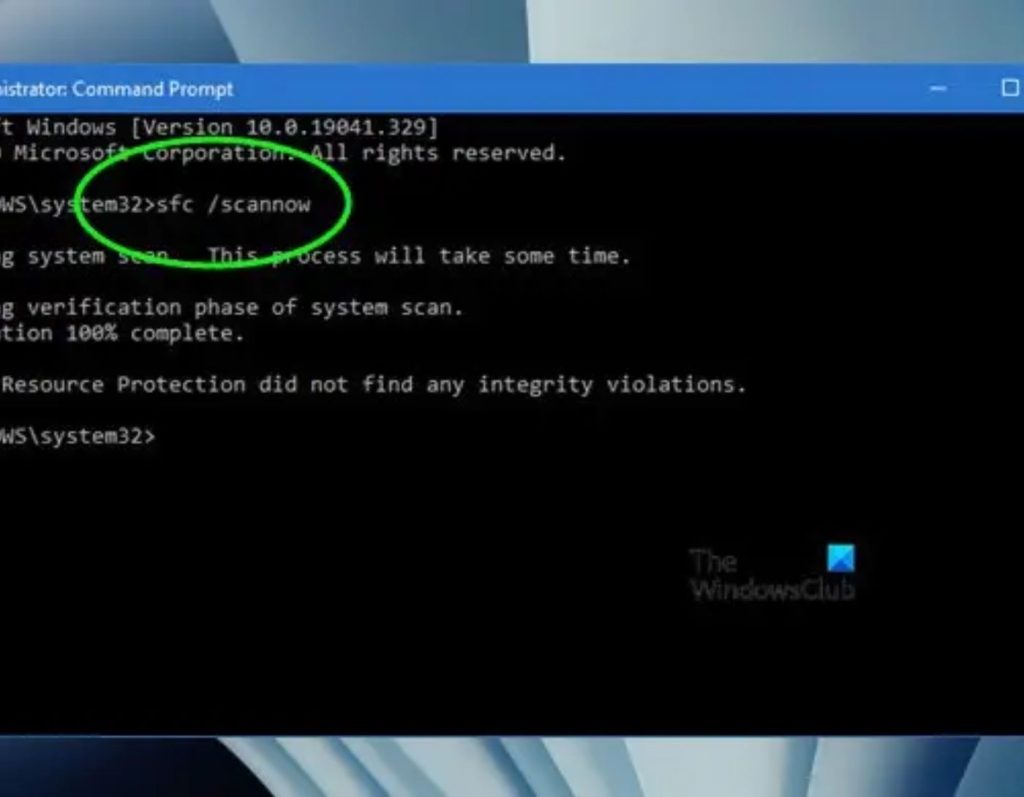
The first method to follow when encountering file system errors is to run the built-in System File Checker tool, which checks the integrity of system files and replaces corrupted or missing files. Here are the steps to run this tool:
Step 1: Press Win + R on your keyboard to open the RUN box.
Step 2: Type "cmd" in the text box and press Ctrl + Shift + Enter to open the Command Prompt with administrative privileges.
Step 3: Copy and paste the command into the Command Prompt window.
SFC /scannow
Step 4: Wait for the SFC tool to complete the scan and repair process, then restart your computer.
Fix 2: Run the Deployment Image Servicing and Management Tool
The next built-in tool for fixing errors is the Deployment Image Servicing and Management (DISM) tool. This tool is integrated like the SFC tool and can resolve errors that SFC could not fix. Here’s how to run this tool:
Step 1: Press Win + S to open the Windows search box.
Step 2: Type "cmd" and you will see Command Prompt under the best match. Click on Run as Administrator.
Step 3: To run the DISM tool, copy the following commands and paste them. Press Enter after each command.
Dism /Online /Cleanup-Image /CheckHealth
Dism /Online /Cleanup-Image /ScanHealth
Dism /Online /Cleanup-Image /RestoreHealth
Fix 3: Run a Disk Check Using the Check Disk Tool
Issues related to the integrity of hard drives, such as bad sectors, can lead to file system errors on Windows 11/10. Therefore, it is recommended to use the Check Disk tool to scan the hard drive as a troubleshooting step for such errors. The Check Disk utility, also known as CHKDSK, identifies and repairs problematic sectors on the drive. Here’s how to run CHKDSK via Command Prompt:
Step 1: Press Win + X to open the power menu.
Step 2: Select Terminal (Admin) from the list.
Step 3: In the new window that opens, click the down arrow and select Command Prompt. This will open the Command Prompt in elevated mode.
Step 4: Type the following command and press Enter:
chkdsk c: /f /r
Step 5: Press the "Y" key on your keyboard to allow the scan to run at the next restart.
Step 6: Close the Command Prompt window and restart your computer.
Fix 4: Run the Windows Store Apps Troubleshooter
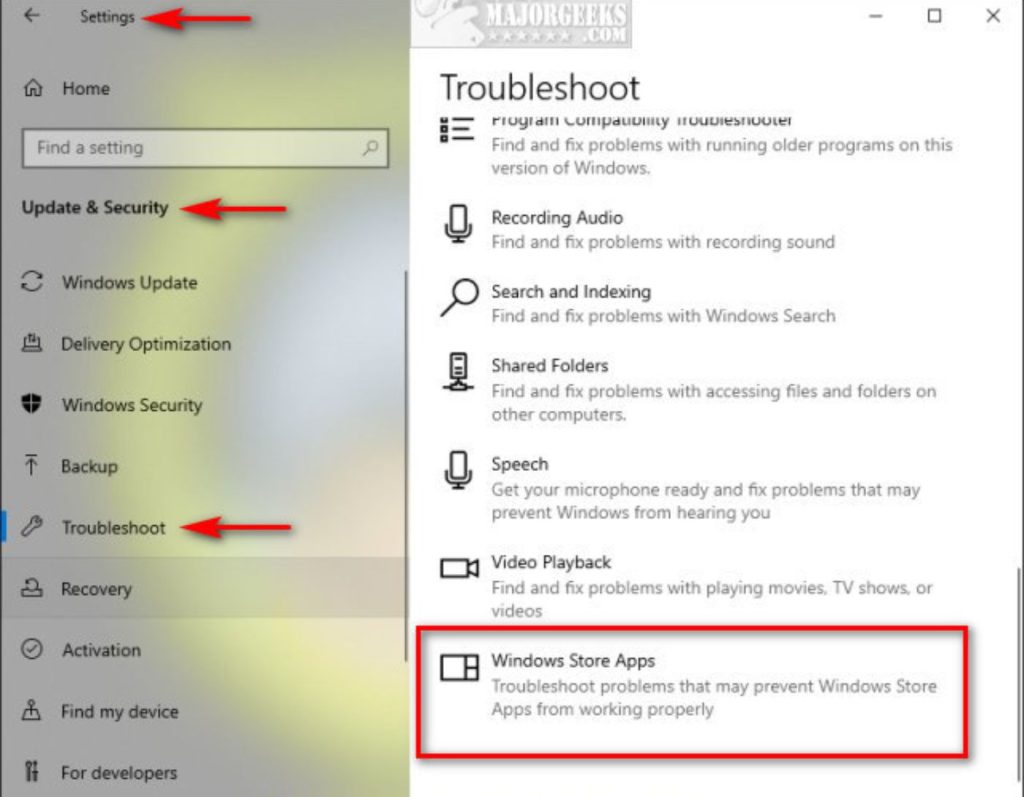
If you encounter a file system error while trying to run Microsoft Store apps, the File System Troubleshooter can help you resolve the issue. This built-in troubleshooter is designed to fix problems that hinder the proper functioning of UWP applications. Here’s how to access the Windows Store Apps Troubleshooter:
Step 1: Press Win + I to open Windows Settings.
Step 2: Type "Windows Store App" in the search box on the left panel.
Step 3: Click on the relevant link, and the Windows Store App window will open.
Step 4: Click the Next button and follow the instructions to run the troubleshooter.
Fix 5: Run the Windows License Manager Service
<!--


