


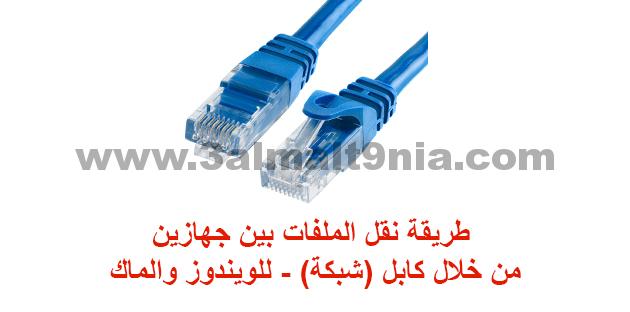
Transferring Files Between Two Computers via Cable
If you don't have access to a network and need to transfer files or establish a connection between two computers, you can connect them using a crossover Ethernet cable. Once your computers are connected with the Ethernet cable, you'll need to adjust the network settings on one of the computers to establish the cable connection. You will then be able to transfer or share files and play network games between the two devices. Continue reading this article to learn how to connect computers using Ethernet on Windows 7, Windows Vista, or Macintosh (OS).
Method
1
Windows 7 and Windows Vista

1
Make sure you have a crossover Ethernet cable. A crossover Ethernet cable is required to connect computers running Windows; while a standard Ethernet cable only creates a connection between a computer and a router.
Check the wiring color patterns at each end of the Ethernet cable to determine if the colors match. A crossover Ethernet cable will have non-matching color patterns, whereas standard cables will have matching color patterns at both ends.
Refer to the image on the 'Tekron International' website provided in the 'Resources' section of this article if you need further assistance in distinguishing between a standard Ethernet cable and a crossover cable.

2
Connect each end of the Ethernet cable to the Ethernet port on each computer to link them together.
3
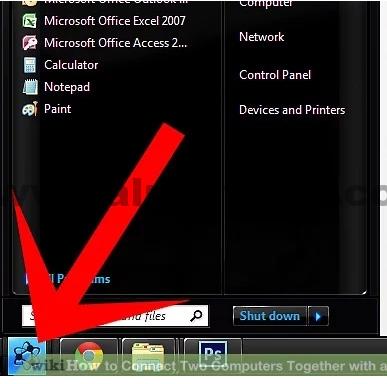
Go to either computer and click on the 'Start' menu. The 'Start' menu often resembles the Microsoft Windows logo on computers running Windows 7.

4
Select 'Control Panel,' then type 'network' in the search box available within the Control Panel.

5
Choose 'Network and Sharing Center' from the options displayed in the window.

6
Select and open the icon labeled 'Unidentified network' from the network map at the top of the Network and Sharing Center window. This icon may appear as 'Multiple networks' if you have more than one network. // In Windows 8, click on Change advanced sharing settings (in the left menu).

7
Click on the message prompting you to change network discovery and file sharing settings, then select the option that reads 'Turn on network discovery and file sharing.'

8
Enter the administrator password for the computer if prompted, then press 'Enter' on the keyboard. Both of your computers will now be visible in the 'Network and Sharing Center,' and you will have the ability to share files and other resources.
Transferring Files Between Two Computers via Cable for Mac
Method
2
Macintosh (Mac) OS X
1
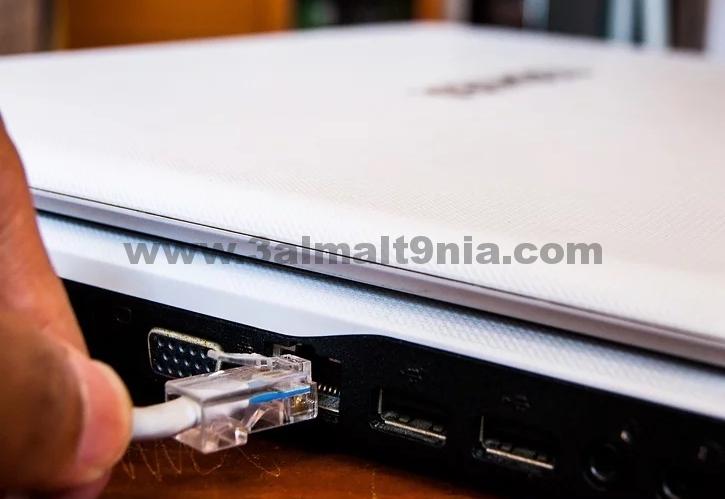
Connect each end of a standard Ethernet cable to the Ethernet port on both devices. If one or both of your Macs do not have Ethernet ports, you may need to use USB to Ethernet adapters.

2
Go to one of the computers and open the 'Apple' menu.

3
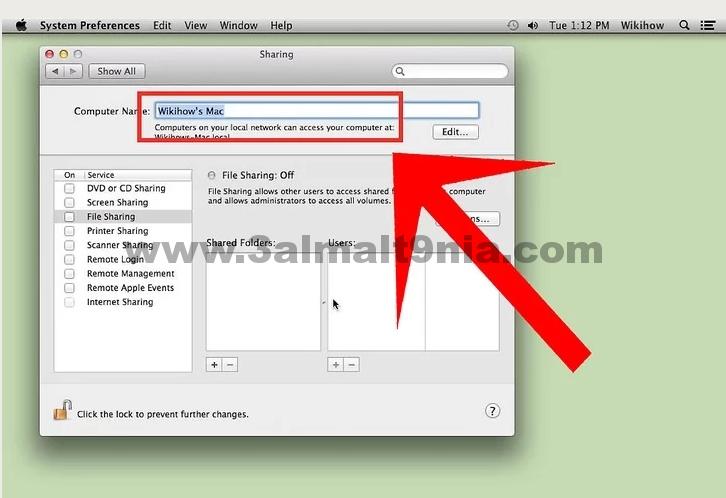
Select 'System Preferences' from the available options, then choose 'Sharing.'
4
Take note of the computer name from within the 'Sharing' list.

5
Go to the other computer and open 'Finder.' 'Finder' is a square icon located in the Dock on the Mac, resembling a pair of faces.

6
Select 'Go,' then click on 'Connect to Server' in Finder.

7
Click the button labeled 'Browse,' then double-click on the name of the other computer displayed in the window.

8
Enter the administrator password for the other computer if prompted. A connection will then be established between the two computers, and you will now have the ability to transfer and share files.


