

How to Fix Restart and Select Proper Boot Device: This article guides you through the quickest and easiest ways to resolve the boot device error you're trying to fix, so stay with us.
Boot device errors like "Restart and Select Proper Boot Device" can be very frustrating as they disrupt your system, hindering your work. However, while it's an annoying issue, it can be easily resolved.
This problem can be tackled effortlessly with some simple solutions. In this article, we will detail these solutions. Understanding the causes of the problem makes troubleshooting easier, so let's start by identifying the reason behind this error.
Causes of the Restart and Select Proper Boot Device Error
The following factors may be responsible for the boot device error you are encountering on Windows 7/Windows 10/Windows 11.
Incorrectly configured BIOS settings.
The partition is inactive.
Your system's storage device cable is loose.
Your boot drive or operating system is infected with malware.
You have a corrupted or damaged Master Boot Record (MBR).
We have mentioned several factors above that may have contributed to the issue. Now, let's guide you through the best possible solutions to the problem.
How to Fix Restart and Select Proper Boot Device
Here are the solutions you can apply to resolve the boot device issue on your computer.
Fix 1: Change Boot Order
Incorrectly configured boot order settings are among the most common causes of errors like the one you are trying to fix. If the boot order is incorrect, the BIOS may not find the device component or the file containing your operating system. Therefore, you can follow these steps to change the order, especially if you have replaced the old system disk with a new one.
The first step is to restart your computer and access the BIOS settings. You can enter the BIOS by pressing F2, F12, or Del on your keyboard. The exact key to access the BIOS varies from manufacturer to manufacturer, so you can look up the key to access these settings on your computer.
In this step, navigate to the Boot Order or Boot Priority tab.
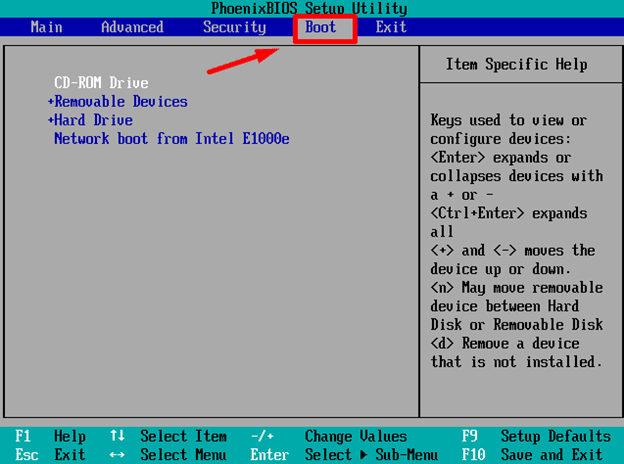
You can now change the boot order to ensure that the primary storage device is in the first position on the list.
Save the changes you made in the previous step and close the BIOS window.
Finally, boot your computer as you normally would.
Fix 2: Ensure BIOS Detects Your Boot Device or Installation Media
You need to ensure that your installation media or boot disk is recognized by the BIOS. Here are the steps to carry out this procedure.
First, you should turn on/restart your computer.
During the boot process, continuously press F2, Del, Esc, or any other key to access the BIOS and get the BIOS setup utility on your screen.
Once in the BIOS, you can go to the Main tab to get a list of devices detected by the BIOS.
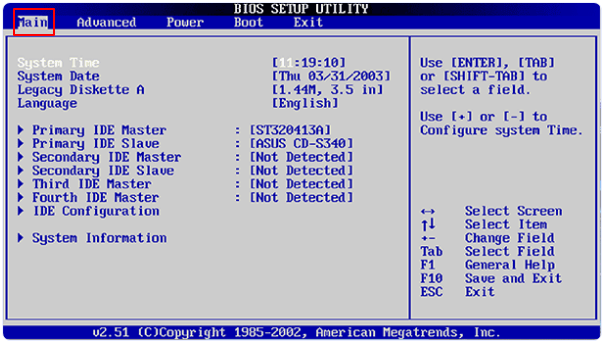
If you do not find your device in the list, turn off your computer, and reconnect the hard drive using a different cable. You can also connect the hard drive to another SATA port on the motherboard.
Fix 3: Activate the Primary Partition
The "Restart and Select Proper Boot Device" error may be due to an inactive primary partition. Therefore, activating the primary partition can resolve the issue. You can follow these instructions to activate the partition.
First, boot using a bootable external device and select Repair your computer.
From the repair options, choose Troubleshoot.
Next, you can go to Advanced options and select Command Prompt.
You can now enter Diskpart in the Command Prompt window.
Then, enter List Disk, select Disk 0 (remember to replace the 0 with the disk number according to your list), and List Partition, select Partition 3 (please replace the 3 with the operating system partition number), and the Active command one by one.
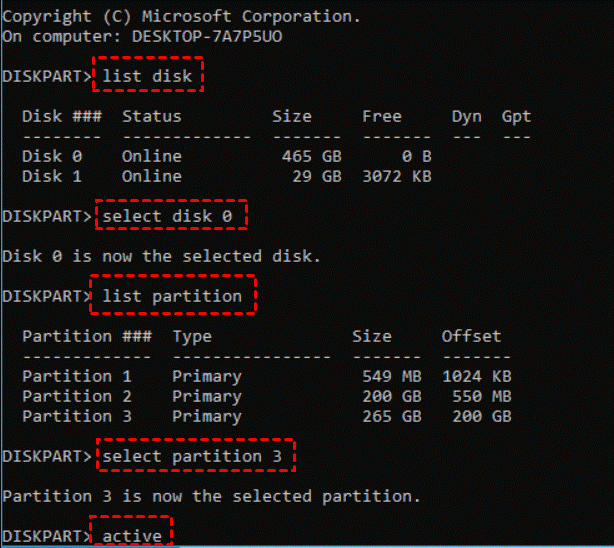
Finally, restart your computer after closing the Command Prompt window.
Fix 4: Check Cable Connection
A loose cable connection is often the reason behind issues like Windows 11, Windows 10, and Windows 7 "Restart and Select Proper Boot Device." Therefore, you can disconnect the hard drive and reconnect it to ensure a secure connection.
Fix 5: Try Repairing Boot Files
Corrupted boot files may be another reason for the error during system startup. Here are the steps you can take to repair the boot files.
The first step is to ensure your computer is turned off.
Second, insert a DVD or USB and turn on your computer.
Next, allow your computer to boot from the recovery disk and wait for the installation screen to appear.
In this step, select Repair your computer from the bottom left corner of the window that appears on the screen.
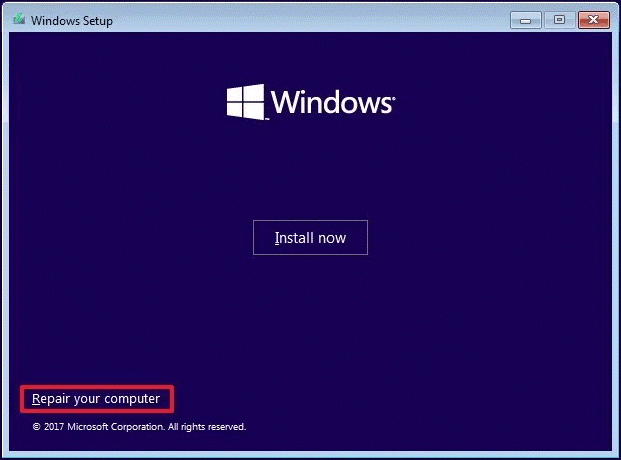
Then, open the Command Prompt and execute the following commands based on whether you are using UEFI or legacy BIOS.
Legacy BIOS Users -
Bootrec /Fixmbr bcdboot C
Bootrec /fixboot
Bootrec /rebuildbcd
UEFI Users -
: /windows
Finally, exit the Command Prompt and restart your computer.
Fix 6: Try Rebuilding the Master Boot Record (MBR)
The MBR is a crucial component in the boot process as it stores partition information and the code needed to start the computer. Since a corrupted MBR may cause the boot device error, you can take the following steps to rebuild it.
First, boot your computer using bootable media.
Second, select Next when the installation screen appears and choose Repair your computer.
Next, select Troubleshoot from the system recovery options.
You can now select Advanced options from the Troubleshoot menu.
Then, choose Command Prompt from the list of advanced options that appear on the screen.
A Command Prompt window will appear on your screen, and you can now enter the following commands based on whether you are using legacy BIOS or UEFI. Please remember to press Enter after each command.
Legacy BIOS Users -
bootrec /fixmbr
bootrec /fixboot
bootrec /scanos
bootrec /rebuildbcd
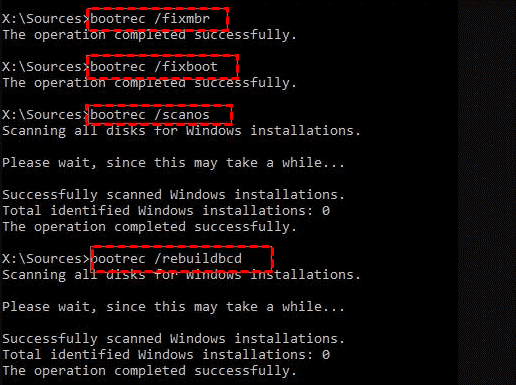
Legacy BIOS Users
UEFI Users -
bcdboot C:\windows
Finally, type Exit to close the Command Prompt window and restart your computer.
Fix 7: Reinstall the Operating System
If none of the above solutions work, the last resort is to reinstall the Windows operating system to fix any corruption in the operating system, malware, or virus infection.
You can carry out this procedure by following these steps.
First, enter the Windows Recovery Environment.
Second, select Troubleshoot from the recovery options.
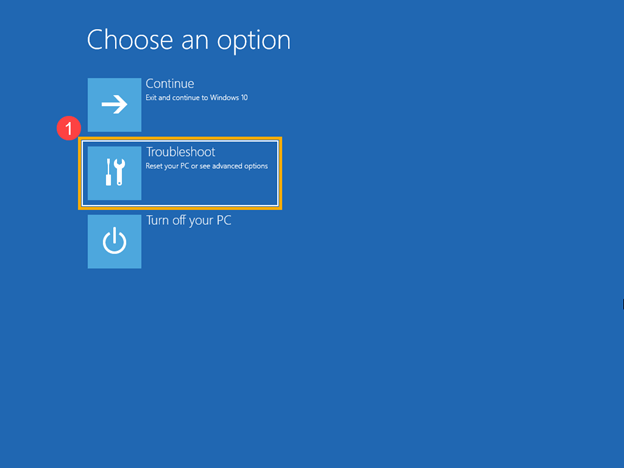
Next, choose Reset this PC from the Troubleshoot options.
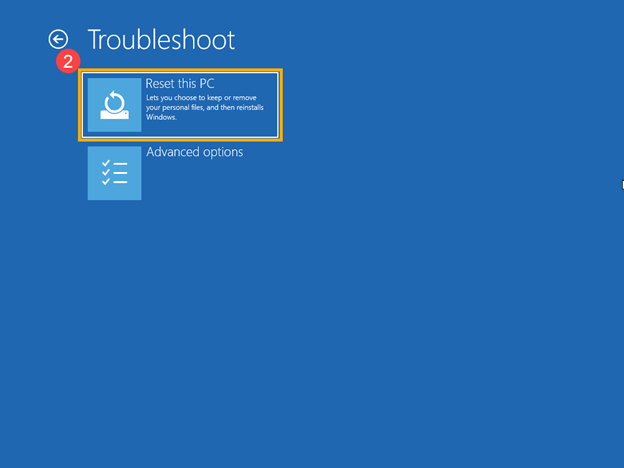
Reset this PC
You can now choose to keep your files or remove everything.
Finally, follow the on-screen instructions to complete the process.
Conclusion
In this article, we discussed how to fix the restart and select proper boot device issue. We hope one of these solutions resolves your boot device problem. Feel free to leave a comment if you have any questions or inquiries regarding this topic.


