


How to Fix Blurry Text and Fonts in Windows 11/10: If you're seeing unclear or cut-off text and fonts in Windows 11 or Windows 10, this article will guide you to a solution for this issue. Many users with high-resolution displays encounter this problem when running desktop applications like Google Chrome, Firefox, Microsoft Office, Windows Photo Viewer, Windows Media Player, and even Windows Store apps.
What is DPI?
DPI stands for Dots Per Inch, which refers to screen resolution. High DPI displays allow for clearer text and graphics, but sometimes certain applications do not adapt well, resulting in unclear or fuzzy text.
How to Fix Blurry Text and Fonts in Windows 11/10
If you're experiencing unclear fonts on your Windows device, try the following solutions:
1. Disable DPI Virtualization
If you're seeing unclear text in a specific application, like Google Chrome, you can disable DPI virtualization for that application.
Steps for the Chrome browser (or any other program):
Right-click on the application (for example, chrome.exe) in its program folder.
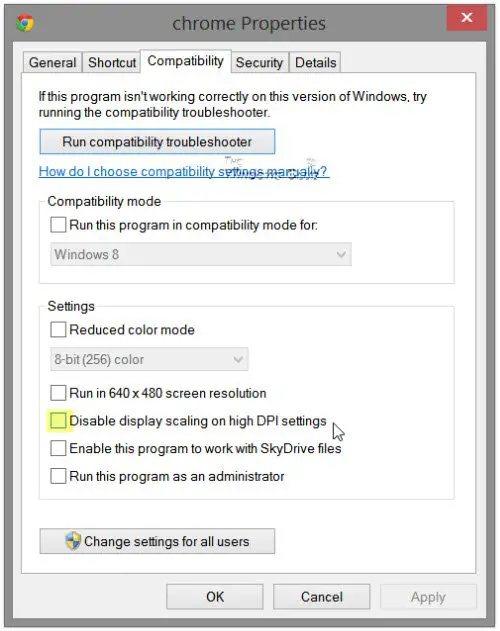
Select Properties.
Go to the Compatibility tab.
Check the box next to Disable display scaling on high DPI settings.
Click Apply and then OK.
Check if the issue is resolved.
If this doesn't work, or if you're experiencing unclear fonts in most of your applications, consider lowering the DPI settings at the system level.
2. Lower the Overall DPI Setting for Windows
To adjust the DPI setting across Windows systems:
Open Control Panel by pressing Win + X, then select Control Panel > Display.
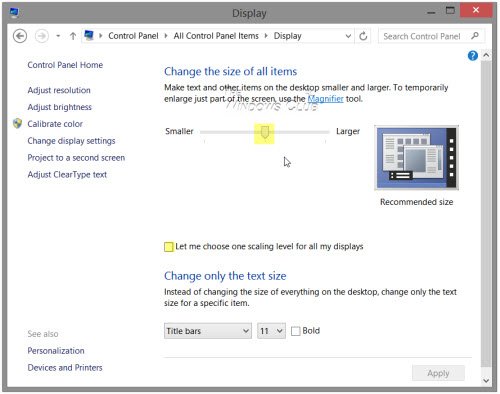
Under Change the size of all items, check the box to let me choose one scaling level for all my displays.
Adjust the slider to 100% or the level that suits you.
Note: Lowering the DPI setting may make text and screen elements too small, especially on high DPI displays, making them harder to read.
3. Use a Free DPI Fix Tool for Windows
You can also try using a free tool like Windows DPI Fix to resolve unclear fonts, text, and images. This tool may automatically adjust display settings to enhance clarity.
4. Use Advanced Scaling Settings in Windows 10
Windows 10 has an option that can automatically fix blurry programs:
Go to Settings > System > Display > Advanced scaling settings.
Turn on the option to let Windows try to fix apps so they aren't blurry.
This feature is particularly useful when disconnecting or reconnecting an external display.
Windows will notify you if any apps are unclear and give you the option to fix them directly from the notification.
5. Override DPI Settings for Individual Programs
For more control, Windows 10 allows you to customize DPI settings for individual programs:
Right-click on the .exe file and select "Properties."
Under the Compatibility tab, click on Change high DPI settings.
Select your preferred DPI settings for that specific program.
This allows you to address scaling issues on a per-program basis.
Note for Windows 11 users: Windows 11 does not have the feature to let Windows try to fix apps. You will need to use the other solutions mentioned.
6. Graphics Settings in Windows 11/10
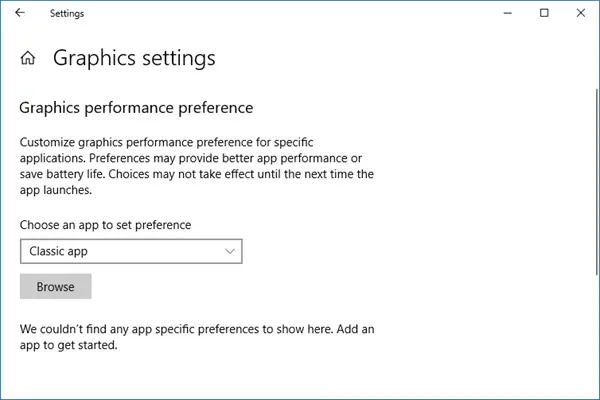
This graphics setting was also introduced in the latest update, allowing you to customize graphics performance for individual applications. You can select any application and specify which graphics processor it should use.
If you're using Windows 11, you need to go to System > Display > Graphics. From there, click on one of the apps in the list or the blurry app, then select the Options button.
Next, choose Graphics performance based on the current setting.
It's recommended to switch between options to see if the change improves things.
7. Turn Off Advanced Scaling in Windows 11
Windows 11 does not have an advanced scaling option in settings, but you can manually adjust the scaling level:
Go to Settings > System > Display.
Expand the "Scale" dropdown and select 100% or your preferred setting.
Additional Solutions
If you're still experiencing issues, consider the following:
Rebuild the font cache: Rebuilding the font cache can help restore clarity in text display.
Use ClearType Tuner: This built-in tool in Windows allows you to adjust the display to make text easier to read.
Frequently Asked Questions
1. Why do I see unclear text and fonts on my Windows 11/10 computer?
Blurry text and fonts often occur due to DPI scaling issues on high-resolution displays. Some applications are not optimized to handle high DPI settings, resulting in unclear or fuzzy text.
2. Why don't all applications support high DPI settings?
Many older or unupdated applications are not designed to accommodate high DPI displays, leading to scaling and clarity issues on modern devices.
3. How can I fix unclear text in specific applications?
To fix unclear text in a specific application:
Right-click on the application's .exe file.
Go to Properties > Compatibility.
Select the option to disable display scaling on high DPI settings.
Click Apply and then OK.
4. How can I adjust the overall DPI settings for Windows?
To adjust DPI settings for the entire system:
Open Control Panel > Display.
Under Change the size of all items, adjust the scaling slider to 100% or your preferred value.
5. Does Windows have a tool to automatically fix blurry fonts?
Yes, Windows 10 has an option under Settings > System > Display > Advanced scaling settings. Unfortunately, this option is not available in Windows 11.
6. What is the Windows DPI Fix Tool?
The Windows DPI Fix Tool is a free utility designed to address unclear text and font issues by adjusting DPI settings and improving clarity.
7. Can I fix unclear text without restarting my computer?
Yes, using the advanced scaling settings in Windows 10, you can fix unclear text without needing to log out or restart. Windows will notify you of unclear applications, and you can fix them directly from the notification.
8. How can I rebuild the font cache to fix blurry fonts?
Rebuilding the font cache can resolve font display issues. This can be done through advanced system settings or by using an external tool specifically designed to reset and rebuild the font cache.
9. What is ClearType Tuner, and how can it help you?
ClearType Tuner is a built-in tool in Windows that adjusts font smoothing to enhance readability. You can access it by searching for "ClearType" in the Start menu and following the on-screen calibration steps.
10. How can I fix blurry applications in Windows 11 without advanced scaling settings?
In Windows 11, you can:
Adjust DPI for individual applications by right-clicking on the .exe file, going to Compatibility, and selecting Change high DPI settings.
Use graphics settings under System > Display to improve graphics performance for the blurry application.
Conclusion
In this article, we discussed how to fix unclear text and fonts in Windows 11/10. Experiencing blurry fonts and text on Windows devices, especially with high-resolution displays, can be frustrating, but the solutions provided above offer effective ways to resolve the issue. Whether you need to adjust DPI settings, use advanced scaling features in Windows, or modify individual application settings, you have a variety of options to make your screen clear again. By following the steps outlined, you can enjoy clear and readable text across all your applications.


