


How to fix files that have stopped copying: It's frustrating when a file copying process unexpectedly halts midway through the transfer. However, this issue can be easily resolved with the solutions provided in this article.
Copying files is one of the most common tasks performed on a computer, and you may often find yourself transferring files from one location to another on your device.
However, it can be extremely frustrating when a file stops copying halfway on a Windows computer.
Are you also experiencing a similar issue where the file copying process suddenly stops? If so, you can breathe a sigh of relief, as this article is here to help you resolve the problem.
In this article, we present tried-and-tested solutions for the issue of files stopping during the transfer process. However, it's important to understand the reasons behind this problem before attempting to fix it.
Reasons for "Files Stopping Midway".
The following factors may cause files to stop copying on Windows 11/Windows 10/Windows 7:
Insufficient storage space
Outdated device drivers
Malware infection
File system errors
Interference from third-party antivirus software
The list above highlights some key factors that may be responsible for file copying issues on your computer. Let's now take a look at how to resolve the problem.
How to Fix Files That Have Stopped Copying
You can apply the solutions below to resolve the issue of files stopping during the copying process:
Fix 1: Be Patient and Wait for a While
This may seem obvious, but sometimes waiting is the simplest solution to a problem like a file stopping midway through copying.
Copying large files can take a significant amount of time, so you should patiently wait for a while to complete the copying process. If it still doesn't finish after waiting long enough, you can proceed with troubleshooting.
Fix 2: Ensure Sufficient Storage Space
The destination drive must have enough space to complete the copying process. Lack of sufficient space may cause Windows 10 to stop copying files. Here’s how to ensure adequate storage.
First, connect the drive you want to copy files to your computer via a USB port.
Now, open File Explorer using the shortcut command Windows+E.
Right-click on the external storage and select Properties from the available menu.
Now, check the available storage space in the "General" tab to ensure there is enough storage.
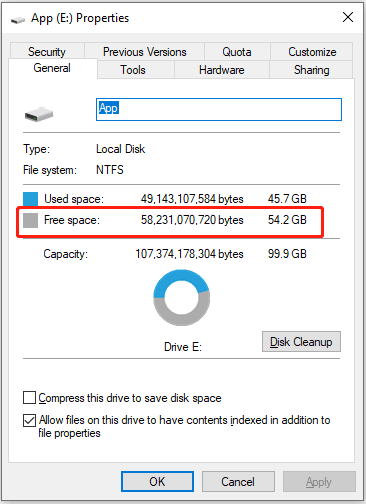
If the available space is less than the size of the file you want to copy, you can free up space on the disk.
Fix 3: Let the External Hard Drive Cool Down
If you are continuously transferring many files or if the drive has been in use for an extended period, it may be overheating. Overheating can cause the file copying process to stop on your computer, so you might want to wait about 30 minutes before reconnecting the drive.
Fix 4: Update Device Drivers (Recommended)
Outdated device drivers can block communication between your computer and the connected drive, leading to issues like files stopping midway through the transfer. Updating drivers can resolve this issue and many others on your computer, making it one of the recommended solutions.
You can easily update drivers using software like Win Riser, which updates drivers instantly with just a few clicks and offers many great features.
Some of the most exciting features of Win Riser include driver backup and restore, scheduled device scans, deep and quick scans, an ignore list for drivers you want to exclude from the update process, removal of unwanted files, and malware detection.
After installing the software, you can use it to run a device scan, review the results displayed on your screen, and select the "Fix Issues Now" option to automatically resolve all problems. Update Win Riser for all outdated drivers and click on Fixes Now.

Fix 5: Defragment the Drive
Defragmenting the drive optimizes it, consolidates space, and improves drive performance. Moreover, it helps fix the issue of files stopping midway through transfer errors by gathering fragmented or scattered parts of the file you wish to copy. Here’s how to defragment the drive.
First, press the Windows key and type "defragment" in the search bar.
Now, select the "Defragment and Optimize Drives" option that appears at the top.
Choose the drive you want to optimize.
Select the Optimize option to enhance the disk.
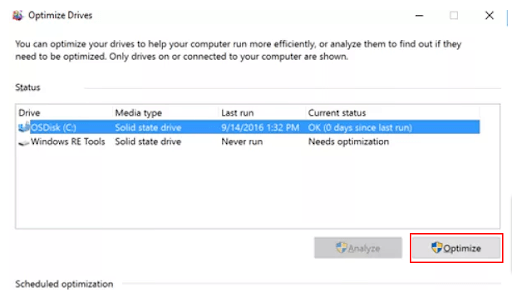
Finally, let the optimization process complete.
Fix 6: Try Formatting the External Drive
An improperly formatted drive may lead to file copying errors. Additionally, drives formatted with the default FAT32 cannot hold files larger than four gigabytes. Here’s how to format the drive to NTFS to resolve the issue.
First, connect the destination drive to your computer.
Now, launch the File Explorer utility.
Right-click on your USB drive and select "Format" from the available options.
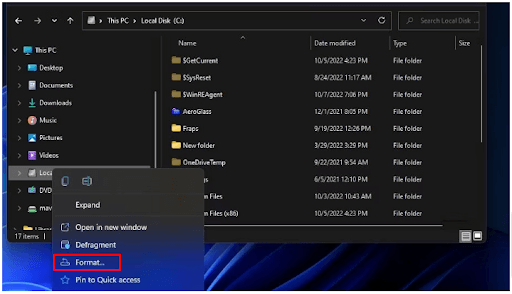
Now, select NTFS from the file system list.
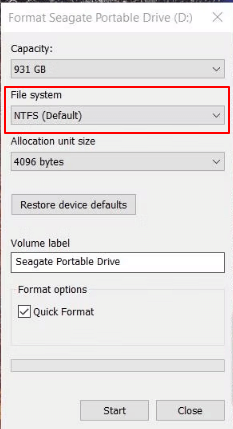
Click Start to begin the formatting process.
Finally, wait for the formatting to complete.
Fix 7: Disable Third-Party Antivirus Software
Many third-party antivirus programs are known to interfere with computer operations like file copying. Therefore, you can temporarily disable your antivirus software and then try copying the file to check if this solution works. If the error persists, you can try the other common fixes in this guide.
Fix 8: Scan the File for Malware Infection
The file you are trying to copy may be infected with malware, causing it to stop copying midway through the transfer. Therefore, you should scan the file and the entire drive using antivirus software for Windows.
Fix 9: Check for File System Errors
Disk issues or file systems with errors can be another reason for encountering the "files stopping midway" error. Here’s how to check the disk and file system integrity to fix the problem.
First, type cmd in the Windows search.
Now, choose to run the Command Prompt as an administrator.
Enter the command chkdsk G: /f /r /x in the Command Prompt window to check for file system errors.
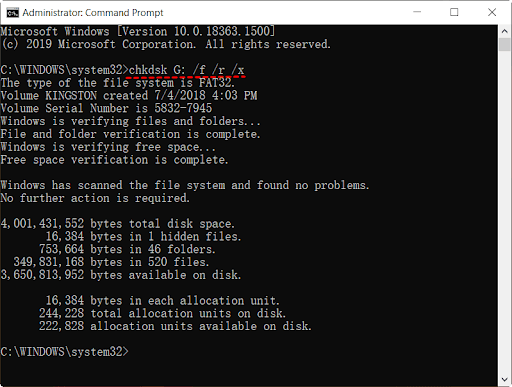
Press Enter to execute the command.
After completing the above process, you can exit the Command Prompt and restart the file copying process.
Fix 10: Perform a Clean Boot of Your Computer
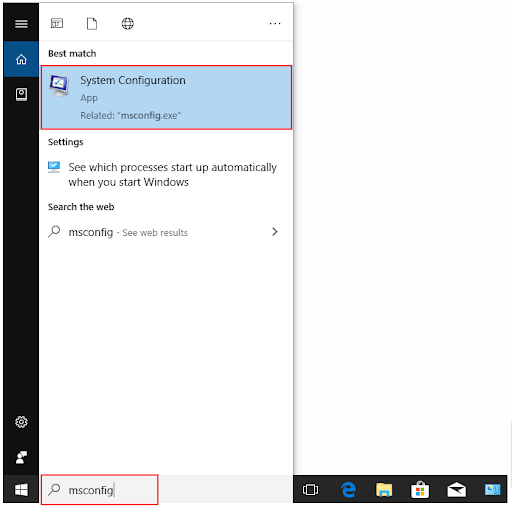
First, press the Windows button on your keyboard and type msconfig in the Run box.
Second, select System Configuration from the list that appears on the screen.
Go to the "Services" tab and select the "Hide all Microsoft services" option.
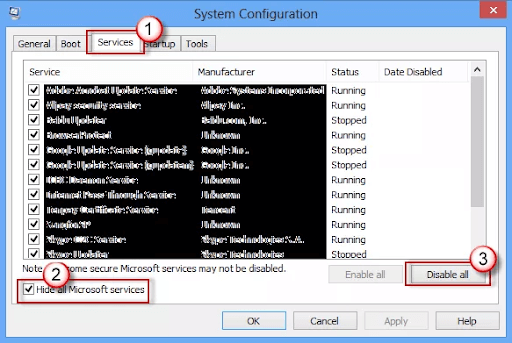
Now choose the option to disable all services.
Select Startup from the top menu and choose the option to open Task Manager.
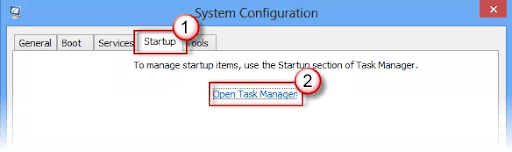
Select all processes in Task Manager and choose Disable from the bottom.
Exit Task Manager and click OK in the System Configuration window.
Finally, restart your computer.
Conclusion
We discussed how to fix files that have stopped copying. This article helps you troubleshoot issues when files stop copying midway through the transfer process on Windows. You can follow the solutions shared above sequentially until the problem is resolved or directly apply the recommended fix (updating the driver through Win Riser) to resolve the issue without any hassle.
You might like this
How to Enlarge Thumbnails in Windows 10
<a href="https://3almalt9nia.com/%d9%83%d9%8a%d9%81%d9%8a%d8%a9-%d8%a7%d9%84%d8%b9%d8%ab%d9%88%d8%b1-%d8%b9%d9%84%d9%89-%d9%83%d9%84%d9%85%d8%a9-%d9%85%d8%b1%d9%88%d8%b1-%d9%84%d8%a3%d9%


