


(How to fix printer driver error 0x80070705) How to Fix Printer Driver Error 0x80070705: The printer driver error 0x80070705 can be quite frustrating, especially when you're trying to print important documents. In this article, we will explain what this error means and provide you with practical troubleshooting steps to resolve it.
Problem
I’m trying to print a document, but I keep getting an error message that says "Unknown printer driver error: 0x80070705." What does this error mean and how can I fix it? I really need to print this document as soon as possible.
Understanding the Error:
Error code 0x80070705 typically indicates an issue with the print spooler service or the printer driver on your computer. The print spooler is a service that manages print jobs and communicates with your printer.
When the print spooler encounters a problem, or if the printer driver is incompatible or corrupted, it can lead to this error.
How to Fix Printer Error 0x80070705: Unknown Printer Driver
Here are some steps you can take to fix the unknown printer driver error 0x80070705:
Solution 1: Repair Using a PC Repair Tool
Windows consists of a large number of dll files, exe files, sys files, various types of services, databases, and so on, so it's not always possible to monitor all files continuously.
The excellent PC optimization tool repairs damage, fixes errors, updates Windows and drivers, and silently removes various types of bugs.
The Outbyte PC Repair Tool performs all of the above tasks effortlessly and provides you with a smooth, error-free Windows environment to work in so you can focus solely on your tasks.
3 Steps to Fix This Error
Step 1. Download Outbyte PC Repair Tool[File Size: 16.4 MB]
Step 2. Scan your Windows computer
Step 3. Click the "Repair" button to fix the error
Solution 2: Restart the Print Spooler Service
Often, restarting the Printer Spooler service resolves the issue. Here’s how to restart the print spooler service.
Step 1: Press Ctrl + Shift + Esc to open Task Manager. Go to the "Processes" tab.
Step 2: Find the spooler service → right-click on it → restart.
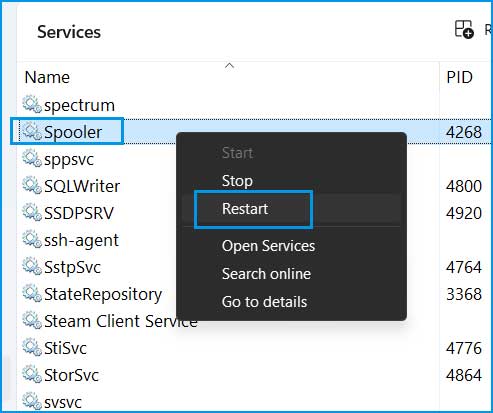
Restart_spooler_service
Solution 3: Reset the Print Spooler.
If restarting the print spooler service doesn’t work, try resetting it. Here are the steps to reset the print spooler service on Windows 11 and 10.
Step 1: Open an elevated command prompt.
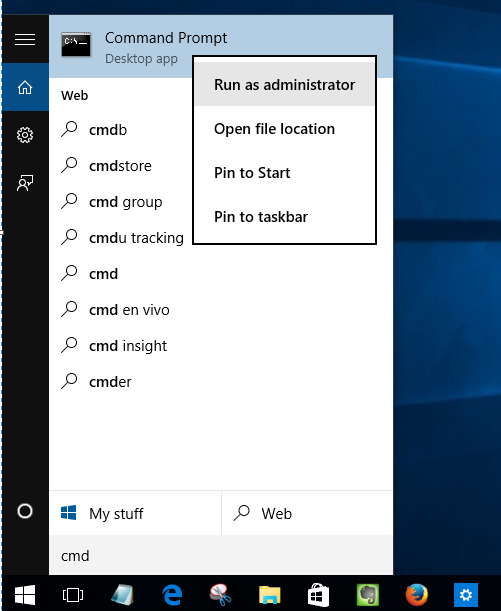
Open CMD as an administrator for Windows 10
Step 2: Type or paste the following code into the command prompt and press Enter to execute.
net stop spooler
del %systemroot%\System32\spool\printers* /Q
net start spooler
Step 3: After completing the process, restart your computer.
Solution 4: Clear the Printer Cache
It’s essential to clear the cache and data from the print spooler. This will reset the spooler and fix most common printer issues. You can clear the cache and data from the print spooler as follows:
Step 1: Navigate to the following location:
C:\Windows\System32\spool\PRINTERS
Step 2: Select all items and delete them.
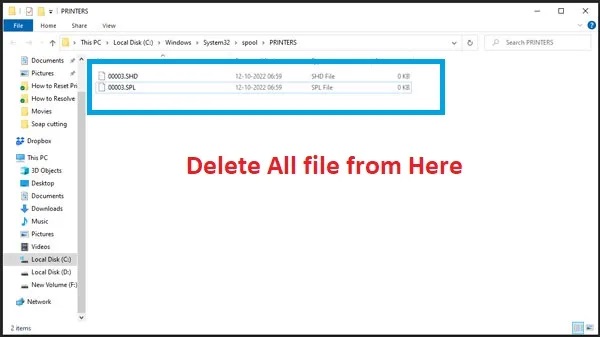
Clear the cache
Solution 5: Run the Printer Troubleshooter.
Windows 11 comes with a built-in troubleshooter designed to detect and fix the "Unable to install printer" issue. You can access the printer troubleshooter as follows:
Step 1: Go to Windows → System → Troubleshoot.
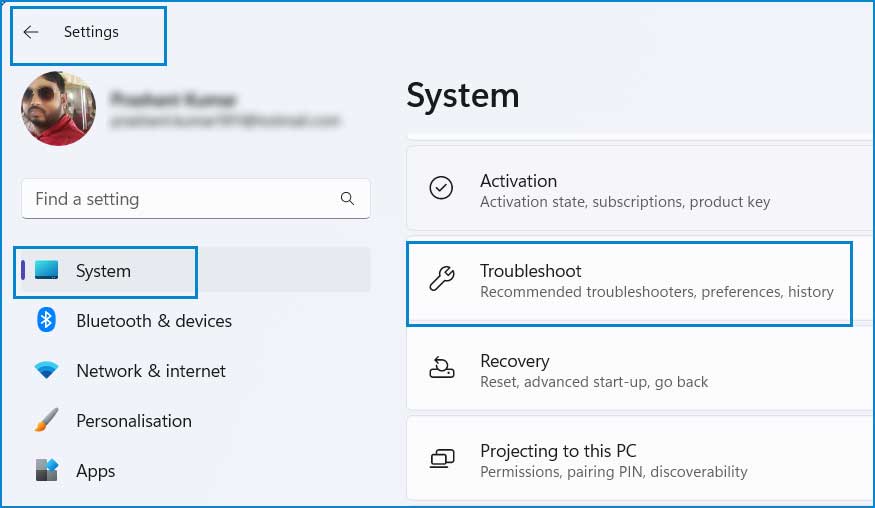
1_settings_system_troubleshoot
Step 2: Click on Other Troubleshooters.
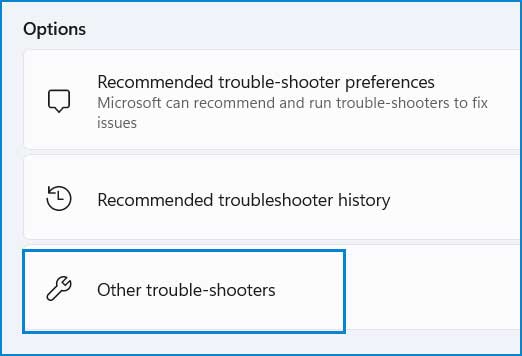
2_other_troubleshooters
Step 3: Click the "Run" button next to the Printer Troubleshooter.
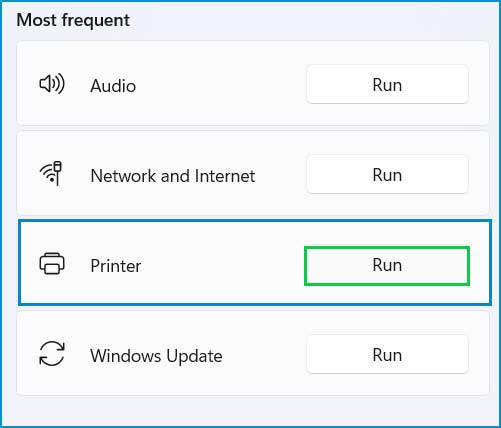
3_run_printer_troubleshooter
Step 4: The next window will ask for your permission to proceed. Click Yes to start the Printer Troubleshooter.
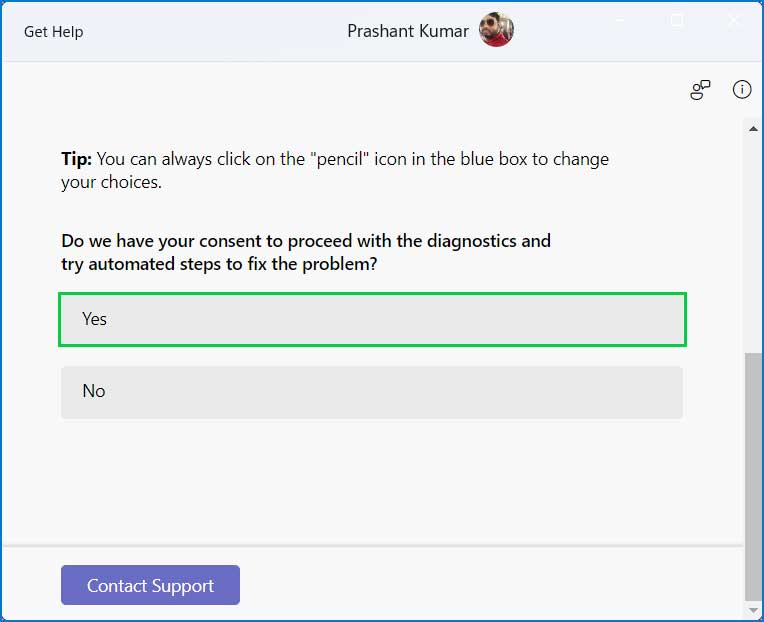
4_troubleshoot_permission
Step 5: The next window will guide you on what to do. If the issue is not resolved by applying the methods in the troubleshooter window, click No to start diagnosing your problem.
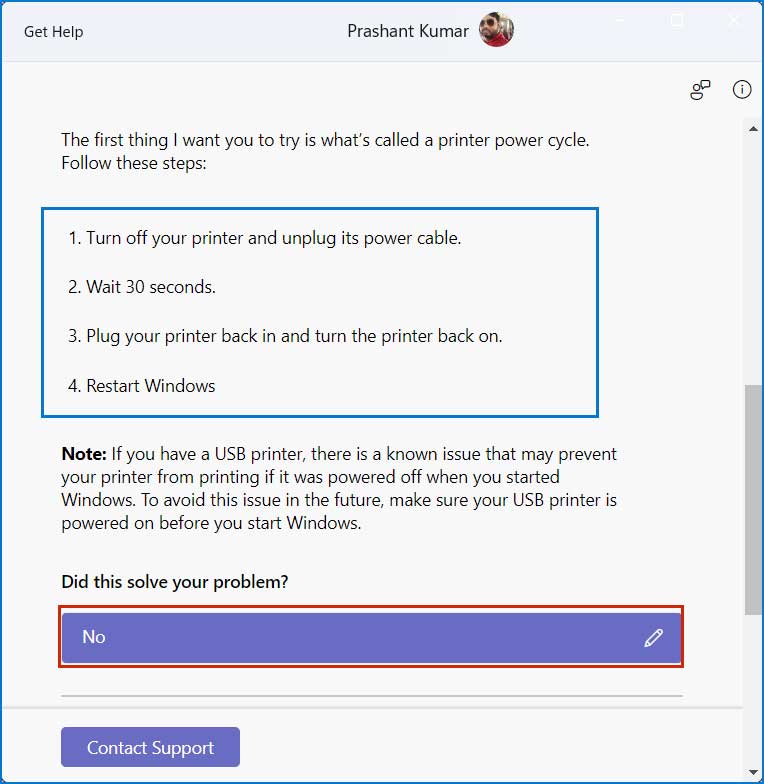
5_follow_printer_guidelines
Step 6: The troubleshooter will begin diagnosing your computer for issues. It will guide you through the process to fix the printer error.
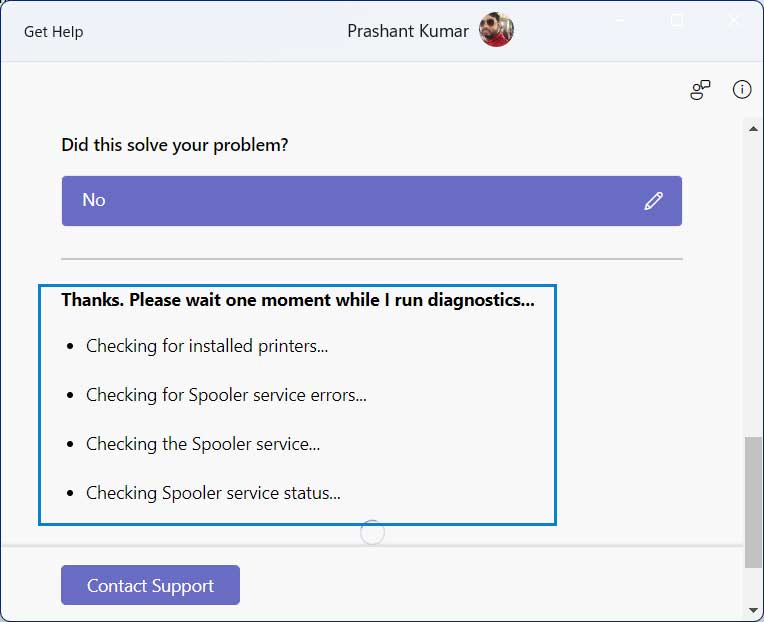
6_diagnose_your_computer
Solution 6: Update the Printer Driver
Sometimes, the driver can cause significant issues if it is inaccessible, corrupted, or outdated. You should pay attention to the health of your printer driver to fix the printer status error.
Step 1: Open Device Manager. Right-click on the Start menu and select Device Manager.
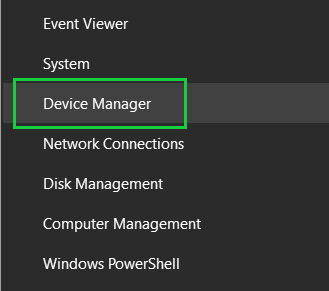
Open Device Manager in Windows 10 and 11
Step 2: Expand the Print Queues and right-click on your printer and select Update Driver.
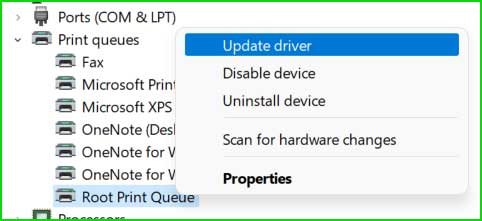
Update Printer Driver in Device Manager
Step 3: Select "Browse my computer for drivers"
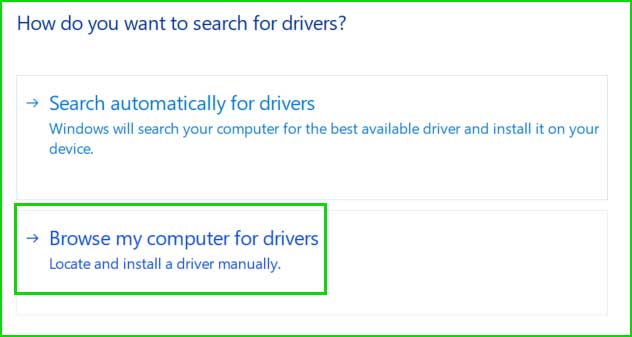
Browse my computer for drivers
Step 4: Click on the option “Let me pick from a list…”
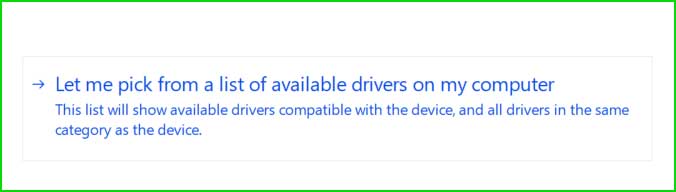
Select Printer Driver from the List
Step 5: Click on the “Have Disk” option.
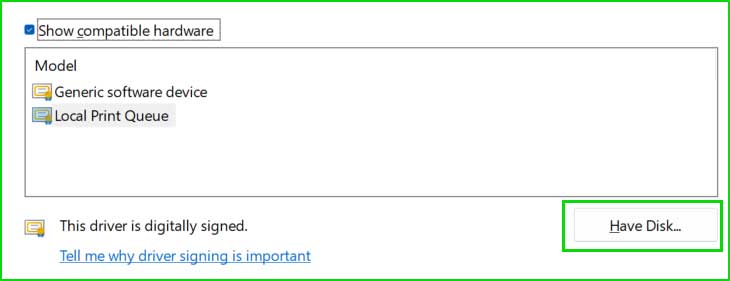
Select Disk Option
Step 6: Browse for the downloaded driver and click OK. It will start installing the driver for that printer.
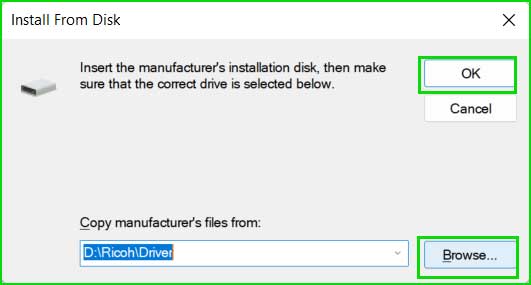
Browse the downloaded driver from your computer
Conclusion
In this article, we discussed how to fix printer driver error 0x80070705 and the top 6 solutions.
To resolve the unknown printer driver error: 0x80070705, you can restart the print spooler service, reset it, clear the print queue, update the printer driver, and run the printer troubleshooter.


