


(How to fix Unmountable Boot Volume stop) How to fix the Unmountable Boot Volume stop error: If you encounter the Unmountable_Boot_Volume error on Windows 11, 10, or 8 operating systems, it may prevent your computer from booting up. This error is classified as a startup error that appears before Windows loads on your computer.
You may see the following error message on a blue or black screen.
Error Message
Your computer has encountered a problem and needs to restart
Unmountable_Boot_Volume - 0x000000ED
What Causes This Error
There can be a variety of reasons behind the issues mentioned above, but some of the most common causes include:
File System Corruption: This is one of the primary reasons for the mentioned error. If the file system is corrupted, your operating system will be unable to access certain pieces of information stored on your hard drive, leading to boot-related issues.
Incomplete or Incompatible Windows Updates: If you installed a major Windows update that is incompatible with your computer, you may encounter the Unmountable_Boot_Volume error.
Incorrectly Configured BIOS: Making several changes in the BIOS settings can lead to incorrect configurations, which may trigger this error.
Corrupted MBR or GPT: The Master Boot Record (MBR) or GUID Partition Table (GPT) are crucial files when your computer starts loading Windows. If the MBR or GPT file becomes corrupted, your computer will not be able to locate the operating system, resulting in various boot errors such as Inaccessible_Boot_Device, Windows startup failure, error reading boot configuration data, operating system not found, no bootable device, and more.
Hardware Failure: Failures in hardware components such as SSDs, RAM, motherboards, power supplies, and others can also be significant reasons for encountering this error.
How to Fix Unmountable_Boot_Volume Error on HP, Dell, Asus, Acer, and Lenovo Laptops?
Regardless of your laptop's manufacturer, the Unmountable_Boot_Volume error can affect any computer running Windows 11, 10, 8, or other versions of the Windows operating system.
In this troubleshooting guide, we will walk you through how to fix the Unmountable Boot Volume stop error step by step.
Important Note:
Before attempting any major repairs on your Windows operating system, it is crucial to recover your data and store it safely. EaseUS Data Recovery Wizard can help recover data from a malfunctioning computer.
Whether you are facing the scary blue screen of death, startup failures, or boot issues, this tool enables you to boot your computer and recover your valuable data effortlessly. So, make sure to use EaseUS Data Recovery Wizard to protect your files before proceeding with any repairs!
Note: The free version allows you to recover up to 2GB of data.
Solution 1: Perform Automatic Repair Using Windows Installation Disk.
To carry out this step, you will need a Windows installation disk. Using the Windows installation disk, you can effectively fix issues such as corrupted file systems, missing system files, and other damages.
Startup Repair - Step by Step
Step 1: Boot your computer using the Windows installation media. The Windows Setup Wizard will open. Click Next.
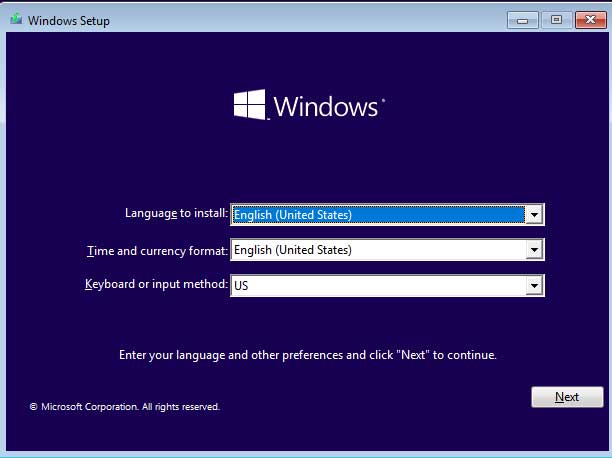
Installing Windows Operating System
Step 2: Select Repair your computer.
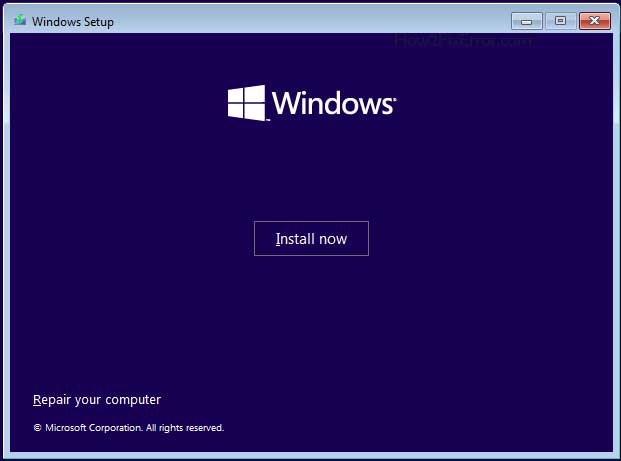
Repair your computer option Windows 10 and 11
Step 3: The Advanced Startup Options or Windows Recovery Environment will open. Click Troubleshoot.
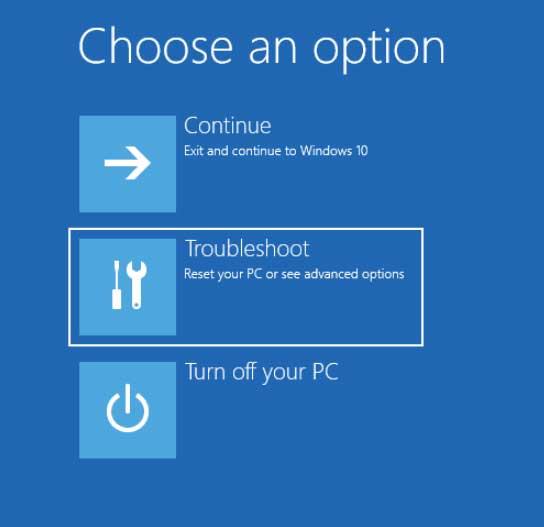
Troubleshoot in the Advanced Startup Options menu for Windows 10 and 11
Step 4: The Advanced Startup Options menu will open. Go to Troubleshoot ➜ Advanced options ➜ Startup Repair.
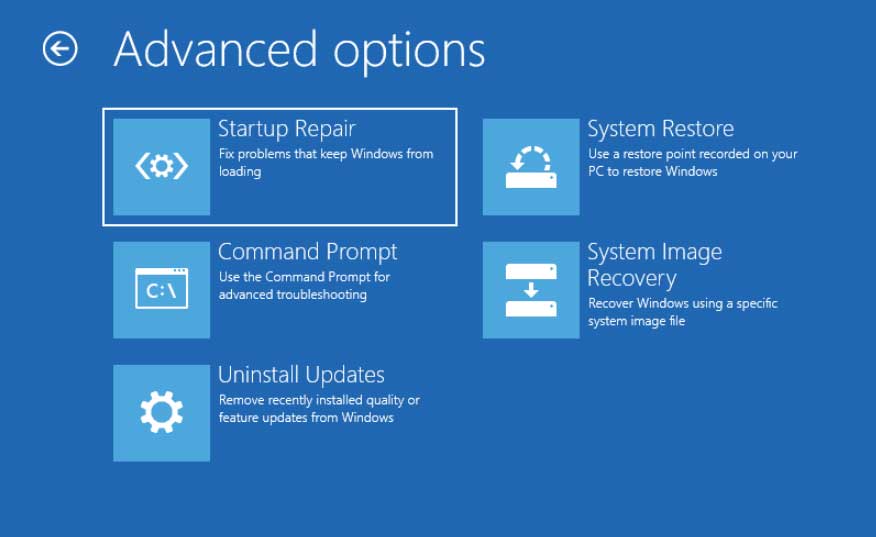
Startup Repair Windows 10 and 11
Step 5: Select the operating system.
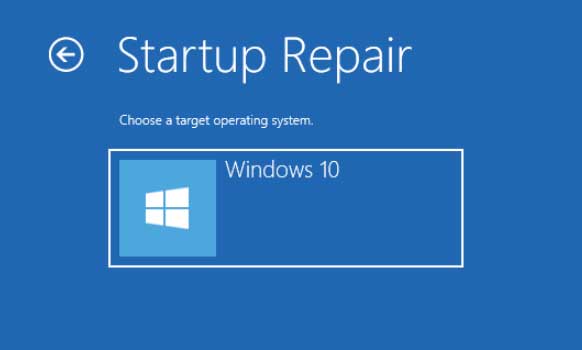
Startup Repair - Select Operating System
Step 6: Wait for it to diagnose and repair your computer.
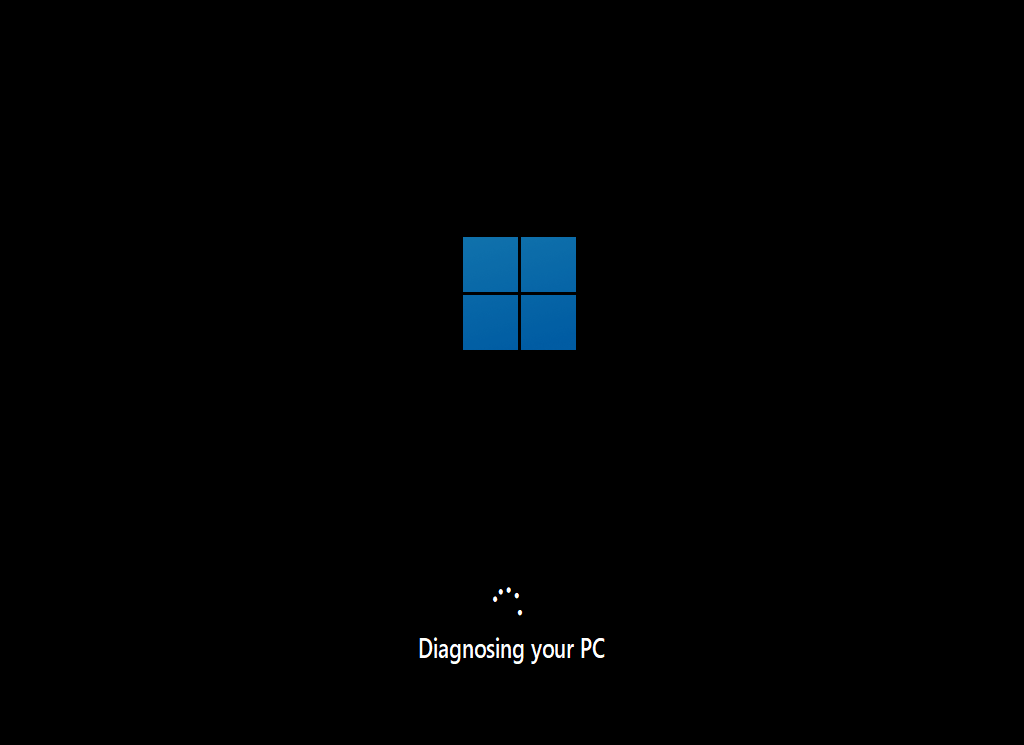
Repair-Windows-from-USB-5
Solution 2: Repair MBR or GPT
Another critical step is to repair the MBR or GPT files, as corruption in these files can lead to various types of startup issues. You can perform MBR/GPT repair as follows:
Repair MBR Using EaseUS
Step 1: Create a bootable USB drive using EaseUS. Launch EaseUS Partition Master, click on "Bootable Media" on the toolbar. Select "Create Bootable Media".
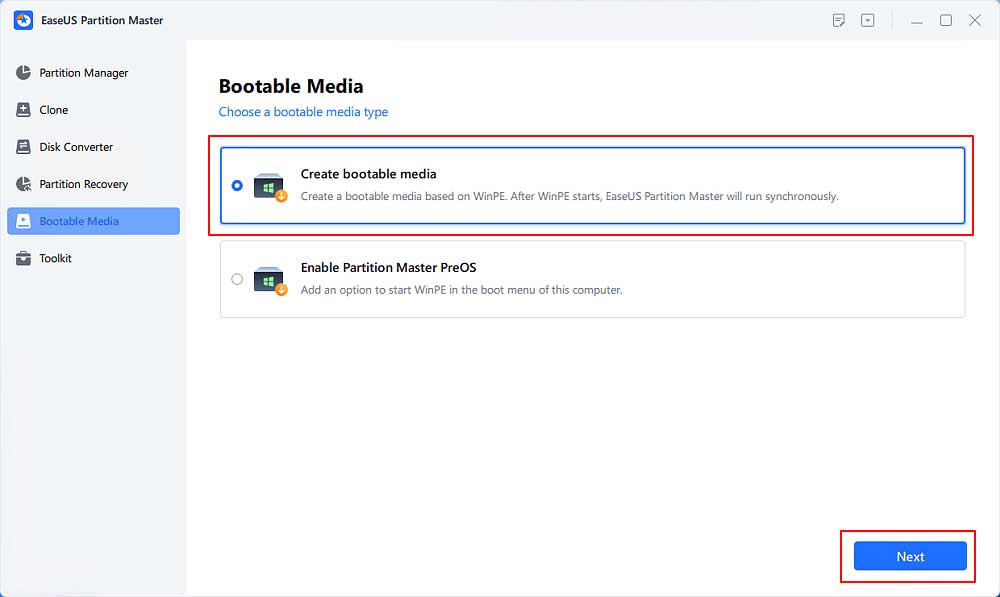
Step 2: Boot your computer using the bootable USB drive.
Step 3: Click on "Toolbox" and select "Rebuild MBR".
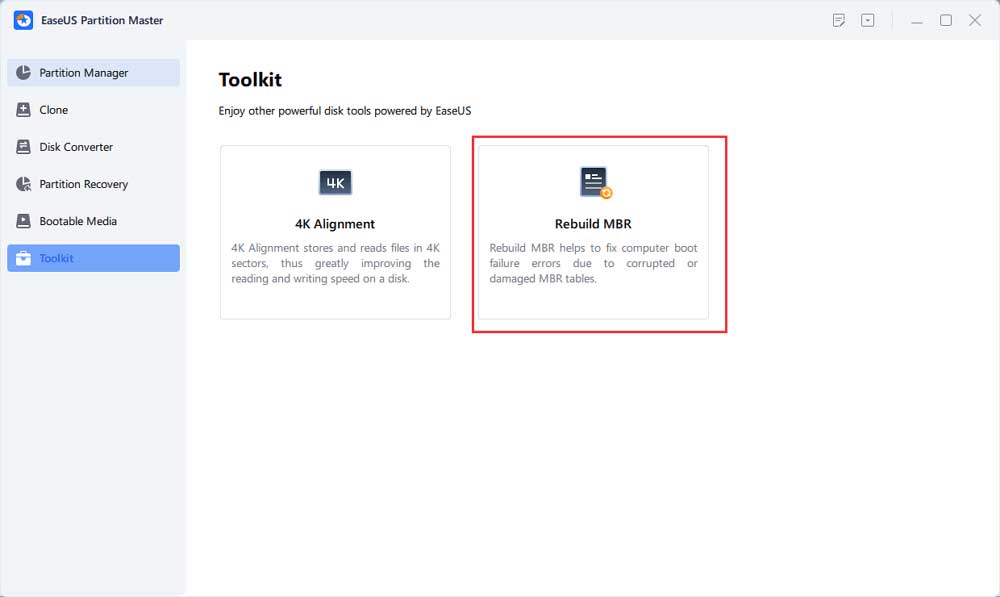
Repair EASEUS MBR
Manually Repair MBR
Manually Repair MBR - Step by Step
Step 1: Boot your computer using the Windows installation media. The Windows Setup Wizard will open. Click Next.
Installing Windows Operating System
Step 2: Select Repair your computer.
Repair your computer option Windows 10 and 11
Step 3: The Advanced Startup Options or Windows Recovery Environment will open. Click Troubleshoot.
Troubleshoot in the Advanced Startup Options menu for Windows 10 and 11
Step 4: Select Command Prompt.
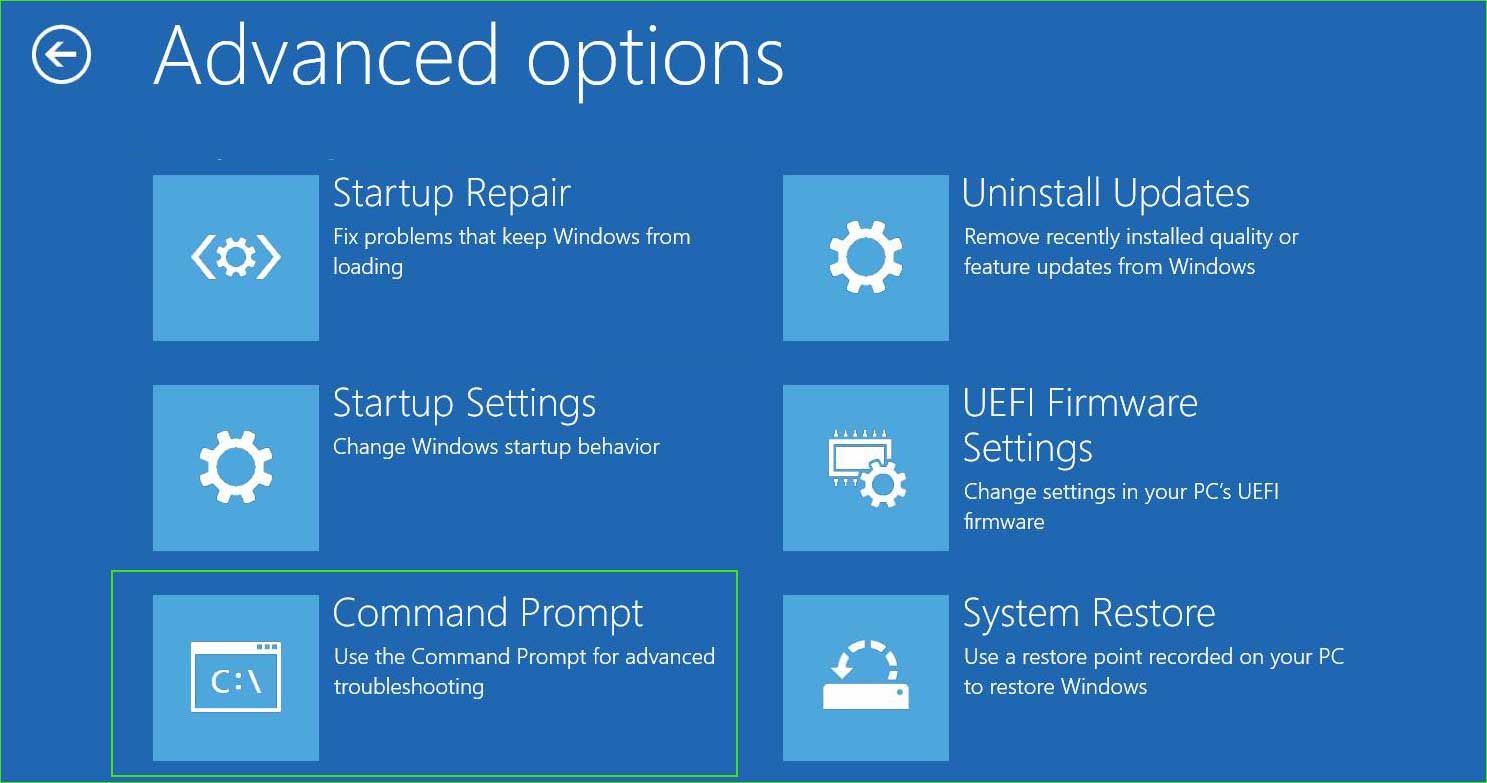
open_command_prompt in the Advanced Startup Options
Step 5: Type the following commands and press Enter to execute them.
bootrec /fixmbr
bootrec /fixboot
bootrec /RebuildBcd
Step 6: Now restart your computer, and you will no longer see the Bootmgr is missing error message at boot.
Solution 3: Run SFC, CHKDSK, and DISM Commands.
These three commands form an ideal trio for checking the health of Windows. Not only do these tools search for bad sectors on SSD drives, assess file system integrity, and check Windows images, but they also have the capability to fix detected issues.
SFC/Chkdsk/Dism - Step by Step
Step 1: Open Command Prompt as Administrator.

Open Command Prompt as Administrator in Windows 8, 10, and 11
Step 2: Now run the following commands one by one.
1. System File Checker Tool
sfc /scannow
2. Run Dism Command
Dism /Online /Cleanup-Image /CheckHealth
Dism /Online /Cleanup-Image /ScanHealth
Dism /Online /Cleanup-Image /RestoreHealth
3. Run Disk Check Utility.
chkdsk /f c:
You will see the message:
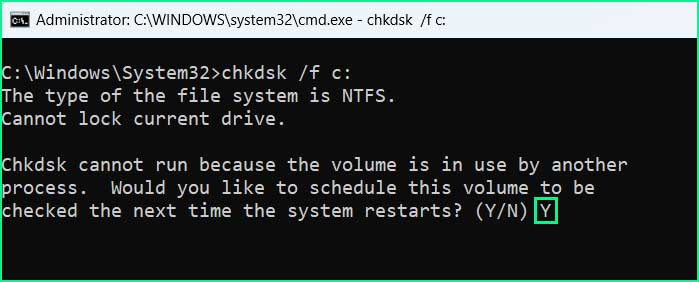
Cannot run Chkdsk because the volume is in use by another process. Would you like to schedule this volume to be checked the next time the system restarts? (Yes / No)
Press Y and hit Enter. The disk check will start when your computer boots next.
Solution 4: Test for Hardware Malfunction
You should perform various tests to determine if any hardware installed on your computer is malfunctioning. To assess the integrity of your hardware, follow these steps:
Power Off and Disconnect: Turn off your computer and unplug the power cable from the electrical outlet.
Clean RAM: Remove the RAM modules and gently clean the connectors using a soft cotton cloth and an appropriate cleaning solution (such as thinner, gasoline, or alcohol). Reinsert the RAM modules securely.
Reseat SSD: If you are using an SSD, remove it and then reinsert it. For desktop computers, consider replacing the SATA SSD cable if possible.
Swap SSD: Often, boot issues occur due to SSD failure. If you have another SSD available, try replacing the old one with the new and then restart your computer.
The "Unmountable_Boot_Volume" error can also occur for various other reasons such as motherboard failure, virus/malware infection, registry file corruption, and more. In such cases, reinstalling Windows may be a solution to resolve this error.
How to Prevent Unmountable_Boot_Volume Error in the Future?
Maintaining a healthy computer is often better than dealing with errors. A healthy computer provides an error-free environment, improved performance, enhanced security, and helps protect your privacy. Managing Windows 11/10 manually can be time-consuming, and there is a high chance of forgetting regular maintenance tasks. For this reason, it is advisable to consider installing the Outbyte PC Repair Tool. This tool can efficiently repair and optimize the Windows operating system, ensuring your computer runs smoothly and securely.
Windows consists of a large number of dll files, exe files, sys files, various types of services, databases, and so on, so it is not feasible to constantly monitor all files. The excellent PC optimization tool repairs damages, fixes errors, updates windows and drivers, and silently removes various types of bugs.
The <a href="https://outbyte


