


How to fix the system's inability to find the specified file in Windows 10 and 11: If you see the error message "The system cannot find the specified file in Windows 10/11" on your screen, follow the solutions provided in this article to resolve the issue.
The inability of the system to access a file on a Windows computer can be quite frustrating. If you're encountering this error, there's no need to worry too much; here we'll explore the best ways to easily fix the issue of the system not being able to find the specified file in Windows 10/11.
What does the error "The system cannot find the specified file in Windows 10/11" mean?
The error message "The system cannot find the specified file in Windows 10/11" indicates that the computer is unable to locate the file or folder. This error can occur in various situations, such as when trying to open a file, run a program or command, or install software.
How to fix the system's inability to find the specified file in Windows 10 and 11
Here are some simple solutions to eliminate the "The system cannot find the specified file in Windows 11" error. We suggest you follow the solutions below in order, which will help you easily locate the file or folder you're looking for.
Fix 1: Run the CHKDSK command.
Disk corruption may be the cause of the "The system cannot find the specified file in Windows 10/11" error, so you can address the issue by running a CHKDSK scan.
Here are the steps to do this.
You will need to search for Command Prompt in your computer's search bar. To launch the Command Prompt tool with administrator credentials, right-click on the first search result and select "Run as administrator" from the context menu that appears.
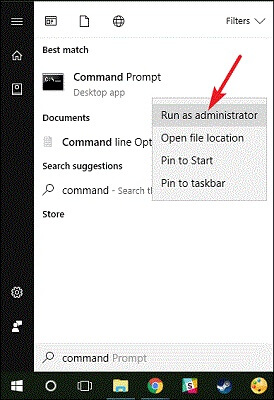
Running Command Prompt as Administrator
Once the Command Prompt appears, you should enter the command chkdsk C: /f. Don’t forget to replace C: with your disk partition, then press the Enter key.
By completing the same steps outlined above, you will now be prompted to execute the /r and /x commands as well.
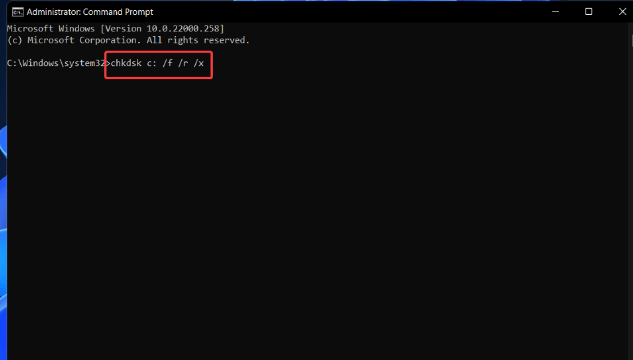
Chkdsk C frx
You should wait for the disk check to complete, then restart your computer once it’s finished.
This simple solution can help you resolve the "The system cannot find the specified file in Windows 11" error.
Fix 2: Check the system log files
If there are any errors or issues with the log files available in the system, the error "The system cannot find the specified file in Windows 10" may appear.
Therefore, you need to check if there is a problem with the files that make up the system log.
Follow these steps to achieve this:
Access the "Inf" folder in Explorer by navigating to the path C:/Windows/inf and opening it.
Select the setupapi.dev file, which may also be referred to as setupapi.dev.log, then double-click on it.
To bring up the search box, press [Ctrl] and [F], in the available space, type "Cannot find the file" or "Cannot find the specified file," then press the [Enter] key. This way, you will be able to identify the missing or unlocatable file.
Make a copy of the discovered file and then paste it into the "Inf" folder.
Now, replace the affected drive, and then restart your computer.
This solution is a bit complex but works to fix the "The system cannot find the specified path in Windows 11" error. However, if the error persists, follow the next solution.
Fix 3: Update all outdated drivers on your system
The connection between the operating system and installed devices can be disrupted when drivers are outdated, leading to issues that may result in the "The system cannot find the specified file in Windows 10" error. Therefore, all device drivers should be continuously updated to avoid such problems.
Driver updates can be performed in several different ways. To automatically update outdated drivers using specialized driver update software, such as Win Riser, is the safest and most straightforward method when it comes to improving computer speed and driver updates, making Win Riser one of the best available solutions.
Additionally, Win Riser offers many great features, such as the ability to revert to previous drivers to resolve issues related to updates, identifying and removing malware, cleaning invalid registry entries, and cleaning unwanted files that are not easily visible.
You can use this program by following the straightforward instructions below:
Install the Win Riser program.
In the second step, you will need to complete the quick installation procedure of the program by double-clicking the setup file you downloaded in the previous step.
Allow Win Riser to perform a brief and thorough scan of your computer once the installation is complete.
To resolve all issues and automatically update drivers, you will need to review the list of outdated drivers and other problems appearing on your computer, then click the "Fix Issues Now" button.

Fix 4: Run a malware scan
Here we use the built-in Windows Security tool to scan the computer and remove any malware or viruses.
Step 1. Type "Windows Security" in the search box and run it.
Step 2. Click on "Virus & threat protection", then click the "Scan options" link located below the quick scan button.
Step 3. Choose the type of scan you want to run; you can perform a "Quick scan," "Full scan," or "Custom scan," then click "Scan now" to start the task.
Step 4. It may take some time to finish, and you will get the size of the hard drive and the number of files on it. Once the deletion of the file is complete, Windows Security will display the results. If anything new is detected, it will be removed.
Conclusion
In this article, we discussed how to fix the system's inability to find the specified file in Windows 10 and 11. Given that the error message "The system cannot find the specified file in Windows 10 and 11" can appear under various circumstances, it is almost difficult to pinpoint the exact cause and solution for this error. That’s why we provided you with the most common causes and the most effective solutions for each. Hopefully, one of the suggestions mentioned above will be able to resolve the issue.


