


How to Fix OneDrive Sync Issues on Windows 10/11: Are you experiencing OneDrive sync problems on Windows 10 or 11? If so, don’t worry, this article will guide you through the best practical solutions to resolve this issue quickly and easily.
Microsoft OneDrive is a popular and exceptional cloud storage service that allows users to upload, share, and sync their files across different devices. It offers free cloud storage of up to 5 GB and also provides various paid storage plans, including 2 TB, 1 TB, 100 GB, and more.
OneDrive is a fantastic cloud storage platform available on many devices, and it comes pre-installed on Windows 10 and 11, allowing you to save your files online and access them effortlessly. However, there are times when Microsoft OneDrive suddenly stops working or fails to respond for various reasons. For instance, the app may crash and fail to connect to Microsoft servers, or there may be issues syncing the device with OneDrive. If you are also facing OneDrive sync issues, this article will help you resolve the problem. The guide presents all possible solutions to this issue, so keep reading to find the best solution for you.
Why is OneDrive Not Syncing on Windows 10/11?
Here are some reasons that might be causing your files or documents not to sync with OneDrive Cloud on Windows 10/11.
Unstable or weak internet connection.
Limited storage space on the device.
You have exceeded your Microsoft OneDrive storage limit.
Outdated operating system.
Low battery saver mode.
How to Fix OneDrive Sync Issues on Windows 10/11
Here are some tried-and-true fixes for OneDrive sync issues on Windows 11 and 10. You don’t need to try them all; just choose the solution that fits your issue. Let’s get started!
Fix 1: Check Your Internet Connection
A weak internet connection often slows down the sync speed of Microsoft OneDrive on a Windows PC. Therefore, to avoid sync issues, you should ensure that your internet connection is functioning properly. To do this, you can simply check your internet connection and reconnect if necessary.
Restart your modem or router.
Just make sure that OneDrive is not disabled or blocked by your firewall.
If possible, you can also try connecting to another WiFi network.
Fix 2: Check OneDrive Server Status
Before proceeding with other solutions, you should always check the OneDrive server status to ensure there are no widespread outages. To check if OneDrive servers are operational, you can visit Microsoft’s official service health page.
If you see a red cross next to OneDrive, don’t panic, as it’s not an issue on your end. Be patient and wait for Microsoft to resolve the problem. If the OneDrive servers are actively running, you can try another solution to fix the issue.
Fix 3: Purchase More OneDrive Storage
If you have exceeded your OneDrive storage limit, you may encounter sync issues as it will prevent the feature from functioning correctly. To resolve this, you can either remove some files to free up storage space or purchase more OneDrive storage.
OneDrive offers free cloud storage of up to 5 GB, and you can also purchase different storage options from OneDrive based on your requirements.
Fix 4: Restart the OneDrive App
You can also try completely closing the OneDrive app and restarting it to fix the OneDrive sync issue on Windows 10 and 11. This tactic will resolve most OneDrive problems. Follow the steps below to do this:
Step 1: Locate the OneDrive icon on your desktop and right-click on it.
Step 2: Next, find the settings icon in the upper right corner and click on it, then select "Exit OneDrive" from the available options.
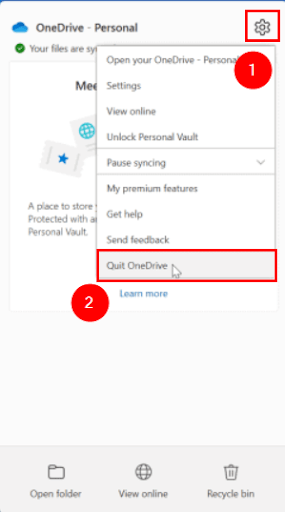
Restart OneDrive App
Step 3: Now, a pop-up window will appear on your screen asking, "Are you sure you want to close OneDrive?" Just click on "Close OneDrive" to confirm your action.
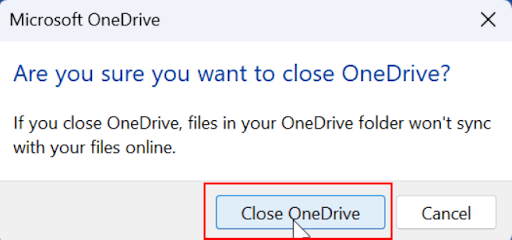
Close OneDrive
Step 4: On your desktop, find the OneDrive app and double-click to open it, then check if it can now sync files normally.
Fix 5: Disable Low Battery Mode
If your system is in low battery saver mode, it will disable OneDrive sync functionality to conserve more power. If this is the case, consider disabling low battery mode to troubleshoot OneDrive sync issues. To do this, follow the steps below.
Step 1: On your desktop, find the OneDrive icon and right-click on it.
Step 2: Click on the gear icon (settings) and select the settings option to proceed.
Step 3: Locate the option that states "Pause syncing automatically when this device is in battery saver mode" and uncheck it.
Once you disable battery saver mode, test the issue again to see if the OneDrive sync problem persists on Windows 11 and 10. If it does, try another solution.
Fix 6: Reset OneDrive
Resetting OneDrive is another way to fix OneDrive sync issues on Windows 10. Here’s how to do it:
Step 1: Open the Run dialog by pressing the Windows logo + R keys together.
Step 2: Now, type the following command in the Run box and click OK to proceed.
%localappdata%\Microsoft\OneDrive\onedrive.exe /reset
Step 3: Sit back and wait for the process to complete.
Fix 7: Uninstall and Reinstall the App
Did none of the above fixes work? Don’t worry, you still have one last solution, which is to uninstall the latest version of OneDrive and reinstall it on your system. You can use the steps below to uninstall and reinstall OneDrive on your computer.
Step 1: Press the Windows + I keys to open Windows Settings.
Step 2: Locate and click on Apps.
Click on Apps
Step 3: Make sure to select Apps & features from the right pane, then scroll down to find Microsoft OneDrive and click on it.
Step 4: Click on the Uninstall option.
Step 5: Then, click Uninstall again when the pop-up window appears.
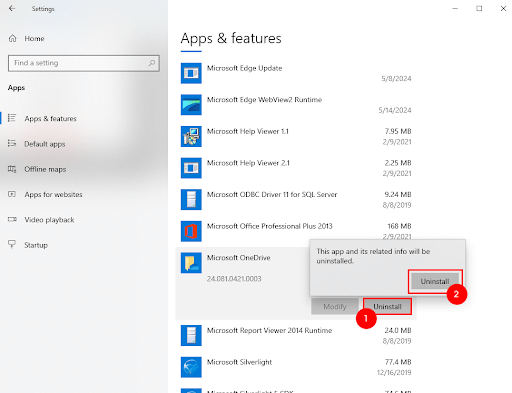
Uninstall Microsoft OneDrive
Step 6: Wait for it to complete. Once done, download and install the latest version of OneDrive from its official site.
Step 7: Now, log back into OneDrive and check if it works.
Conclusion
In this article, we discussed how to fix OneDrive sync issues on Windows 10/11. OneDrive is a fantastic feature that comes pre-installed in both Windows 11 and Windows 10, allowing you to back up and save your files online. Although OneDrive is one of Microsoft’s products, it still experiences some issues, especially regarding sync capabilities. However, there’s no need to worry; with the tips outlined above, you can easily resolve the OneDrive sync problem on Windows 10 and 11.
These solutions will help you get everything back on track. We hope you found this article helpful. If you have any questions or suggestions, please let us know in the comments section below.


