


How to Fix the AirTag Not Reachable Issue: Are you continuously getting the AirTag not reachable error on your iPad or iPhone? Don't worry, in this article, you'll find the perfect solution to this problem, so keep reading!
The AirTag is Apple's advanced solution for tracking your personal belongings, such as bags, wallets, keys, and even pets. This sophisticated tool uses Bluetooth technology to track AirTags that are nearby your connected iPhone.
It also utilizes a low-energy network, allowing Apple devices within range to communicate with each other and share the location information of the AirTags, which can be accessed using the Find My app.
Although the device has consistently performed well over time, there have been numerous complaints from certain users who encountered the AirTag not reachable error on their Apple devices.
In this article, we will explore the various factors responsible for this error, and we will also guide you on how to resolve the issue of "AirTag not reachable, move to connect."
Why Am I Getting AirTag Not Reachable?
When you try to locate your AirTag using the Precision Finding feature within the Find My app, you see the error message "AirTag Not Reachable, move to connect." This usually indicates that there is an obstacle preventing the connection between your iPhone and the AirTag.
According to Apple, the AirTag should be within a range of 33 feet to be found using Bluetooth or Precision Finding. You may receive this error notification if it is placed slightly outside of this range.
In some cases, the AirTag may be within the Bluetooth range of the connected iPhone, yet the issue persists. Such situations are often related to software issues or battery problems with the AirTag.
Other factors, such as the version of iOS on your iPhone, Bluetooth connectivity issues, or AirTag configuration problems, can sometimes be the cause of the issue.
Usually, resetting the connection is enough to fix the problem in most cases. However, if that doesn't work, you can try more advanced solutions to resolve the issue.
How to Fix the AirTag Not Reachable Issue
Here are several tried-and-true solutions for this problem. However, keep in mind that restarting your iPhone is a necessary step before exploring the options listed below, as it may also help resolve the AirTag not reachable error.
Solution 1: Reset Bluetooth Settings on iPhone
If you've tried restarting your iPhone and still see the "AirTag not reachable" issue, the first option we suggest you try is resetting the Bluetooth settings on your iPhone. Hopefully, this will fix any Bluetooth connectivity issues that may be preventing your iPhone from connecting to the AirTag.
To do this, simply follow these steps:
Step 1: Open the Settings app on your iPhone, then select the General option.
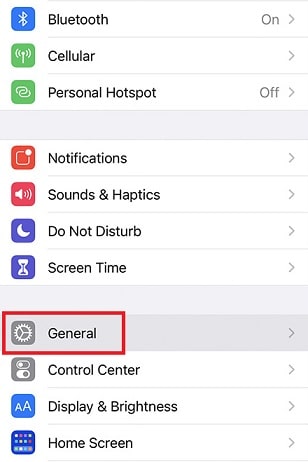
Open the settings and tap on General
Step 2: Choose either Reset or Transfer.
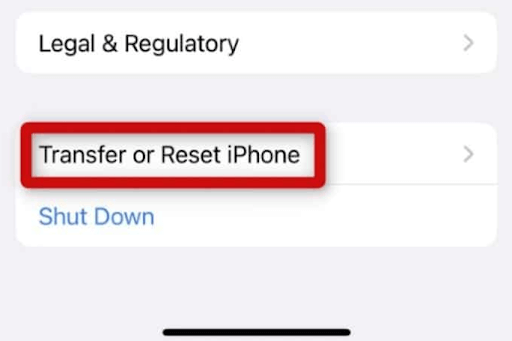 Reset or Transfer iPhone
Step 3: Tap the Reset button, then select the Reset Network Settings option.
This method not only resets the Bluetooth settings but also resets the internet settings, as the internet settings may be a potential source of the issue you're facing.
Solution 2: Ensure Bluetooth is Enabled
To resolve the AirTag not reachable issue, check if the Bluetooth feature on your iPhone or iPad is turned off. Since AirTags use Bluetooth technology, you may face difficulties in effectively updating the AirTag's location if you have already turned off your Bluetooth.
Here's how to check if Bluetooth is enabled:
Step 1: Open the Settings app on your device.
Step 2: Tap on Bluetooth. If Bluetooth is already active, the menu option will display "On."
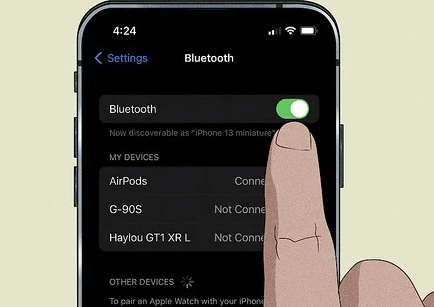
Tap on Bluetooth
Step 3: Select the Bluetooth option.
Step 4: You can also enable Bluetooth by opening the Control Center by swiping down from the top right corner of your screen and tapping the Bluetooth icon within the Control Center.
After enabling Bluetooth, try checking if the AirTag not reachable issue is resolved. If not, move on to another solution.
Solution 3: Disconnect and Reconnect AirTag
Since you will need to re-establish a connection with the AirTag, which will only work if it is close to your iPhone—within 33 feet—this method will work best if the AirTag is still near your iPhone. This is the only way you can truly take advantage of the Precision Finding feature.
To disconnect and reconnect your phone with the AirTag, follow these steps.
Step 1: Start by using the Find My app on your iPhone.
Step 2: Select Items from the list at the bottom.
Step 3: Now, choose the AirTag that your iPhone cannot reach, and from the list that appears, select the Remove Item option.
After that, move your device to reconnect with the AirTag, allowing you to track it.
Solution 4: Check for Updates
One of the other things that may be responsible for the AirTag not reachable issue is using an outdated version of iOS. Therefore, it is highly recommended that you update the iOS operating system on your iPhone to see if this resolves the issue.
To do this, follow these steps.
Step 1: Go to the Settings menu and select the General option.
Step 2: Look for the Software Update option and select it to proceed.
Step 3: Now, tap on the Download and Install option.
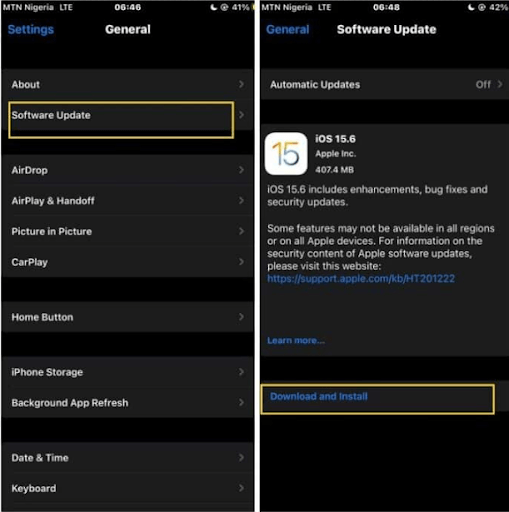
Download and Install iPhone Software Update
Step 4: Next, choose the Install Now option.
After installing the available updates, you should restart your iPhone and then try reconnecting to the AirTag. If that doesn't work, try other solutions.
Solution 5: Sign Out and Sign In with Apple ID
According to iPhone users who faced the AirTag not reachable error, signing out and signing back in with their Apple ID helped them resolve the issue, so give it a try and see if it works for you:
Step 1: On your iPhone, open the Settings app and then tap at the top of the displayed page.
Step 2: Select the Sign Out option at the bottom of the page and click on it.
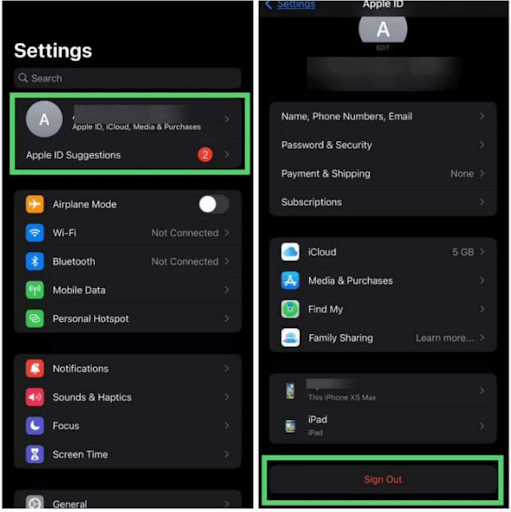
Sign Out and Sign In with Apple ID
Step 3: To deactivate Find My, you will now need to enter your Apple ID password, then select the Turn Off button.
Step 4: After that, you will be asked if you want to keep a copy of your data or not. Since you will be signing back in, tap the Sign Out button in the top right corner of the screen and confirm.
Follow the instructions to sign back into your Apple ID:
Step 1: To start, open the Settings app on your iPhone.
Step 2: Look for the Sign In to Your iPhone option at the top of the Settings screen, then tap on it.
Step 3: Now verify your activity by entering your Apple ID and password, then check if this resolves the issue for you.
Solution 6: Perform a Reset on the AirTag
Performing a reset on the AirTag is often the most effective way to resolve the AirTag not reachable issue, which is usually related to connectivity problems. This method is particularly useful in situations where you can find the AirTag without the help of the Find My app and want to avoid seeing this error message the next time you need to locate it.
To enable the AirTag to establish a new connection with your iPhone, this reset process will restore the AirTag's functions to their default settings.
When you want to perform a factory reset on the AirTag, the following steps are what you need to follow:
Step 1: To open the back panel of your AirTag, gently push the stainless steel back cover and rotate it in the opposite direction.
Step 2: Remove the battery from the AirTag, and when you put it back in, press it down until you hear a sound indicating that the battery


