


How to check RAM speed in Windows 11/10: If you're wondering how to check the speed of your RAM in Windows 11/10, this article will explain several methods to help you find out the real-time RAM speed using CMD, Task Manager, and more.
RAM plays a crucial role in system efficiency; higher RAM helps a computer run better and at optimal speed. This is why users generally focus on installing higher RAM in a new computer or upgrading their current device. While this upgrade can be costly, what if you don't have to do it?
Before deciding to upgrade your RAM, you should check its speed. This will allow you to determine whether your current RAM speed is adequate. If not, you can take some steps to increase the speed and postpone the decision to upgrade your RAM for a while after making all necessary adjustments. So, let's learn how to check RAM speed in Task Manager, CMD, and more.
How to check RAM speed in Windows 11/10
In Windows 10, Microsoft does not make it easy to identify the type of RAM you have installed; however, you can quickly download a free utility that helps you determine this information. You can also use this method if you're interested in knowing how to check the type of RAM in Windows 7, but this tool will only help you find out the type of RAM, and you won't be able to check the RAM speed.
Follow these steps to find out about your RAM:
Visit the official CPU-Z website to download the tool.
To install the application, follow the instructions that appear when you run the setup.
Launch it, then select the Memory tab.
In the Memory tab, you'll find all the details you need; however, if you're wondering, "What is my RAM speed," proceed to the next sections of this article.
RAM speed in Task Manager: Windows 7
Task Manager is one of the most reliable ways to check RAM speed on any Windows device. This built-in tool in Windows allows you to manage various processes running on your device along with many other functions. Follow the steps below to learn more:
Press the combination of Ctrl + Shift + Esc keys to bring up Task Manager.
Once Task Manager is open, select the Performance tab from the settings menu.
In this window, you can see the total amount of accessible RAM as well as what is installed on your system. This example shows that while using the PC, it typically utilizes a significant portion of the total RAM.
How to use Command Prompt to check your RAM speed
Some users prefer to use the command line to monitor their RAM performance instead of using Task Manager. You can easily check your RAM speed in CMD instead of Task Manager. The following instructions will help you get started if you want to try this approach:
Open the Run box by pressing the Windows and R keys simultaneously, then type cmd and hit Enter.
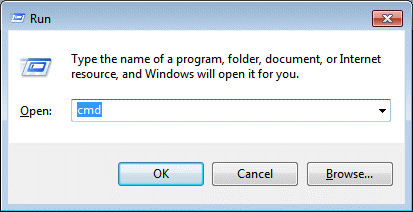
CMD Run window
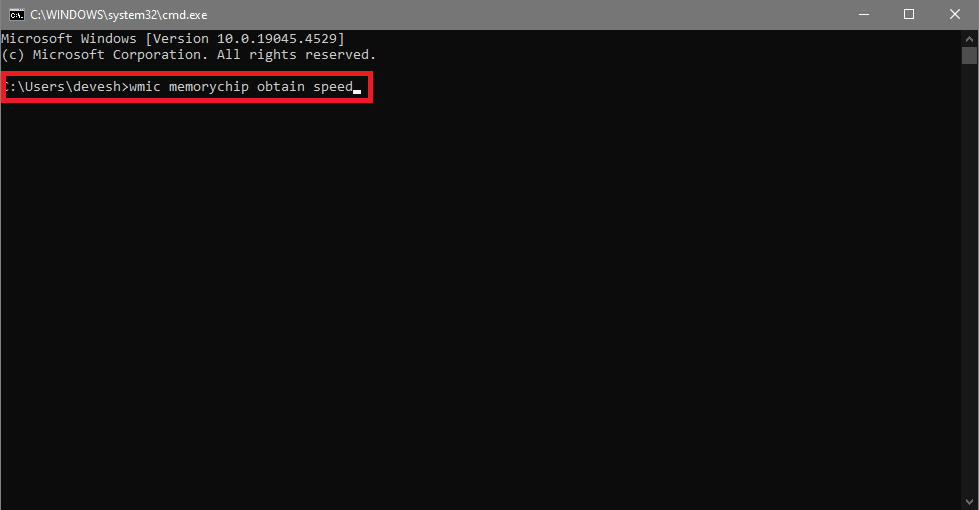
Type the command below using your keyboard in the available space, then press Enter to continue.
wmic memorychip memorychip get speed
How to check RAM speed in Task Manager? Windows 10
If you want to check how much RAM is available in Windows 10, you can use Task Manager. This method is very similar to checking RAM speed in Windows 7; all you need to do is follow the instructions below to proceed:
To open Task Manager, press the Ctrl + Shift + Esc key combination.
Go to the Performance tab, which will open with the CPU view selected.
You will need to select the Memory view from the left navigation pane to continue.

Memory performance
When you click on Memory, you'll be able to check the RAM speed along with other data.
How to check RAM type using System Information?
Finally, System Information is another tool that allows you to find out the speed of RAM on your Windows 11/10 device. This method, just like the other methods outlined here, is completely safe to use and execute.
First, press the Win + S keys on your keyboard, type System Information, and then press Enter.
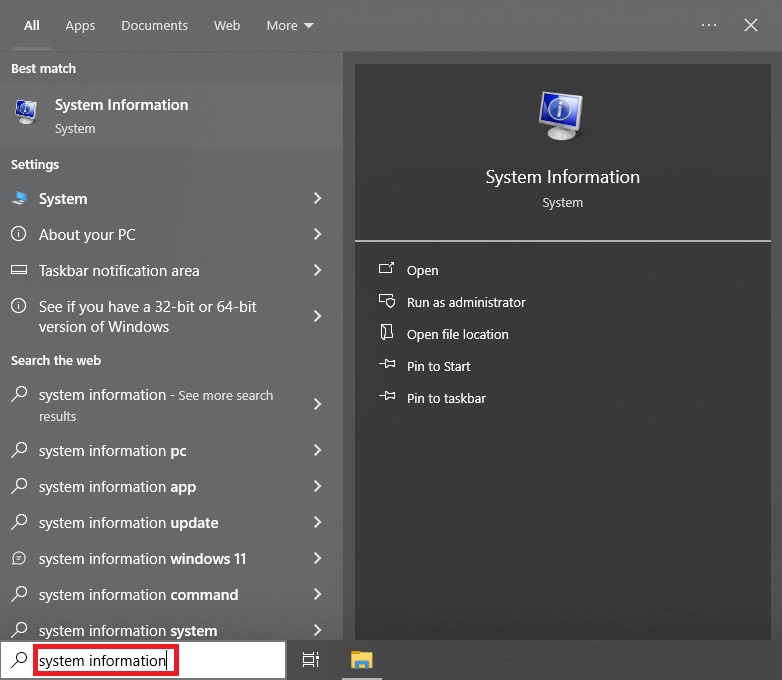
System Information
Now, in the Device Properties list, look for the option for installed physical RAM; the value shown is the actual RAM installed on your device.

Installed physical RAM
Frequently Asked Questions
Q: How can I check my RAM speed in Windows 11/10?
A: You can check your RAM speed using either Task Manager or Command Prompt.
Using Task Manager:
Right-click on the taskbar and select "Task Manager."
Go to the "Performance" tab.
Click on "Memory" in the left sidebar.
Under "Speed," you will see the RAM speed (in megahertz).
Using Command Prompt:
Open Command Prompt by typing cmd in the Windows search bar and selecting "Command Prompt."
In the Command Prompt window, type wmic memorychip memorychip get speed and press Enter.
This command will display the speed of each RAM module installed in your system.
Third-party software:
Alternatively, you can use third-party software like CPU-Z or HWiNFO to get detailed information about the RAM in your system, including speed.
Q: Why is it important to know my RAM speed?
A: Understanding your RAM speed helps optimize system performance, especially when upgrading or troubleshooting hardware issues. It ensures that your RAM is running at the required speed and can help identify any potential problems in your system.
Q: What if I have multiple RAM modules with different speeds?
A: If you have several RAM modules with different speeds, both Task Manager and Command Prompt will display the speed of each module individually. This information can help you verify the specifications of each module and ensure they are functioning correctly.
Q: Can I overclock my RAM speed?
A: Yes, you can overclock your RAM speed through the BIOS settings on your motherboard; however, overclocking should be done cautiously as it can cause issues in your system if not done correctly.
Q: Is there a maximum RAM speed limit in Windows 11/10?
A: The maximum RAM speed supported by your system depends on the specifications of your motherboard and CPU. Check your device information or the manufacturer's website for details on supported RAM speeds.
Q: Are there any risks in checking RAM speed using these methods?
A: Checking RAM speed using Task Manager or Command Prompt poses no risks to your system; however, be cautious when overclocking RAM, as incorrect settings can lead to system instability.
Conclusion
In this article, we discussed how to check RAM speed in Windows 11/10. Now that you know your RAM speed, the most important question arises: do you really need to upgrade your RAM? Always keep in mind that personal computers are just machines; often, another component may be the critical factor. For instance, GPU performance is much more important than RAM speed when it comes to gaming.
Increasing RAM speed may not lead to a noticeable improvement in the performance of many applications. Instead, it might be more beneficial to spend some time upgrading components like the CPU, GPU, or SSD.
Additionally, getting more RAM, reducing the amount of RAM used by applications, or upgrading or replacing your RAM chips are all viable options to improve your PC's speed. Therefore, generally, you should first check your RAM speed, make the necessary changes to enhance RAM speed, and then upgrade if needed.


