

How to Get More Storage Space on Your Computer: Are you looking for ways to free up space on Windows? We will explain the best methods to free up space on Windows.
Running out of storage space, especially when working on something important, is one of the worst nightmares. The good news is that there are various manual and automatic ways to free up disk space on your computer. You can clear disk space by emptying the Recycle Bin, using Disk Cleanup, uninstalling potentially unwanted applications, or using a PC Cleaning Tool to gain more disk space and improve your computer's performance.
What is disk space on a PC?
The total space on the hard drive that allows for data storage, measured in gigabytes.
How to Get More Storage Space on Your Computer
However, we will guide you through the steps if you prefer to save space manually. Here’s how you can do it manually.
Method 1 - Empty the Recycle Bin
When files are deleted from Windows, they are not permanently removed. Instead, they are moved to the Recycle Bin so you can restore them if needed. As a result, over time, the size of the Recycle Bin increases, taking up deleted files as unnecessary space. Therefore, when looking for ways to reclaim hard disk space, empty the Recycle Bin. Use the steps below to perform the action:
On your Windows desktop, locate the Recycle Bin.
Double-click it to open.
Review the files and folders you see, ensure you won't need them, and click the Empty Recycle Bin button.
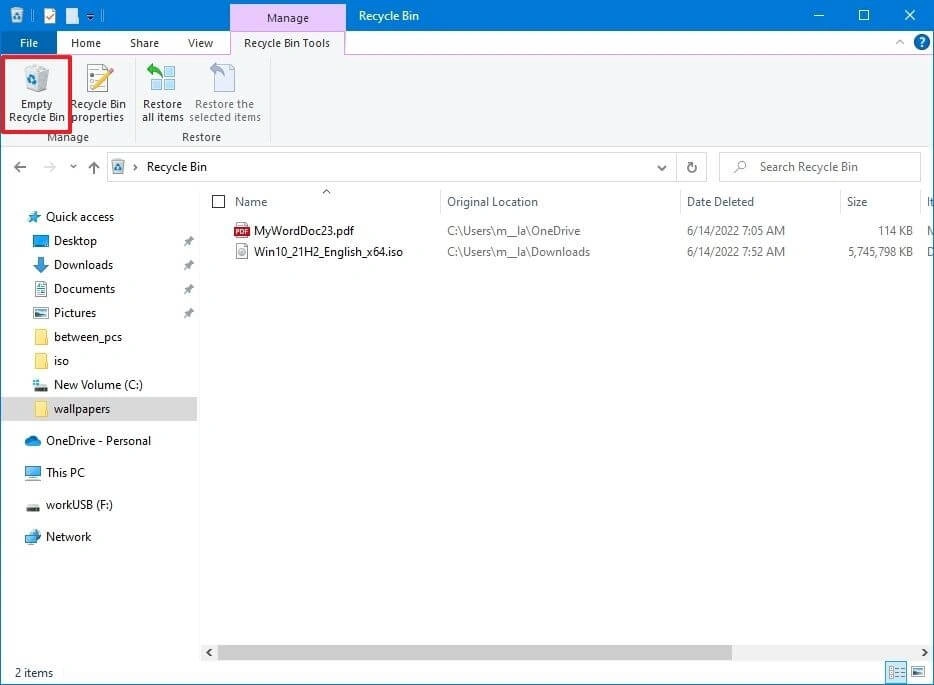
Empty the Recycle Bin
Confirm the action. Once the Recycle Bin is emptied (if it was full), you will be able to access about 10% of your drive's capacity.
Method 2 - Run the Disk Cleanup Tool
To deal with unwanted data and old files, Windows provides a Disk Cleanup application. Using it, you can free up a significant amount of disk space. Follow the steps to use it:
In the Windows search bar, type Disk Cleanup. Choose the best search result.
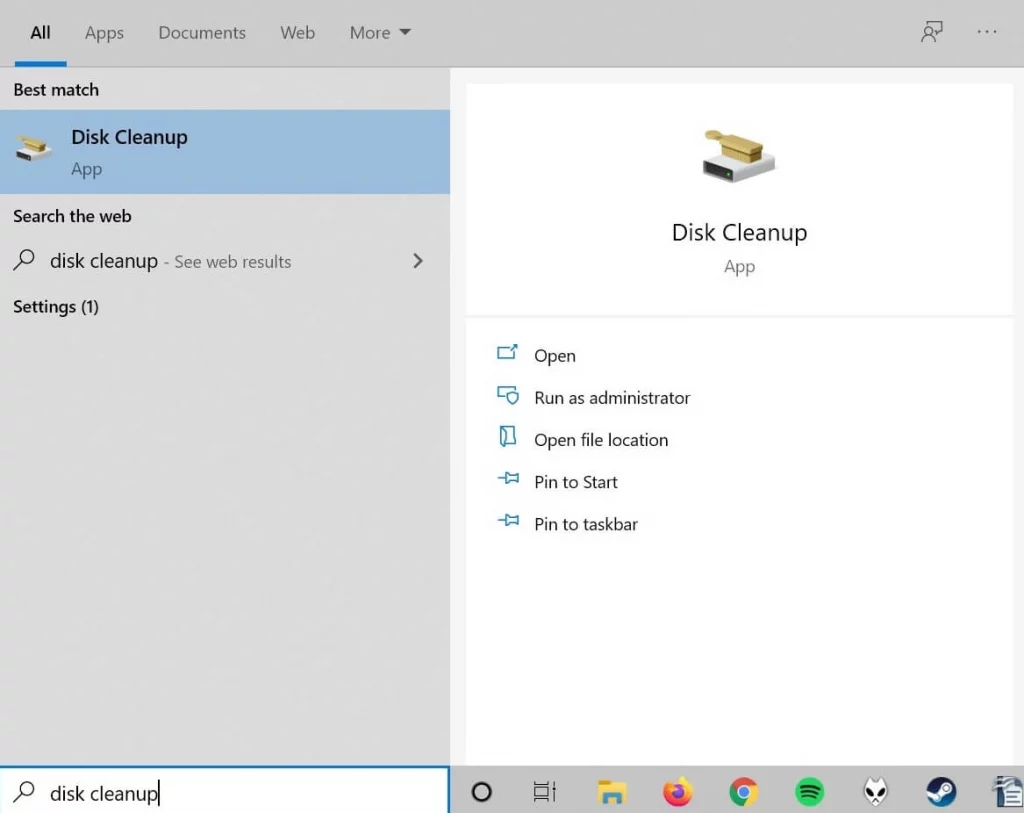
Disk Cleanup
Select the drive you want to clean and click OK.
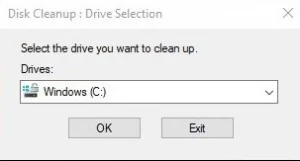
You will now see a list of files you can delete and the space you will be able to recover after deleting them. Select the files you want to remove and click OK.
Note: For better understanding, you can find information about each section in the description box.
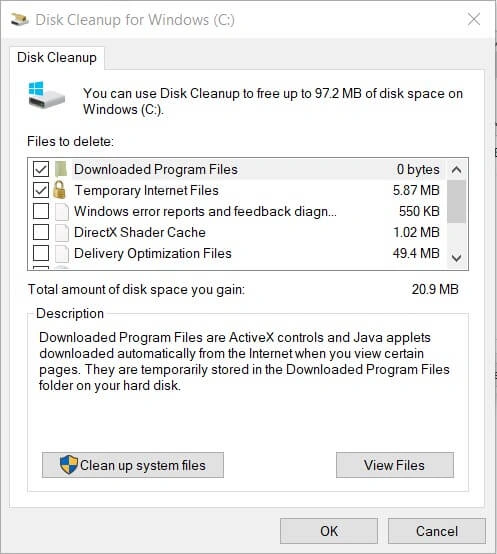
Drive - Disk Cleanup
To recover more space, you can click on the Clean up system files option.
This way, you can manually free up space.
Method 3 - Delete Temporary Files
Since the Disk Cleanup tool does not help in cleaning temporary files created by browsers, we will need to clear the cache and delete browser cookies from the browsers themselves. You will need to run each browser and clear
To clear temporary internet files, follow these steps:
Press Windows + R to open the Run window.
Type %temp% and press OK.
This will open the Temp folder displaying all temporary files.
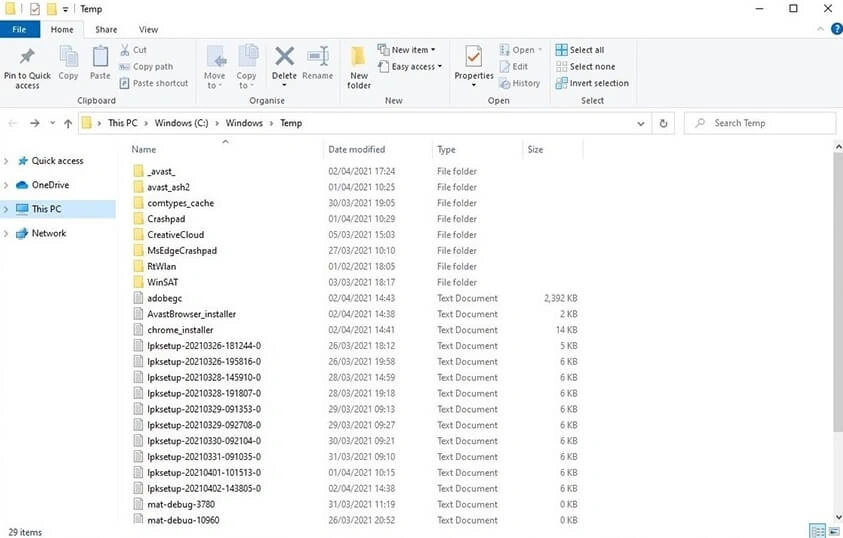
Remove - Temporary File
To select these files and clean them, press Ctrl + A and hit the delete button.
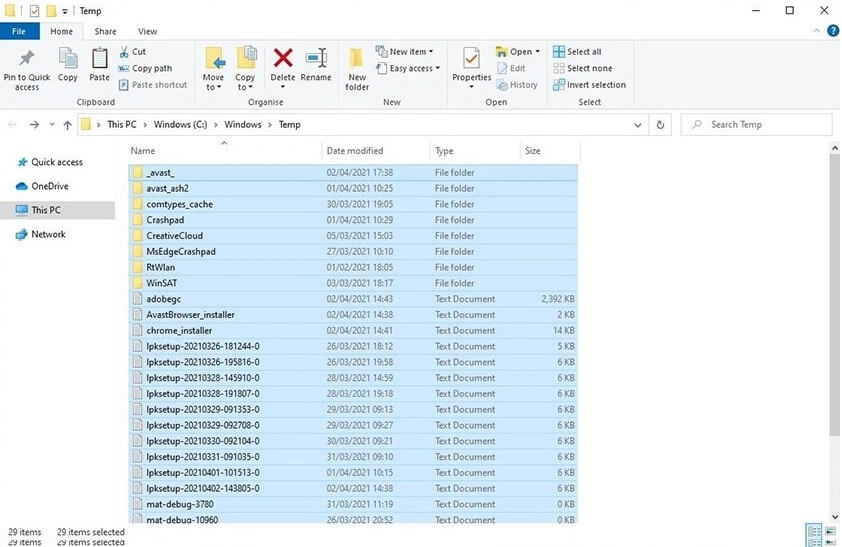
Delete All Temporary Files
Note: Before deleting these files, make sure to close all running programs.
If prompted about a folder, click the Skip button.
This will clear the temporary files. After this step, empty the Recycle Bin.
Method 4 - Use the "Storage Sense" Feature
Windows provides a built-in feature called Storage Sense to free up disk space. Using it, you can quickly clear the space occupied by unwanted files. To enable the Storage Sense feature, click on the Configure Storage Sense link or turn it on now.
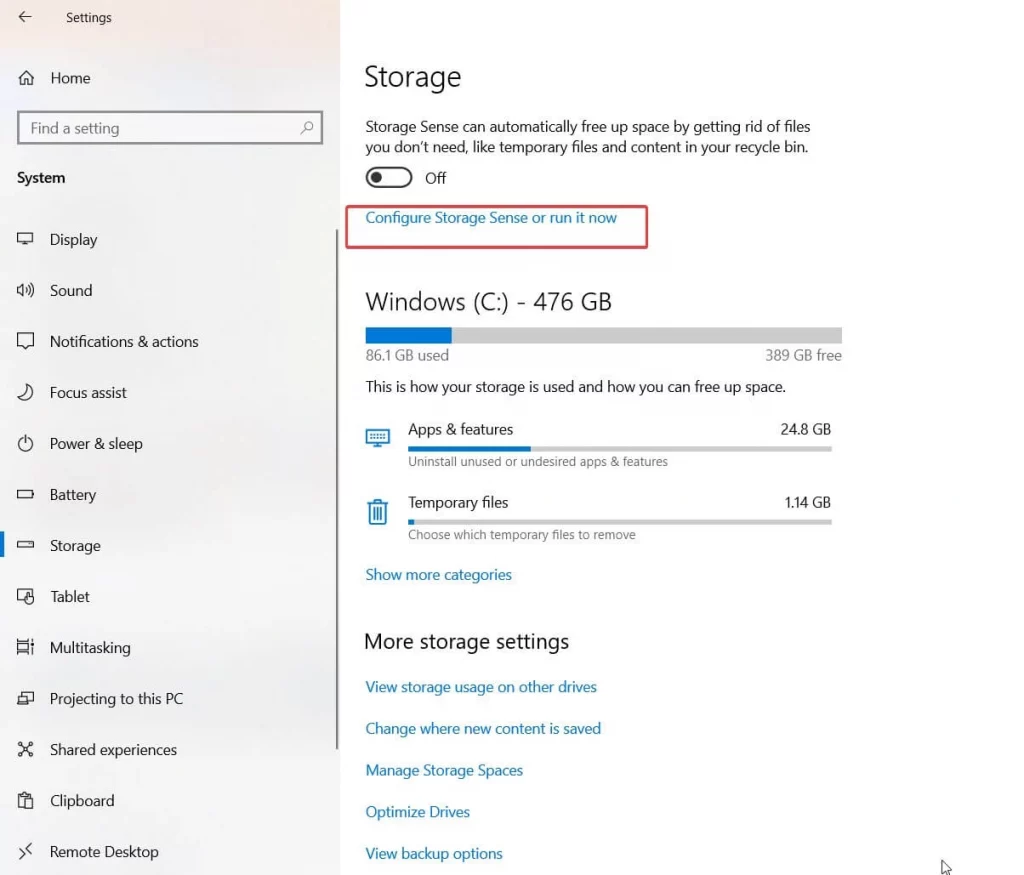
Check Storage Space
Under Run Storage Sense, click the down arrow and choose from the available options
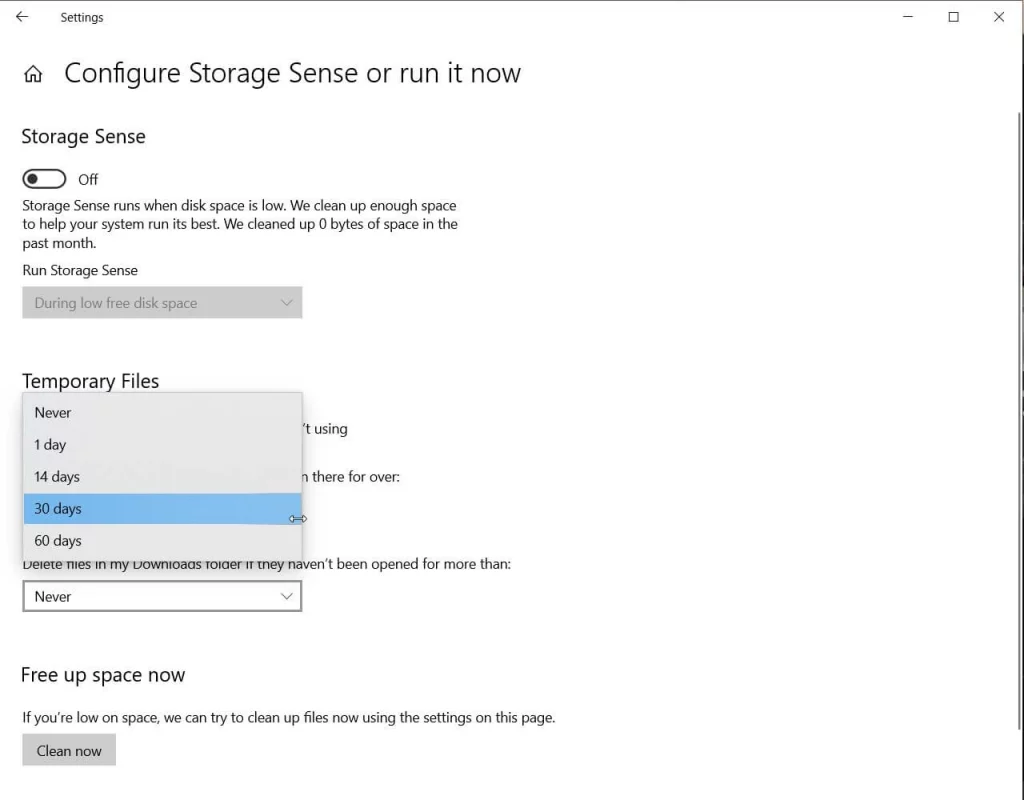
Check - Storage Sense
Next, specify when you want to automatically delete files from the Recycle Bin and the Downloads folder.
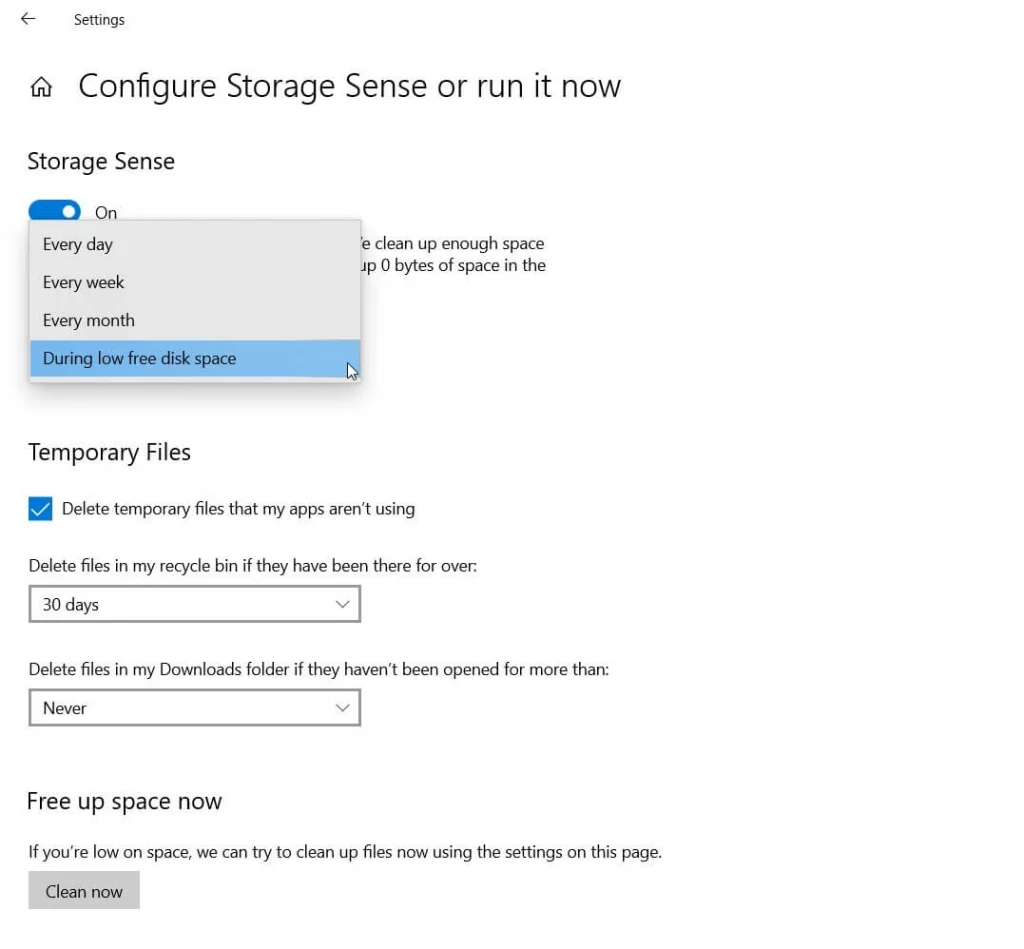
Configure - Storage Sense
Finally, click Clean Now to free up disk space.
Method 5 - Uninstall Potentially Unwanted Applications
After managing space with Storage Sense, you can uninstall applications from your computer. This will help free up space. To do this, right-click the Start button > select Apps and Features > check the list of installed applications > select the apps you don’t want, and click the Uninstall button.
Method 6 - Remove Duplicate Files
Another category of files that take up unwanted space is duplicate files, images, and audio/video files. Manually removing them is not an easy task. Therefore, the best way to deal with duplicate files is to use a program to remove the files themselves.
Frequently Asked Questions
1. How can I check how much storage space I have left?
You can check your available storage space by going to This PC (Windows), right-clicking on the drive, and selecting "Properties" (Windows).
2. What are the best ways to free up space on my computer?
You can delete unnecessary files, clear temporary files, uninstall unused programs, and move files to an external drive or cloud storage.
<!-- /wp:paragraph --


