


How to Update and Reinstall Keyboard Drivers on Windows 10: Is your keyboard not functioning properly? This often happens due to outdated keyboard drivers, so try the methods mentioned below to update your keyboard driver.
There's no doubt that the keyboard is the most important part of your computer, but have you ever wondered what would happen if your keyboard stopped working?!! It's definitely frustrating, as you can't use your device without a mouse and keyboard. So, think now about how to keep your keyboard in good shape. In this article, we will explain how to update and reinstall keyboard drivers on Windows 10.
Drivers are the heart of the device that creates an effective connection between the device and your Windows operating system.
By updating your keyboard drivers, you can maintain your keyboard's efficiency for a long time. However, many individuals have reported that the problem persists even after updating the drivers. If you are one of them, we recommend uninstall the drivers first and then reinstall them.
Simple Tips to Fix Issues Before Reinstalling the Keyboard Driver
Sometimes, simple solutions can also resolve major issues. So, here are some easy tips you can try before reinstalling your keyboard.
Tip 1: Check the Keyboard for Damage
Currently, many users work from home and often have a habit of sipping coffee or snacking while working. But what if you accidentally spill some coffee on your keyboard? It's clear that your keyboard could get damaged and stop working. This is why you should ensure that your keyboard is not damaged.
Tip 2: Ensure the Keyboard is Properly Connected
The next tip is to make sure your keyboard is properly connected to your system. Additionally, check the USB ports as well. If there’s any issue with them, change them immediately. Those using wireless keyboards should frequently change the batteries to ensure the keyboard operates accurately.
Tip 3: Run the Windows Troubleshooter
Windows comes with a built-in tool, the Windows Troubleshooter, which detects and fixes issues. Moreover, it enhances your system's performance by resolving problems that hinder effectiveness. To fix issues, you can run the Windows Troubleshooter. Here are the steps:
Step 1: - Type Troubleshoot in your Windows search bar.
Step 2: - Then click on the best match from the search results.
Step 3: - Next, from the left side, click on the option to view all.
Step 4: - Now, a list will appear on the screen; locate devices from the list and click on it.
After that, to complete the troubleshooting process, follow the on-screen results.
Tip 4: Look for the Driver
Do you want to use advanced keyboard features? Look for the keyboard driver for your system. If it's not available, you can download and install it from the official website of the keyboard manufacturer.
These are simple tips through which you can easily fix keyboard issues. After trying all of them, if the problem persists, you need to learn how to update and reinstall keyboard drivers on Windows 10.
How to Download and Install the Keyboard Driver on Windows 10
Steps to download and install the keyboard driver from the official website of the manufacturer:
Step 1: - Visit the official support page of the keyboard manufacturer.
Step 2: - Then switch to the support and downloads tab.
Step 3: - Next, look for the compatible driver according to your keyboard model.
Step 4: - Download the driver file and extract it.
Step 5: - Now follow the on-screen instructions.
That's it! All you need to do is download and install the keyboard drivers from the official website of the manufacturer.
How to Uninstall and Reinstall the Keyboard Driver on Windows 10
Perhaps, after updating the keyboard driver, you are facing some issues related to the keyboard. This might happen due to an incorrect installation of the keyboard driver. In this case, you need to reinstall the keyboard drivers. Don't know how to do that? Don't worry, let's go through the steps to reinstall keyboard drivers on Windows 10:
Step 1: - Press the Win and R keys simultaneously on your keyboard.
Step 2: - This will open the Run dialog box, then type devmgmt.msc and press the Enter key.
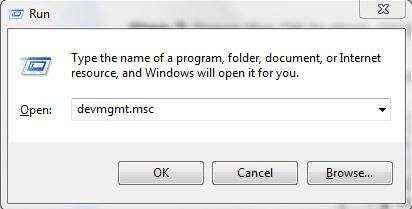
Type devmgmt.msc in the "Run" dialog box.
Step 3: - Now, you will reach your destination, which is Device Manager. Locate Keyboards and expand the category.
Step 4: - Next, right-click on the Standard PS/2 Keyboard and choose Uninstall from the dropdown menu.
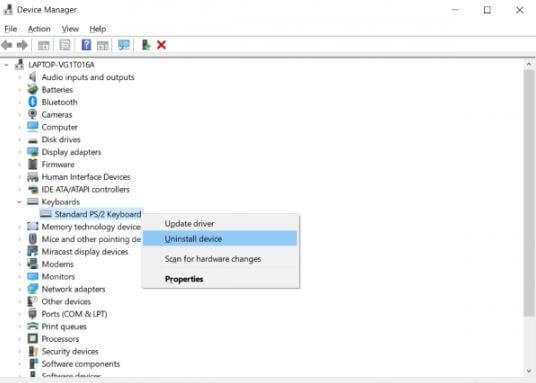
Right-click on the Standard PS/2 Keyboard and choose Uninstall from the dropdown menu.
Step 5: - After that, a confirmation box will prompt you to confirm your final choice, then click "OK."
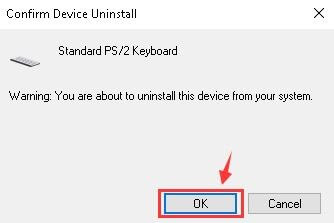
The confirmation box prompts you to confirm your final choice, then click "OK."
And there you go, you have successfully uninstalled the keyboard driver. Next, to reinstall the keyboard driver on Windows 10, don't forget to restart your computer. After doing that, if your issues are still unresolved, you need to update your keyboard drivers.
How to Update the Keyboard Driver on Windows 10
You have two ways to update keyboard drivers on Windows 10, either through Windows Updates or via a driver update tool. We understand that updating drivers can be a daunting task, especially for beginners, right? But, we will explain how you can do it easily. Follow the steps below!
Method 1: Check for Windows Updates
Windows allows you to update drivers by running Windows Updates. So, here are the steps you need to follow!
Step 1: - Go to the Start icon and click on it.
Step 2: - Now, select Settings from the available options and click on it.
Step 3: - This will open Windows Settings, now locate Windows Update & Security and click on it.
Step 4: - Then, select Windows Updates from the left side and click on the check for updates option.
If there are new updates available, Windows will automatically download them. However, sometimes Windows updates may be delayed in updating drivers.
Method 2: Use Bit Driver Updater to Update Keyboard Drivers
Bit Driver Updater is an ideal tool for updating drivers that automatically updates new drivers. Additionally, it improves


