


 How to Speed Up Video in Premiere Pro
Video Speed Adjustment Software
Anyone interested in creating videos knows how crucial it is to incorporate transitions. Now, speeding up your video is no longer an issue, thanks to Premiere Pro. With video acceleration, you can present all your ideas seamlessly. There are also some bonus applications you can use.
Part 1. Speeding Up Video Using Premiere Pro
- Now, you can quickly speed up your video using Adobe Premiere Pro; the process is straightforward and requires just a few steps. Here’s how you can do it.
- Start by adding the desired video to the Adobe Premiere application. You can do this either by dragging the clip or using the media add option.
- Once your video clip is clicked, open it on the Adobe timeline, and the next thing you want to do is start the process. To do this, right-click on the video and select the Speed/Duration option.

- Here, you will find a field to enter the speed. You can increase the numbers, and the video rate will automatically adjust.
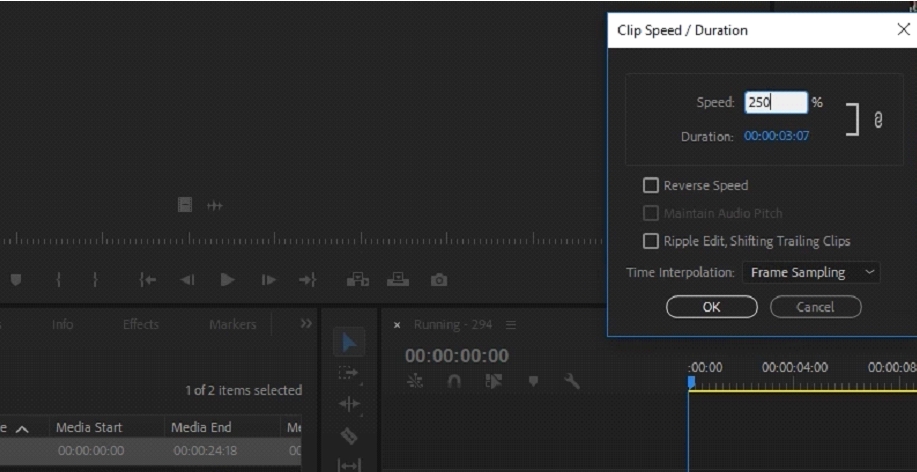
- Also, make sure to check the option that says “Ripple Edit, Shifting Trailing Clips.” This will ensure there are no gaps when speeding up the application and accelerating the video.
- Another way to do this is by using the Ripple Stretch Tool found in the third option of the toolbar.
Pros
Quick editing
Many features
Convenient tools
Cons
Can be difficult to navigate
Part 2. 3 Alternatives to Premiere Pro for Easy Video Speed Adjustment
There are some other tools you can use if Premiere Pro doesn’t suit you.
Filme :1
Filme video editor is the first tool you can use if you want something that offers many editing features with ease of use at the same time. From basic editing tools to advanced features, Filme has it all.
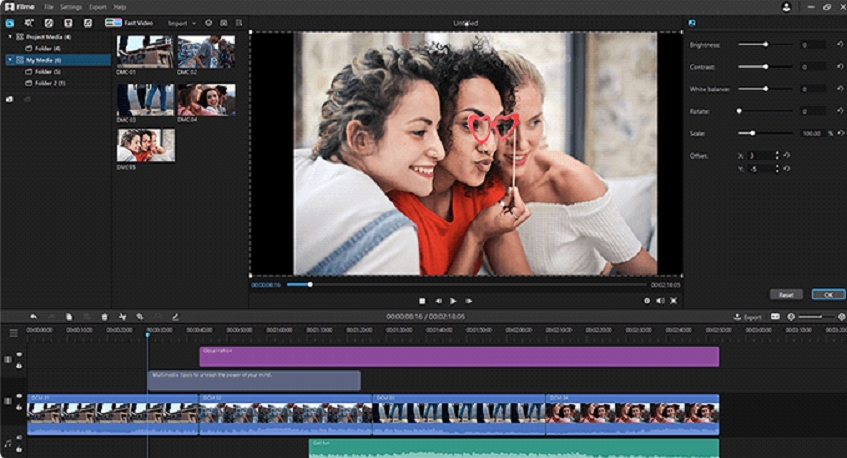
You can speed up video on Filme in the following way. Start by opening your Filme application. Once that’s done, go to the File menu and click on New Project. Choose the screen size that suits you. Now, import your video from your library and add it to the timeline. This can be done by right-clicking or dragging. Finally, go to the toolbar at the top, click on the speed meter icon, and select your preferred speed. Hit the save button, and you’re all set.
With powerful tools for splitting, speeding, rotating, and other complex tasks like text styles, transitions, and animations, Filme is a comprehensive tool you can use to edit your videos.
Pros
⦁ Easy to use
⦁ Lots of features
⦁ Supports a wide range of media
Cons
⦁ Must be downloaded to use
2 : iMovie
You can also change the speed of a clip using iMovie. This is another video editing tool that can make the editing process easy for you. This video editing application was developed by Apple Inc. and comes pre-installed on iOS, macOS, and iPadOS devices.

Here’s how to speed up video using iMovie. To change the speed of the clip, select a clip in the timeline. Then, there will be a timer icon; click on it to access the speed controls. Here, you can choose Fast or Slow from the specified dropdown menu. You can also click the speed button to adjust the speed according to your preferences. The sped-up clip will automatically become shorter in the timeline.
With a user-friendly interface and basic editing features, iMovie can be your video editing tool for creating media that looks professionally made.
Pros
⦁ Easy way to import media
⦁ Trimming features
⦁ Auto-save feature
Cons
⦁ Limited options for audio and video editing
3. Clideo
If you’re tired of downloading apps and software to edit videos, you can try Clideo. This comprehensive online editing tool allows you to access quick editing. Moreover, since it is compatible with any format, you won’t face any obstacles along the way.
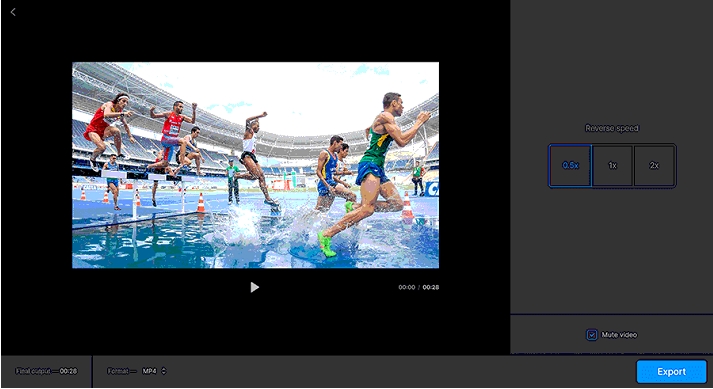
To speed up your video on Clideo, start by adding the video file. You can upload it from your mobile device or computer, or add it from your Dropbox or Google Drive account. After that, you can speed up the video using the slider or mute it if you wish. Preview it and save it, and you’re done.
Clideo is a comprehensive and user-friendly online video editing tool that offers many features like meme creation, cropping, speed adjustment, resizing, cutting, compressing, video making, and more. With a no-download policy, it’s worth trying.
Pros
⦁ No download required
⦁ Works with all formats
⦁ Works on any device
Cons
⦁ Not all features are free
Conclusion
And there you have it! Speeding up your video is now easier with all these tools and software. However, Filme video editor tends to be the most efficient due to its variety of features and user-friendly interface.
- Suggested Topics You Might Like
- Tips and Tricks to Remove Video Background
- <a href="https://3almalt9nia.com/%d8%a7%d9%81%d8%b6%d9%84-%d8%a8%d8%b1%d9%86%d8%a7%d9%85%d8%ac


