


How to Disable Data Collection on Windows 10: Do you want to stop Windows 10 from collecting your data? Microsoft's telemetry feature is designed to gather data from your computer to enhance user experience, but if you're uncomfortable with that, you can easily disable telemetry on Windows 10.
Windows 10 tracks user activity in the form of telemetry data and sends this personal information to Microsoft. If you want to keep your privacy intact, learn how to disable telemetry and data collection in Windows 10 to prevent Microsoft from intruding on your personal information.
If you want to know more about the telemetry feature in Windows 10, this article will provide you with all the information about what telemetry data is in Windows and how to disable it on your Windows computer.
It's important to note that disabling telemetry in Windows 10 will not affect system performance or security; it's the only way to ensure your data isn't sent to Microsoft.
What is Telemetry Data in Windows?
Windows 10 comes with a telemetry feature that is enabled by default, helping Microsoft collect all kinds of diagnostic information about your device, including location activity, browsing history, types of devices used, recently installed applications, and more.
Microsoft collects telemetry data in Windows 10 for the following reasons:
It uses diagnostic data to provide the latest Windows updates.
It maintains Windows security and explores issues to fix them.
It improves end-user productivity.
It provides users with a more personalized Windows experience.
These are some of the main reasons Microsoft collects telemetry data in Windows 10. According to Microsoft, the diagnostic data obtained is used to provide a better user experience rather than targeting users.
On the other hand, the addition of the telemetry feature in Windows 10 has faced criticism from many experts and users who take their privacy and security seriously.
Therefore, in this article, we will give you a clear insight into how to disable all telemetry and data collection in Windows 10. If this concerns you, stay with us.
How to Disable Data Collection on Windows 10
Turning off telemetry data is a very straightforward process. Here’s a quick guide on how to disable the telemetry feature and data collection in Windows 10.
Method 1: Change Diagnostic and Usage Data Settings for Windows
This is one of the simplest solutions to disable data collection on Windows 10. To do this, follow the simple steps below:
Click on the Windows icon, followed by the "Settings" option.
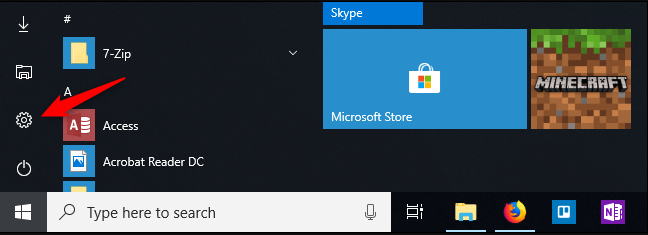
How to Change Diagnostic and Usage Data Settings for Windows
Under Windows Settings, select the "Privacy" option.
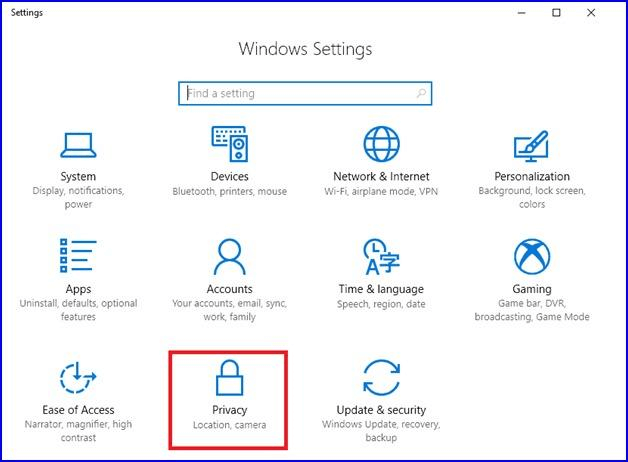
Open the Privacy Settings Option in Windows
On the next screen, select "Feedback & Diagnostics" from the right panel, then change the diagnostic and usage data settings to Basic.
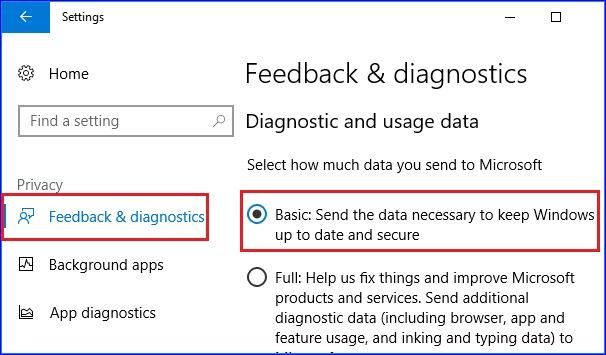
Set Diagnostic and Usage Data Settings to Basic Mode
Implementing the above steps will help you limit the amount of data sent to Microsoft, helping to keep your personal information away from Microsoft to some extent.
However, if you want to know how to completely disable telemetry and data collection in Windows 10, move on to the next method.
Method 2: Disable Data Collection on Windows 10 Using the Registry Editor
If you don’t want Microsoft to access any of your information, you can use the Windows Registry Editor to completely stop the telemetry service in Windows 10.
Just follow the simple steps below:
Open the Run dialog by pressing "Win + R" at the same time.
Now type "regedit" and click "OK" to open the Registry Editor.
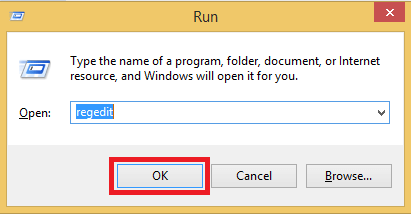
How to Disable Telemetry for Windows 10 Using the Registry Editor
Now navigate to the following path:
HKEY_LOCAL_MACHINE\SOFTWARE\Policies\Microsoft\Windows\DataCollection
Here, right-click on the "DataCollection" folder, select "New," then click on DWORD (32-bit) Value, and name this new DWORD value "AllowTelemetry."
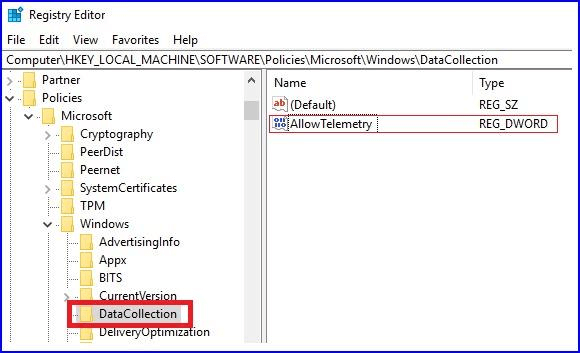
Open the DataCollection Folder and Click on Allow Telemetry
Double-click on the DWORD named "AllowTelemetry" and set its value to "0," and finally, click the "OK" button.
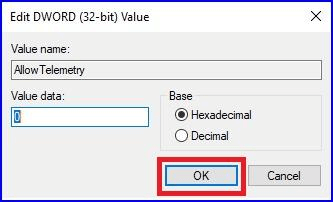
Edit the DWORD Value to Allow Telemetry
See how easy that was? Following the above steps will help you disable data collection on Windows 10.
Method 3: Disable User Experience and Telemetry Component Settings
After turning off the telemetry feature for Windows 10 using the Registry Editor, it is recommended to disable the connected user experience and telemetry service. Doing so will ensure the complete shutdown of telemetry and data collection in Windows 10.
Here are the steps to do this:
Press "Win + R" at the same time to open the Run dialog, then type "services.msc" and press "Enter" or click the "OK" button.
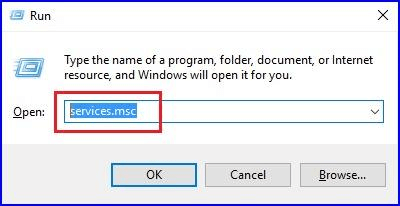
How to Run Services.msc to Disable Connected User Experience and Telemetry Component Settings
On the Local Services screen, double-click on "Connected User Experiences and Telemetry."
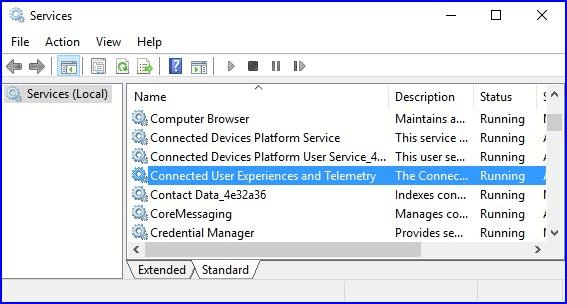
Connected User Experiences and Telemetry
In the next window, stop the telemetry service for Windows 10 by setting the "Startup type" to "Disabled."
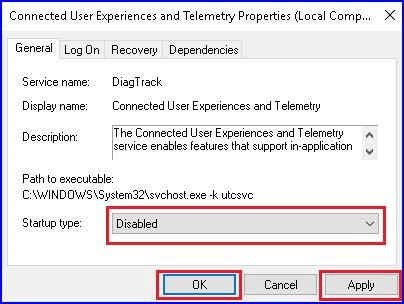
How to Disable the Telemetry Service for Windows 10 via Settings
Back on the Local Services screen, double-click on the "dmwappushsvc" service and set the "Startup type" to "Disabled."
Doing this will disable telemetry and data collection in Windows 10, thus preventing Microsoft from intruding on your computer habits.
Conclusion
Telemetry collects data about the applications you use, how often you use them, and how long you use them. It also gathers system health data, such as whether you have installed any updates or if any device has failed. This data is then sent to Microsoft, where it is analyzed and used to improve the operating system.
In this article, we presented the easiest ways to help you learn how to disable data collection on Windows 10. We hope that after following the above steps, you can turn off the telemetry service that helps Microsoft track everything you do online.
Feel free to reach out to us if you encounter any issues; just leave a comment below, and we will help you resolve the problem in the best way possible.


