

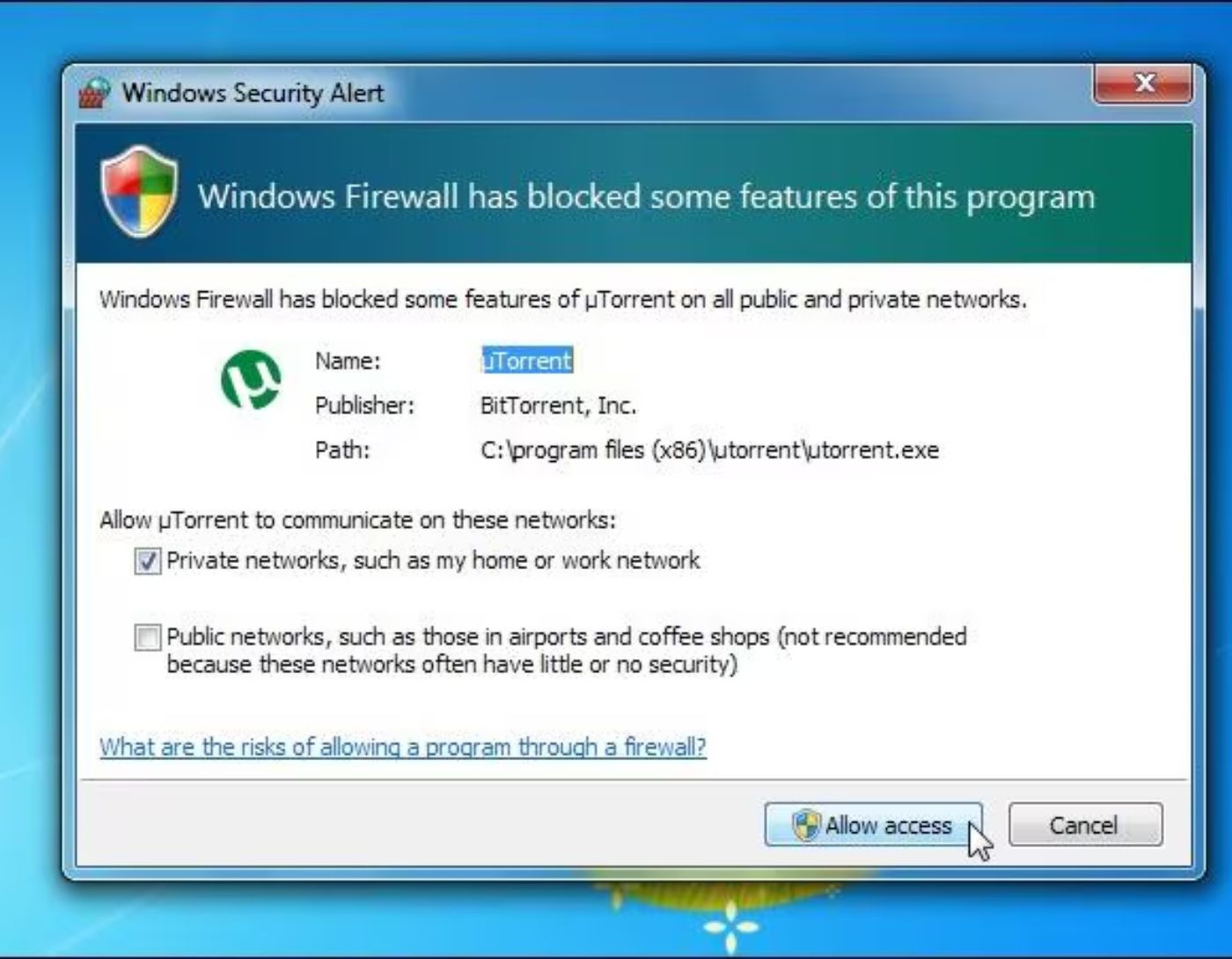
How to enable or disable the Windows Firewall? The Windows Firewall is one of the common software firewalls available on all Microsoft Windows operating systems. In this article, we will focus on disabling the Microsoft Windows Firewall. It is a program used to block or allow a program to operate on a private or public network. It can also be used to prevent unauthorized access to other networks in our system. By default, the Windows Firewall is enabled for both public and private networks.
What is the Windows Firewall?

The Windows Firewall is a Microsoft program. It was first introduced in Microsoft Windows XP and Microsoft Server 2003. At that time, it was called the "Internet Connection Firewall," but it is now known as the "Windows Firewall." It is a program to which we can add a large number of rules. It is used to block or allow any program or network. The main purpose of the Windows Firewall is to enhance the security of the Microsoft operating system. Now, in Windows 10, it has been renamed to "Windows Defender Firewall."
Why do we need to disable or enable the Windows Firewall?
 Why do we need to disable or enable the Windows Firewall?
It's interesting to understand why we might need to disable the Windows Firewall. As we already know, the Windows Firewall is enabled on all Windows operating systems. For security purposes, it blocks any other system from accessing ours. Sometimes, for example, when we are asked to transfer files over the network, we need to disable it to get our work done. Also, when configuring Windows Server, we may need to disable it so that the client can access the server without any issues. After disabling it, we can easily grant access to our Windows or Windows Server operating system. Additionally, "Ping" is disabled when the firewall is active. Therefore, we need to disable the firewall to accomplish our tasks on the Windows operating system.
Why do we need to enable it?
After disabling the firewall, the security vulnerability on our system increases, thus inviting hackers to exploit it. Now, they can easily breach our privacy. This is solely due to the firewall being disabled! Consequently, they can find vulnerabilities in the system and hack it using various tools. When Microsoft released Windows XP, Microsoft itself stated that you should disable the Windows Firewall to resolve issues. However, in the latest version of Windows, for example, in Windows 10, we must enable the firewall to install new components like printers and run commands from PowerShell using the built-in Windows Store. Therefore, disabling the firewall on a Microsoft operating system is not advisable. We always recommend keeping it enabled.
How to enable or disable the Windows Firewall?
As we know, the Windows Firewall is enabled by default on Microsoft operating systems. Often, we are required to disable it for our connection to work properly. To disable it, you can either use the command line or the graphical user interface.
The following steps will guide you on how to disable or enable it using the graphical user interface:
Press the Windows key, search for Windows Firewall, and go to Windows Firewall
In the left menu, choose to turn on Windows Firewall or turn it off
Now, you can select options to enable or disable based on your requirements.
How can I disable the Windows Firewall using the command prompt?
Run the command prompt as an administrator.
Type the following command:
vbnet
netsh advfirewall set allprofiles state off
Press Enter. This will disable the firewall for all network profiles.
How can I re-enable the Windows Firewall using the command prompt?
Open the command prompt with administrative privileges.
Type:
csharp
netsh advfirewall set allprofiles state on
Press Enter to turn the firewall back on.
Frequently Asked Questions
1. What is the Windows Firewall?
The Windows Firewall is a security feature that monitors and controls incoming and outgoing traffic over the network based on predefined security rules. It acts as a barrier between your computer and potential threats from the internet or local networks.
2. Why should I enable the Windows Firewall?
Enabling the Windows Firewall helps protect your system from unauthorized access, malware, and intruders. It prevents suspicious applications or data from entering your computer, ensuring a secure network environment.
3. How do I enable the Windows Firewall in Windows 10/11?
Click the Start button and type Control Panel.
Select System and Security > Windows Defender Firewall.
On the left, click on Turn Windows Defender Firewall on or off.
Select Turn on Windows Defender Firewall for both private and public networks.
Click OK to apply the changes.
4. How can I temporarily disable the Windows Firewall?
Open the Control Panel and go to System and Security > Windows Defender Firewall.
Click on Turn Windows Defender Firewall on or off in the left panel.
Select Turn off Windows Defender Firewall (not recommended) for both private and public networks.
Press "OK" to save the settings.
Note: The firewall should only be temporarily disabled, as it makes your system vulnerable to threats.
5. Can I permanently disable the Windows Firewall?
Yes, but it is strongly discouraged. If necessary, disable it by turning it off in the Control Panel or through the services menu. However, consider installing third-party security software if you permanently disable the firewall.
6. How can I check if the Windows Firewall is enabled?
Open Control Panel > System and Security > Windows Defender Firewall.
A green checkmark indicates that the firewall is active, while a red "X" indicates that it is disabled.
7. Is it safe to disable the Windows Firewall?
No, disabling the firewall exposes your computer to potential threats. If you must disable it, ensure that other security measures, such as antivirus software, are in place.
8. How do I reset the Windows Firewall to default settings?
Go to Control Panel > System and Security > Windows Defender Firewall.
Click on Restore defaults in the left-hand menu.
Confirm by selecting Restore defaults again. This will reset all firewall rules and settings.
Conclusion
We discussed how to enable or disable the Windows Firewall. While enabling or disabling the Windows Firewall may seem like a simple task, it plays a crucial role in protecting your system from countless online threats. The Windows Firewall is not just another piece of software; it acts as a gateway to your digital space, monitoring every bit of data trying to sneak in or out. By keeping this essential layer of security active, you protect your device from malware, prevent unauthorized access, and reduce the risk of cyberattacks that could compromise your personal information.


