

How to Connect a Wireless Display on Windows 11: Don't limit yourself to your small laptop screen. Here's how to wirelessly project your Windows 11 device onto another computer with a larger display for a more comfortable experience.
Windows has long allowed you to display your PC screen on another screen via HDMI or wirelessly. The latter method is particularly powerful as it not only lets you mirror the screen but also control the remote computer using your local keyboard and mouse. Even more useful is the ability to use the mouse and keyboard you set up with the primary computer.
If the display you want to project onto is connected to a computer running Windows 11, you'll need to set a few things up first. The complete procedure I explain here requires version 22H2 of Windows 11 or later, and Windows 10 has similar wireless display capabilities. (You can project from a Windows 10 PC to a Windows 11 PC or vice versa).
How to Connect a Wireless Display on Windows 11
Follow the steps below to connect your Windows 11 PC to another display without any cables. Be sure to scroll through the setup guide for tips on ensuring a successful connection. You should perform the first four steps on the computer with the display you want to project onto.
1. Install the Wireless Display Feature
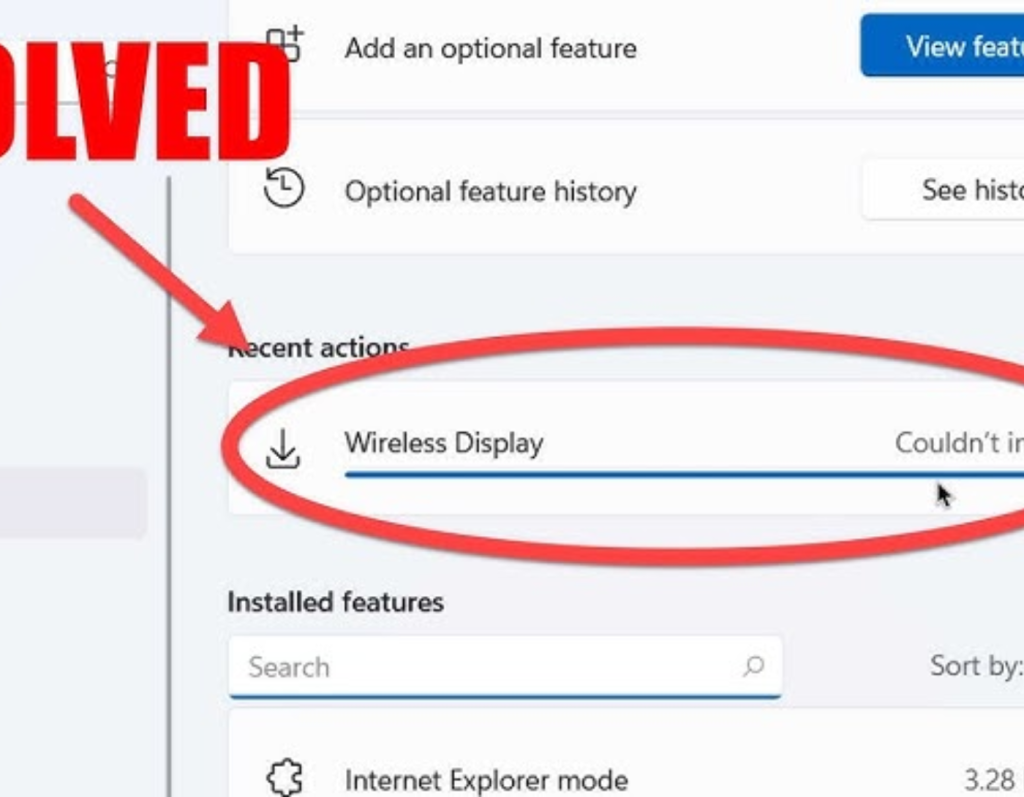
Windows 11 does not install the wireless display capability by default, so you'll need to do this manually. Start by going to Settings > Optional features and click on View features. This opens a list of optional features. Scroll down to the wireless display option or search for it directly.
Click the checkbox to the right of the entry and then press Next. On the next page, click the large Add button at the bottom. Windows will then download and install the feature.
2. Set Your Connection Preferences
Go to Settings > System and scroll down to Projecting to this PC. Here, you can toggle the feature and configure some security options. From the first set of dropdown options, you can turn off this capability or allow it for any internet-connected device that supports Miracast, or enable it only over secure networks (i.e., those requiring a Wi-Fi password). The "Ask to project to this PC" options determine whether you want a dialog box to appear whenever a device tries to use your PC's screen. Finally, you can require a PIN for connection (either the first time only or every time).
3. Launch the Wireless Display App
Start by typing Wireless in the search bar of the Start menu to find the Wireless Display app. If you use it frequently, consider pinning the app to the Start menu or taskbar. You can also launch the wireless display from the display settings page on this screen, but that opens it in full-screen mode. By opening it as a regular app, you can choose its window size.
4. Note the Name of the Target Display PC
You need to know your PC's name for a later step, as your other devices and neighbors may appear in the list of potential connections. You can change your PC's name from the top of the "Windows 11 Settings" dialog by clicking Edit next to the PC name.
5. Start the Connection on the PC You Want to Project From
On the PC you want to project from, the quickest way to start is to press the "Cast" keyboard shortcut: you can also click the "Quick Settings" button in the taskbar, located to the left of the clock and date display (it has sound icons and network status). Here, select the Cast (Windows 11) or Connect (Windows 10) button. You can also type "Cast" or "Connect" in the Start menu search bar to find the option to connect to a wireless display.
From left to right: the casting and connecting sidebar options in Windows 11 and Windows 10
After using any of these methods, a list of available devices to connect to will appear. The screenshot above shows how these options look in Windows 11 (on the left) and in Windows 10 (on the right). Make sure both devices you are using have an active Wi-Fi connection.
6. Choose the Display You Want to Use
After selecting the device with the display you want to project onto wirelessly, you have a few options. Just like with a wired external display, you can choose to extend, duplicate, or use the second screen only. The first two options are self-explanatory, but the second option will turn off the original computer's screen. This can be useful if you want to hide what's on the device from nearby people.
The last option is "Allow mouse, keyboard, and other inputs from this device." This lets you see the other computer's screen and control it remotely. It's similar to using TeamViewer or any other remote control software, but it doesn't require setting up third-party software.
Frequently Asked Questions
1. Why isn't my wireless display showing up on Windows 11?
Check the following:
Make sure both your computer and display are connected to the same Wi-Fi network.
Restart both devices and try again.
Update your graphics drivers from Device Manager.
Ensure the wireless display feature is enabled for the display.
2. Does my computer support wireless displays on Windows 11?
To check:
Press Win + R, type dxdiag, and then press Enter.
Click Save All Information, open the file, and look for Miracast.
If it says "Available," that means your computer supports wireless displays.
3. Can I use a wireless display as my primary display on Windows 11?
Yes, after connecting the wireless display, go to Settings > System > Display and select Make this my main display under display settings.
4. Is there a way to improve wireless display performance?
To reduce lag and improve quality:
Use a 5 GHz Wi-Fi network instead of 2.4 GHz.
Ensure minimal interference from other wireless devices.
Update your wireless network and display drivers.
Lower the display resolution for smoother performance.
5. How do I disconnect a wireless display in Windows 11?
Go to Settings > System > Display.
Click on Multiple displays, then select Disconnect from the list of wireless displays.
6. Can I use a wireless display without Wi-Fi?
Yes, if your display supports Wi-Fi Direct or Miracast, it can connect without an internet connection. However, both devices must support peer-to-peer direct connection.
7. Why is my wireless display lagging or freezing?
Common reasons include:
Weak Wi-Fi signal or interference.
Low-performance devices on either end.
High-resolution settings causing performance issues.
Running too many background applications on your computer.
8. Can I extend my display to a wireless screen instead of duplicating it


