


How to Open and Use Color Management in Windows 11: Color Management is a built-in feature in Windows 11 that helps assign a custom color profile to various devices such as monitors, scanners, printers, etc., connected to your computer.
By default, Windows automatically assigns a default color profile to devices in most cases. However, if you feel that the color representation looks strange, dull, or inaccurate on your display, it may be due to an incorrect color profile assigned to that device.
In such cases, you can use the Color Management feature to install a custom color profile for more accurate colors.
How to Open and Use Color Management in Windows 11
With the right color profile set, colors on the screen will appear more natural. Similarly, you can use Color Management for your printer if the default color profile does not yield the expected results.
You can associate multiple color profiles with different devices on your Windows 11 system and then set an installed color profile as the default setting.
Additionally, you can reset your settings at any time you want using Color Management in Windows 11. Let’s first explore how to open this feature.
There are multiple ways to open Color Management in Windows 11. These methods include:
- Open the Color Management window using the search box
- Open Color Management using the Settings app
- Launch the Color Management window via Control Panel
- Use File Explorer to open the Color Management window
- Access the Color Management window using the System32 folder
- Run the Color Management window using the "Run" command box
- Open the Color Management window via Task Manager
- Use Windows Terminal to run Color Management
- Create a desktop shortcut to open Color Management
Let’s explore each of these methods one by one.
1. Open the Color Management Window Using the Search Box
The quickest way to open Color Management is by using the search box in Windows 11.
Type Color Management in the search box of Windows 11.
Click on the available result to open it.
2. Open Color Management Using the Settings App
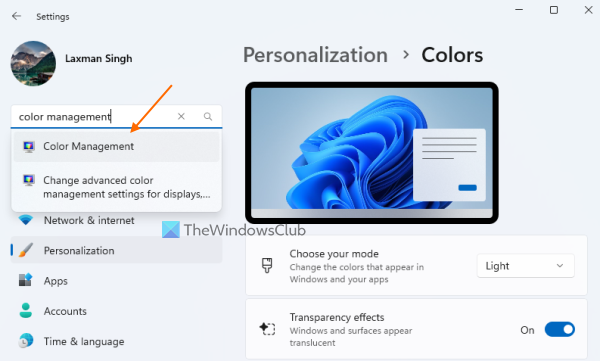
Another way to open Color Management is through the Settings app.
Use the shortcut key Win+I to open the Settings app.
Type Color Management in the search box located at the top left.
Press the Enter key.
3. Launch the Color Management Window via Control Panel
Open the Control Panel window.
Change the view from Category to Large icons or Small icons.
Click on the Color Management option to open its window.
4. Use File Explorer to Open the Color Management Window
Press the shortcut key Win+E to open the File Explorer window.
In the address bar of File Explorer, type colorcpl and press Enter to open the Color Management window.
5. Access the Color Management Window Using the System32 Folder
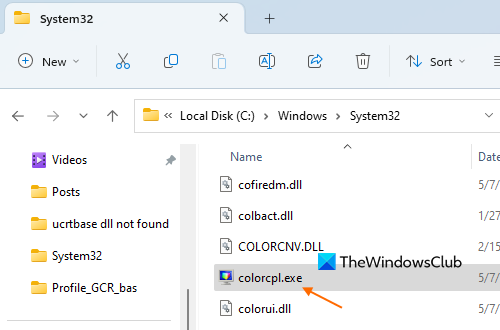
The System32 folder contains the EXE file for the Color Management window.
Open the File Explorer window.
Navigate to the folder C:\Windows\System32.
Locate the file colorcpl.exe and double-click on it.
6. Run the Color Management Window Using the "Run" Command Box
Open the "Run command" box using the shortcut key Win+R.
Type colorcpl in the text field.
Press the OK button to instantly launch the Color Management window.
7. Open the Color Management Window via Task Manager
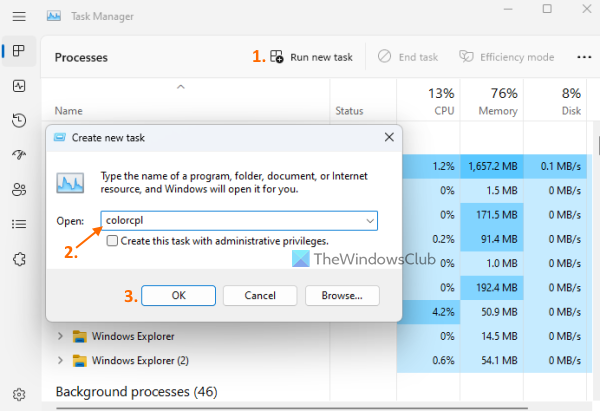
Use the shortcut key Ctrl+Shift+Esc to launch the Task Manager window.
Click on the option to Run a new task.
In the separate box that opens, type colorcpl in the text field.
Press the OK button.
8. Use Windows Terminal to Run Color Management
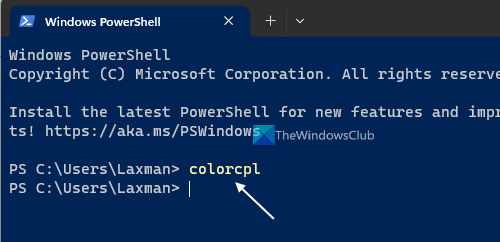
Right-click on the Start button in Windows 11.
Select the Terminal option to open the Terminal app for Windows.
Use the dropdown menu icon on the title bar to open Command Prompt or Windows PowerShell.
Type colorcpl and press Enter to execute the command.
9. Create a Desktop Shortcut to Open Color Management
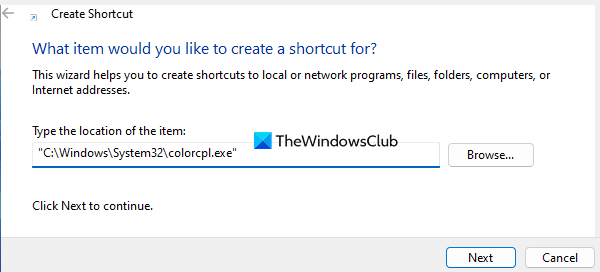
Right-click on the Windows 11 desktop.
Access the new menu and select the shortcut option.
In the desktop shortcut wizard, enter the following location in the location field:
C:\Windows\System32\colorcpl.exe
Click the Next button.
Add a name for the shortcut (for example, ColorManagement Shortcut) in the text field.
Press the Finish button.
How to Use Color Management in Windows 11
The Color Management window includes three main tabs: Devices, All Profiles, and Advanced. These tabs allow you to:
- Add or install custom color profiles for devices
- Remove a custom color profile
- Set a custom color profile as the default setting for a device
- Reset color profile settings to the system defaults
1. Add or Install Custom Color Profiles for Devices
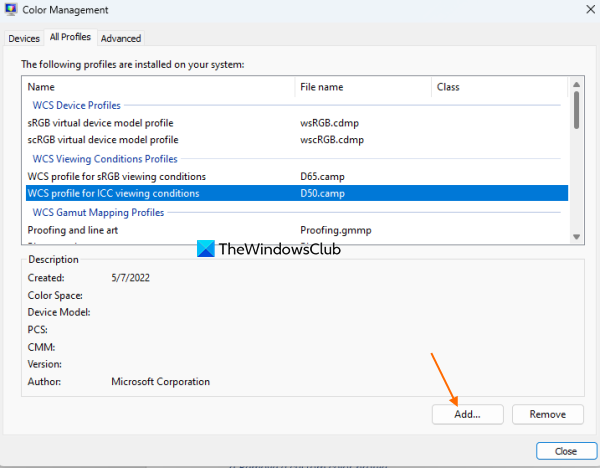
Go to the All Profiles tab in the Color Management window.
Click the Add button and use the Install Profile window to select the file type (ICC, Gamut Mapping, etc.).
Select the color profile from its location, then click Add.
2. Remove a Custom Color Profile
Go to the All Profiles tab.
Select the color profile and then press the Remove button.
Confirm the action using the Continue button.
3. Set a Custom Color Profile as the Default Setting
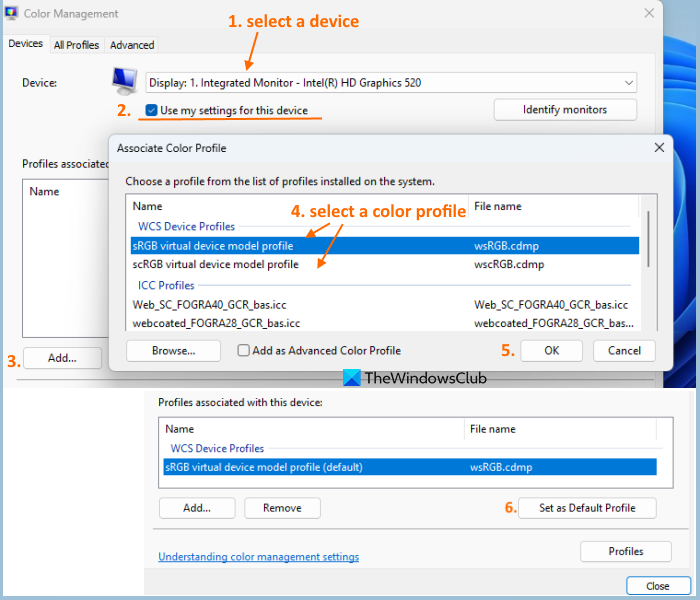
Go to the Devices tab and select your device.
Select Use my settings for this device and choose the profile from the list.
Click Set as Default Profile.
4. Reset Color Profile Settings to the System Defaults
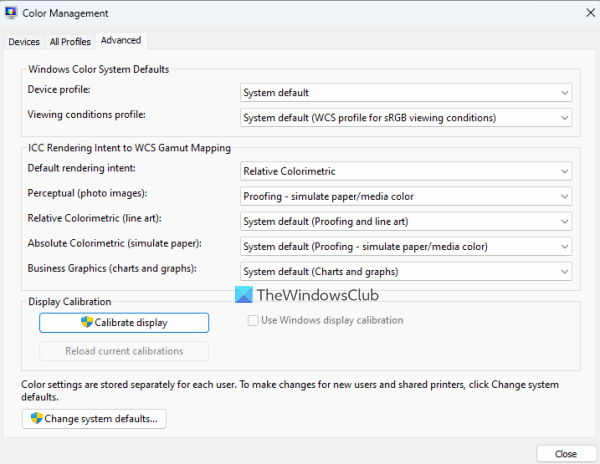
Open the Advanced Options tab and reset each option to the system defaults.
Alternatively, use the Profiles button in the Devices tab and click Reset my settings to system defaults.
Other Options
- Merge color profile settings with the default system settings using the Profiles button.
- Save device standard links for later use.
- Open the display color calibration wizard for advanced calibration settings.
How Can I Change Color Settings on Windows 11?
- Open the Settings app (Win+I) and access the Personalization category.
- Go to the Colors page to customize accent colors and title bar colors.
Conclusion
In summary, Color Management in Windows 11 is a powerful tool that enables users to adjust color representation across devices for accurate and vibrant images. Whether you are setting up a new monitor, ensuring your prints match reality, or calibrating a scanner, Color Management provides the flexibility to easily add, remove, and set custom color profiles. With multiple ways to open and access the feature, including the search box, Settings app, Control Panel, or even shortcuts, navigating this tool is very straightforward.
That’s it! We hope this guide helps you understand how to open and use Color Management in Windows 11.


