

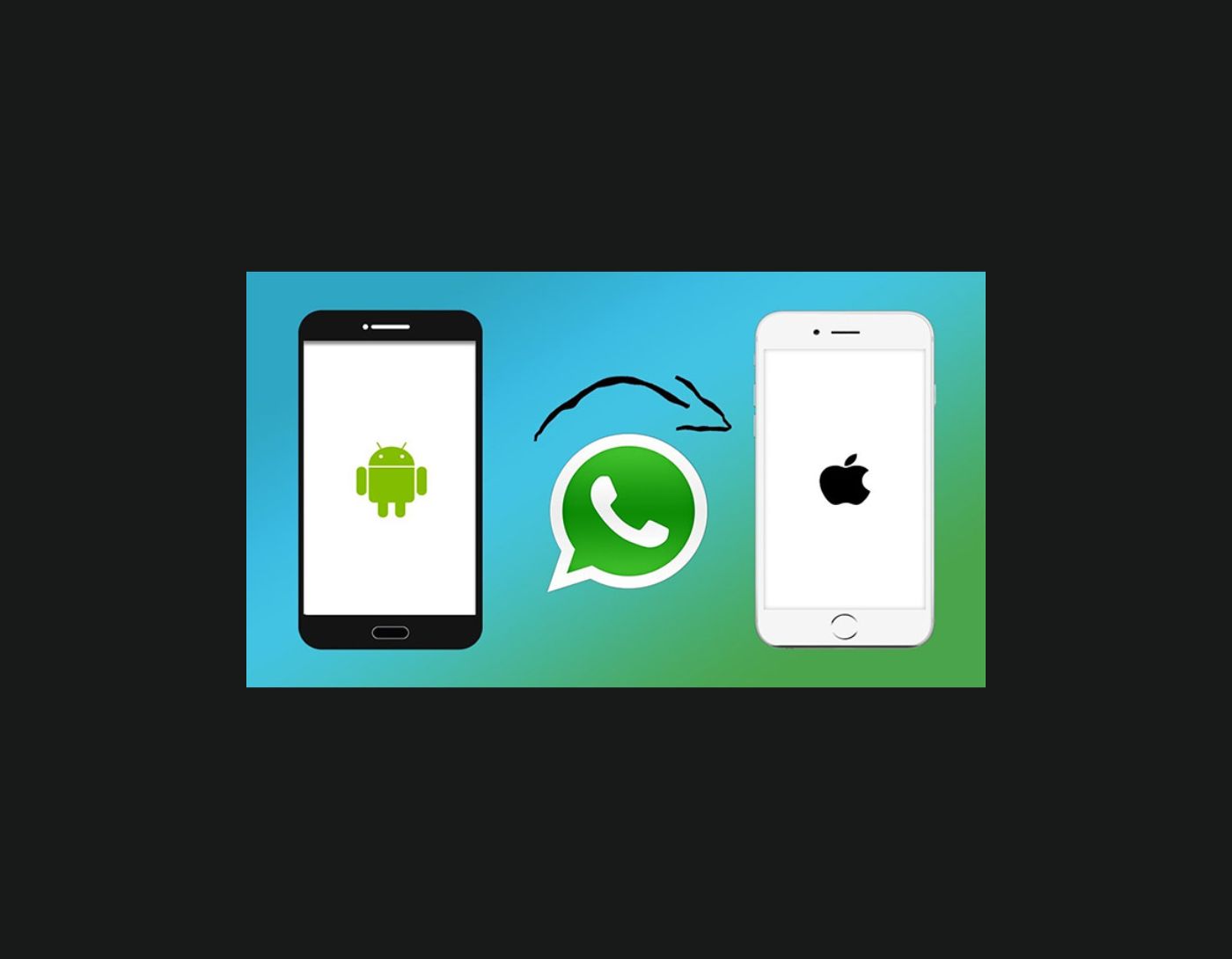
How to transfer WhatsApp between Android and iPhone easily and quickly: Are you planning to buy a new iPhone but worried about losing your WhatsApp chats and other data? Your WhatsApp messages are important to you, and you definitely don't want to lose them, right?!!
I completely understand how you feel. Transferring WhatsApp messages from Android to iPhone can be challenging. It requires backing up your chat history before uninstalling the app, resetting your phone, and restoring the backup. It doesn't sound easy! But don't worry, you can now use Tenorshare iCareFone Transfer to solve this problem effortlessly.
Switching from Android to iOS is quite common these days, and thus, the main issue arises when transferring data between devices.
Now, in the case of WhatsApp Business, you can create backups and decide whether to include media files in the backup or not.
However, in situations like poor internet connectivity or device malfunctions, executing these backups can become a hassle. In such cases, you can rely on the iCareFone Transfer app for Android.
The iCareFone Transfer app has some amazing features that we will discuss further, so stay with us.
Why Do We Recommend Using iCareFone Transfer?
This software allows you to transfer photos and other files to and from your iOS device (iPad, iPhone, etc.) and your Windows PC easily.
It features an intuitive and colorful interface that clearly displays all available functions, most of which can be executed with a single click, making the program very user-friendly.
Among the most useful functions is the ability to transfer media files to and from iTunes, as well as backup and restore WhatsApp and LINE chats and attachments.
One interesting feature is the iOS System Repair, which, as the name suggests, allows you to fix issues and download the corresponding firmware for your device and reinstall it.
The trial version of the software has some limitations; for example, you can only transfer 10 photos and media files to and from iTunes, and you cannot perform system repairs. To remove these limitations, you will need to purchase the paid version.
How to Transfer WhatsApp Between Android and iPhone Easily and Quickly Using iCareFone Transfer?
Before we discuss the features of Tenorshare iCareFone Transfer, let’s learn how to transfer WhatsApp between Android and iPhone easily and quickly.
Here are some steps to use the iCareFone WhatsApp Transfer feature
There are two ways to use the iCareFone Transfer app; you can either transfer WhatsApp data between Android and iPhone devices or transfer data between Android devices. Here’s how to do it.
First and foremost, download the iCareFone Transfer program on your computer.
Transfer WhatsApp Data from Android Devices to iPhone
Step 1: Download and Install
1.1 Launch iCareFone Transfer and connect both devices to your computer. Then click "Transfer" to proceed.


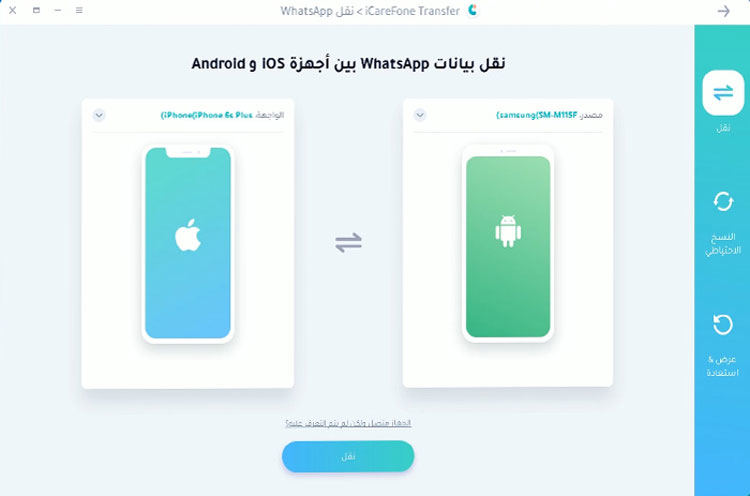
Note: On your Samsung device, you may need to enable USB debugging by following the screenshots.
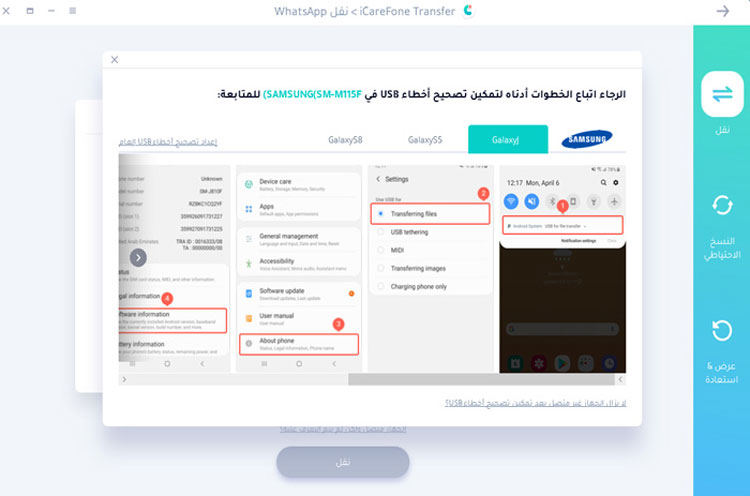
1.2 Here, you will be prompted to confirm the pop-up window. Click "Yes" to proceed to the next step.
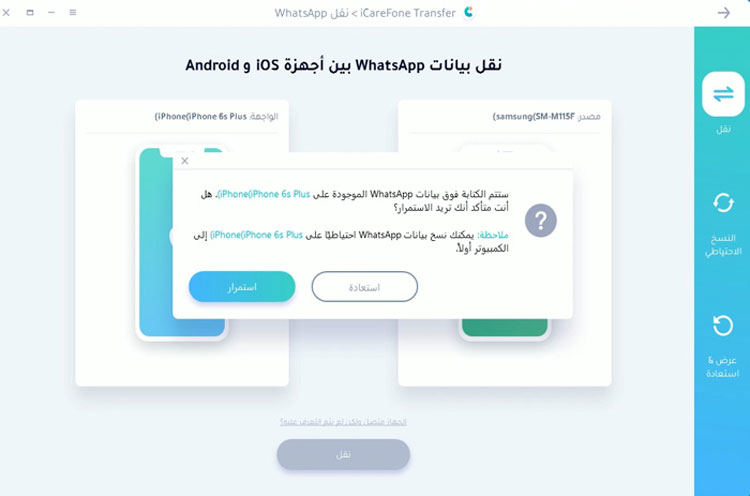
Step 2: Backup WhatsApp Data
2.1 You need to back up your WhatsApp data on the source device by following the instructions in the screenshot. Once done, click "Continue."
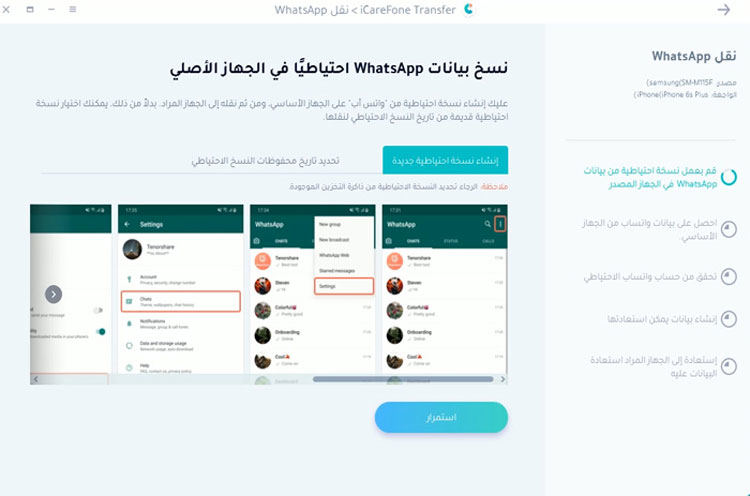
2.2 The program will retrieve the data from the source device, please be patient and wait for it to complete.
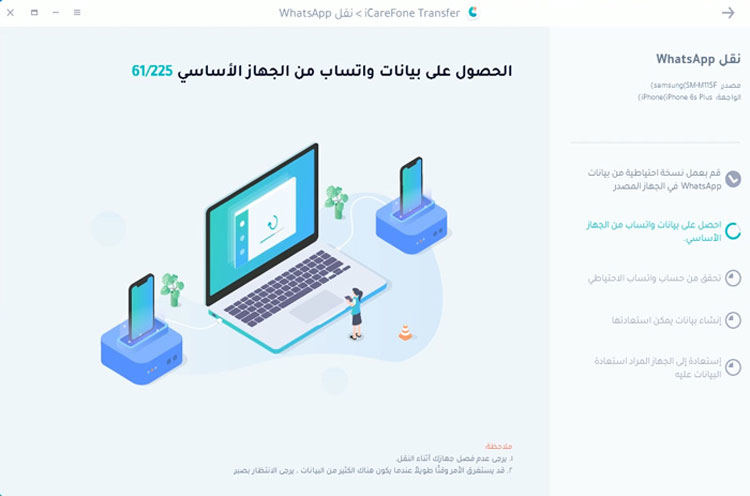
Step 3: Verify WhatsApp Account on the Source Device
3.1 To keep your WhatsApp data secure, please verify the WhatsApp account you used to create the backup by entering the country code and phone number.
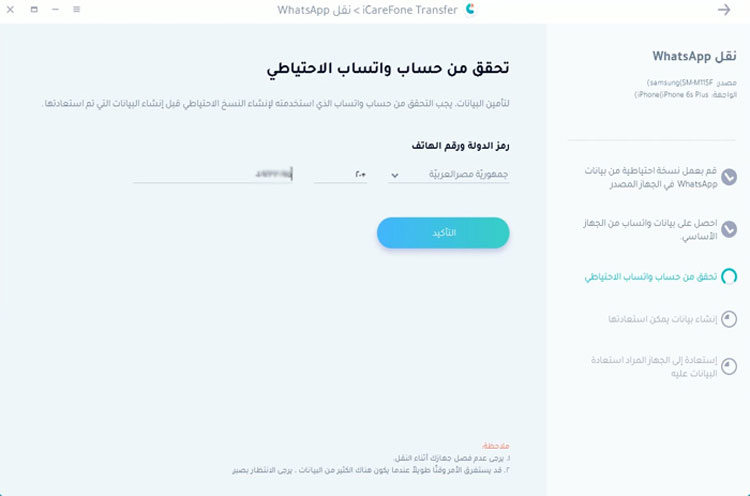
3.2 After entering the information, a window will pop up to inform you that you may receive a verification code on your source device. Click "Continue" to go to the verification interface.
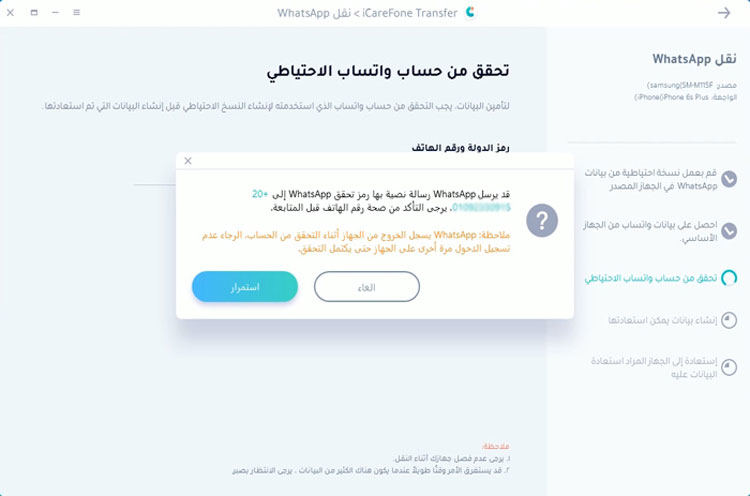
Note: You may be logged out of your WhatsApp account on the source device during the verification process. To verify successfully, please do not log back in.
3.3 When your source device receives the 6-digit code, please fill in the line and click "Verify."
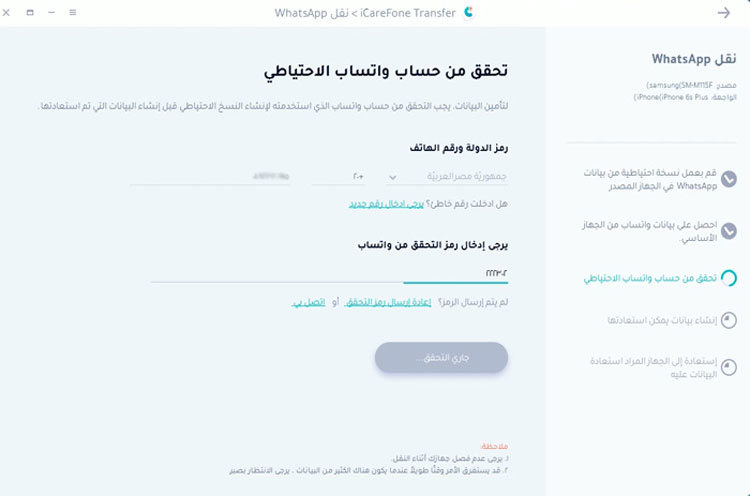
Step 4: Create Data on Your iPhone
4.1 Once verification is successful, your device will automatically proceed to the next step to create the data that will be restored on the target device.
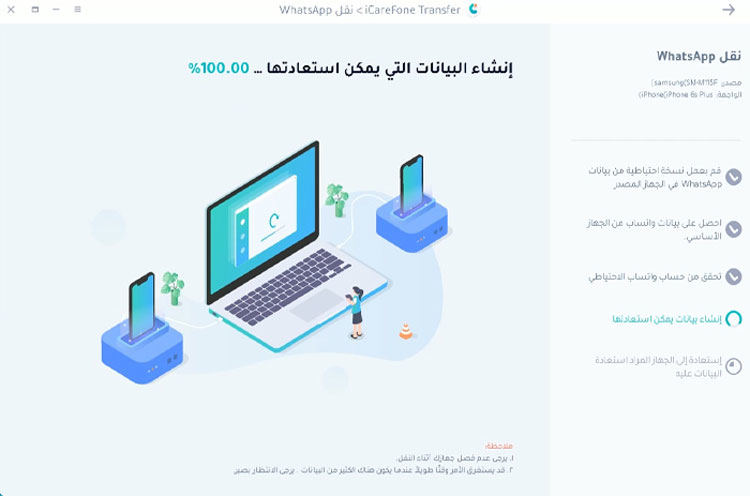
4.2 Before restoring the data, please ensure you are logged into WhatsApp on your iPhone; otherwise, the data will not be visible. If confirmed, press "Log In."
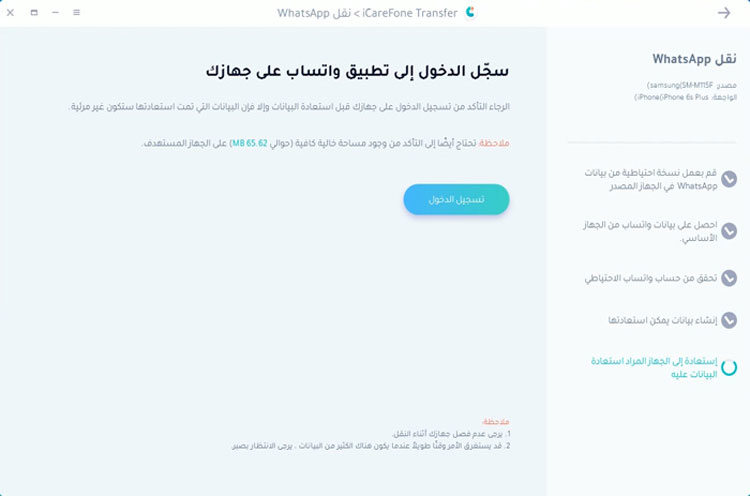
Note: Ensure there is enough space on the target device.
Step 5: Successfully Restore WhatsApp Data to iPhone
Note: You will be prompted to turn off "Find My iPhone," please follow the on-screen instructions to turn off "Find My iPhone" to proceed.
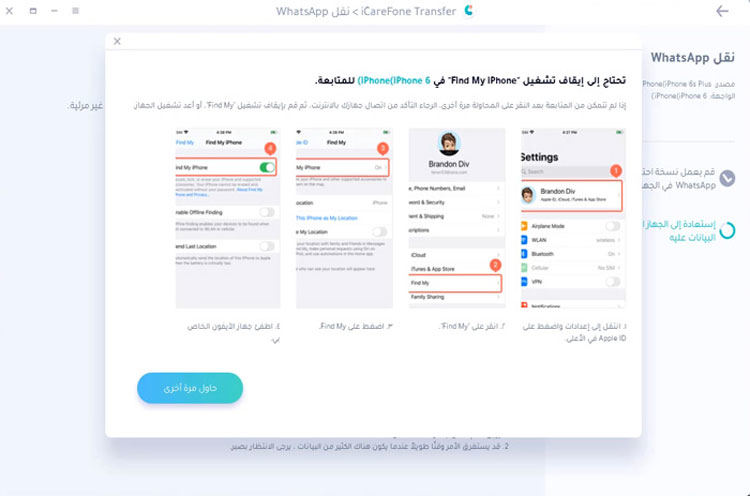
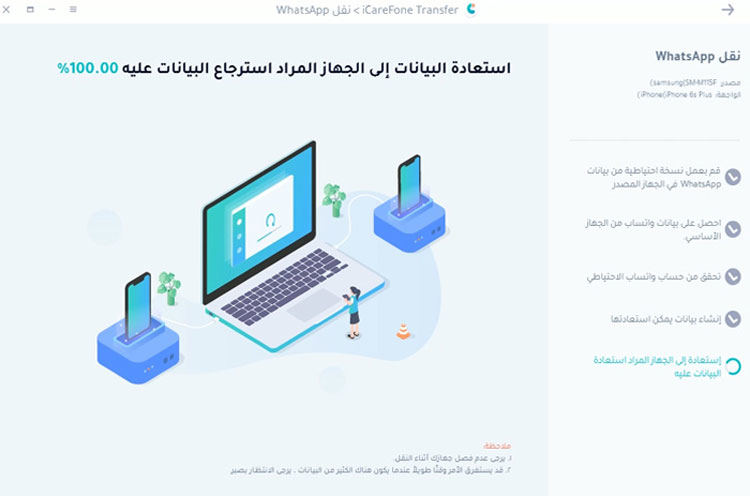
5.1 The program will restore the data to your iPhone. The speed of restoration will depend on the amount of data, so please be patient.
5.2 When the data has been fully transferred to your device, you will see the following interface. Share it if you wish.
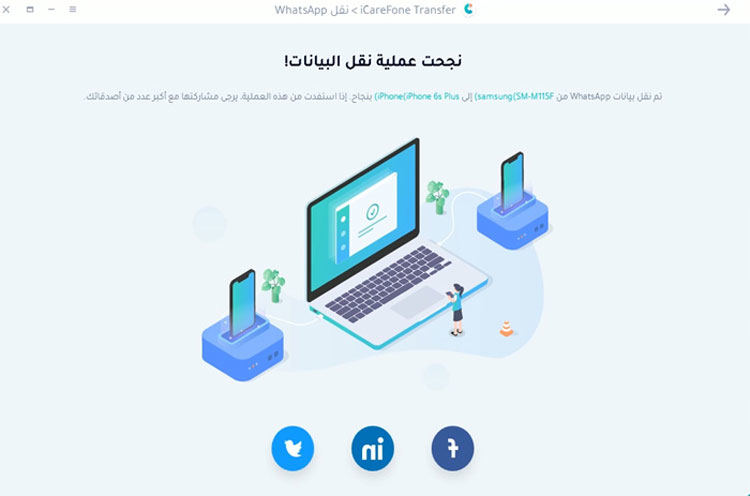
Note: Once the entire process is complete, your target device will restart.
You can also check the video guide:
Features of iCareFone Transfer
To understand how to transfer WhatsApp between Android and iPhone easily and quickly, it is essential to understand the features of iCareFone Transfer in depth.
1. Diverse Data Transfer Support
With the iCareFone Transfer app, you can transfer WhatsApp chats including various types of data, from audio files and emojis to PDF documents and more. The data transfer app supports everything that WhatsApp supports.
2. Compatible with Multiple Brands and OS Versions
You can use the iCareFone Transfer app for Android on any OS version. It works on smartphones from many brands, including well-known names like Samsung, LG, Sony, Motorola, and many more. It also works with iPhones running iOS 10 or later.
3. Available in Multiple Languages
A crucial feature of iCareFone Transfer is the available languages. To make the app more accessible to the global market, the developers of the amazing iCareFone Transfer app have released it in English, Russian, German, French, Italian, Japanese, Arabic, Korean, Simplified Chinese, Traditional Chinese, Spanish, and more.
4. Supports Wi-Fi Based Android to Android Transfer
Transferring between Android devices is very easy, and for this, you don't even need to prepare an OTG cable; just connect both smartphones to the same Wi-Fi network and follow the instructions in the app to carry out the WhatsApp transfer.
Pros of iCareFone Transfer
Through the review of the Tenorshare iCareFone Transfer app, we discovered many great things that the app offers for WhatsApp messaging.
- Supports multiple languages.
- User-friendly.
- The user interface clearly displays instructions.
- Allows for faster transfers.
- No computer required.
Frequently Asked Questions About Tenorshare iCareFone Transfer
What is Tenorshare iCareFone Transfer?
Tenorshare iCareFone Transfer is a program developed by Tenorshare, Inc, allowing users to transfer WhatsApp chats and attachments between iOS/Android devices and computers effortlessly.
What devices are compatible with iCareFone for WhatsApp Transfer?
Tenorshare iCareFone Transfer is compatible with most iOS and Android devices, including iPhone, iPad, Samsung, HTC, LG, Huawei, Xiaomi, and more.
What types of WhatsApp data can be transferred using iCareFone for WhatsApp Transfer?
iCareFone for WhatsApp Transfer can transfer all types of WhatsApp data, including messages, photos, videos, voice messages, and attachments.
Is it safe to use iCareFone to transfer WhatsApp?
Yes, it is safe to use iCareFone to transfer WhatsApp. The program uses advanced encryption protocols to protect user data and ensure privacy.
<


