

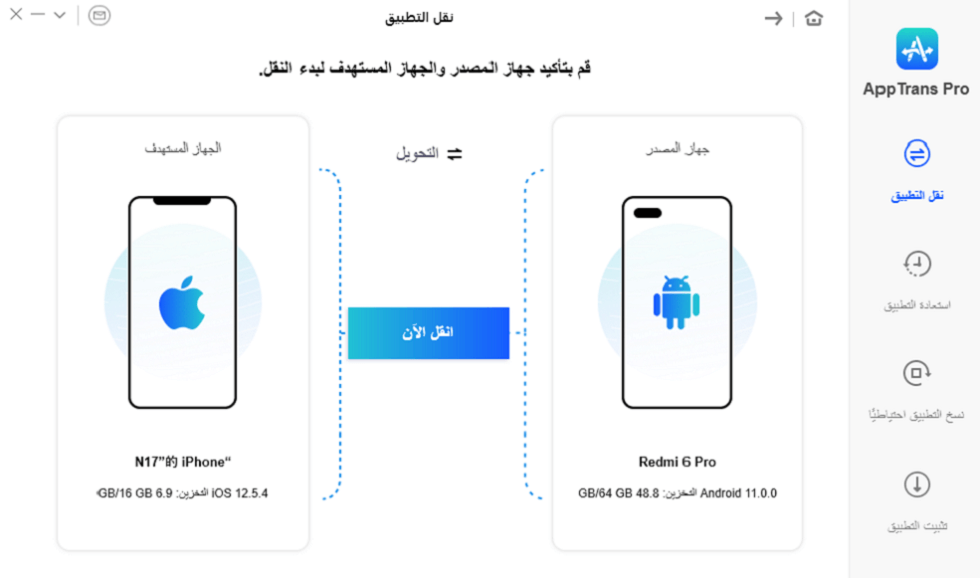
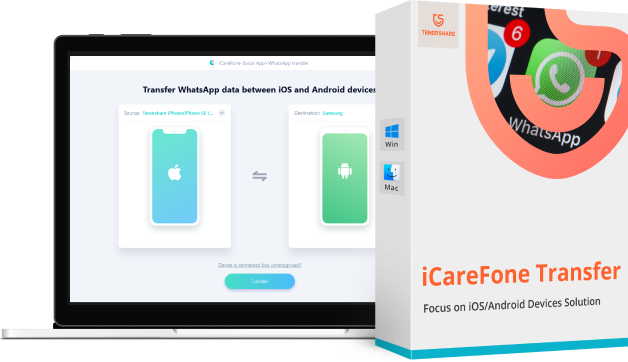
How to Easily Transfer WhatsApp Data to iPhone from Android Without Formatting
(How to easily transfer WhatsApp data to iPhone from Android without formatting it)
You’ve switched to an iPhone, but you’re worried about losing your precious WhatsApp messages during the transfer from Android to iOS, right?
Are you looking for a safe way to transfer your WhatsApp messages from Android to iPhone without losing any data?
WhatsApp is an important chat platform for all of us, holding most of your cherished memories that mean a lot to you.
So, when changing phones, knowing how to transfer WhatsApp data from Android to iPhone will be the first thing on your mind.
Don’t worry, fortunately, there is an easy and safe way to transfer WhatsApp messages from Android to iPhone.
Now you can transfer WhatsApp messages from Android to iPhone without a computer.
We recommend trying the amazing Tenorshare iCareFone Transfer to solve your problem effortlessly.
What is Tenorshare iCareFone Transfer?
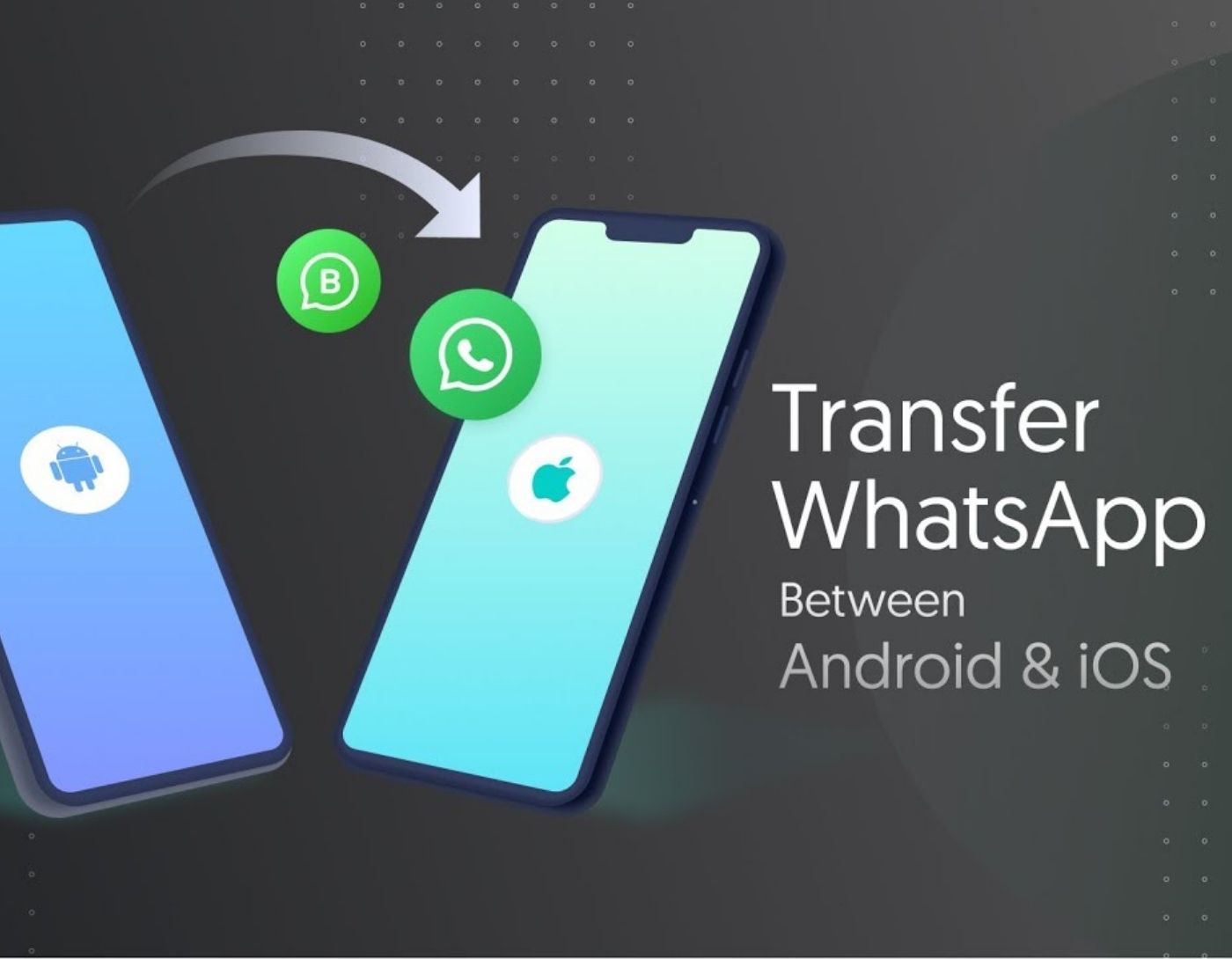
It is the fastest application for transferring, backing up, and restoring WhatsApp chats.
Developed by Tenorshare, Inc., it allows users to transfer WhatsApp chats and attachments between iOS/Android devices and computers effortlessly.
It can easily transfer WhatsApp data from iPhone/iPad to iPad/iPhone and transfer WhatsApp data simply from Android to Android, and flexibly transfer WhatsApp messages from Android to iPhone or from iPhone to Android, and back up and restore WhatsApp, Kik, LINE, Viber, and WeChat on Mac easily.
The program fully supports (iPhone SE 2020/11/11 Pro Max) and the new Galaxy S20 among others.
iCareFone for WhatsApp Transfer supports the easy transfer of WhatsApp messages and attachments, including: files, photos, and videos from iPhone to Android, from Android to iPhone, from iPhone to iPhone, and from Android to Android directly and efficiently (including iPhone 11/11 Pro).
iCareFone for WhatsApp Restore makes it very easy to restore a WhatsApp backup without uninstalling.
How to Use iCareFone Transfer to Transfer WhatsApp Messages from Android to iPhone
Note: The program supports Arabic 100% and you can switch between languages and select Arabic through the program settings
The following video provides a quick overview of the program's great capabilities. Watch the video to learn how to use the program.
Using the Program Explained with Images
Transferring WhatsApp Messages from Android to iPhone
The steps to transfer WhatsApp messages from Android to iPhone involve some requirements, so make sure to follow the guide step by step.
Step 1: Download and Install the Program
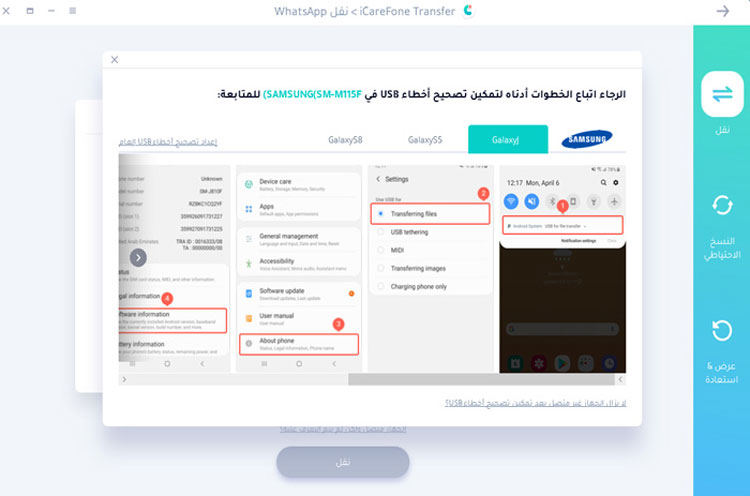
1.1 Download iCareFone Transfer and connect both devices to your computer. Then click "Transfer" to proceed.
iCareFone for WhatsApp Transfer works on the following operating systems: Mac / Windows.


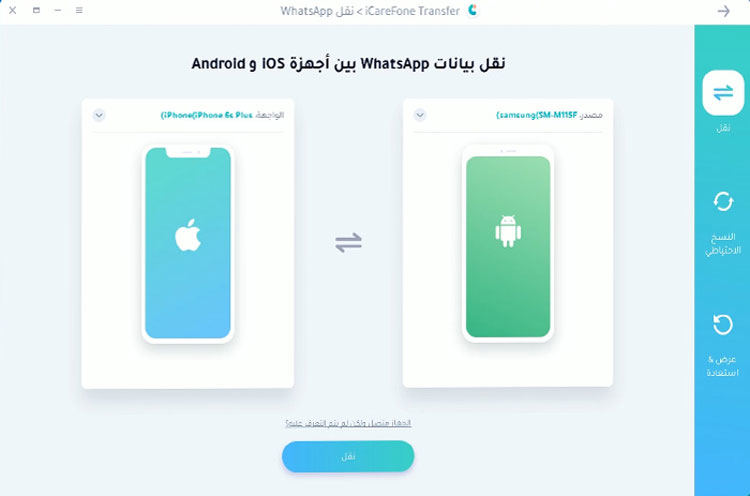
Note: On your Samsung device, you may need to enable USB debugging by following the screenshots.
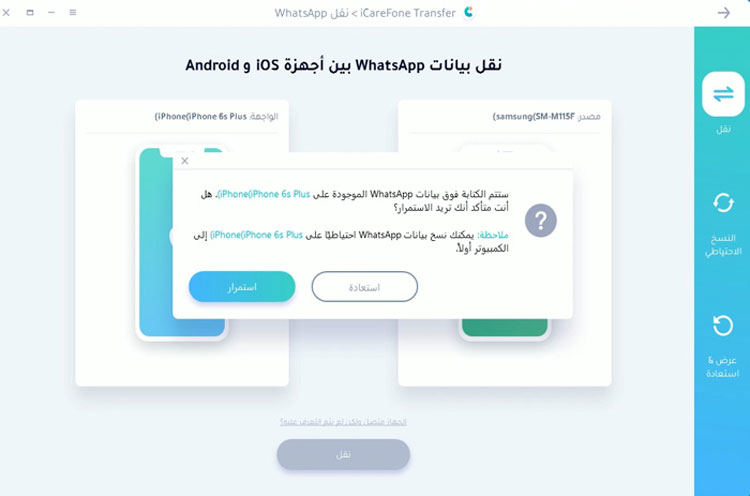
1.2 You will be prompted to confirm the pop-up window. Click "Yes" to proceed to the next step.
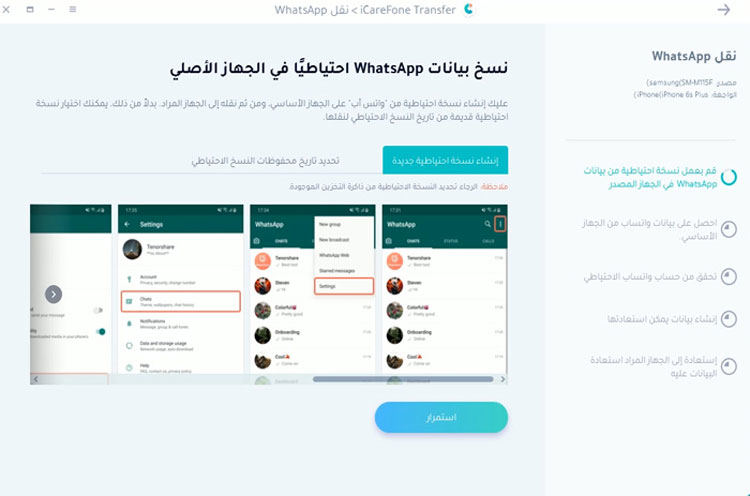
Step 2: Back Up WhatsApp Data
2.1 You need to back up WhatsApp data on your source device by following the screenshot instructions. If done, click "Continue".
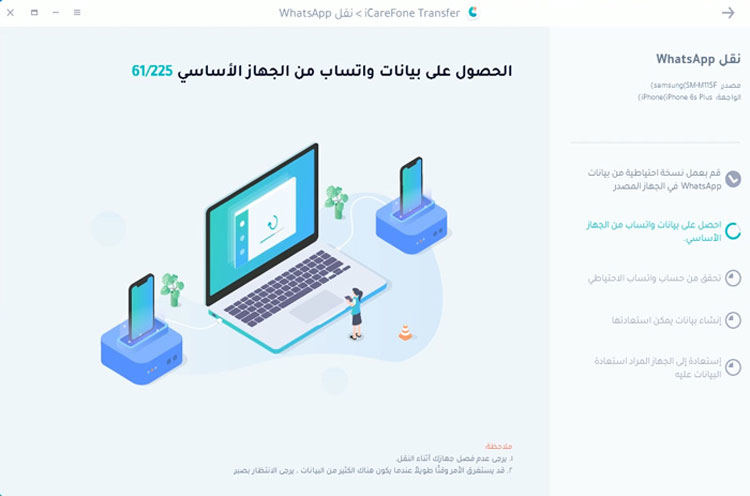
2.2 The program retrieves data from the source device, please wait until completion.
Step 3: Verify the WhatsApp Account on the Source Device
3.1 To keep your WhatsApp data secure, please verify the WhatsApp account you used to create the backup by entering the country code and phone number.
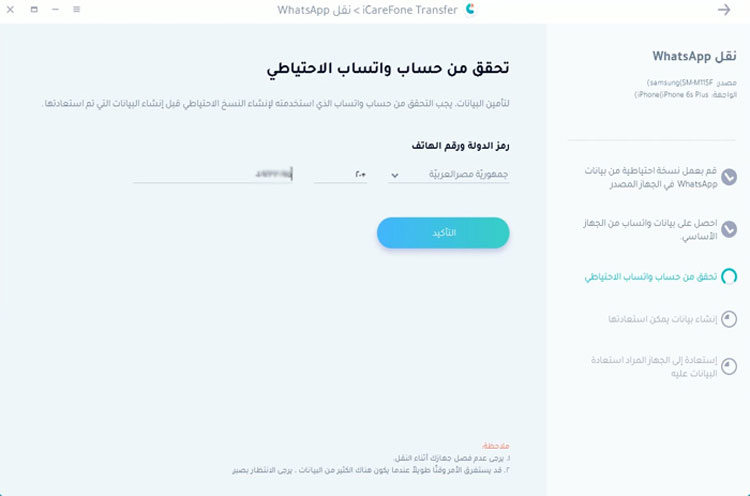
3.2 After entering the information, a window will pop up to inform you that you may receive a verification code on your source device. Click "Continue" to go to the verification interface.
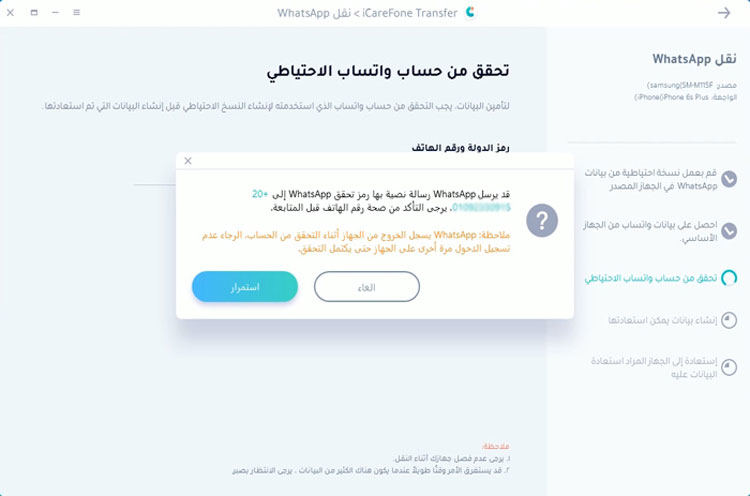
Note: You may be logged out of your WhatsApp account on your source device during the verification process. To verify successfully, please do not log back in.
3.3 When your source device receives the 6-digit code, please fill in the line and click "Verify".
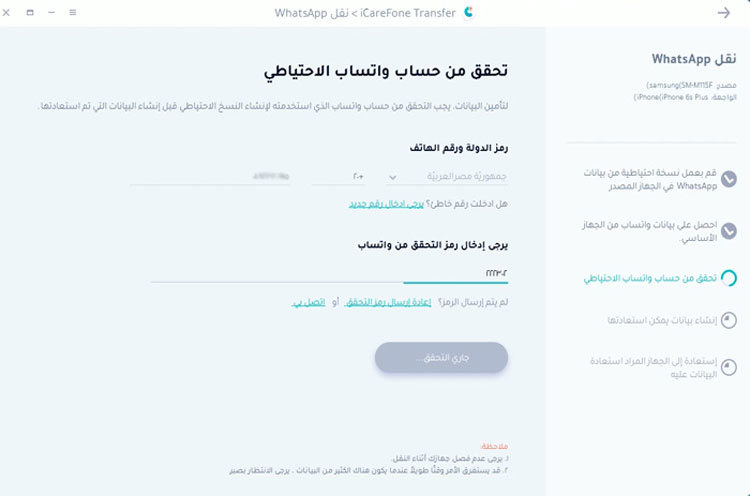
Step 4: Create Data on Your iPhone
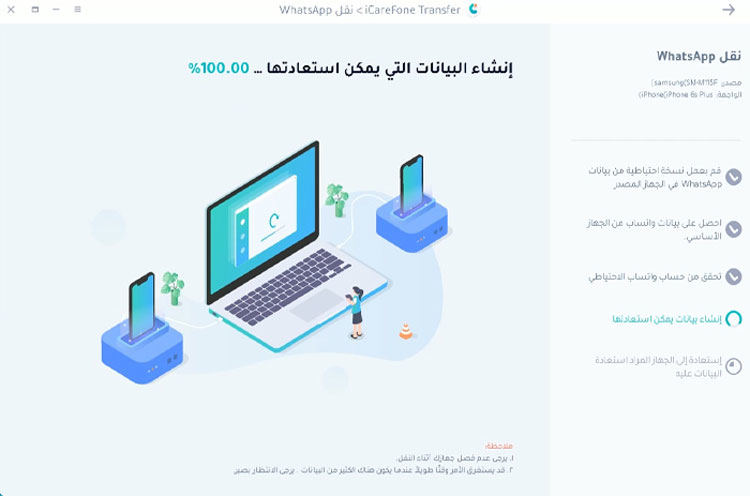
4.1 Once verification is successful, your device will automatically enter the next step to create the data that will be restored on the target device.
 </picture


