

What is DriverPack Solution and what are its alternatives: In this article, we provide a comprehensive overview of DriverPack Solution and suggest alternatives if you find this program unsatisfactory. Stay with us.
It is undeniable that all drivers need to be updated properly for optimal performance. However, on the flip side, manual driver updates can be a tedious process. Therefore, tools like DriverPack Solution are useful for updating drivers.
DriverPack Solution is a very popular method for updating drivers. However, not everything popular is perfect for everyone. Thus, in this article, we provide an honest and detailed review of DriverPack Solution to help you determine if it meets your needs.
Don’t worry if you find that DriverPack doesn’t meet all your requirements, as this article contains the best alternatives to this program, compiled after thorough research. Let’s save you invaluable time and get started right away with an overview of this program.
What is DriverPack Solution and what are its alternatives
DriverPack Solution is a program that locates, downloads, and installs the necessary drivers on your computer with just a few clicks. Here are some key specifications of this program for your reference.
Specifications of DriverPack Solution
Supported operating systems: Windows XP, 7, 8, 8.1, 10, and 11
Required processor: Pentium 4 or higher
Memory requirements: 512 MB of RAM or more
Required storage space: 15 GB of free space (if using the offline version)
After reviewing the specifications of DriverPack Solution, let’s highlight some of the most attractive features of this program.
Key Features of DriverPack Solution
Here are some standout features that make DriverPack Solution worth your time and attention.
1- Portability
DriverPack Solution is a portable program, meaning you can use it to download, install, and update drivers from anywhere in the world, just like people use a flash drive.
2- Restore Points Creation
Restore points are essential as they help revert your computer to a working state in case any issues arise after updating drivers. Therefore, this program automatically creates restore points before performing driver updates.
3- Multilingual Support
DriverPack Solution features multilingual support to help everyone use this program easily, supporting over 10 languages.
4- Temporary File Removal
One of the most appreciated features of this program is its ability to delete temporary files, as it removes temporary files after you’ve used the necessary data.
5- Batch Driver Downloads
DriverPack Solution downloads drivers in complete sets for various peripheral devices. For example, downloading video card drivers provides drivers for different manufacturers like AMD and NVIDIA, among others in the archive.
6- Online Version
While it’s not exactly what we’d call a general feature, DriverPack Solution has an online version that allows you to download and install drivers without installing any software on your computer. The only requirement is that your computer must be connected to the internet.
That covers the features of this program. Now, let’s move on to the next section of the DriverPack Solution review, which is whether it is user-friendly or not. Here’s how to use this program (both online and offline) so you can get an idea of how easy it is to use (or not, if you feel that way).
How to Use DriverPack Solution
In the following sections, we will detail how to use both the online and offline versions of the program.
Using DriverPack Solution Online.
You can follow these steps to use the online version of this program.
The first step is to go to the DriverPack Solution website.
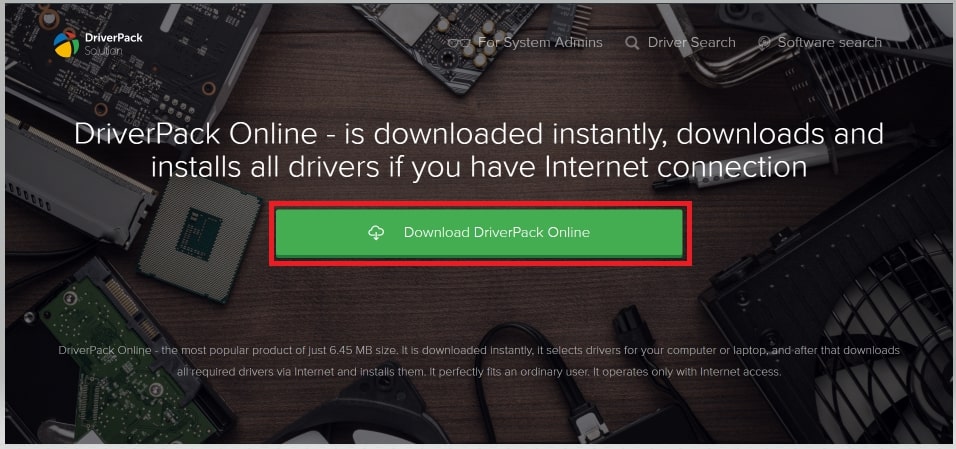
Next, click the Download DriverPack Online button.
After downloading the online version of the program, wait for it to install automatically, then scan your computer and set it up.
Note: The program operates in normal mode by default. However, you can switch to Expert mode if you want more control over downloading and installing the latest drivers.
After that, you can select the driver you want to install and proceed with the installation. Please note that this step is only required if you are using the program in Expert mode.
Using DriverPack Solution Offline
You can follow these guidelines if you wish to use the offline version of DriverPack Solution to download, install, and update drivers without an active internet connection.
First, go to the DriverPack Solution download link.
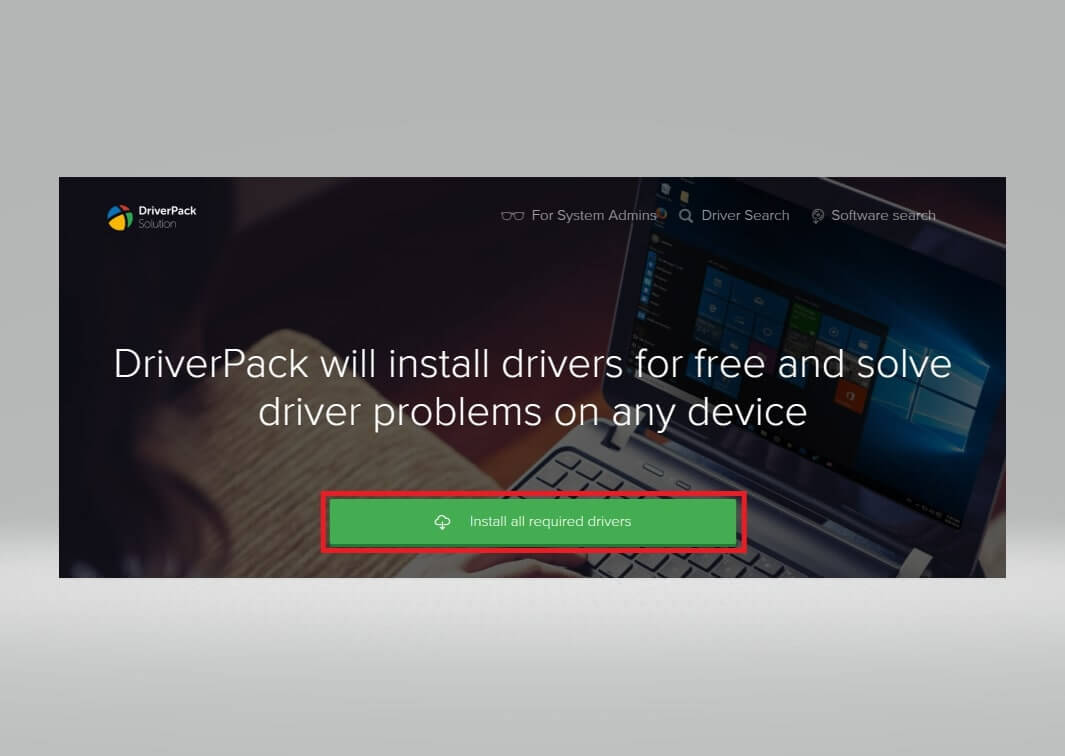
The homepage of the DriverPack Solution website will appear on your screen. Click the button to install all required drivers.
Installing DriverPack Solution
Next, click on the setup file after downloading it.
You can now follow the on-screen instructions to complete the installation of the program.
The program operates in normal mode by default. If you prefer, you can choose Expert mode to have control over the drivers on your computer.
If you choose Expert mode, select the drivers you wish to download, install, and update.
After selecting the drivers, click the button to download and install the selected drivers.
You now have an idea of how easy or difficult it is to use this program. Regarding our opinion, the following pros and cons summarize what we like and dislike about this program.
Pros and Cons of DriverPack Solution
Here are the things we found appealing and the things we didn’t like about this program.
Pros
User-friendly.
Fast driver downloads.
Automatic installation support.
Allows bulk driver downloads.
Customizable settings.
Provides a voice assistant to help beginners use the program.
Cons
No scan scheduling.
Lacks an ignore option to hide drivers in future scans.
Offers unnecessary third-party programs.
So, that’s our take on this program. We believe it’s worth trying due to its advantages. However, if its disadvantages seem too many, you can choose from the best alternatives to DriverPack Solution listed below.
Best Alternatives to DriverPack Solution
Here are the best similar programs to DriverPack Solution (and possibly better alternatives) for downloading, installing, and updating drivers.
1. Win Riser
One of the best programs we recommend as an alternative to DriverPack Solution is Win Riser. It allows you to download and update drivers with one click, clean unwanted files, and enhance your computer's performance with the following features.
Key Features of Win Riser
It features malware detection and removal capabilities.
Win Riser has a built-in invalid registry cleaner.
You can schedule scans according to your convenience.
This program offers the ability to back up and restore drivers with one click.
You can customize the scan path for your PC.
There’s an option to ignore drivers or registry entries you don’t want to scan.
2. Outbyte Driver Updater

Outbyte is another program you might consider if you’re looking for the best alternatives to DriverPack Solution. It provides 100% reliable drivers from official sources, features many customization options, automatically backs up drivers, and offers easy restoration with the following standout features.
Key Features of Outbyte Driver Updater
It features automatic scanning for your PC.
There’s an easy-to-use scan scheduling program.
You can skip drivers you don’t want to update.
It enhances the overall performance of your PC.
3. Driver Easy
Let us introduce you to Driver Easy, another program similar to DriverPack Solution for hassle-free driver updates. You can use this program even without an internet connection to find outdated drivers on your PC. Additionally, it offers scan scheduling, restore point creation, batch driver updates, and here are some other great features of this program:
Key Features of Driver Easy
<p


