



Video Background Removal Software for PC
Did you capture an amazing video but the background just doesn't fit the vibe? Or do you want to swap out the video background or an unappealing setting for something more attractive and engaging for your audience? Well, you can remove the video background more easily than you think, and there's no magic involved.
All you need is a professional video editing software to get the job done. Luckily, the internet is filled with these tools—all claiming to be the best at removing video backgrounds. However, not all of them are effective in achieving perfect results.
Because of this, we searched the internet and found the best and most comprehensive software for changing video backgrounds without any technical hassle. Read the article to the end and discover the best tool that meets your needs.
Let’s dive in.
Part 1. Remove Background from Video Using iMyFone Filme Video Editor
If you want to quickly remove the video background, iMyFone Filme is what you need. It’s a user-friendly software that’s easy for beginners, offering a lot of simple and advanced video editing features that you can apply with just one click.
Unlike other tools, Filme does not affect video quality while removing the background. With just a few clicks, you get a new video without a background in its original quality. Moreover, you can apply hundreds of amazing video filters, effects, transitions, overlays, and background music to make your videos more entertaining.
With the excellent features it offers at a low price, it’s a deal you won’t regret. It’s perfect for both new users and professionals.
Features of Filme
- Remove Video Background
- All basic video editing tools
- Add text and cinematic titles to videos
- Screen recorder
- Create slideshows
- Perform multiple layers of video
- Additionally, you will explore many other features while using it.
Guide to Using Filme Software
See for yourself how easy it is to use iMyFone Filme:
Step 1
Start by installing the premium version of iMyFone Filme on your desktop.
Step 2
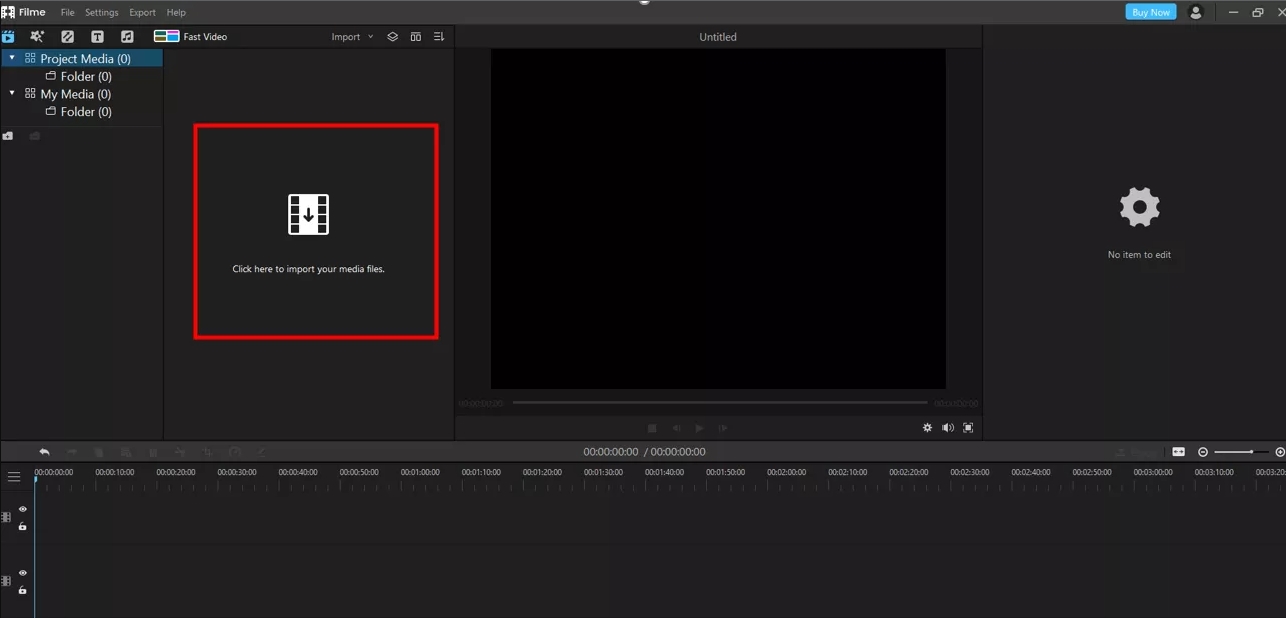
Launch the software and import the video you want to edit. Click on the video to add it to the Filme timeline.
Step 3
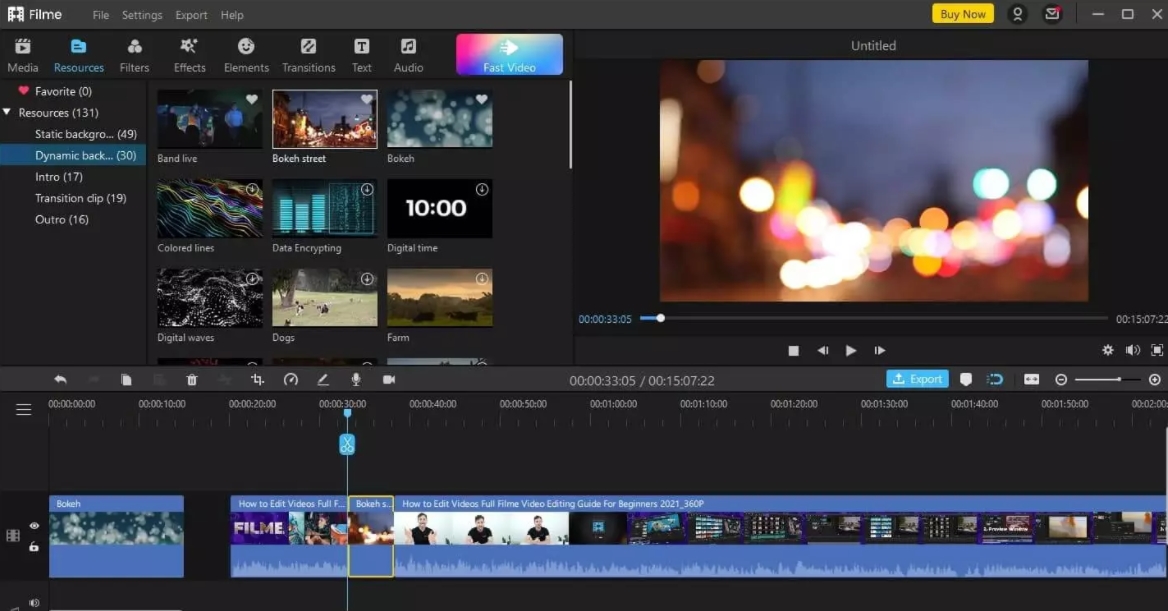
Now, click on Resources in the top tab. You will see Dynamic background and Static background in the right tab.
Depending on your video, select an option and choose the background. Click Apply to make the changes.
Step 4
The software will take a few seconds to process and produce a new video without a background. Apply other video effects if you wish.
Step 5
Finally, click Export and choose the video output format to save it on your computer.

Part 2 : Remove Background from Video Online Without Software
If you are one of the users who want to remove the background from a video without installing any third-party software on your computer, we have the perfect solution for you.
Unscreen Background Remover is an online tool that uses advanced algorithms to professionally clean the video background. The best part about Unscreen is that you don’t have to go through any technical process. It automatically removes the video background and creates pixels and colors to give your videos a natural look.
Note that Unscreen is not for professional users or those looking for high-quality results. It’s a basic tool with limited capabilities to produce stellar outputs. Its free version allows you to edit a video of up to 5 seconds, which is definitely unsatisfactory and will kill the deal for many users.
Therefore, you will need to purchase its paid plan to remove the background from a longer video. Our research shows that Unlocker is still a reliable service to accomplish your task.
Guide to Using Unscreen Background Remover
Here’s how to use Unscreen to remove the background:
Step 1
From your web browser, go to the official Unscreen website.
Step 2
On its homepage, click 'Upload Clip' and import a video from your computer.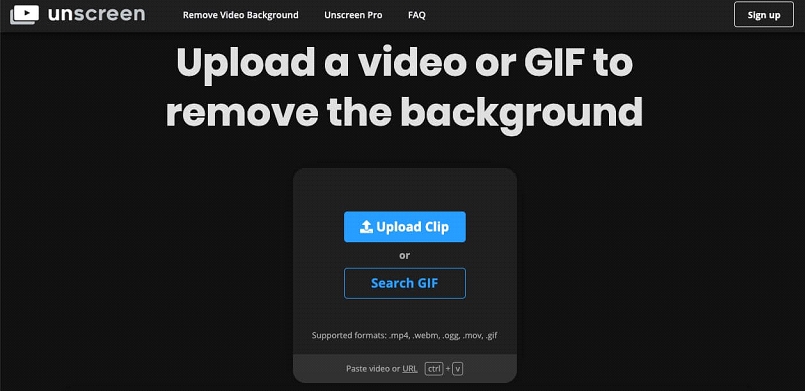 Step 3
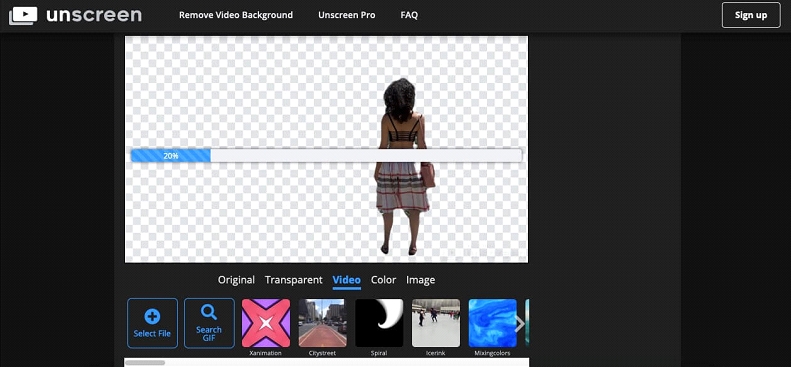
Wait for the video to upload to the software. Sometimes, the upload process takes a bit of time.
Step 4
Next, Unscreen will automatically make the background transparent without applying any process.
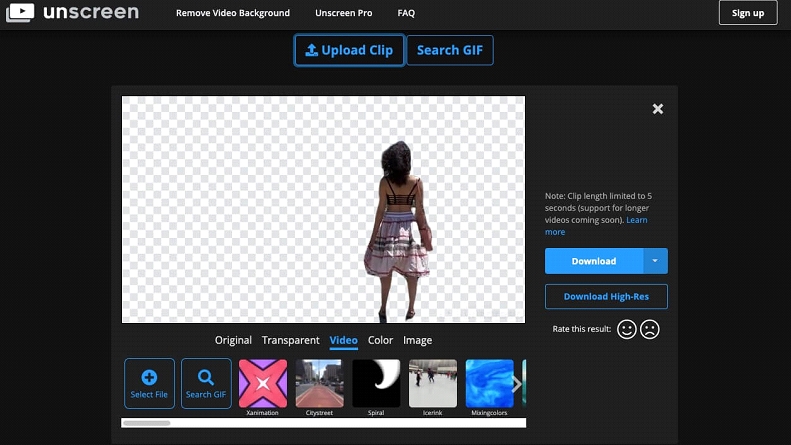
Step 5
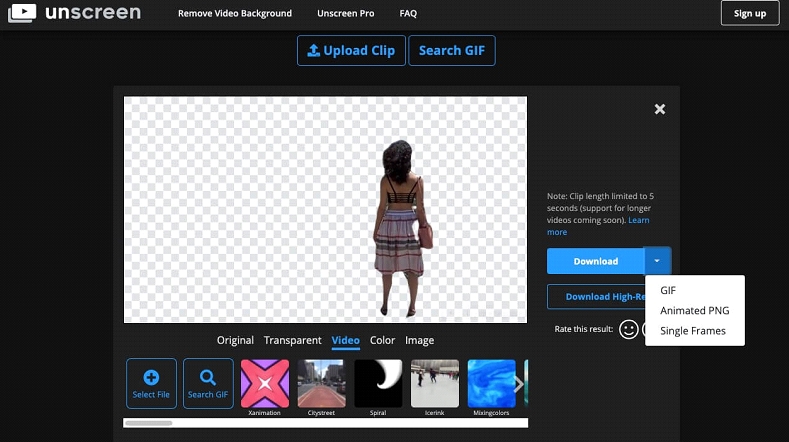
Now, you can add colors, images, or other effects to the background as needed. Or you can download the video with a transparent background.
Click 'download' to save the output file to your computer.
Part 3. Why You Need to Remove Video Background
Here are some common reasons filmmakers or anyone using videos choose to remove the video background.
- Eliminate Unnecessary ElementsIf your video contains a few unwanted items, making the background transparent is a good choice. Cleaning up more than one element in the video can be a daunting and time-consuming task.
Change Your SurroundingsMost professional studios or YouTube content creators tend to change the video background to a more ideal and appealing one. It gives a satisfying effect to the audience and encourages them to watch the video.
Enhance Visual Impact
For videos or promotional ads, it’s always best to add more effects and animations to the video. Removing the background first makes it easier to make changes. You can then replace the background with a specific and more impactful setting to grab the attention of your target audience.- Surprise your friends with tricks by wearing your favorite outfit, creating a video in your garden, and then replacing the background with the Leaning Tower of Pisa or any impressive building in the background? Why not use this trick to prank your friends!
Conclusion
To sum it all up, this article provided a comprehensive guide on how to safely and quickly remove the background from a video. It shows that getting rid of unwanted backgrounds is not as complicated as it may seem. With the guidelines mentioned above, you can easily achieve the goal while sitting comfortably at home.
Based on our research, we recommend users install the iMyFone Filme Video Editor to remove video backgrounds in a flash. Feel free to ask any questions.
- Suggested Topics You Might Like
- How to Speed Up Video on Adobe Premiere - Premiere Pro
- <a href="https://3almalt9


