


Your Mac has much more to offer than meets the eye. Some hidden features can save you from tricky situations. Keep reading this article to discover 12 hidden features of your MacBook that you should know about.
Here, we highlight 12 hidden features of the MacBook that will help you make the most of your device.
12 Hidden Features of the MacBook You Should Know
In our opinion, you should try the following Mac features, which will undoubtedly enhance your work performance and boost your productivity.
1. Merging Folders
Let’s say you have two folders with the same name, but you don’t want to replace either. What’s the solution? Well, you can simply merge these folders. Yes, merging folders is one of the hidden features of the MacBook.
You can hold down the Option key and try dragging the folder to get the merge option that combines the original folder and the destination folder into one.
2. Adding a Media Player to the Menu Bar
You can easily pin a media player to your Mac's menu bar, allowing you to pause, play, or make other adjustments to your media. Just go to System Preferences, select Dock & Menu Bar, choose Now Playing, and check the Show in Menu Bar option.
3. Creating a Signature
Signing documents on a Mac has always been a bit tricky, hasn’t it? But now it’s one of the easiest things you can do using the hidden features of macOS. To add a signature, open the document in Preview, go to the annotation toolbar, select the signature option, create a signature using the built-in iSight, and follow the on-screen wizard to sign your document.
4. Text to Speech
Does your work involve a lot of writing? We understand that continuous typing can often be exhausting, and your Mac probably knows that too. Therefore, text-to-speech is among the best hidden Mac features we’ve seen so far.
With this option on your MacBook, you can let your voice do all the writing. To dictate, press the Function (fn) key twice, select Start Dictation, start speaking, and press the Function (fn) key again to convert your speech into text.
5. Trigger Actions with Hot Corners
Hot corners are one of the most useful and interesting hidden features of the Mac. You can easily enable hot corners by going to System Preferences, selecting Desktop & Screen Saver, choosing the Screen Saver tab, and then selecting Hot Corners.
6. Creating a New Desktop
The new macOS Lion has a feature that allows you to create a new desktop with ease. To get an additional desktop with this hidden feature of the MacBook, hover your mouse over Mission Control to get the "+" tab, then drag and drop the windows you want to move to the new desktop onto this "+".
In our opinion, one of the best hidden features on Mac is keeping our work and personal space on the computer more organized and separated.
7. Deleting Apps via Launchpad
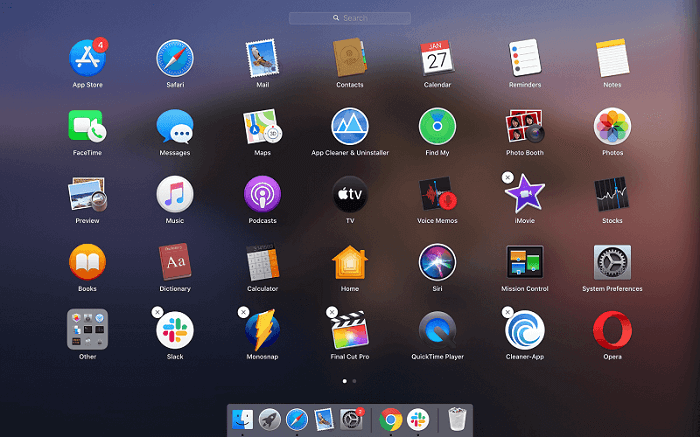
Storage issues on Macs seem to be a common complaint, meaning users often struggle with little to no space for important files and applications. In such cases, deleting old and unused apps is the way to tidy up the device, but sometimes it’s not the easiest task.
That’s why Launchpad has one of the most useful hidden Mac features that lets you manage space-consuming apps effortlessly. You just need to follow a few simple steps to delete apps through Launchpad.
Access Launchpad, hold down the Option key to enter jiggle mode, and click the cross icon to remove the apps you don’t want. It reminds you of iOS, doesn’t it? Well, we thought the same when using this feature.
8. Auto-Complete Words
This is one of the coolest hidden features of the MacBook! It saves a lot of time and effort, and if you’re unsure about how to spell a certain word, it helps you spell it correctly.
If you want to auto-complete words while typing, you can use the F5 key or the Option key with the Escape key to get a list of all the spellings of the word you’re typing on the screen, and then you can choose from the suggested spellings.
9. Keyboard Shortcut for Emojis
Emojis make any conversation interesting, but finding the right emoji quickly and at the right time isn’t as easy as it seems. Therefore, Mac has a hidden feature to add an emoji keyboard shortcut for your convenience.
To add the emoji shortcut, click on any text box and apply the CTL+CMD+SPACEBAR command on your keyboard.
10. Creating a Meme
Memes make people smile. They are very popular these days across the web and social media apps, and you can also become a meme creator using the best hidden features of the MacBook.
It’s an easy way to create memes on your Mac. You can do this simply by opening the image (that you want to turn into a meme), launching the markup tool, and adding text at the top of the image.
After adding the text, you can even adjust the color and other settings to get the meme look. Once you create the meme, you can save/export it in the desired format.
11. Quick Access to Files and Folders via the Dock
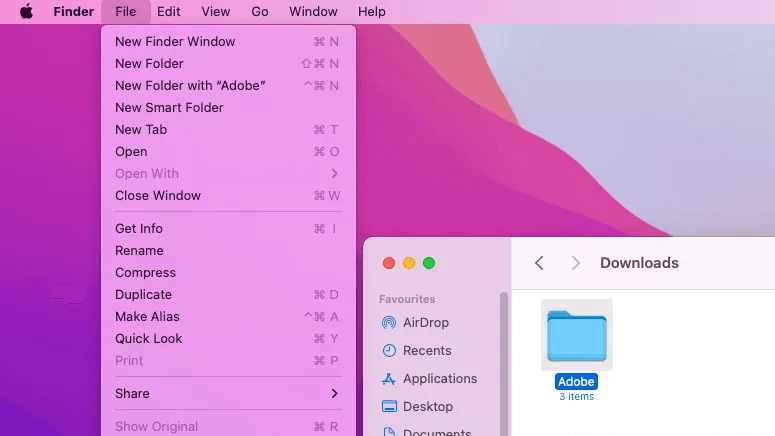
Often, you need to access a specific file or folder as quickly as possible. In such cases, one of the hidden Mac features can be quite helpful. You can pin your most-used files and folders to the Dock for quick access.
Pinning files/folders to the Dock doesn’t require much effort. You can go to the location of the desired file or folder, click on it, select the file option from the top menu, hold down the Shift key on your keyboard, and choose the option to add to the Dock.
Another option is to use the keyboard shortcut Ctrl+Cmd+Shift+T to pin the required files or folders to the Dock.
12. Do Not Disturb Toggle
When focusing on any critical task, you might not want to receive any notifications. You may want to turn off all notifications to keep your focus intact, but the process of disabling them seems quite tedious, doesn’t it?
Well, disabling notifications takes a lot of time until you use these hidden features of the MacBook to deactivate them. This feature allows you to turn off alerts by enabling Do Not Disturb mode on your Mac.
Conclusion
This article guides you through 12 hidden features of the MacBook that you may find extremely useful. If you’d like to add something to our list or have something to discuss, feel free to share your thoughts in the comments section. Moreover, we’d love to know which hidden Mac features you have tried. Take care!


