


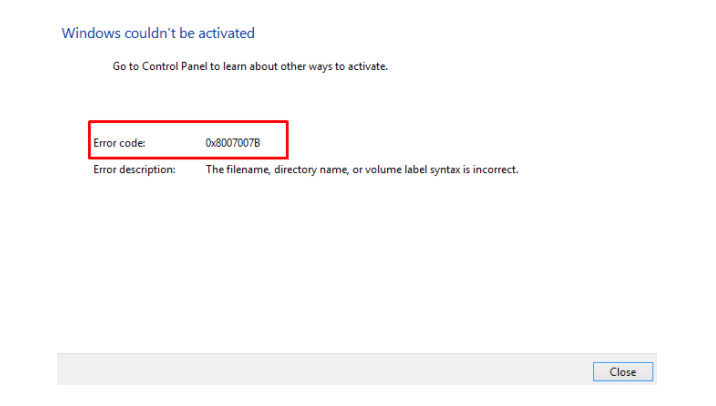
While trying to activate Windows 10, many users encounter the error 0x8007007B on their computers. This error typically occurs during a clean installation of the operating system via the Media Creation Tool or when entering product keys. Today, in this post, we discuss some practical solutions to eliminate this annoying issue and activate Windows 10.
Generally, the error code 0x8007007B appears if you are using a non-genuine product key or if the system files have become outdated. This issue may also arise when the Key Management Service is not functioning properly. To resolve the frequently occurring error message, you should manually update the product key using the command lines SLUI 3 or Slmgr -ipk. To check for and repair missing system files, you can use the SFC utility. If the error persists even after that, please visit the official Microsoft website to purchase a new license key.
3 Guaranteed Ways to Fix Error 0x8007007B in Windows 10
Here’s how to fix error 0x8007007B while activating Windows 10 on your computer -
1. Manually Update the Windows Product Key
The activation error usually appears when the Key Management Server fails to recognize the original product key. If this is the case, you need to either update the correct Windows product key or use a digital license. Here’s how to do this -
- Click on the search icon and type cmd in the search bar.
- Right-click on the top result and select Run as Administrator.
- If a User Account Control window pops up, click Yes.
- When the command prompt opens, copy/paste the code below and press Enter.
slmgr -ipk xxxxx – xxxxx – xxxxx – xxxxx – xxxxx
Note: The placeholders in the above code represent the original Windows 10 product key.
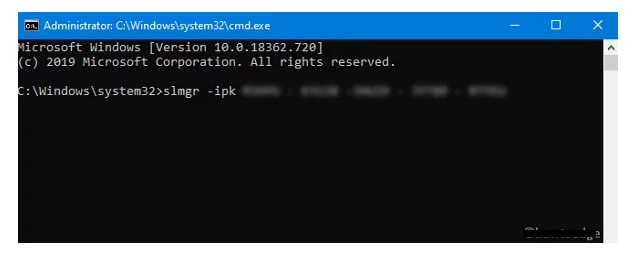
- If you have set any password, enter it and press the Enter key. Wait a moment as this takes a few seconds to activate the operating system.
- Finally, you will see a pop-up message saying "Windows 10 has been activated successfully."
2. Try the SLUI 3 Command
If the above method fails to fix the Windows activation error 0x8007007B, you should run the SLUI 3 command. To do this, follow these simple steps -
- Press the Win and R keys together to open the Run dialog.
- Type cmd in the box, then press Ctrl & Shift followed by Enter.
- When the User Account Control window appears, click Yes.
- Now, copy/paste the code below followed by your Windows recovery product key -
slui 3 xxxxx – xxxxx – xxxxx – xxxxx – xxxxx
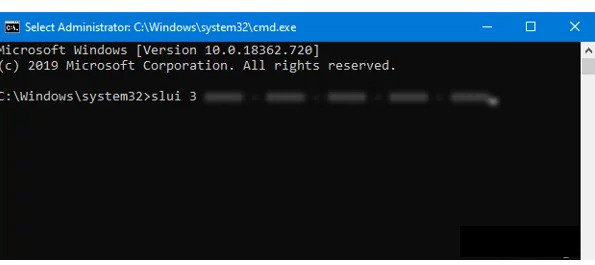
Note: Here, x represents the Windows activation key with a split between every five digits.
- Once done, restart your computer and check if it has fixed the error 0x8007007B.
3. Scan System Files Using SFC Code
In some cases, this is not an activation issue, so using the original keys will not resolve the error message. Essentially, this error may also occur if some system files are missing or corrupted. To mitigate this issue, you need to perform a full scan of your computer for potential corrupted files and repair them. We suggest using the SFC utility to carry out this task. Here’s how to proceed -
- Right-click anywhere on the taskbar and select Task Manager.
- Go to the File menu and select Run new task.
- In the pop-up window, type cmd (admin) and press the OK button.
- Now, type the code sfc/scannow in the elevated command prompt and press the Enter key.
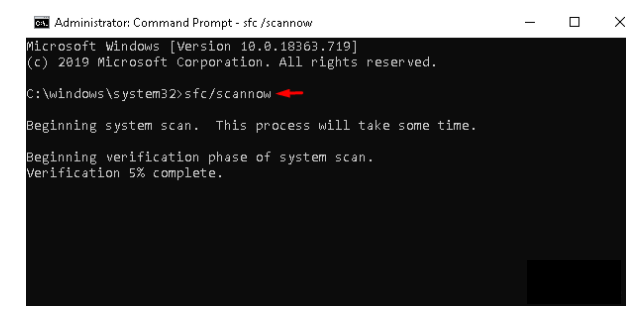
- This usually takes a few minutes to scan and repair missing/old system files, so please wait accordingly.
Once that’s done, restart your computer to confirm the changes made so far.


