

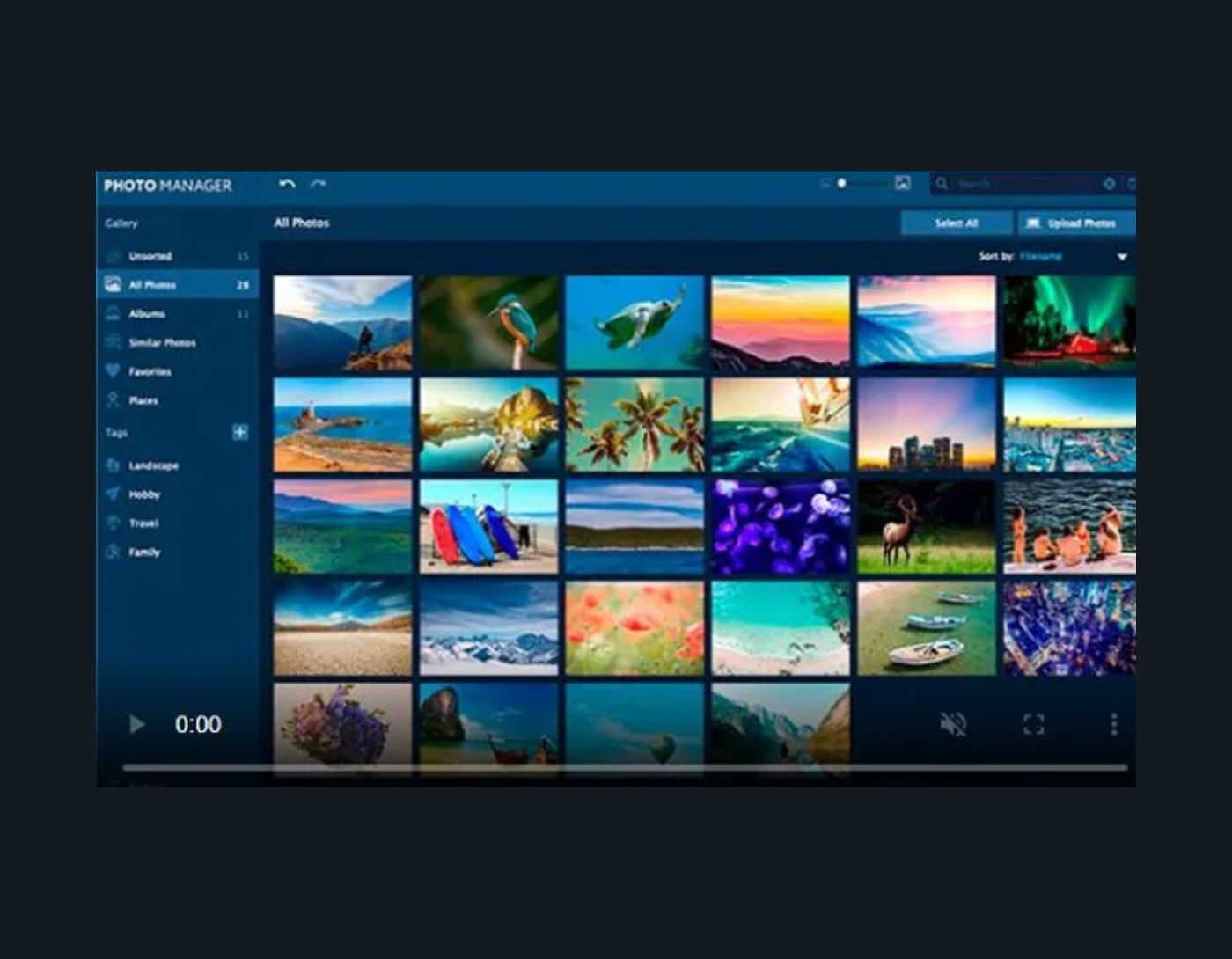

Download a Program to Open Images in All Formats
Activating the Photo Viewer in Windows 10
Images in Windows 10
Download Images for Windows 10
Reinstall Windows Photo Viewer for Windows 10
If you want to view some images stored on your computer, the best image viewer for Windows is the built-in one, aptly named Windows Photo Viewer.
Over time, the program has seen older and newer alternatives from third parties emerge, and Microsoft has also introduced the new Photos app to Windows 10 (and Windows 8), which now handles all your images and videos, along with some video editing on the side.
So, in this list, I’ve compiled some of the best photo viewer applications for Windows 10 for your device. Some of the apps mentioned also work on older versions.
1. Microsoft Photos - The Official Alternative to Windows Photo Viewer
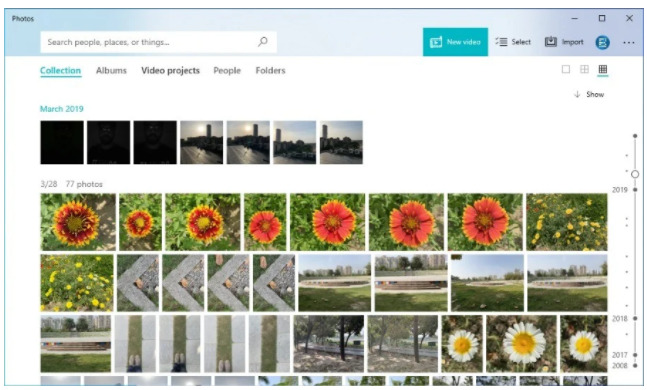
If you’re using Windows 10, the Photos app is likely the most readily available image viewer you can find anywhere. You don’t even need to install it as it comes pre-loaded with Windows 10. So, you can start creating your custom Windows photo gallery within minutes, even if you have a brand-new PC from the store.
What’s Great About Windows 10 Photos?
This image viewer for Windows has a nice, streamlined user interface that aligns well with other Microsoft applications.
- Image management in this photo viewer is good.
- It automatically organizes images and videos in a scrollable timeline.
- You can import images from device folders and external media like smartphones and cameras.
- The built-in search box works great. It can perform context-based searches.
- It provides a share button to send images and videos directly from within the app and upload them to cloud services.
- Microsoft Photos includes a built-in video editor that works well enough for light editing.
What’s Not So Great?
- Sometimes, the app has performance issues, or it doesn’t run smoothly or loads images slowly.
2. 123 Photo Viewer - A Simple and Easy Photo Viewer for Windows 10
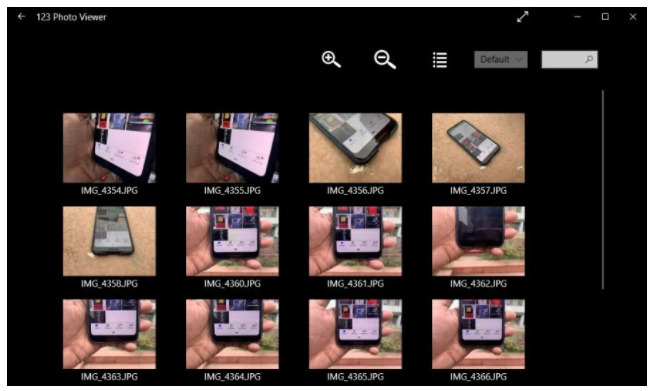
If you’re not satisfied with the experience provided by the Photos app, there’s another UWP-based photo viewer for Windows 10 called 123 Photo Viewer.
123 Photo Viewer has been around since 2014 and presents itself as the best photo viewer for users who don’t want to deal with a lot of flair and presentation.
What’s Great About 123 Photo Viewer?
- This Windows photo viewer comes with hassle-free navigation and a simple user interface.
- Users can add and view images from local folders and cloud storage in OneDrive.
- Switching between images is very easy and can be done using the mouse.
- It offers various filters and effects for image editing.
- It also doubles as a slideshow viewer for those who want to sit back and relax.
- Batch image format change: This feature allows you to change the format of multiple images at once.
- It supports common image formats including JPEG, PNG, etc., as well as animated GIFs and WEBP.
What’s Not So Great?
- The look and feel of this photo viewer app in Windows may not appeal to some users. It doesn’t automatically detect folders and images on your computer (it can do so for added folders).
3. Google Photos - The Best Online Photo Viewer for Cross-Device Experience
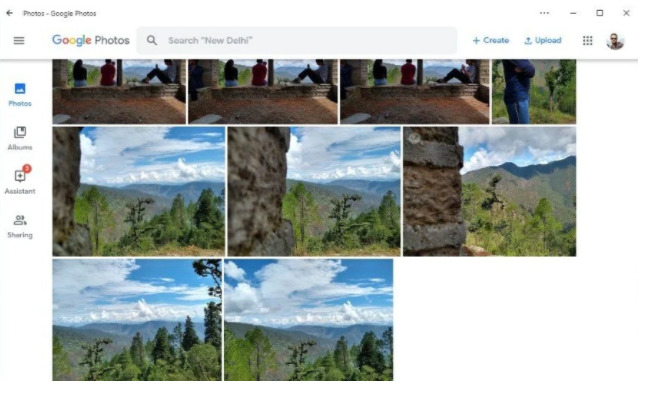
Google Photos isn’t your typical photo viewer for Windows 10, but it can be an incredibly useful tool in today’s era of cross-device experience. What I mean is that most of us snap photos using our phones. With Google Photos, you can store all your images and videos in the cloud and access them anytime on your computer or phone.
One of the standout features of Google Photos is the search bar. Well, I don’t need to tell you how effective Google’s search is. So, you can simply type, “Show me my pictures in the mountains,” and it will display the relevant images on your screen.
It’s completely free to use. All you need to do is save the Google Photos site as a PWA. You can upload images from your computer using Google’s Backup and Sync tool.
What’s Great About Google Photos?
- It probably has the best user interface of all the photo viewers on this list.
- It supports a variety of image formats.
- Google Photos provides access to images and videos across multiple devices.
- It frees up space on your computer by keeping data in the cloud.
- You can upload images from both your computer and phone.
- It supports image editing options like cropping, rotating, filters, etc.
- It can automatically fix photos taken in poor lighting conditions.
- You can easily create albums and share them with others.
- It offers AI-powered facial recognition tags in photos (it can even tag your face).
What’s Not So Great?
- There’s no dedicated app.
- It requires an internet connection to view your photos stored in the cloud (on your PC).
4. Apowersoft Photo Viewer - More Than Just a Windows Photo Viewer
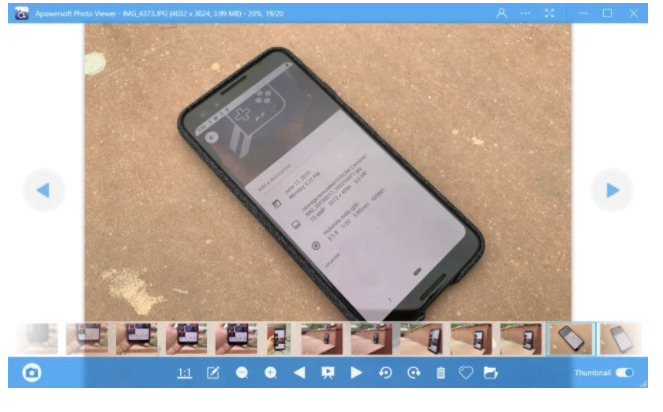
- It’s one of the best free photo viewers for Windows 10, as it, unlike Microsoft Photos, does not support videos.
- Apowersoft is a Hong Kong-based software company that creates utilities for the Windows operating system. I’ve also used Apowersoft’s screen recording tool, and Apowersoft Photo Viewer doesn’t disappoint either.
What’s Great About Apowersoft Photo Viewer?
- The user interface of this app is nice and streamlined, but navigating through the app isn’t always easy.
- This photo viewer for Windows 10 supports a variety of image formats, including PNG, BMP, RAW, GIF, TIFF, etc., and it also works with the PSD file format used in Photoshop.
- It also functions as a PDF reader application.
- It comes with a built-in image editing tool similar to MS Paint.
- It offers batch processing for images to change their formats and file names.
- It includes a screenshot tool with various modes.
What’s Not So Great?
- The dashboard panel at the bottom disappears automatically, making the app difficult and annoying to use.
- When importing images, one cannot add a whole folder of images directly.</li


