


5 Ways to Fix Missing Bootmgr Error: One beautiful morning, you turned on your laptop and were suddenly greeted with the error message:
⚠ Bootmgr is missing Press CTRL + ALT + DEL to restart.
You restarted your computer by pressing CTRL + ALT + DEL, but you kept getting the same message over and over again. You won't be able to boot your computer and log into your Windows account, and this error will appear after every restart.
If you want to know how to fix the missing Bootmgr error and resolve startup issues, read this article and apply the methods.
How to Fix Bootmgr Error on Windows 8, 10, and 11?
Bootmgr is the Windows boot manager that loads all installed Windows operating systems at startup and allows you to choose which operating system to boot. If Bootmgr is corrupted, you won't be able to start Windows, and you'll see the missing Bootmgr error at startup.
Method 1: Repair Using Advanced System Repair Tool
The missing Bootmgr error is often due to corrupted system files, or missing DLL files, incompatible driver installations, or boot sector viruses or malware, etc.
To fix this issue, boot your computer in safe mode and then install the advanced system repair tool. Run this tool and let it fix your Windows startup issues. This tool not only repairs system damage but also optimizes your computer for better performance.
Windows consists of a large number of dll files, exe files, sys files, various types of services, databases, and so on, so it's not possible to constantly monitor all files. This great PC optimization tool repairs damages, fixes errors, updates Windows and drivers, and silently removes various types of bugs.
The Outbyte PC Repair Tool handles all the above tasks effortlessly and provides you with a smooth and error-free Windows environment to work in so you can focus solely on your work.
3 Steps to Fix This Error
Step 1. Download the Outbyte PC Repair Tool [File Size: 16.4 MB]
Step 2. Scan your Windows computer.
Step 3. Click the "Repair" button to fix the error.
Method 2: Run Startup Repair from the Advanced WinRE Menu.
This is a type of startup issue, so you can fix it by performing a startup repair. Startup repair is an advanced mechanism that removes startup errors and allows you to log into your Windows account. You can perform a startup repair as follows:
Step 1: Boot your computer using Windows installation media. The Windows installation wizard will open. Click Next.
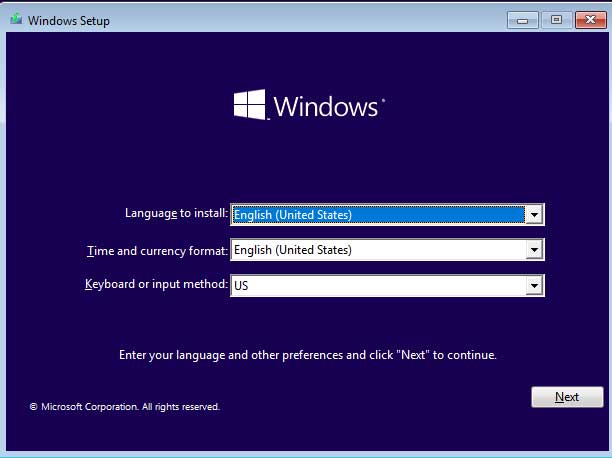
Installing Windows Operating System
Step 2: Select Repair your computer.
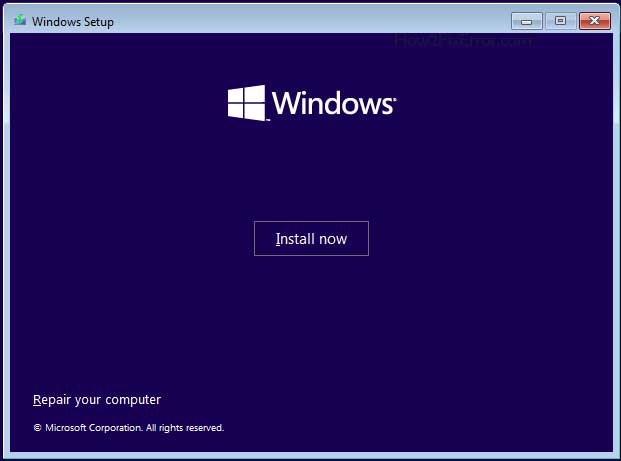
Repair your computer option for Windows 10 and 11
Step 3: The advanced options or Windows Recovery Environment will open.
Step 4: Go to Troubleshoot.
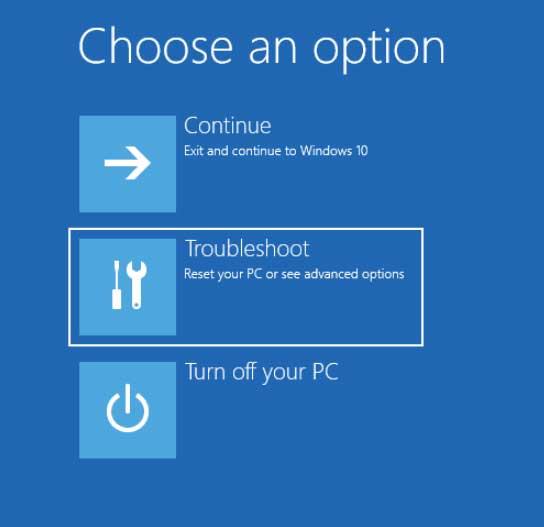
Troubleshoot in the advanced startup menu for Windows 10 and 11
Step 5: Choose Advanced options.
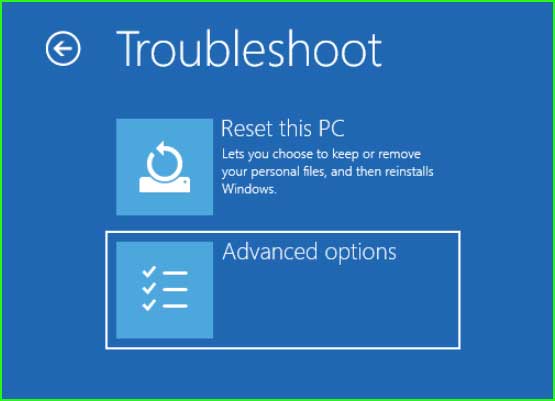
Advanced options for Windows 10 and 11
Step 6: Select Startup Repair.
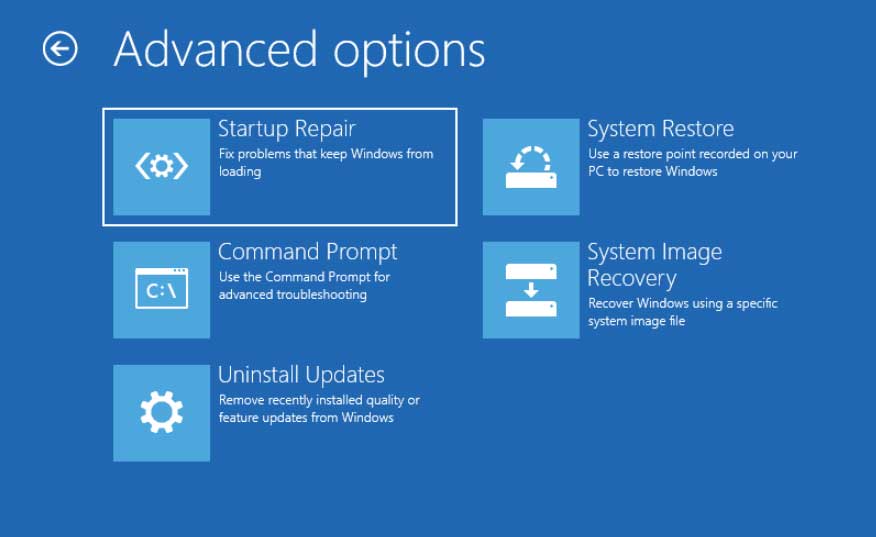
Startup Repair for Windows 11 and 10
Step 7: Select the operating system.
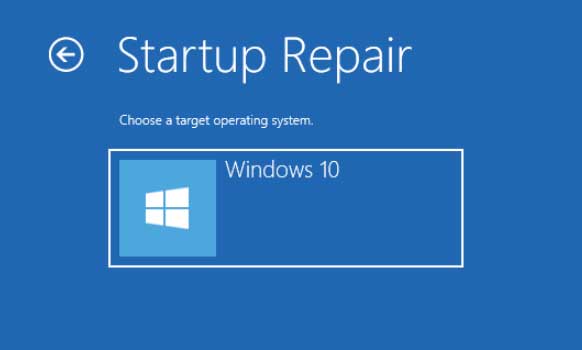
Startup Repair - Select Operating System
Step 8: Your computer will start diagnosing, please wait until the process is complete.
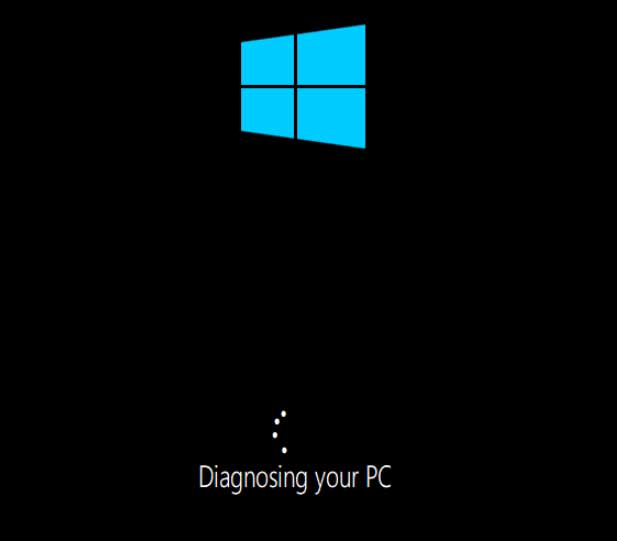
Diagnosing Windows 10 and 11
Method 3: Restore Boot Configuration Data (BCD)
Boot Configuration Data is like a database that stores settings information related to booting. If the Boot Configuration Data (BCD) is corrupted or inaccessible, Windows won't be able to read the boot settings and will display the missing Bootmgr message.
There is a way to rebuild or restore the Boot Configuration Data, just follow the steps below to restore the BCD.
Step 1: Boot your computer using Windows installation media, the Windows installation wizard will open. Click Next.
Installing Windows Operating System
Step 2: Select Repair your computer.
Repair your computer option for Windows 10 and 11
Step 3: The advanced startup options or Windows Recovery Environment will open. Click Troubleshoot.
Troubleshoot in the advanced startup menu for Windows 10 and 11
Step 4: Select Command Prompt.
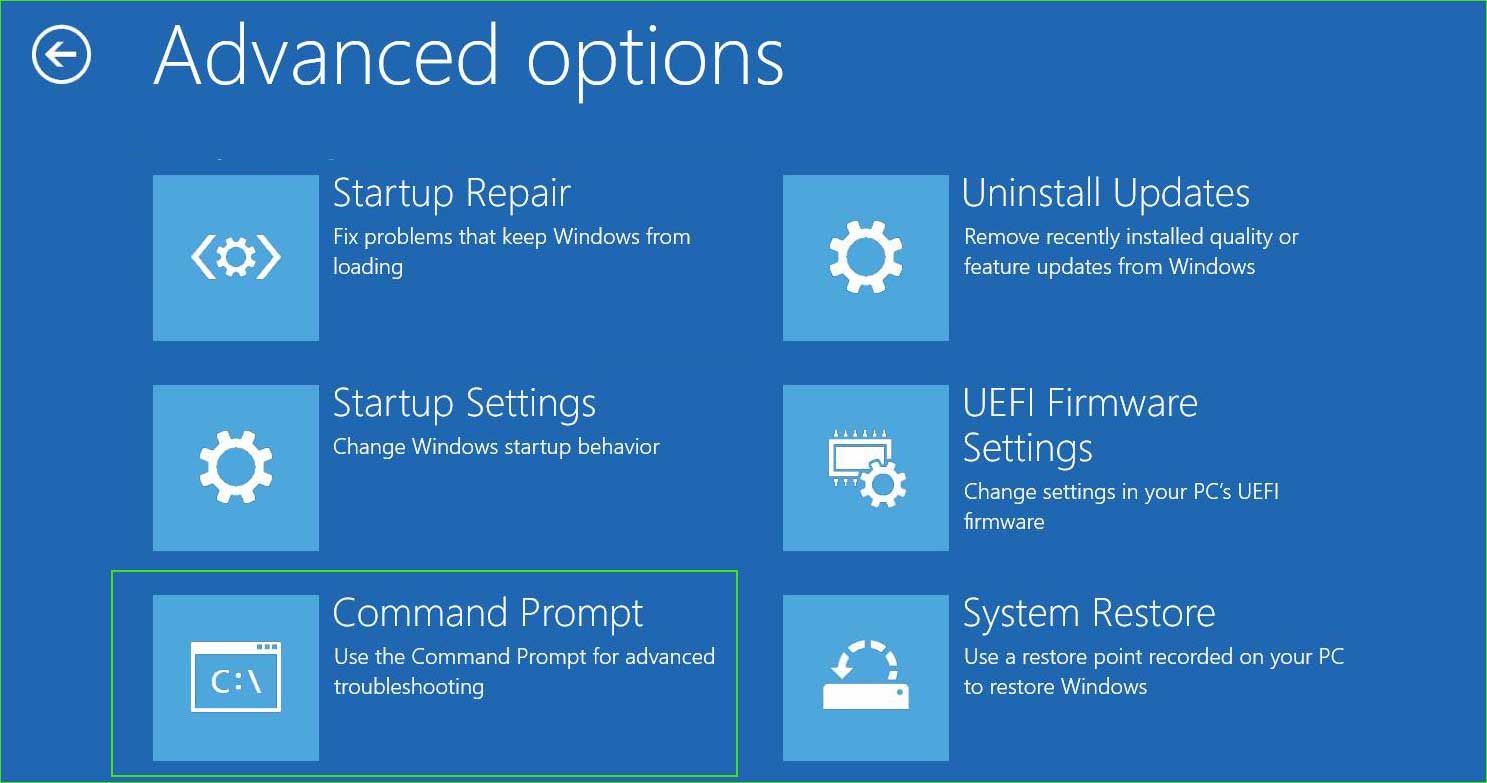
open_command_prompt in advanced startup options
Step 5: Type the following commands and press Enter to execute them.
bootrec /fixmbr
bootrec /fixboot
bootrec /RebuildBcd
Step 6: Now restart your computer, and you shouldn't see the Bootmgr is missing error message at boot.
Method 4: System Restore
System Restore is another good way to fix your computer. When you install or uninstall any applications, Windows creates a restore point automatically. This restore point is used to revert your operating system in case anything goes wrong. Here’s the complete guide on how to restore your computer using the System Restore feature.
Step 1: Follow steps 1 to 5 from Method 2 to open Troubleshoot ➜ Advanced options in WinRE.
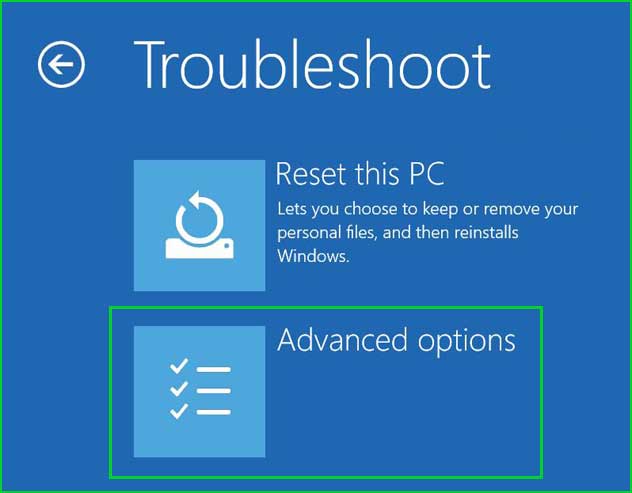
Advanced option in the advanced menu for Windows 10 and 11
Step 2: Select the System Restore option.
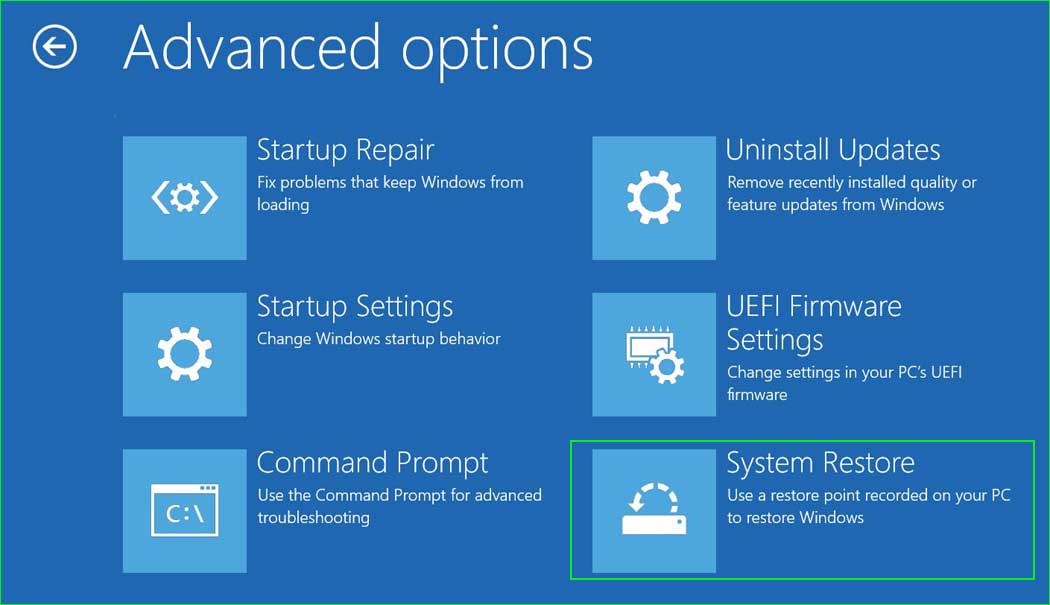
system_restore
Step 3: Click Next.
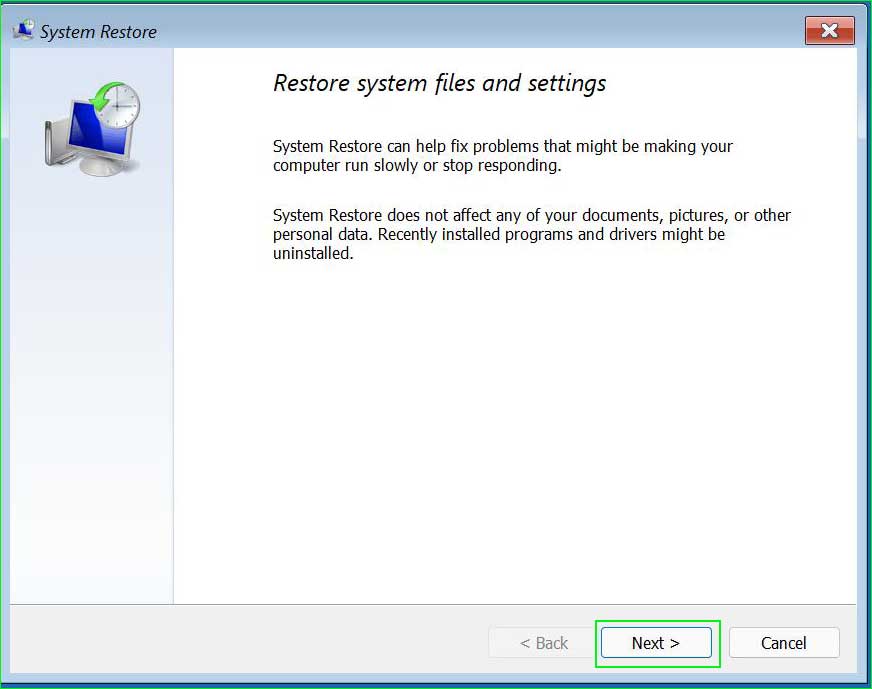
system_restore_1
Step 4: Select a date.
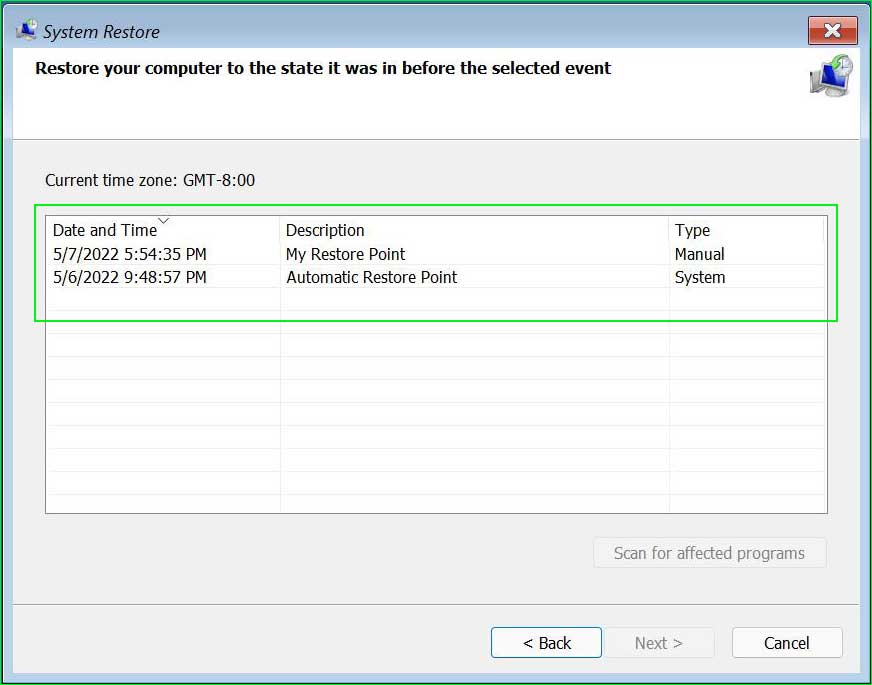
system_restore_2
Step 5: Click Finish to start the restore process.
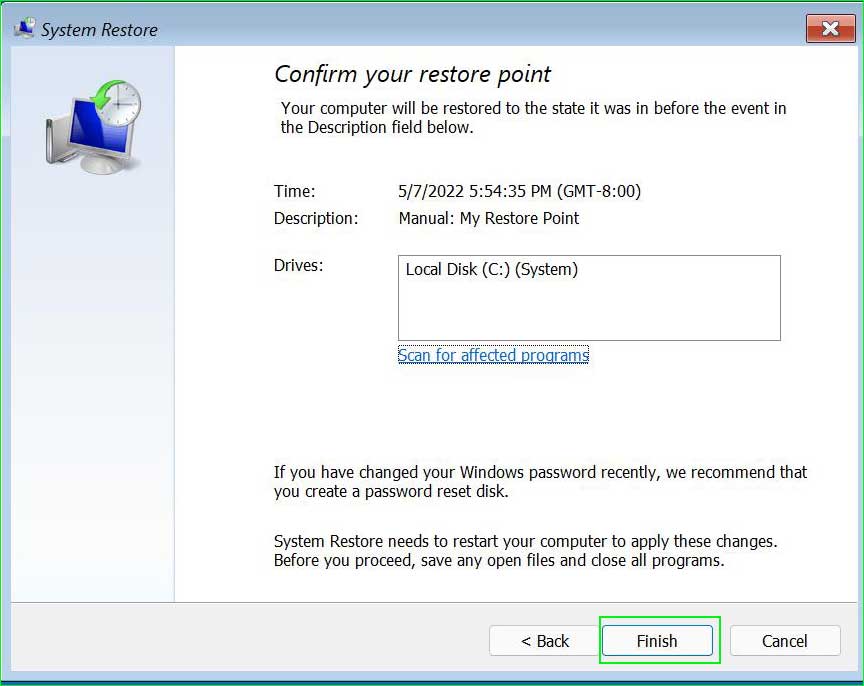
system_restore_3
Method 5: Reseat Internal Hardware
Faulty hardware components like HDD/SSD, RAM, graphics cards, etc., can cause this issue. It's a good idea to remove or disconnect all unused peripherals from your computer and check if the Bootmgr is missing error persists.
If you're a professional user and know some basics of hardware replacement, pull out the RAM and hard drive (HDD/SSD) and all other connected devices to the motherboard and reseat them back in. This method works most of the time and fixes boot-related issues.
Conclusion
If you're encountering the Bootmgr is missing error at startup, apply the solutions from this article. Repairing the Boot Configuration Data (BCD), running Startup Repair, and restoring your computer are great options to fix any boot-related issues on Windows 8, 10, and 11.


