


(7 Ways to Fix Unable to Change Desktop Background on Windows) 7 Ways to Fix Unable to Change Desktop Background on Windows: Changing the desktop background is always a favorite option for Windows users. In Windows 10/11, you can change the desktop background or theme. Windows 10 and 11 also support setting a video as the background for the desktop and lock screen.
However, recently, many Windows 11 users have encountered issues when trying to change their desktop background. Users have reported that they are unable to change the desktop background on Windows 11. If you are facing the same issue, continue reading this article.
You may not be able to change the desktop background if the image file is corrupted, if your version of Windows has not been activated yet, or due to errors in the system file. The actual reason for your inability to change the desktop background on Windows may vary, so you will need to follow a series of troubleshooting methods.
7 Ways to Fix Unable to Change Desktop Background on Windows
If you are unable to change the desktop background on Windows 11, follow the methods below.
Here are some simple solutions to fix the "Unable to Change Desktop Background on Windows" issue.
1) Restart Your Computer
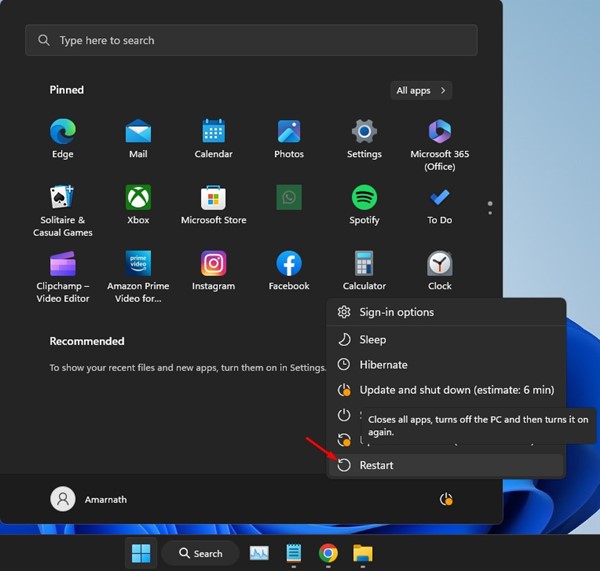
Sometimes, errors in the version of the operating system you are using may prevent you from changing the desktop background. So, if Windows 11 is not displaying the new desktop background, it’s time to restart your computer.
Restarting will also fix other issues that arise due to bugs and glitches. To restart your Windows computer, press the Windows key > and select Restart.
After the restart, try changing the desktop background again. This time, you should be able to change the desktop background on your Windows computer.
2) Update Your Windows System
Another great thing you can do to resolve the issue of being unable to change the desktop background on Windows is to update your operating system to the latest version. Here’s how to update your Windows system.
1. Press the Windows + I keys on your keyboard, which will open the Windows Settings.
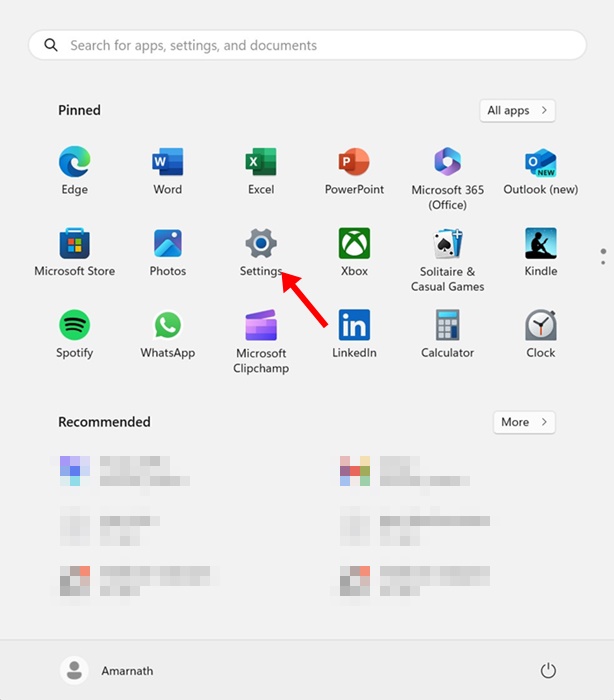
Settings
2. On the left side, switch to the Windows Update tab.
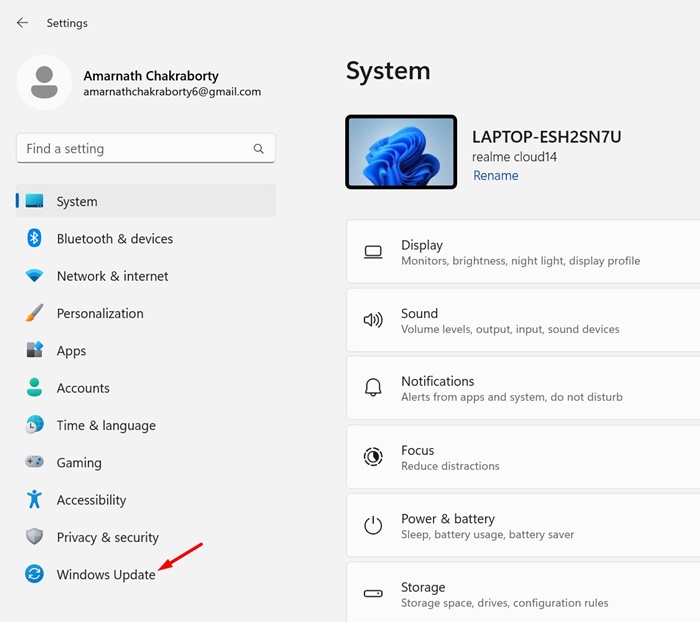
Windows Update
3. On the right side, click on Check for updates.
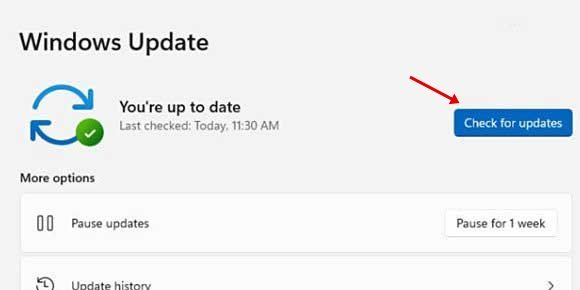
Check for updates
That’s it! Now, Windows will automatically check for pending updates. If any updates are available, click the "Download and Install" button.
3) Check Accessibility Settings
You can make a change to the accessibility settings in Windows to enable the desktop background. Here’s what you need to do.
1. Type Control Panel in the Windows search bar, then open the Control Panel app from the best match results.
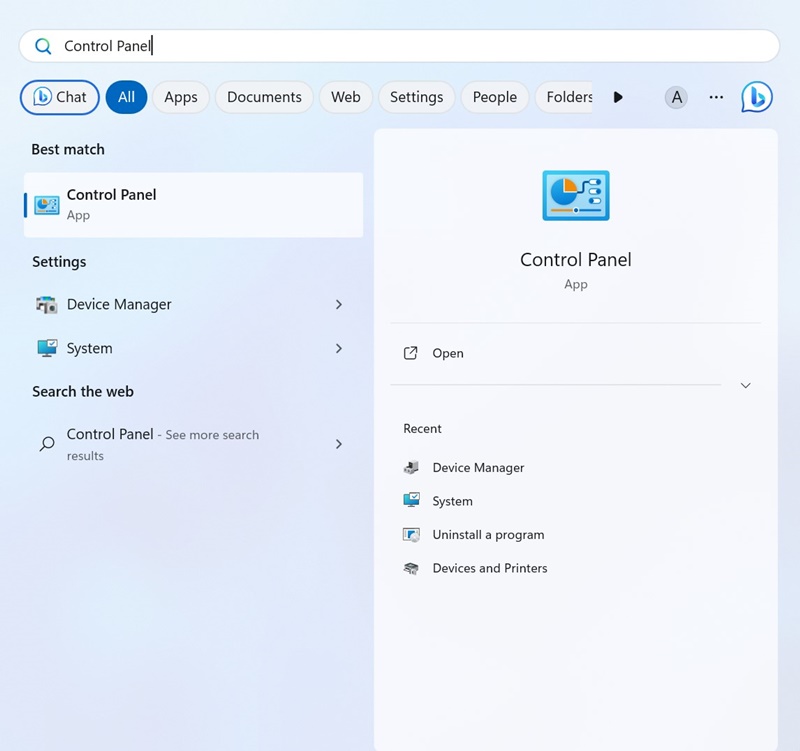
Control Panel
2. When the Control Panel opens, click on Ease of Access.
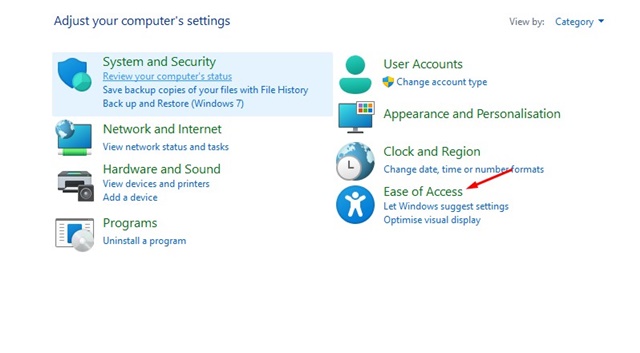
Ease of Access
3. On the next screen, click on the Ease of Access Center.
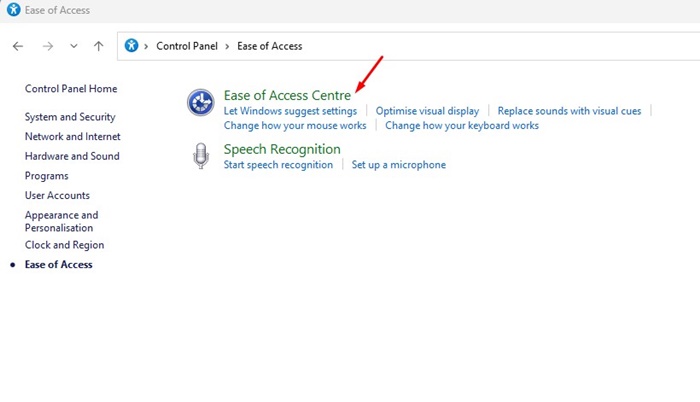
Ease of Access Center
4. Next, under Explore all settings, click on the link Make the computer easier to see.
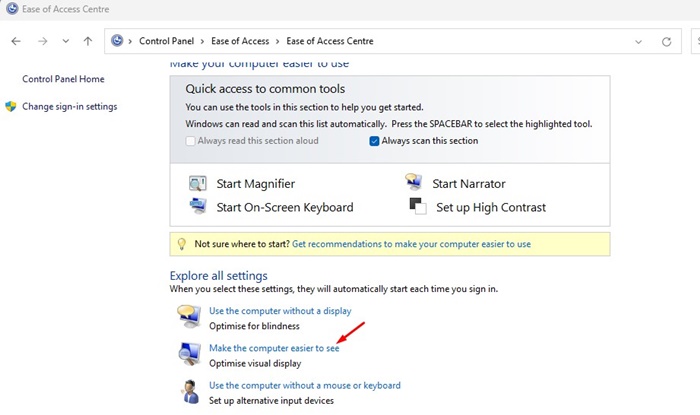
Make the computer easier to see
5. Now, scroll down a bit and make sure to uncheck the Remove background images (wherever possible) option.
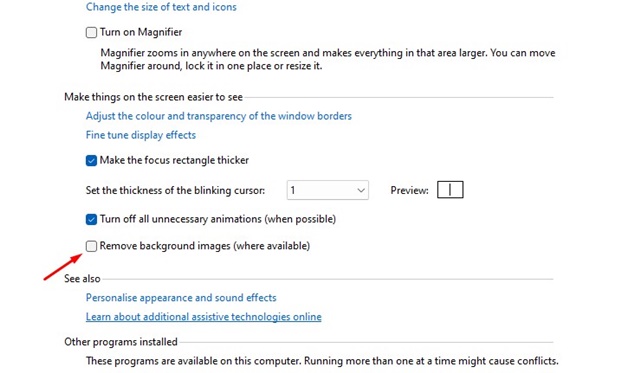
Remove background images (if any)
That’s it! Save the changes and exit the Control Panel app. Now, try changing the desktop background again.
4) Check if Windows is Activated
As we all know, Microsoft prevents users from changing the desktop background if their version of Windows is not activated. So, if your Windows is not activated yet, you won’t be able to change the background image.
Therefore, before trying other methods, you need to check if your Windows operating system has been activated. Here’s how to check the activation status of your Windows version.
1. Press the Windows + I key to open Settings.
Settings
2. When the Settings app opens, switch to the System tab on the left.
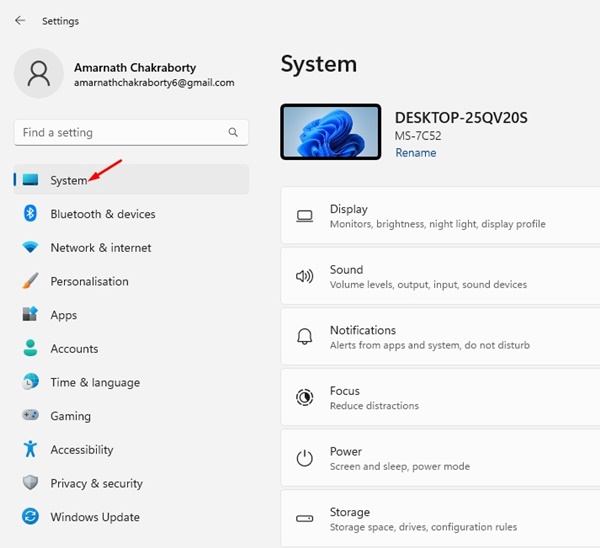
System
3. On the right side, click on Activation.
Activation
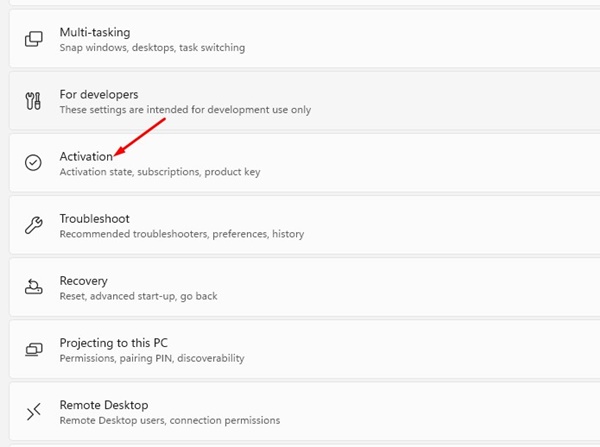
4. Now check the status under Activation state. If it says Activated, that means your Windows operating system is activated.
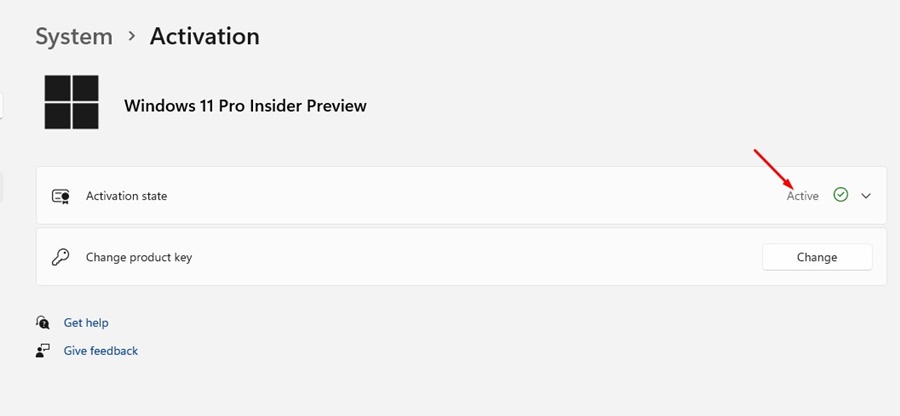
Activated
5. If the status is not activated, you need to activate it before changing the desktop background.
That’s it! This is how you can check the activation status of your Windows version.
5) Make Changes to Local Group Policy
If you often share your computer/laptop with other users, it’s a good idea to check if the Local Group Policy is preventing you from changing the desktop background. Here’s how to enable background changes through the Local Group Policy Editor.
1. Type Local Group Policy Editor in the Windows search bar, then open Edit Group Policy from the list.
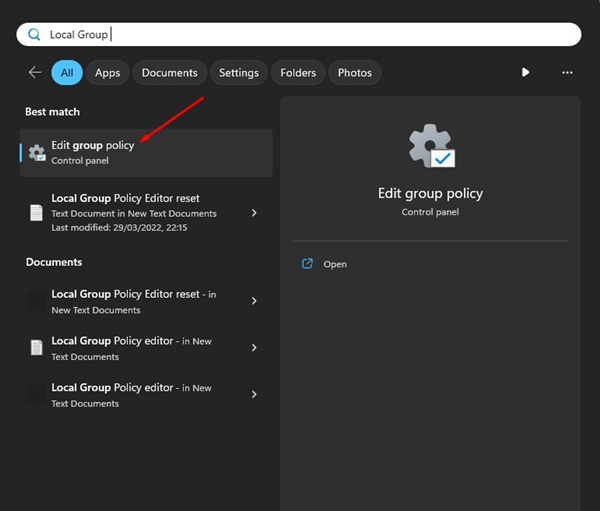
Local Group Policy
2. This will open the Local Group Policy Editor. Navigate to this path:
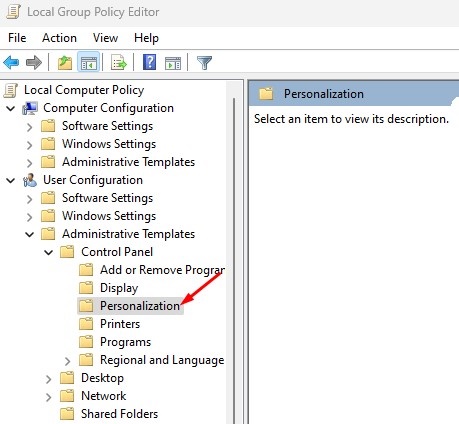
User Configuration > Administrative Templates > Control Panel > Personalization
Navigate to this path
3. On the right side, double-click on the Prevent changing desktop background policy.
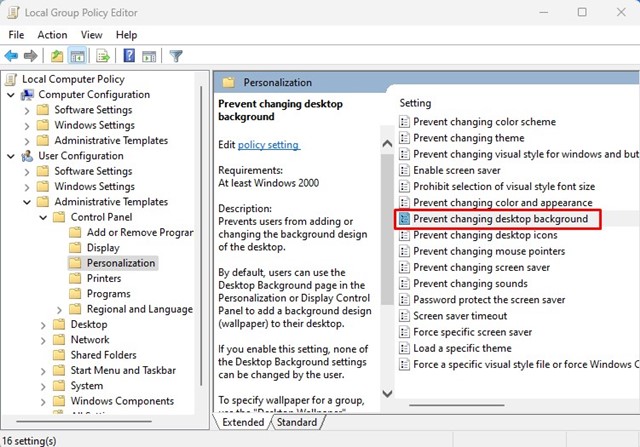
Prevent changing desktop background
4. In the prompt that appears, select either Not Configured or Disabled. Once done, click the Apply button.
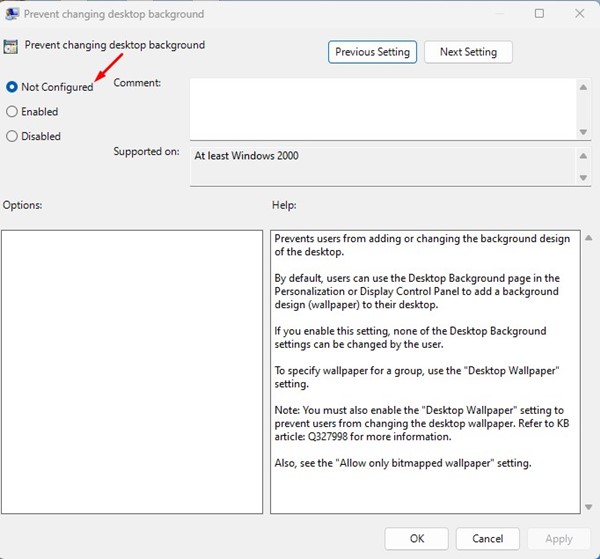
Not Configured
That’s it! Now close the Local Group Policy Editor and restart your Windows computer. After the restart, try changing the desktop background again.
6) Make Changes to the Registry
You can make some minor changes in the Windows Registry Editor to enable changing the desktop background. Here’s what you need to do.
1. Type Registry Editor in the Windows search bar, then open the Registry Editor from the search results.
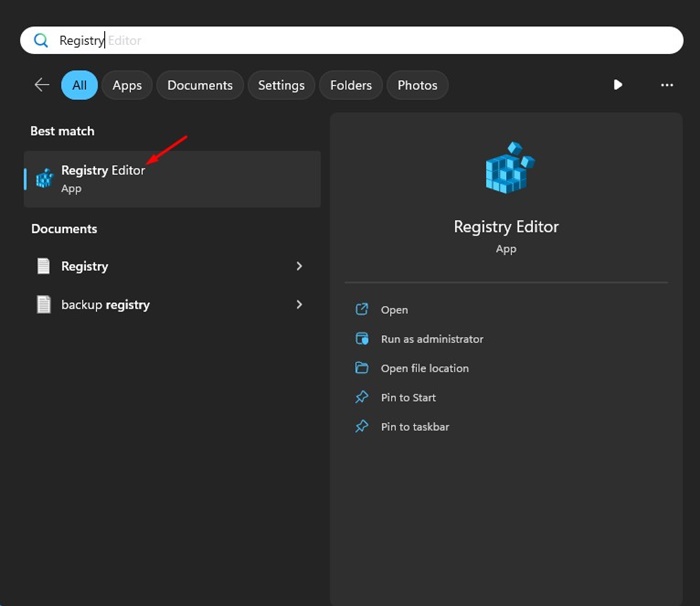
Registry Editor
2. When the Registry Editor opens, navigate to this path:
HKEY_CURRENT_USER\SOFTWARE\Microsoft\Windows\CurrentVersion\Policies\ActiveDesktop
3. On the right side, double-click on the NoChangingWallpaper REG_DWORD key.
4. In the prompt, enter 0 in the Value data field and click OK.
That’s it! After making the changes, close the Registry Editor and restart your Windows computer. After the restart, try changing the desktop background again.
7) Fix the TranscodedWallpaper File
When you set an image as your desktop background or slideshow, Windows automatically imports a copy of it and stores it as the TranscodedWallpaper file. If the TranscodedWallpaper becomes corrupted, you won’t be able to set the background as your desktop background.
Therefore, you can try renaming the background file and see if that helps. Here’s what you need to do.
1. Press the Windows Key + R on your keyboard, which will open the RUN dialog.
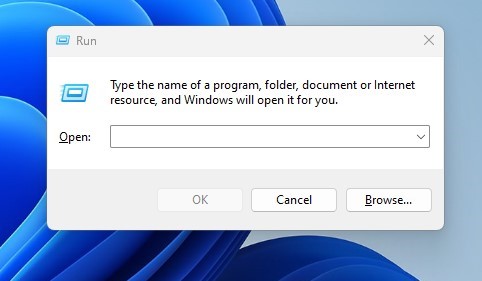
Windows Key + R
2. In the RUN dialog, type the following address and then press the Enter key.
%USERPROFILE%\AppData\Roaming\Microsoft\Windows\Themes\
3. Right-click on TranscodedWallpaper and select Rename from the context menu.
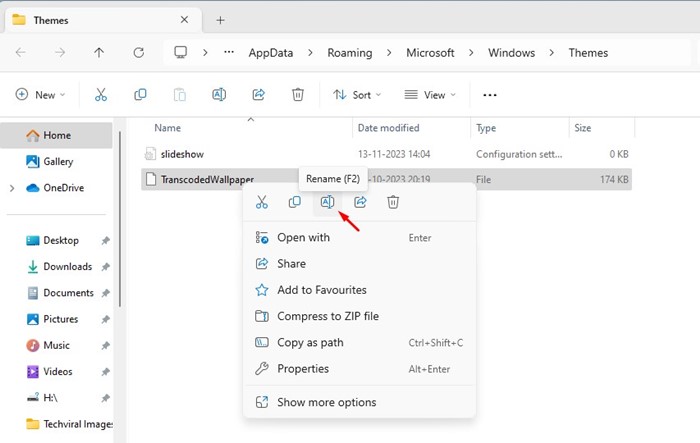
Rename
4. Now rename the TranscodedWallpaper file to TranscodedWallpaper.old
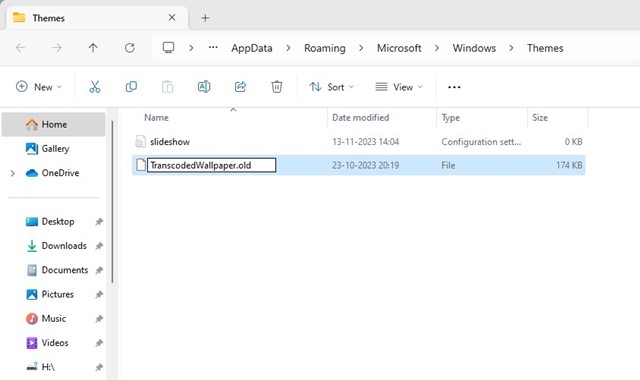
TranscodedWallpaper.old
That’s it! After making the changes, restart your Windows computer. Most likely, the issue of being unable to change the desktop background in Windows has been resolved.
Conclusion
In this article, we discussed 7 ways to fix the issue of being unable to change the desktop background on Windows. These are some of the best methods to resolve the problem of not being able to change the desktop background in Windows. If you followed all the methods, you should now be able to change the desktop background. Let us know if you need further assistance in changing the desktop background in Windows.
You might also like
How to Fix Error 0xc000021a in Windows 10
How to Fix Update Error 0x8024200B or HP Printer Installation Error
Fix Windows Activation Error 0x8007267C
<a href="https://3almalt9nia.com/%d8%b7%d8%b1%d9%82-%d9%85%d9%81%d9%8a%d8%af%d8%a9-%d9%84


