

( 9 Ways to Fix Google Classroom Not Loading in Chrome) 9 Ways to Fix Google Classroom Not Loading in Chrome: If you're experiencing issues with Google Classroom not loading or freezing during loading in Chrome, this article can be very helpful.
Google Classroom is an online educational platform that gained popularity during the recent COVID-19 pandemic. If you're a regular user of Google Classroom, you may sometimes feel that loading takes too long.
Don't worry, the solution is here!
Method 1: Resolve the issue by optimizing your computer.
If Windows has been installed for a long time, your computer may face numerous issues such as missing files, missing dll issues, unwanted files, browser cache, security problems, registry bugs, and more. This is just a small list of potential problems, and there are many more.
It's essential to clean your Windows operating system from these unwanted files, repair missing files, secure your browser, and optimize your computer's performance using the Outbyte PC Repair Tool.
Windows consists of a large number of dll files, exe files, sys files, various types of services, databases, and so on, so it's not feasible to constantly monitor all files.
This excellent optimization tool repairs damages, fixes errors, updates Windows and drivers, and silently removes various types of bugs.
The Outbyte PC Repair Tool handles all of the above tasks effortlessly, providing you with a smooth and error-free Windows environment so you can focus solely on your work.
3 Steps to Fix This Error
Step 1. Download the Outbyte PC Repair Tool [File Size: 16.4 MB]
Step 2. Scan your Windows computer
Step 3. Click the "Repair" button to fix the error.
Method 2: Clear Browser Cache and Cookies
If Google Classroom isn't loading or is taking too long, you'll need to clear your Chrome browser.
Here's how to clear your Chrome browser.
Step 1: Press CTRL + H to open the "History" tab in Chrome.
Step 2: Click on Clear Browsing Data on the left side of the screen.
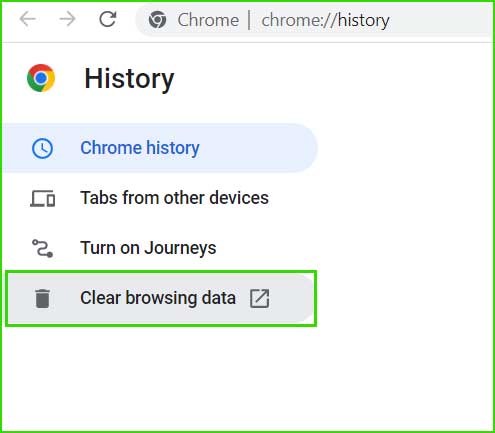
open_chrome_history
Step 3: Go to the Advanced tab and select All Time in the time range box, check the box for Cookies and Other Site Data and Cached Images and Files, then click the "Clear Data" button to remove the cache and cookies.
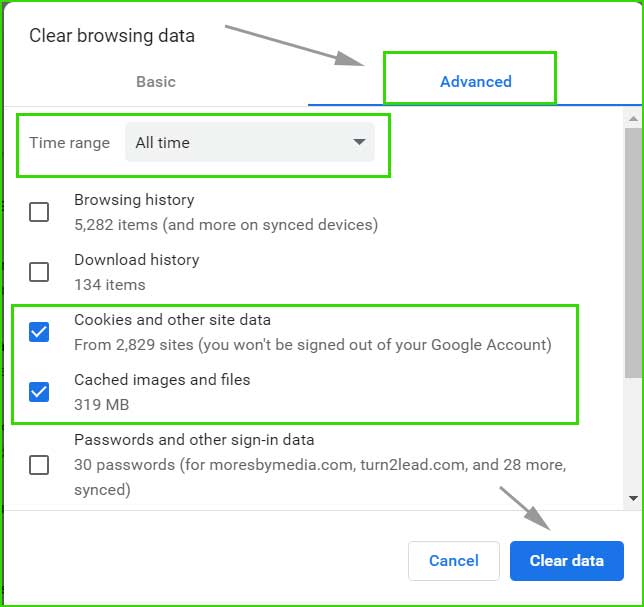
delete_cache_cookie_-chrome
Step 4: Reopen Chrome and try loading Google Classroom again.
Method 3: Clear Network Cache.
It's also essential to clear the network cache by flushing the DNS cache and resetting the Winsock catalog on Windows 8/10/11 and Windows Server.
Here's how to reset the network cache on Windows 8/10/11
Step 1: Open Command Prompt as an administrator.

Open Command Prompt as Administrator in Windows 8, 10, and 11
Step 2: Run the following command
ipconfig /flushdns
Step 3: Wait for the command to complete.
Step 4: Run the following command:
netsh winsock reset
Step 5: Wait for the command to complete, then restart your computer.
Step 6: Try loading Google Classroom again.
Method 4: Remove Unwanted Extensions from Chrome.
If you've installed too many unwanted and unused extensions in your Chrome, it's time to clean up Chrome from these unused extensions.
Step 1: Open Chrome on your computer.
Step 2: Click on the three dots ➜ More Tools ➜ Extensions.
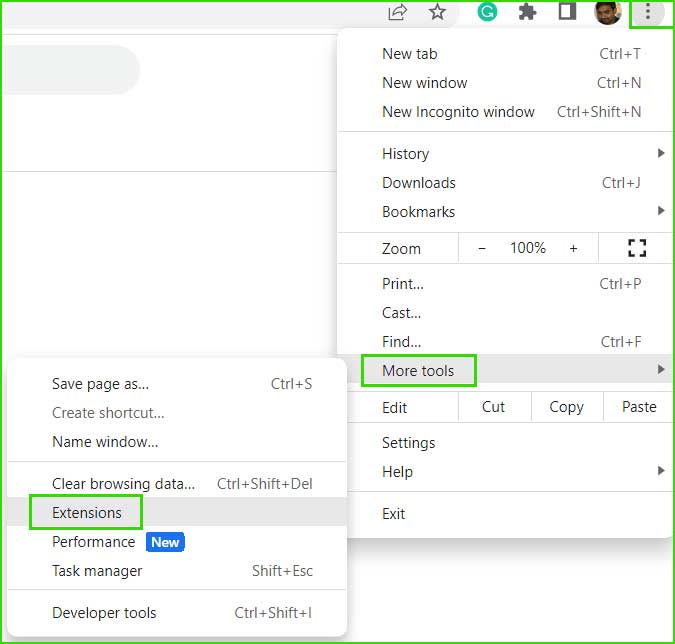
open_extension_chrome
Step 3: Remove any extension that is no longer in use.
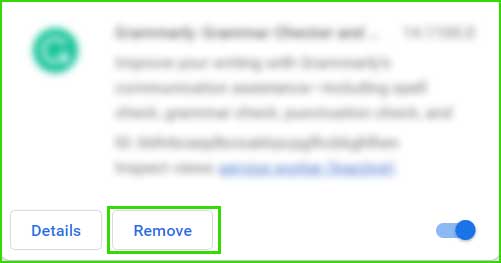
Remove_chrome_extension
Method 5: Restart Everything
If clearing the browser cache and network cache didn't help, restart all devices at once.
Restart your computer.
Restart the modem/router.
Method 6: Check Your Internet Connection
If your internet connection is weak, you will face difficulties loading Google Classroom. Check your internet status and speed before opening Google Classroom. To check your internet speed, there are many tools available online; you can visit fast.com to analyze your internet speed.
Method 7: Change Your Computer's DNS Settings.
You should also change your computer's DNS settings to resolve the Google Classroom issue. Who knows, changing the DNS settings might get Google Classroom loading again.
Step 1: Right-click on the Start menu and go to Settings.
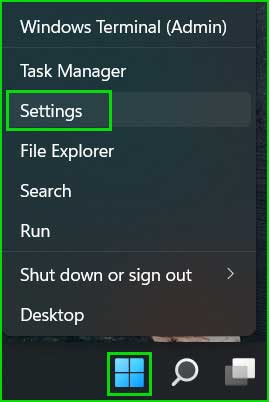
Open Windows 11 Settings
Step 2: Go to Network & Internet. Click on Properties.
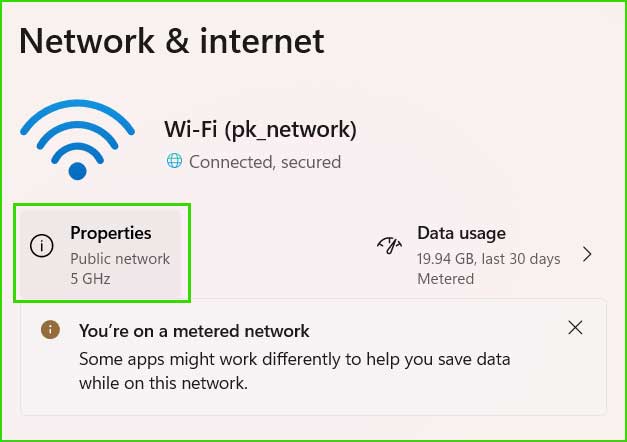
Network_properties
Step 3: Click the "Edit" button under DNS server assignment.
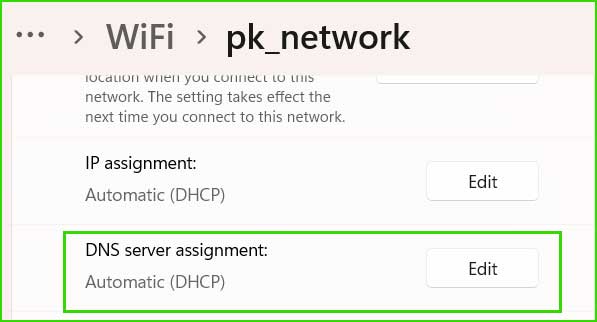
DNS_Server_signment
Step 4: Change from Automatic (DHCP) to Manual.
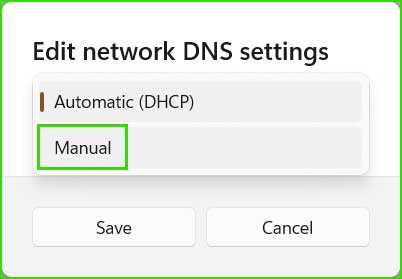
Automatic_to_manual_dhcp
Step 5: Turn on the IPv4 option.
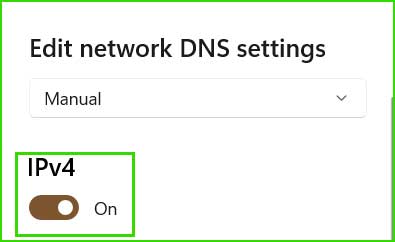
Turn_on_ipv4_address
Step 6: Now add the following Google DNS server IP address in the Preferred DNS and Alternate DNS columns.
| IP | 8.8.8.8 |
| DNS over HTTPS | On (automatic template) |
| Fall-back to plaintext | Off |
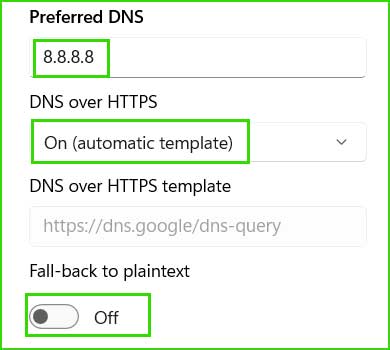
Favorite_dns_ip_setting
| IP | 8.8.4.4 |
| DNS over HTTPS | On (automatic template) |
| Fall-back to plaintext | Off |
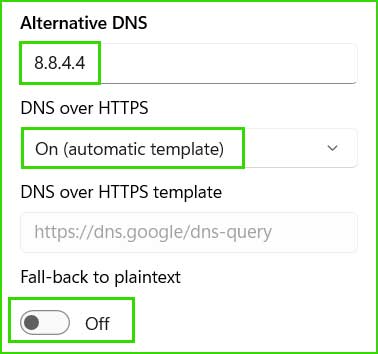
Alternative_dns
Step 7: Click the Save button after entering all the details.
Step 8: Try opening Google Classroom, and this time it should work.
Method 8: Reset Chrome Settings
Resetting Chrome settings may also help with fixing the Google Classroom issue. To reset Chrome settings, follow these steps.
Step 1: Open Chrome on your computer.
Step 2: Click on the three dots ➜ Settings. Go to the left navigation bar and look for the reset settings option. Then click on Restore settings to their original defaults.
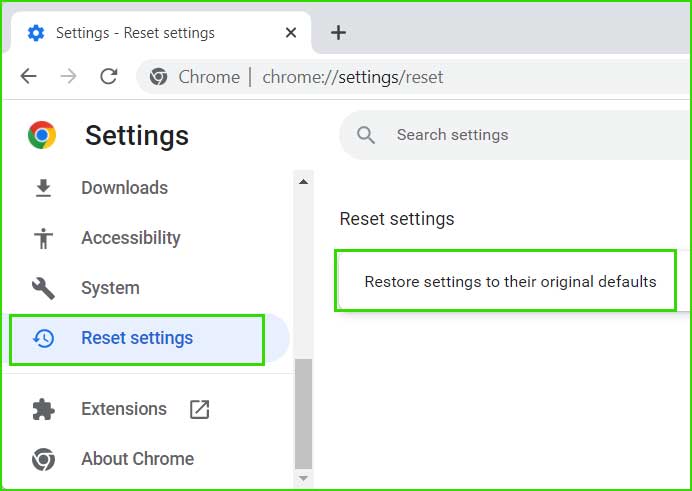
reset_google_chrome_settings
Step 3: Click on Reset settings.
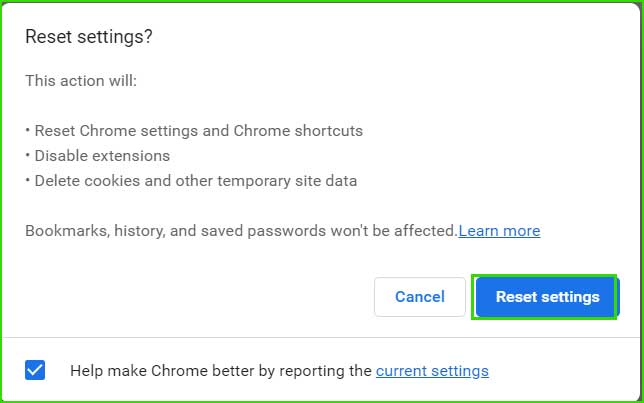
reset_settings_on_chrome
Method 9: Reset Chrome Browser
If none of the above methods worked for you, the last option is to completely reset the Chrome browser. You can reset the Chrome browser as follows:
Step 1: Close Chrome.
Step 2: Go to the following location:
C:\Users\User_Name\AppData\Local
Step 3: Find the Google folder.
Step 4: Rename it to Google_old.
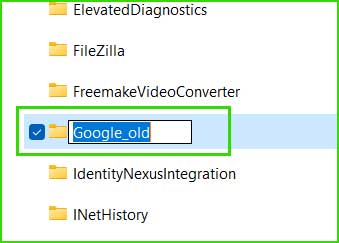
rename_google_folder
Step 5: Click on the Start menu and run Google Chrome. You will see that a new instance of Google Chrome is open.
Note: If you want to use the previous settings of Google Chrome, rename the Google_old folder back to Google and run Chrome.
Step 6: After resetting Chrome, you should be able to load Google Classroom without any issues.
Conclusion
In this article, we discussed 9 ways to fix Google Classroom not loading in Chrome.
These nine methods are useful for resolving the issue of Google Classroom not loading on Chrome. If your Google Classroom is stuck while loading, you can apply the solutions mentioned in this article.


