


File size: Unknown ⏬ Direct - File extension: APK - Display phone screen on computer
Display phone screen on computer
How to display your phone screen on a computer or laptop
In this post, we will explore the Wondershare MirrorGo program for displaying your phone screen on a computer
There are many programs that can perform this task, but I assure you that this one is the best and fastest
It does not require root access, but there are certain conditions that must be met on your phone if you want to display the screen on the computer, including enabling the developer option, which we will explain in detail in the following instructions
Instructions for adjusting phone settings to display its screen on the computer
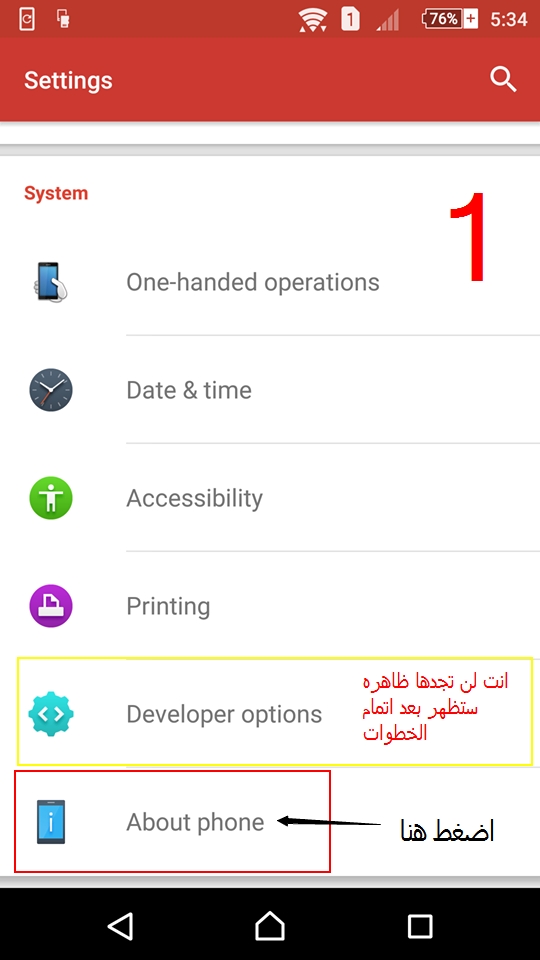
First, as mentioned, you need to enable the developer option. To do this, follow these steps:
Go to Settings
Then to About Phone
From there, go to the Build Number option, and start tapping it repeatedly 3 or 4 times
In the end, you will find that the developer option has been activated
You will enter the developer option and enable USB debugging, as well as verify apps over USB


You will enter the developer option and enable USB debugging, as well as verify apps over USB
Setting up the computer to receive the phone screen
After adjusting the phone settings mentioned earlier, we will now prepare the computer to receive the phone screen
The key is to download the free Wondershare MirrorGo program, as once you connect the phone
with a USB cable to the computer and run the program, it will start working immediately
The program is free, but during my use of it, I encountered an issue where a message suddenly appeared asking me to activate the program. All you need to do if that message appears is to disconnect the Wi-Fi from the computer and restart it
and that message will disappear


