File size: 1 MB ⏬ Direct - File extension: RAR - Identify connected devices on Wi-Fi and disconnect them
Welcome, dear followers
In this new post, we will learn how to identify devices connected to our Wi-Fi network and how to disconnect them or limit their upload and download speeds.
The above will be done using the SelfishNet program, which is quite effective in this area.
All you need to do is install the program in the usual way.
For the program to work properly, you will need to install another tool.
This tool, WanPacket, is included with the program and will start installing on your device automatically, or you can install it manually.
Now, let's begin the tutorial with images.
__________________ 1 ___________________
Run the program as an administrator.

___________________ 2 ______________________
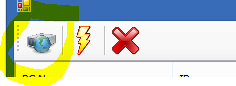
Click on the yellow icon to start the program's search for connected devices on your Wi-Fi network, as shown in the image.

When you click on one of the IDs present on the Wi-Fi network, several options will appear, which we will review one by one.
1: If you want to limit the speed for a connected device on the same network, you need to select its ID.
Then go to the download cap section and set the internet speed for that connected person as you wish.
The same applies if you want to limit the upload speed; just go to the upload cap section and set the desired upload speed.
2: If you want to block an ID from using your network's internet, go to the last option, which is block, and select the ID you want to block.
After that, you need to save the settings by clicking on the icon that looks like a clock, as shown in the image below.