


File Size: ⏬ Explanation - File Extension: . - How to Save and Restore a Backup of Your Device Drivers Without Software
Peace be upon you
Welcome to this new blog post where we will explain, God willing, how to save and restore a backup of your device drivers without using any software.
We will also learn how to use any of the drivers in case we need them.
Instructions with Images
First, go to the search box in the Start menu.
Search for Windows PowerShell.
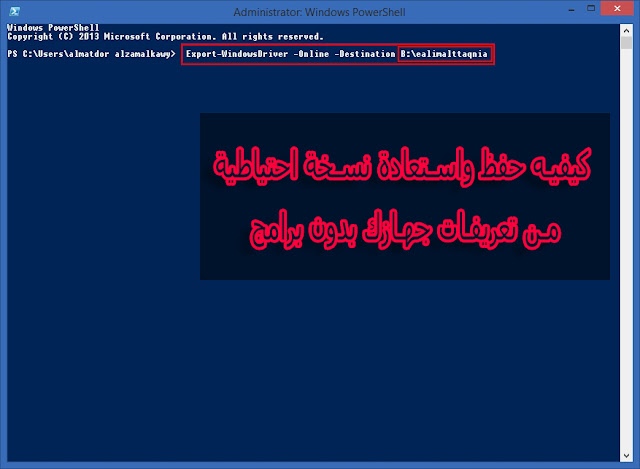
Then enter this path:
Export-WindowsDriver -Online -Destination B:ealimalttaqnia
You can replace the highlighted letter B with one of your device's drives or partitions, for example, E, where the driver files will be saved.
You can also write any name in place of the highlighted green word, which indicates the name of the file where the backup of your computer's drivers will be saved.
After entering the path in this box, all you have to do is wait until the backup of your computer's drivers is completed.
Once the backup is finished, if you want to use the version of the drivers you saved,
just go to the Computer icon, right-click on it, and select Manage.

Then go to Device Manager and select any of the components or drivers you want to update or install, right-click on it, and choose Update Driver Software.
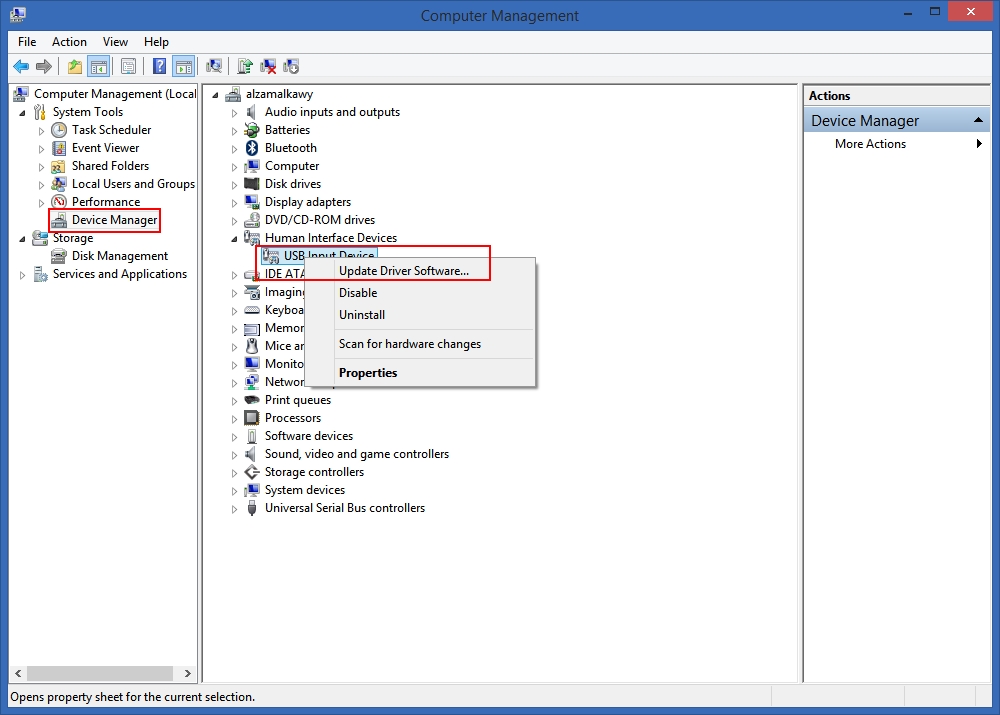
After that, a window like the one in the image below will appear. Click on Browse my computer for driver software.

Now, for the final step, specify the path where you saved your computer's drivers and select the driver file.
As shown below.


